Self Assessment takes instruments that have been created and displays them in a very user-friendly format. This is similar to data entry, except the display and flow of administration has been composed with participants in mind. There are several types of questions that can be administered in Self Assessment. These question types are determined at the time of instrument creation. Information about requiring questions and allowing participants to skip them can be found in the navigation article.
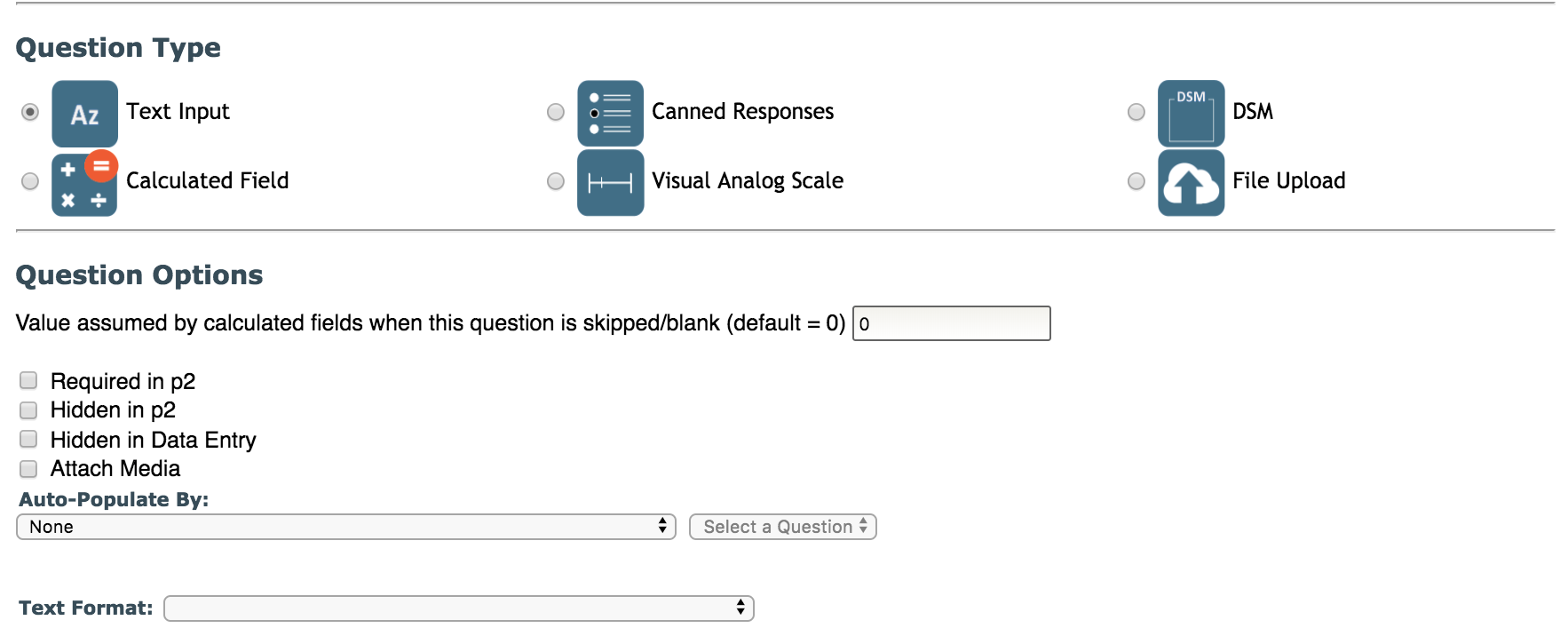
Text Input
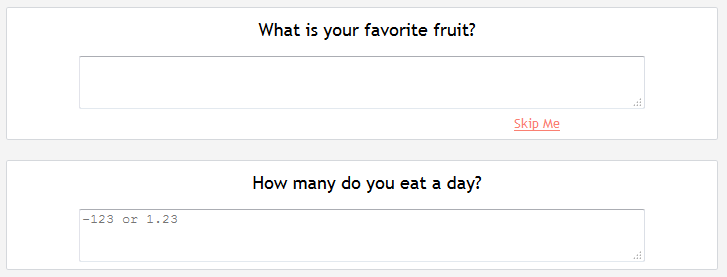
The most basic question type is text input. These text boxes will let the participant enter in text from the keyboard. Text boxes can be formatted to only accept certain types of text (ex: number, dates, etc.) and in this case will display a placeholder in them. These boxes are formatted to only accept text that is formatted similarly to the text placeholder shown.
In this example, you can see the first question has no formatting, so it will accept any text entered. The second question will only accept numbers, which can be negative and have decimals.
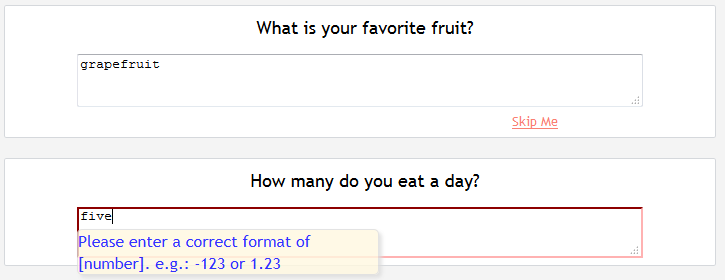
If the participant does not enter the text in the box as the formatting example suggests, they will be prompted to enter the text as shown and will not be allowed to move on.
List Generation
With this question type, participants are able to generate a list for text input questions. The participant will be presented with a text box and question text.

From there they will be able to enter text and click return/enter on their keyboards to add their text to a list below the text box.
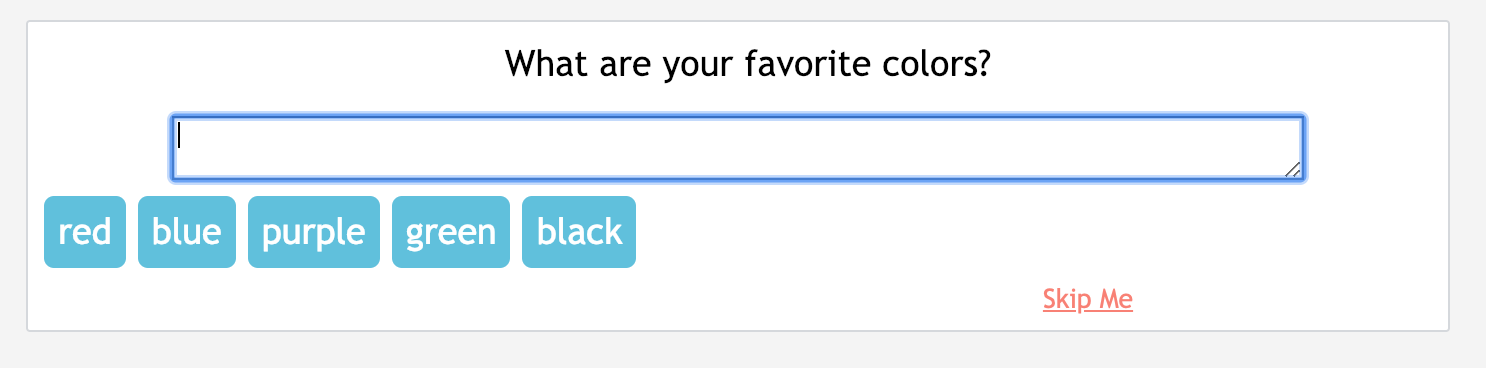
After their text is added, they will be able to remove the word(s) by clicking on the item they wish to remove. Once finished they can click Next Page to continue through the assessment.
Canned Responses
Another basic and commonly used question type is canned responses. Canned responses appear as radio buttons and only allow the participant to choose one response by clicking in the applicable bubble.

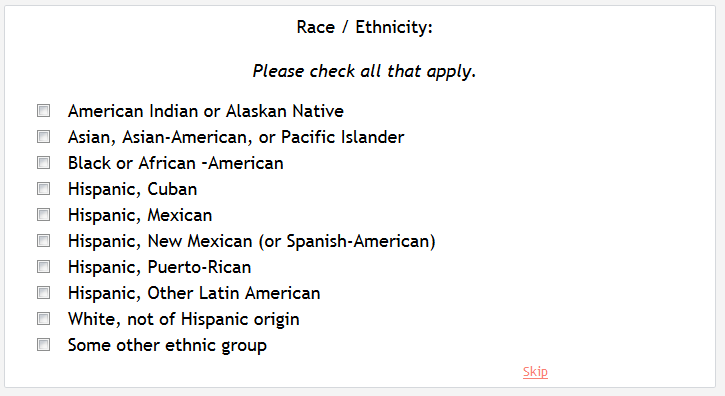
To allow the participant to choose more than one canned response, select the question option Allow more than one response (options will appear as check boxes) to create a check all that apply question. Now the participant can select as many options as they feel are applicable by clicking the boxes.
Both radio button and check all that apply question types can be made to ask the participant for more information about certain responses by enabling Ask user for more information about certain responses and selecting which response options this should apply to. This option is commonly referred to as Specify Detail. When an option that allows for specification is chosen, a text box will appear asking the participant to specify by typing in to the box.
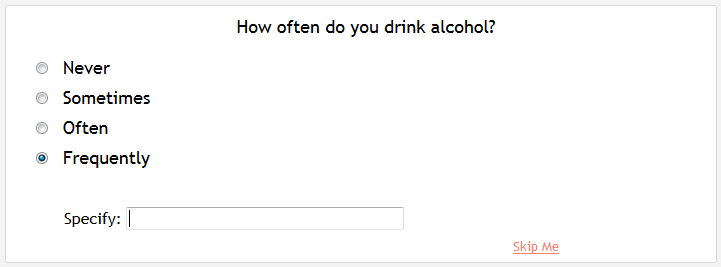
When creating questions, you can set as many or as little response options as you want to have specify detail. This option only works with the canned response question type.
Visual Analog Scales (VAS)
The VAS question type is a response scale or slider. It's very customizable with the many options provided.
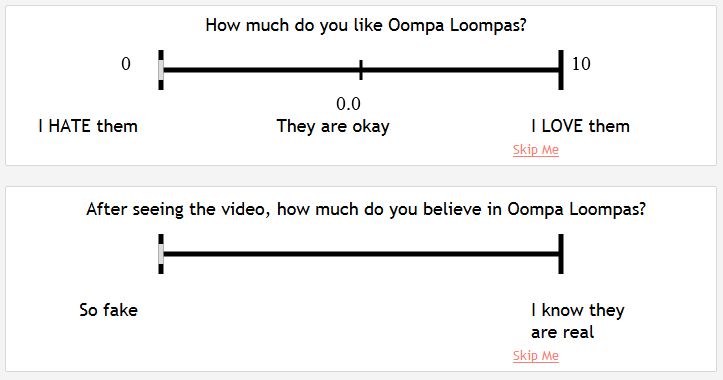
Participants can select a value by clicking anywhere on the scale. The scales are set to display values and labels when the question is created. Once a value has been selected, it can be changed if necessary by clicking Reset.
Attached Media
Videos and images can be attached to each of the text, canned response and VAS question types, allowing the participant to rate and respond to what they are seeing and hearing.

The VAS question type can also be configured for continuous recording with videos.
Likert Grid
Although the Likert Grid is technically a section type, questions in this section do have their own unique style. Since this is a section, any wording for questions can be added to the section description and will be displayed at the top of the page. Select how many questions are listed on the grid by choosing how many questions should be displayed per page.

Participants can select one option per question by clicking the appropriate radio button. Questions can be skipped by selecting the skip text.
Table Sections
A Table Sections is another type of section that has a distinct look and use. Like the Likert Grid, any wording for questions can be added to the section description and will be displayed at the top of the page. Unlike the Likert Grid, the number of questions per page has no bearing on how the table is displayed. All rows and columns will always be shown regardless of how many questions per page is indicated.
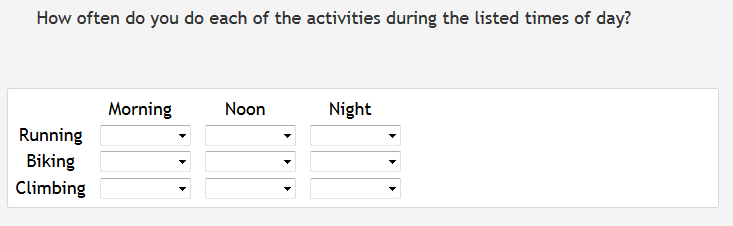
Tables support text input and formatting, single option canned responses or a combination of both. Check all that apply and specify detail are currently not supported by table style sections.
Skipping of table questions is a different than the way all other questions are skipped. If the table questions are required, every table cell must be answered, as is true for all sections. However, if they are not required, any cell in the table can be skipped without having to click Flag for Staff Review and Continue>>, as you have to with other sections types. The instrument's setting for All Required/Optional In Participant Portal determines if the questions are required or optional. If the table cell has the text "optional" under it, it can be skipped without any other actions. If it is not marked as optional, it is required.
Timed Sections
When completing an assessment with timed sections, there will be a countdown timer in the top right corner of each page that will show participants how much time they have to complete the section.
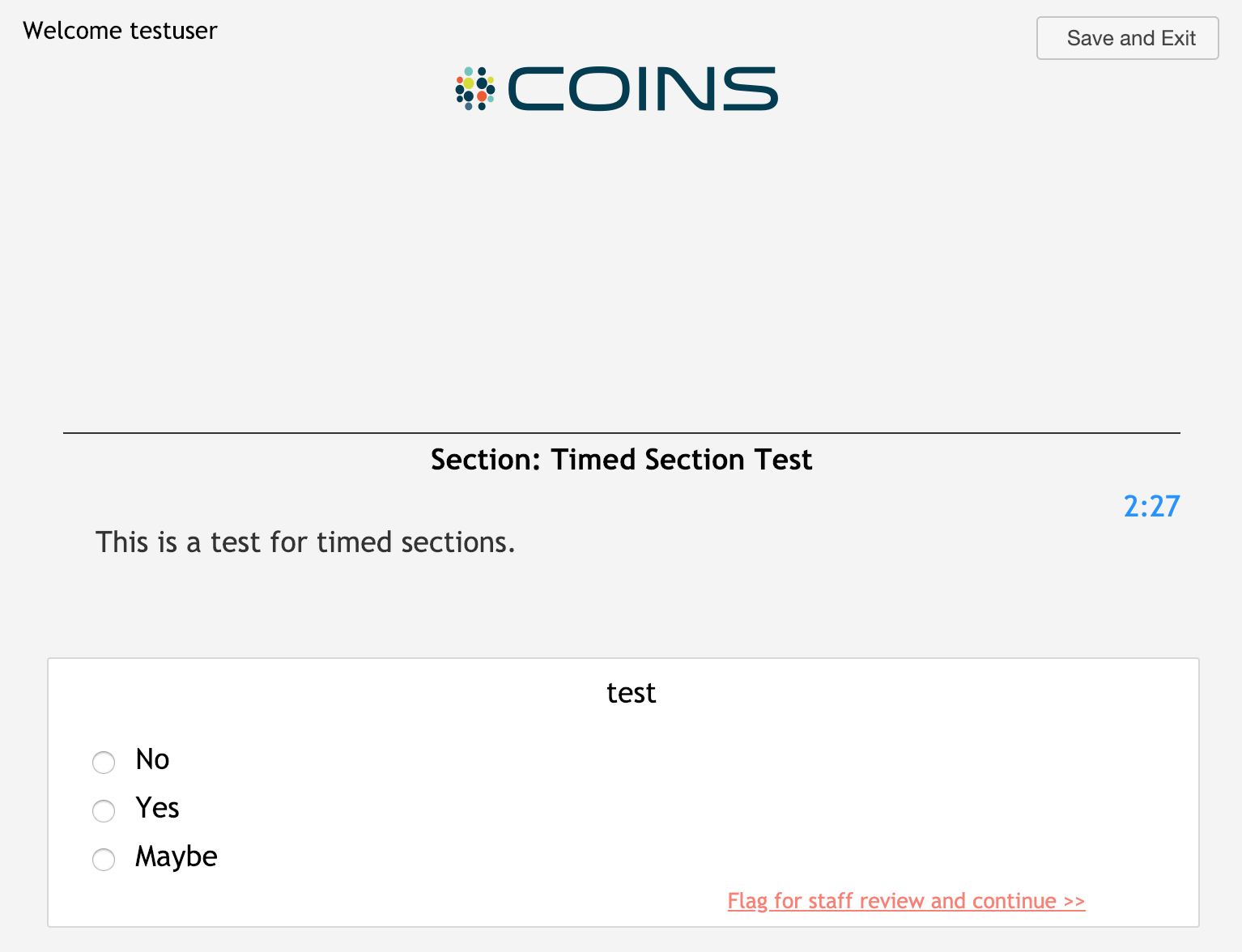
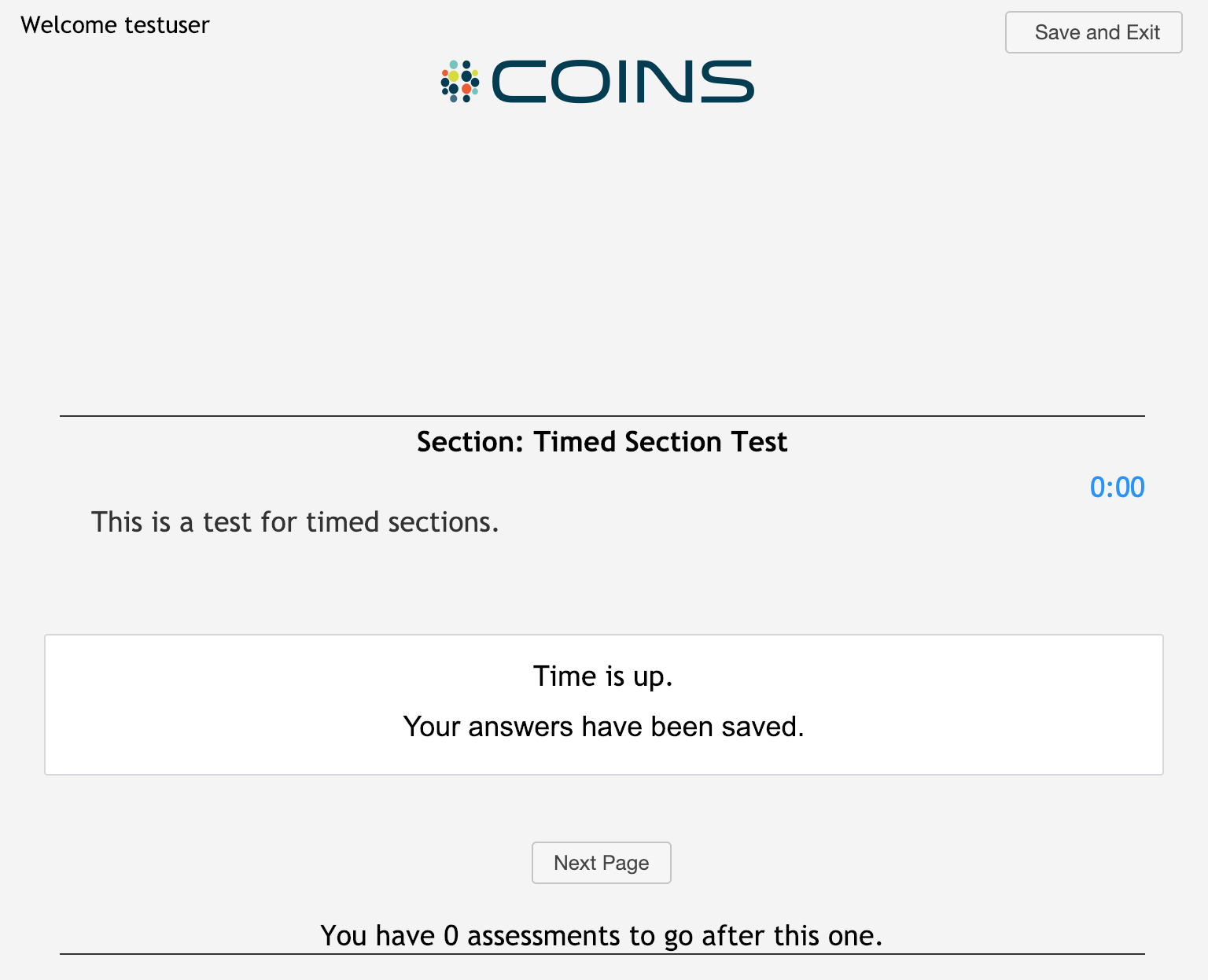
If a participant does not answer all of the questions in the time allotted, they will be told that their time is up and that their answers have been saved.
Question Types Not Supported In p2
There are a few question types that are not displayed in p2 or have compatibility issues.
- DSM (Diagnostic and Statistical Manual) - This question type is used to record diagnoses, which is not applicable for the participant. This question type will only appear in data entry.
- Calculated Fields - Automatically calculated fields do work with response from p2, but they are hidden from view as they are in data entry. They are displayed in the Review Queue with the calculated values.
- File Upload - This question type is for study staff to upload documents or files that might be applicable to an assessment. To prevent sensitive data from being uploaded to assessments, this question type has been restricted to data entry only.
- Side-by-Side Sections - Although question in the side-by-side section are displayed well in data entry, their formatting does not render properly within p2. Since this is a cosmetic issue, side-by-side question can still be used in p2, but it is recommended that table style sections be used instead if the instrument will be administered as a self assessment. Additionally, the response duplication feature offered in side-by-side sections is not available in p2.
Conditional Jumps
If a question is set up to have conditional jumps to skip participants passed questions that are not applicable, when the condition is met to skip the question it will be disabled. Now the participant will not be allowed to respond to the question, but will still be able to move forward.
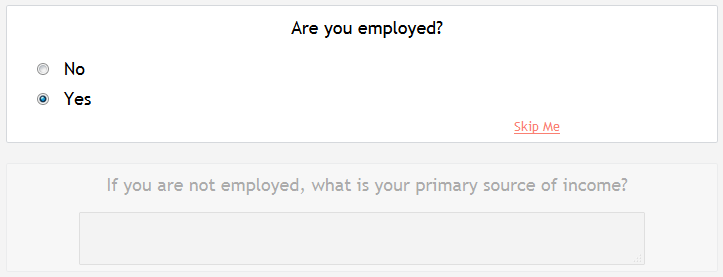
Instruments can also be configured, from the instrument options, to hide skipped questions, instead of graying them out. This give study staff the ability to hide questions and only show them to the participant if they are applicable.
Comments