Scoring and other calculations are used in many questionnaires to help researchers diagnose and categorize participants. Formula type questions, or calculated fields, can be used to automatically execute a given formula once an assessment has been completed. Formula question types work by allowing for user-defined equations, consisting of responses to questions in the same instrument along with basic logic operators. Note: This question type is never displayed in Data Entry or Self Assessment.
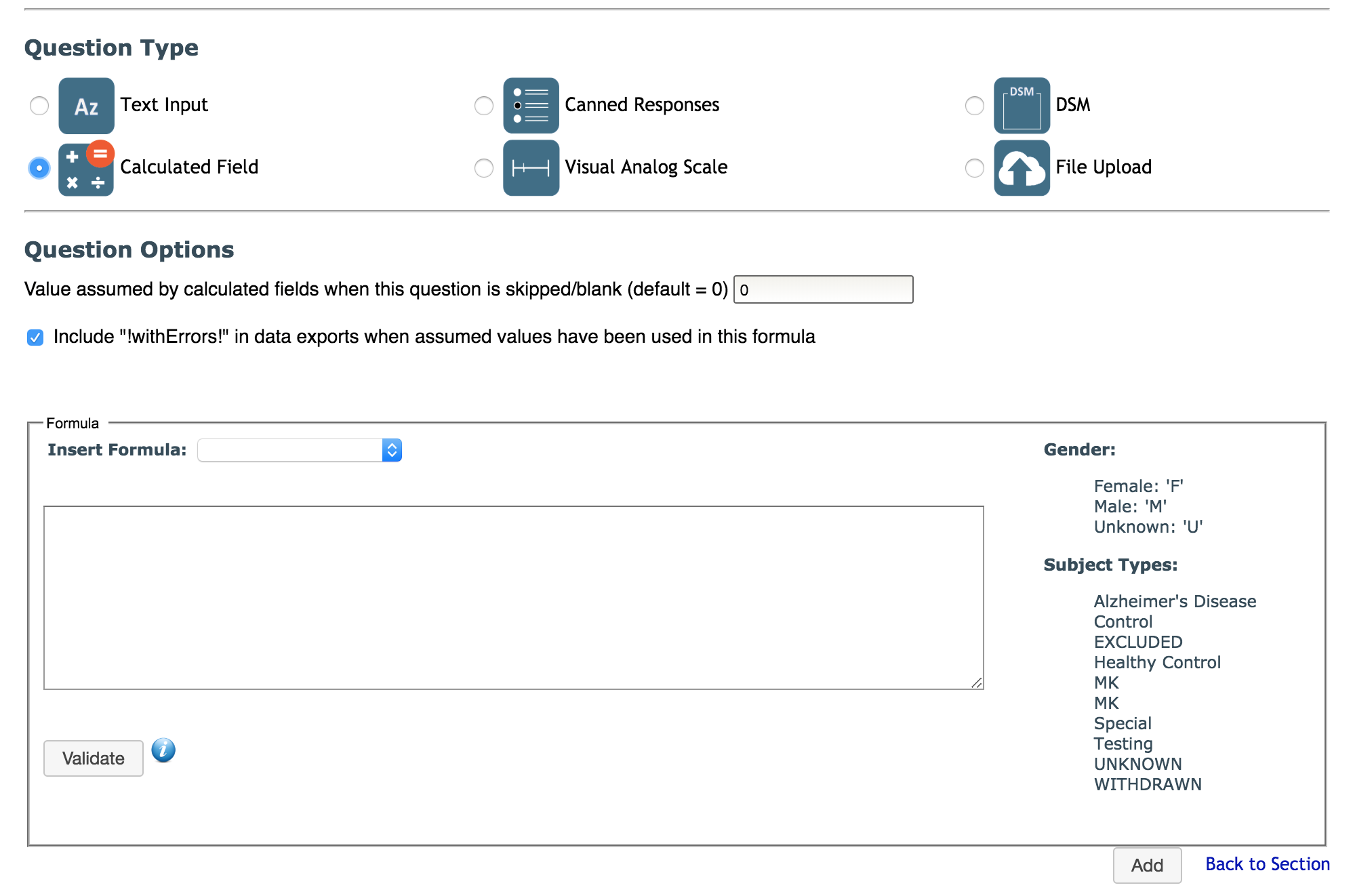
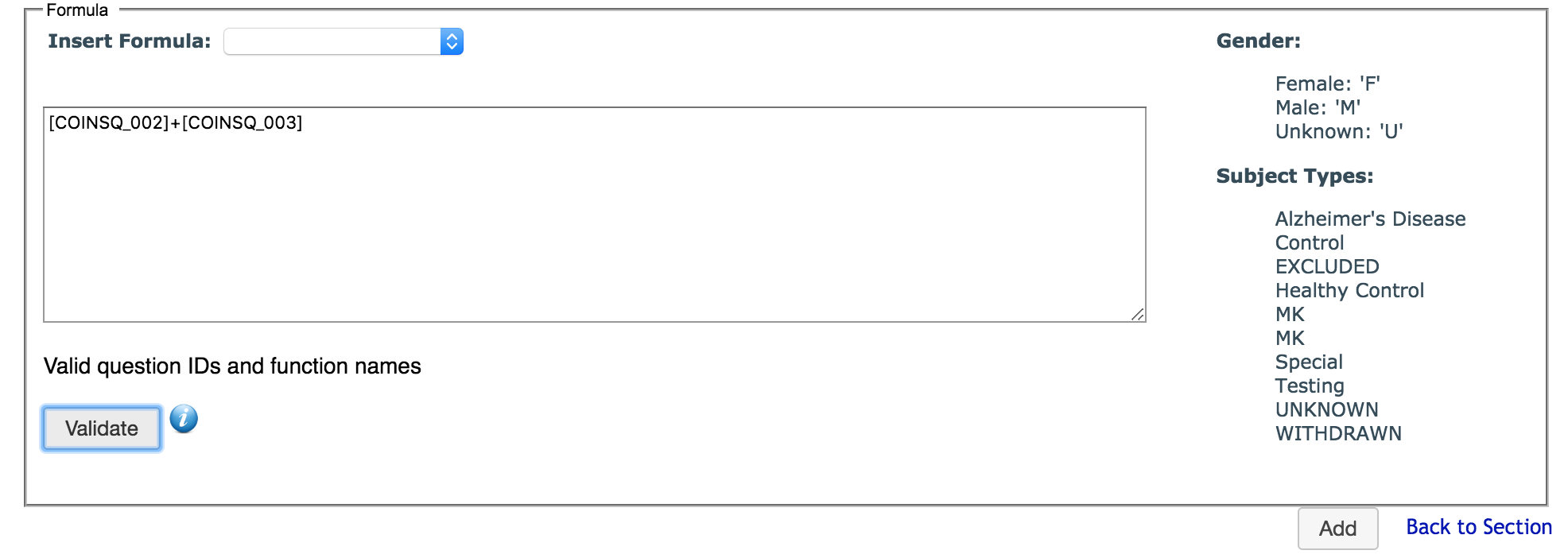
When selected as the question type, you will notice the Question Response Values will change to a Formula box. This is where your formulas are input. You can either enter the calculations manually or use the formula builder by clicking the drop-down next to Insert Formula.
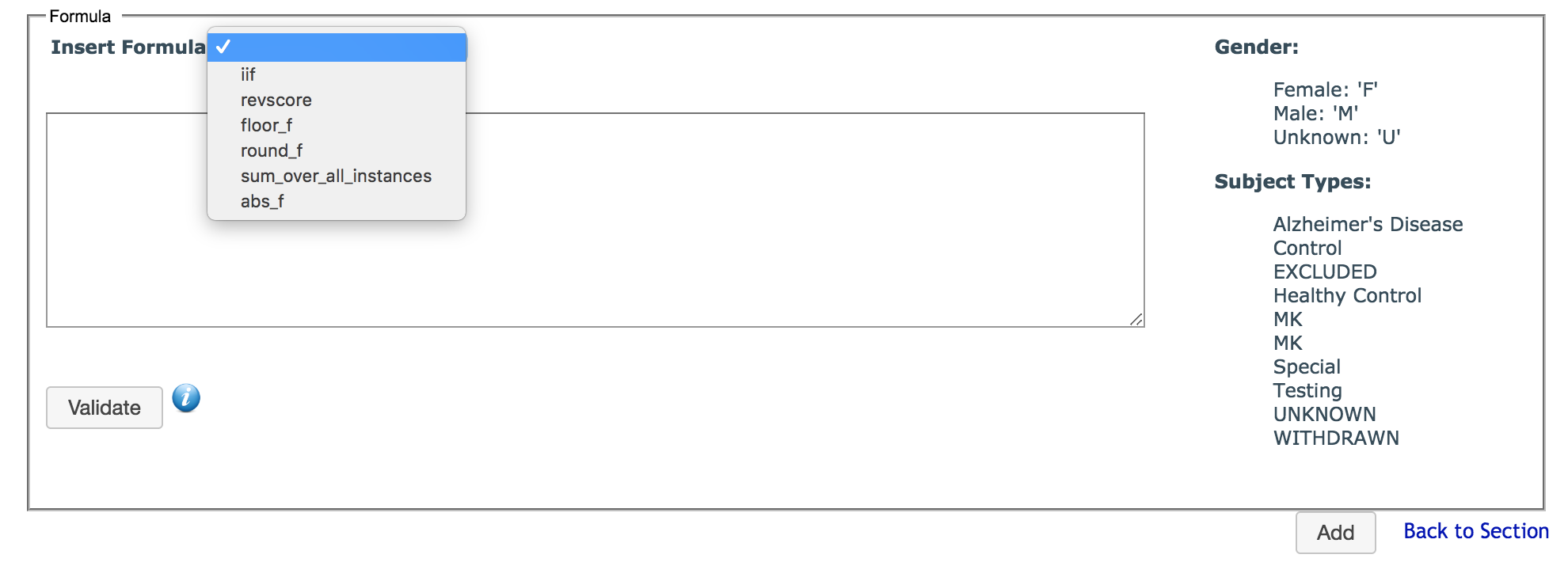
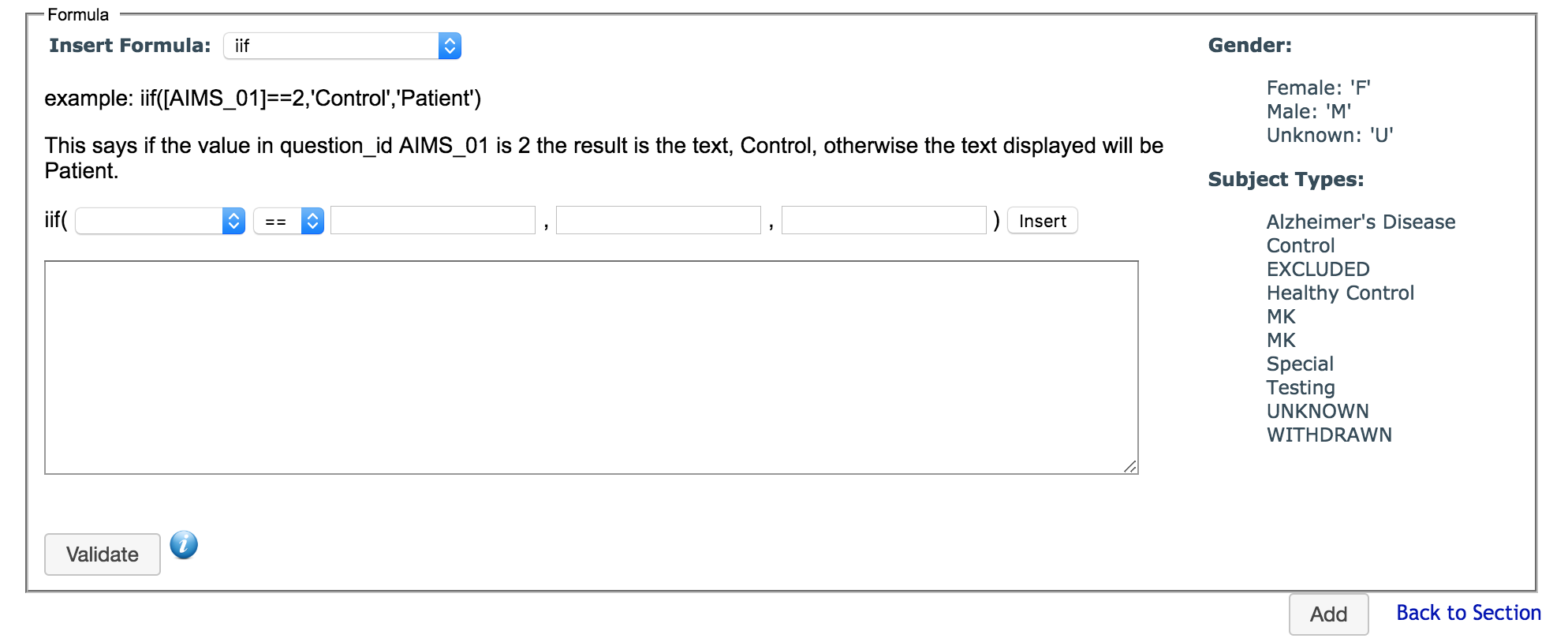
The Insert Formula drop-down will list possible formulas you may want to use. When you select a formula, you will be given an example and a short explanation of how the formula works.
You can also use Gender and Subject Type as variables in your calculated field formulas. To the right of the formula box, you will see Gender and Subject Type keys that are specific to your study. If you would like to use Gender or Subject Type in your formula, review the key to make sure that you are using valid gender and subject type options.
When entering calculations manually, it's important to note that calculated fields support basic operators like addition, subtraction, multiplication, division and if/then formulas. When creating a formula for an instrument you can only use question IDs from that instrument. Question IDs must be put in square brackets (e.g., [CGI_01]) if want to include them in your formula. To use a question from another instrument, you can create an autopopulated question in the instrument the formula question is in and populate in the desired response from the different instrument.
Note: All instruments will be able to use [AGE] as a variable in calculated field formulas. [AGE] is the age of the participant on the date that they completed an assessment. If you would like to use this variable in a calculation, simply include [AGE] and the formula you would like to compute with it. The following is an example of a formula that utilizes the age variable: [AGE] - [ACQNITEST_008]. In this case, the result will be the participant's current age minus the value of ACQNITEST_008 (participant's age when they consumed their first alcoholic drink). This will provide the number of years since the participant's first drink.
Once you have inputted the correct formula select Validate. If your formula is not valid you will receive a message indicating the reason.
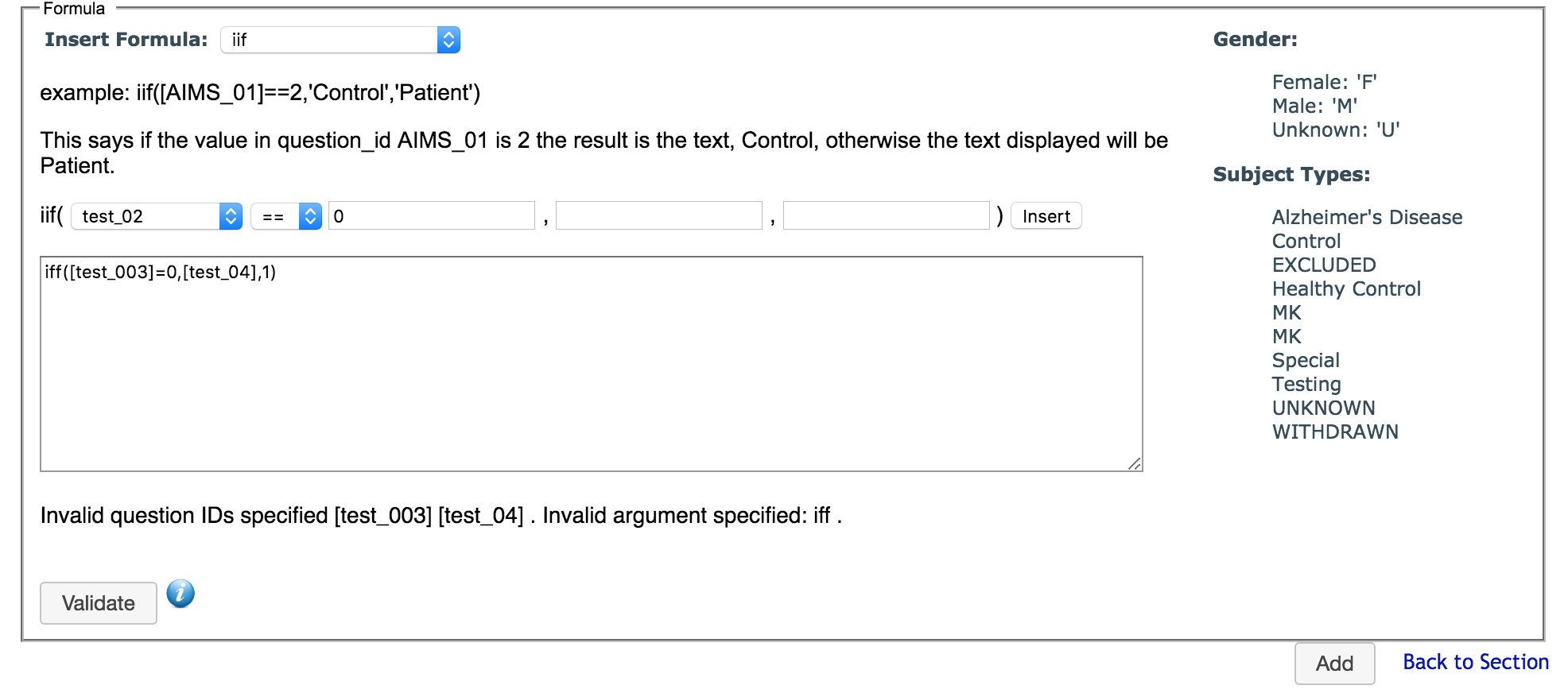
The validator will check if the question IDs that are given exist in the instrument, as well as the validity of the evaluation operators provided. The validator does not check if you have the correct amount of parentheses or if you are missing required operators. If your formula is valid you will receive a Valid message. When you are satisfied with your formula click add.
After an assessment is completed in Data Entry or from Review Submissions, the calculation results will be displayed as well as any errors. If the calculation results are blank, it is a very good indication that the calculation formula has a syntax error. Calculations are executed when a participant:
- completes an assessment from their queue
and when a user:
- completes a 1 record
- completes a 2 record
- completes conflict resolution
- completes a record from the Review Queue
- completes a record from the ASMT search
- sends an assessment to the Review Queue from ASMT search
- send an assessment to the Review Queue from Manage Subject Queues
Additionally, each time a formula question is updated, you will be asked if you would like to recalculate your existing assessments.
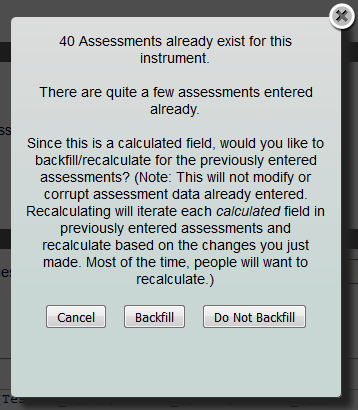
Click Cancel to stop the update of the question, click Backfill to recalculate all existing data for this instrument, including assessments for studies this instrument is shared with, or click Do Not Backfill to update the question without changing existing data. If you choose to Backfill the data, results of the recalculation will be displayed. Again, if these results are blank, it is a good indication that there is an error with the formula.
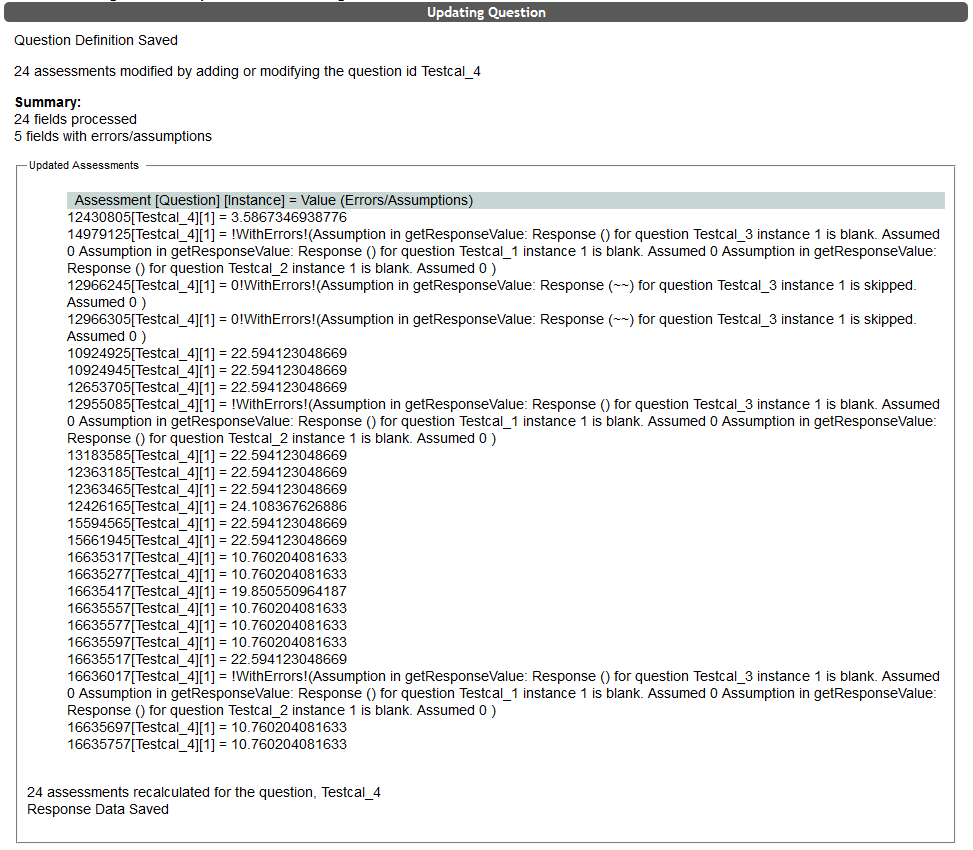
If a formula has bad syntax, the error will be seen in the result.
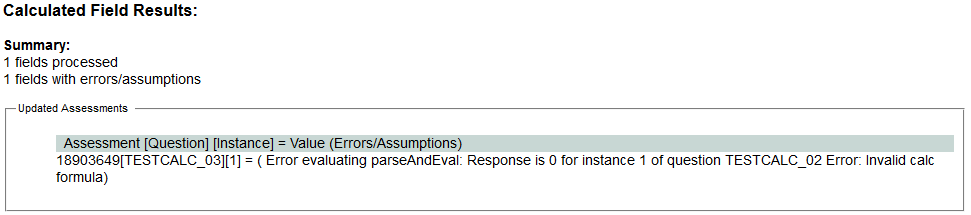
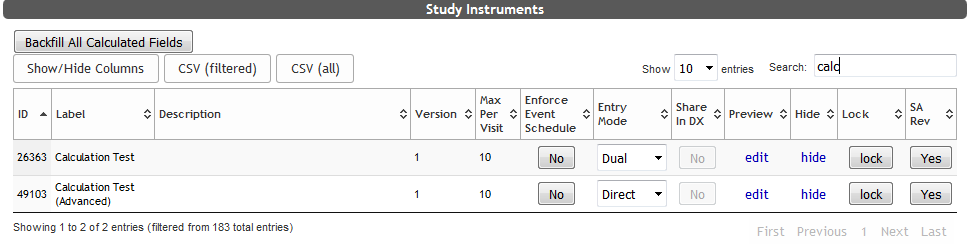
Assessment's calculations can also be updated at any time by clicking Backfill All Calculated Fields on the List Instrument page.
This question type can also be customized by setting the value assumed by calculated fields when this question is skipped/blank (default = 0): this field sets the value of a question if a subject skips the question or if it is left blank. The default for this field is 0. Upon export, any calculated results that included an assumed value will be flagged to indicate an error (details on how to disable this flag are below). It is important to understand that for chained calculations (a calculation formula that includes results of another formula question) if the first calculation contains an assumed value (an error) then the value for that question will default to the skipped/blank value provided. The calculation will not use the value that contains an error.
Let's assume we have the following formula for question id [AWARDNI_006] which has a skipped/blank value of 0:
[AWARDNI_001]+[AWARDNI_002]+[AWARDNI_003]
- [AWARDNI_001] = 1
- [AWARDNI_002] = 1
- [AWARDNI_003] = was skipped and the skipped/blank value is 0
The result of the calculation will be 2!WithErrors!. If this calculation is used as part of another calculation the skipped/blank value of 0 will be used since the result of [AWARDNI_006] has an assumed value (we are assuming the answer is 2 since [AWARDNI_003] is missing data). Now let's imagine we have the following formula for question id [AWARDNI_007] which has a skipped/blank value of 0:
[AWARDNI_004]+[AWARDNI_005]-[AWARDNI_006]
- [AWARDNI_004] = 2
- [AWARDNI_005] = 1
- [AWARDNI_006] = 2!WithErrors! and the skipped/blank value is 0
The result of the calculation for [AWARDNI_007] will be 3!WithErrors! because the value of 0 will be used for [AWARDNI_006]. This calculation will not result in 1!WithErrors!.
As stated above, the "!WithErrors!" flag is a tool used to alert the researcher when a calculation includes fields that did not contain data. This is the default setting. If you would like to disable the "!WithErrors!" message, click the checkbox next to the text.

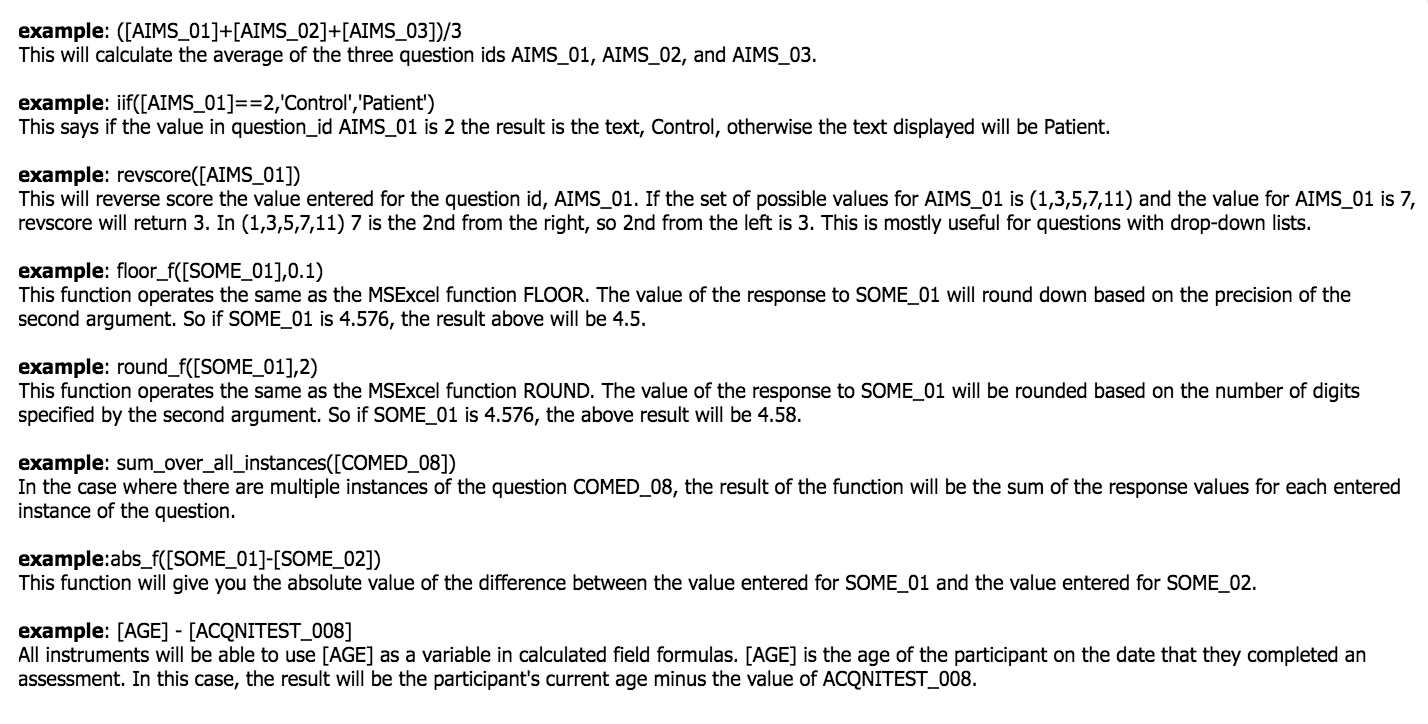
If you would like basic examples of possible formulas click the blue information button next to the Validate button.
Here are some additional tips:
- All multiplications must be explicitly written with a * logic operator. Implicit multiplications like
([test_01]+[test_02])3will not execute. The correct syntax would be[test_01]+[test_02])*3 - As noted above, chained calculations will not execute correctly if a dependent formula result contains errors or assumed values.
ANDandORlogic an be performed with nested if statements. Here is a nested if statement that checks anANDcondition:iif([PDSR_009]==4,iif([PDSR_In this statement, if [PDSR_009] = 4 and [PDSR_007] = 1 then the result will be a 3, otherwise a 0 will be returned. An007]==1,3,0),0) ORstatement would be set up similarly:iif([PDSR_009]==0,5,(iif[PDSR_007]==0,5,10),10)In this statement we are saying if [PDSR_007] or [PDSR_009] = 0 then return 5, else return 10.- If statements can return a question's value:
iif([test_01]==0,1,[test_01]). Here the statement is saying if [test_01] = 0 then return 1 else return the value for [test_01] <>is the does not equal operator.
Although only basic logic operators can be used, formulas can become very complex. Nesting iif statements can be used to achieve may types of logic. Here is a more advanced example of nesting:
iif([ACTNI_001]==-1,0,[ACTNI_001])+iif([ACTNI_002]==-1,0,[ACTNI_002])+iif([ACTNI_003]==-1,0,[ACTNI_003])+
iif((iif([ACTNI_001]==-1,0,1)+iif([ACTNI_002]==-1,0,1)+iif([ACTNI_003]==-1,0,1))<>3,(((iif([ACTNI_001]==-1,0,[ACTNI_001])+iif([ACTNI_002]==-1,0,[ACTNI_002])+iif([ACTNI_003]==-1,0,[ACTNI_003]))/(iif([ACTNI_001]==-1,0,1)+iif([ACTNI_002]==-1,0,1)+iif([ACTNI_003]==-1,0,1)))*((iif([ACTNI_001]==-1,1,0)+iif([ACTNI_002]==-1,1,0)+iif([ACTNI_003]==-1,1,0)))),0)
This formula is actually being used to detect missing data for questions [ACTNI_001], [ACTNI_002] and [ACTNI_003]. If missing data is detected, then the formula is finding the average of the data present to use in it's place. In this example, the skipped/blank value is set to -1 because -1 is not a possible answer for any of these questions. This is the breakdown of the formula:
In the first step, we are check if the value of each question is missing (-1). If it is not, then we are adding the question's value. iif([ACTNI_001]==-1,0,[ACTNI_001])+iif([ACTNI_002]==-1,0,[ACTNI_002])+iif([ACTNI_003]==-1,0,[ACTNI_003])+
In this second step, we are counting how many questions have actual values (does not equal -1). If that amount does not equal our total number of questions, 3, then we know one of the questions has missing data.iif((iif([ACTNI_001]==-1,0,1)+iif([ACTNI_002]==-1,0,1)+iif([ACTNI_003]==-1,0,1))<>3,
For step 3, if a question has missing data, we will then again find the sum of the answered questions as we did in step 1. (((iif([ACTNI_001]==-1,0,[ACTNI_001])+iif([ACTNI_002]==-1,0,[ACTNI_002])+iif([ACTNI_003]==-1,0,[ACTNI_003]))
In this fourth step we will divide the total from step 3 by the number of answered questions, giving us the average for questions that have been answered. /((iif([ACTNI_001]==-1,0,1)+iif([ACTNI_002]==-1,0,1)+iif([ACTNI_003]==-1,0,1)))
Step 5 will now count the number of missing responses and we will multiply the number of missing by the average for the non-missing responses. This will effectively substitute the missing responses with the average for the non-missing responses. *((iif([ACTNI_001]==-1,1,0)+iif([ACTNI_002]==-1,1,0)+iif([ACTNI_003]==-1,1,0))))
This last piece will tie up the start of the iif statement that checks for missing responses in step 2. If there is no missing data, then we will add zero to the non-missing data. ,0)
Comments