If you would like to see a list of all of the instruments in your study select List Instruments from the Instruments menu.
From here you can search for instruments, re-calculate all calculated fields for the instruments by clicking Backfill All Calculated Fields, and edit your instrument preferences. The List Instruments table has many built-in features to help users customize and retrieve needed information.
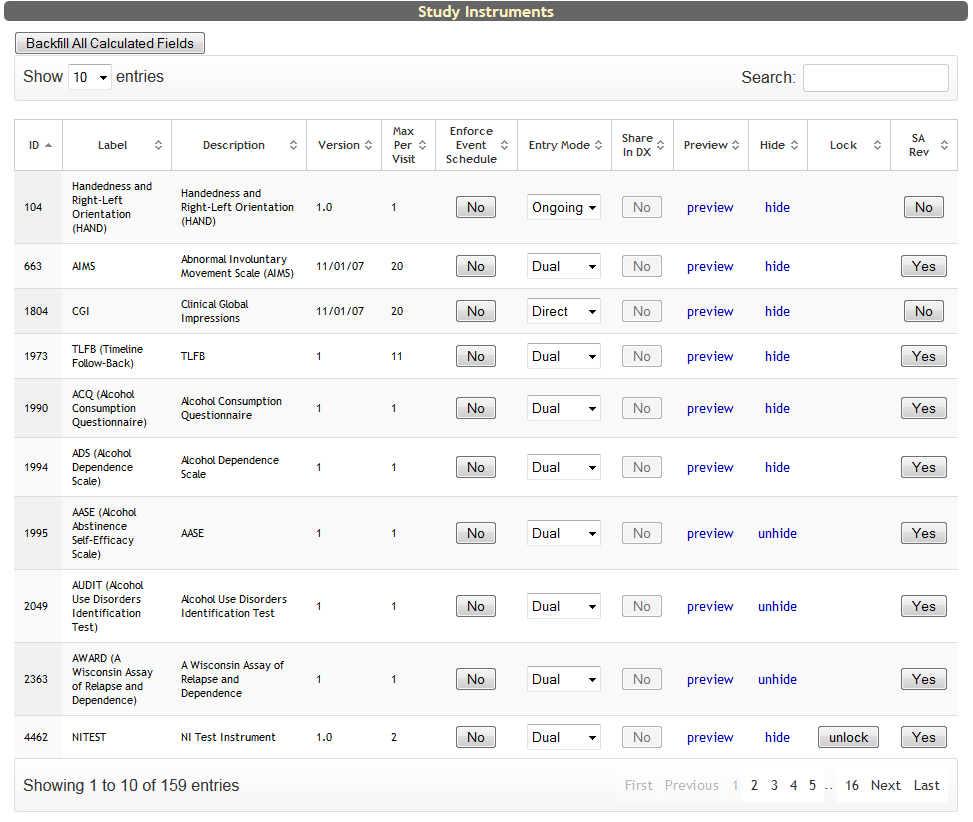
You will notice that each instrument has several options next to it.
Enforce Schedule of Events can be toggled off and on by clicking the Yes or No button next to the instrument. This will allow the instrument to only be administered for visits that have this instrument included in the visit's Schedule of Events.
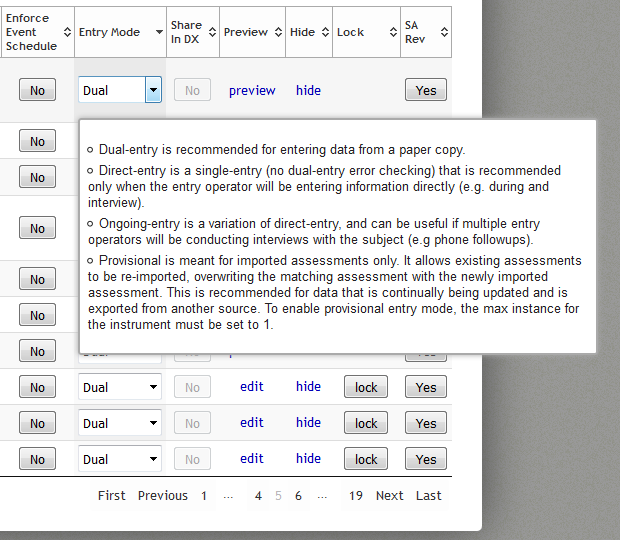
Staff Entry Mode allows you to choose if the assessment will be ongoing, direct or dual entry.
- Dual Entry - This instrument has been configured for dual entry. This means the entry requires two entries and conflict resolution (if there are mismatching fields). It should be used for any assessments that have been collected on paper.
- Direct Entry - This instrument has been configured for direct entry. This means that the entry will be marked as complete without being checked with a dual-entry process. This should be used when interacting directly with a participant, when data collection is interview style. Please be sure that all information is entered accurately. This mode only requires one entry. It should be used while interacting directly with the participant. It should not be used if entering data from paper.
- On-going - This instrument has been configured for ongoing direct entry. This means that other study personnel will be able to resume entry on this assessment until it is completed. This mode also only requires one entry. It should be used while interacting directly with the participant. It also can be used for assessments that are collected throughout a study by multiple entry operators. It should not be used if entering data from paper.
- Provisional - Provisional is meant for imported assessments only. It allows existing assessments to be re-imported, overwriting the matching assessment with the newly imported assessment. This is recommended for data that is continually being updated and is exported from another source. To enable provisional entry mode, the max instance for the instrument must be set to 1.
Share in DX allows the instrument to be shared in Data Exchange if permissions allow. This can be toggled off and on by clicking the Yes or No button next to the instrument.
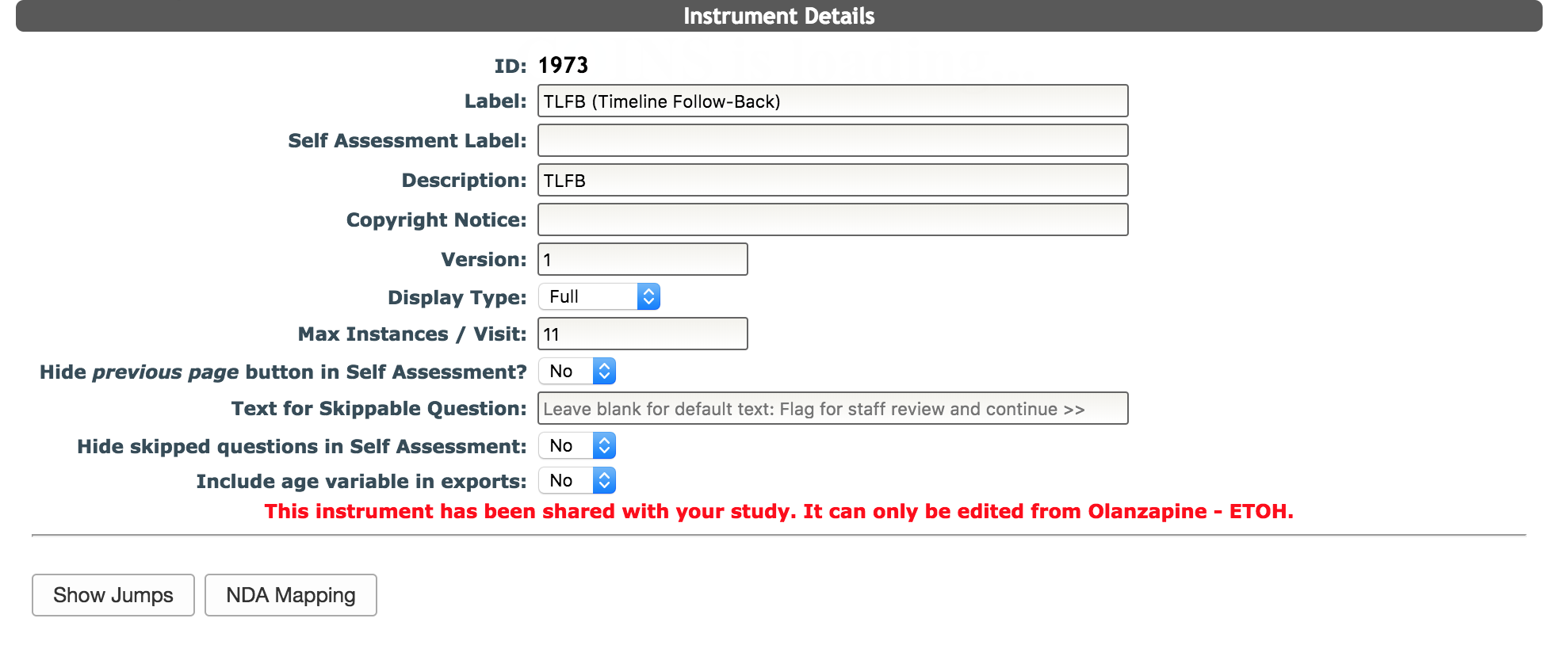
Each instrument will either have Edit or Preview next to it. If the study is the owner of the instrument you will see Edit, allowing you to edit the instrument (add/remove/edit questions or sections). If you see preview, this means the instrument has been shared with this study from another study and can only be edited in the study that has ownership of the instrument. You can see which study owns the instrument by clicking Preview. This will take you to the instrument details page which will note the owner of the study at the bottom in red. Note: If you are the owner of a shared instrument, any changes made to the instrument will also change the instrument in all shared studies.
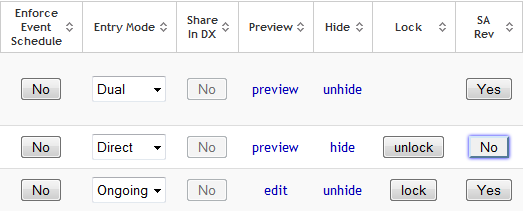
Select hide to hide an instrument from the data entry list. This means that the instrument is still available to the study but not available to have data entered into it. You can unhide any instrument that is hidden by selecting unhide next to the instrument. Note: This does not hide the instrument from the Self Assessment instrument list.
If you are the owner you can choose to lock or unlock an instrument. If the instrument is locked it will prevent others from editing the instrument. You must have certain permission levels to be able to lock and unlock instruments.
Finally, you can also customize if the instrument is required to go through the Self Assessment Review Queue process. Toggle the SA Rev button to choose the behavior of the Instrument. If SA Rev is set to Yes, all assessments for that Instrument will go to the Review Queue when completed in Self Assessment. If it is set to No, when assessments for the Instrument are completed in Self Assessment they will not be sent to the Review Queue and will be considered automatically complete with no staff review needed.
Comments