After a subject has completed all of the assessments in their queue, study staff can review the data that the participant entered by going to Review Submissions from the Self-Assess menu.
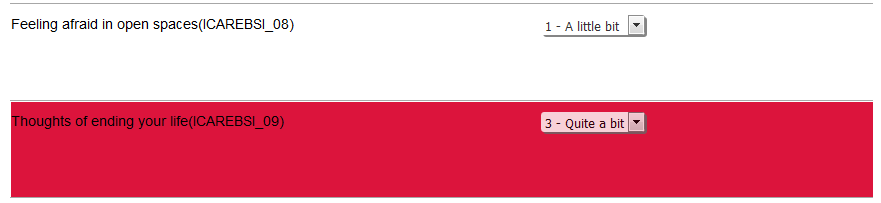
All Self-Assessments that have be finished by the participant but need to be reviewed by study staff and completed will be listed. Assessments with questions that have critical flags will appear in red.
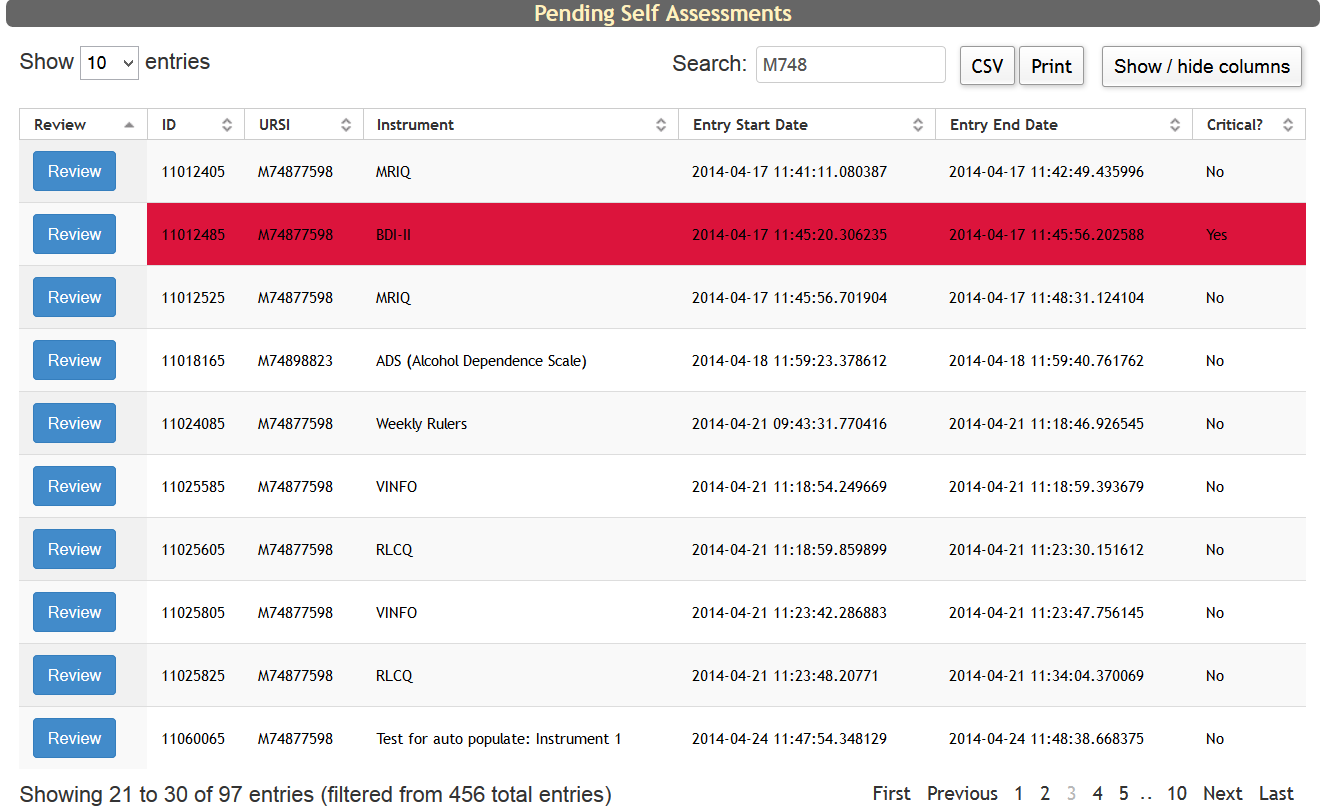
The Review Queue table has many built-in features to help users customize and retrieve table information. This table also has Subject Tags and Subject Type columns that are hidden by default. PHI Subject Tags will not be shown or exported from this table. Choose which columns to display by selecting Show/hide columns and checking the items you want listed on the table.
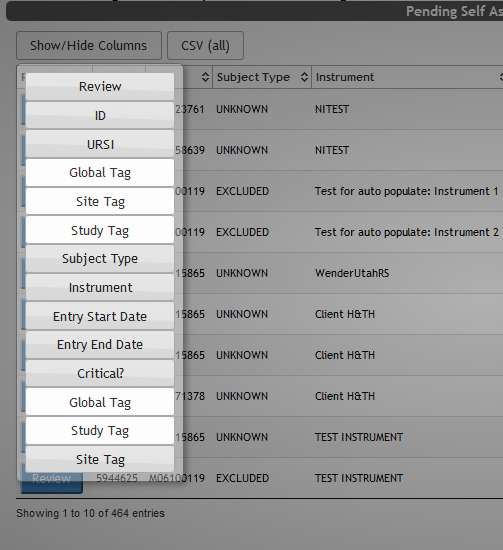
The tags or types will now be shown in the table.

Click Review to begin, you will be directed to the cover sheet page.
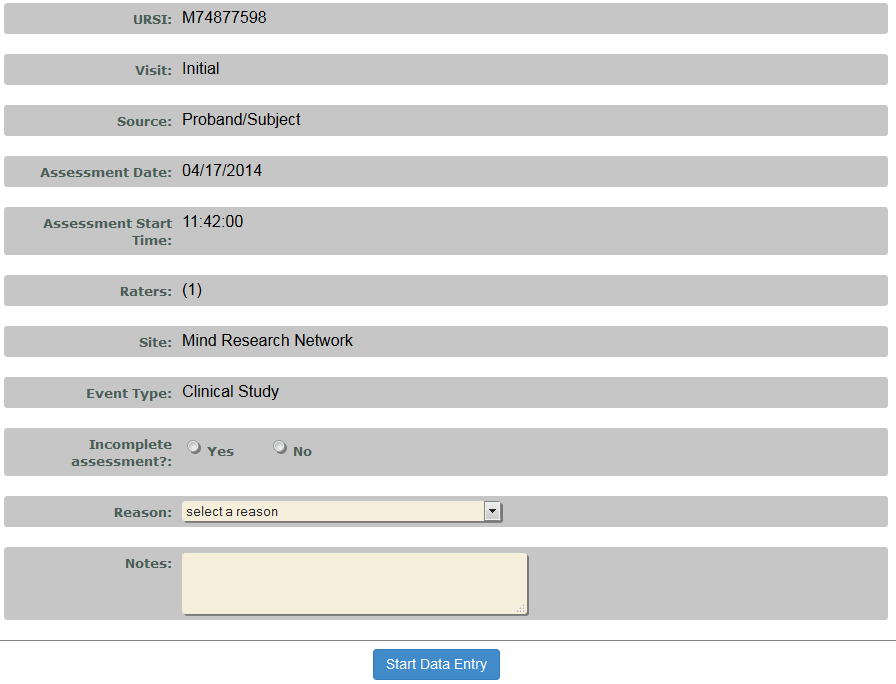
Fill in the Cover Sheet by completing the following fields.
- Incomplete assessment?: Select Yes or No
- Reason: If the participant did not finish, select the reason why. Click here to learn how to add reasons for missing and incomplete assessments.
- Notes: Add any notes relevant to assessment here. This field is optional.
Click Start Data Entry to view the responses.
At the top of the assessment, Assessment Details will be listed which include URSI, Assessment ID, Instrument and version, Assessment Date and Visit.
Review all responses by scrolling down the page. If there is more than one section, navigate to the next section by clicking the Page arrows or by clicking on the section you wish to go to. Once you are viewing the assessments, you have the following choices:
- Complete - completes assessment and sends it to the database
- Escape - allows you to leave the review screen without any other actions
- Save - saves any changes made to the assessment
- Deny - sends the assessment back to the participant's Self-Assessment queue
The bottom navigation menu only consists of the page navigation arrows and the Complete, Escape, Save and Deny buttons.
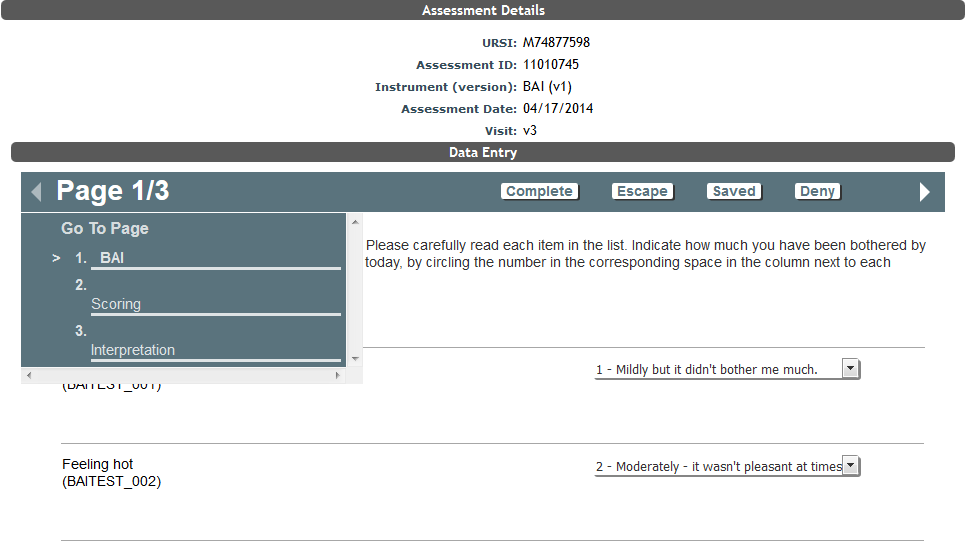
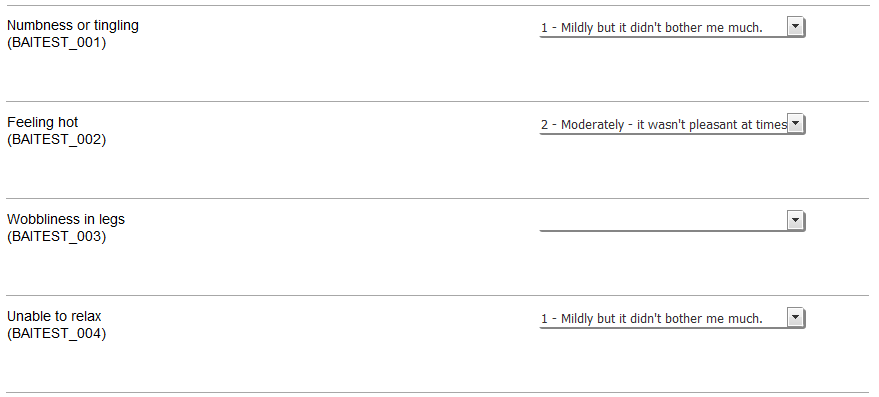
A skipped question will have a blank response. These can be completed from the current view by choosing the response from the drop down list or the assessment can be sent back to the participant by clicking Deny.
Flagged questions will appear in red. To find out more about flagging question responses, you can go here.
If the assessment is incomplete or there is a response that needs clarification, click Deny. When an assessment is denied it is sent back to the subject’s queue for updating. If the assessment was Auto Queued, it can only be denied within the Event Protocol time frame. If it falls outside the time frame, the subject's queue will need to be extended for them to access the denied assessment.
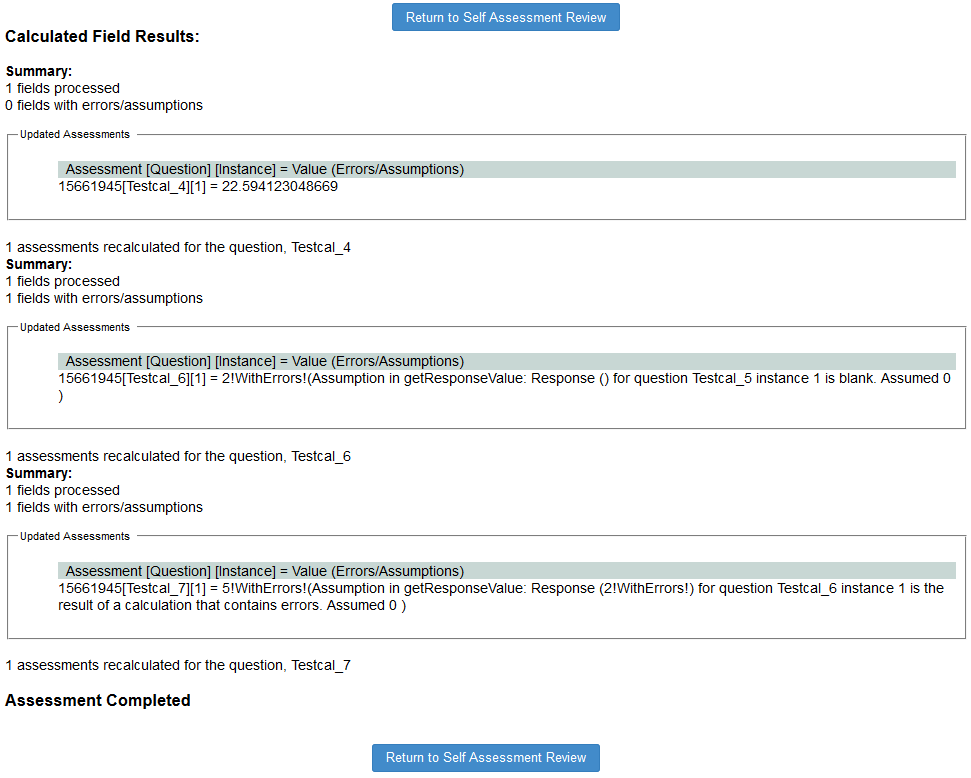
If all questions are filled out properly, click Complete to send the assessment to the database as a finished, complete record. If the assessment has any calculated fields, they will be executed and the results will be displayed. Click Return to Self Assessment Review to return to the Review Submissions table.
Comments