Subject tags are used as an alternative way to label your participants. If your study tracks participants by an identifier other than the URSI number, you can use this feature to document the link between the URSI and the other identifier. Participants can be looked up by either URSI or Subject Tag in most places. You are not required to have a Subject Tag to enroll or look up a participant. If your study is an NDA study, when you use the GUID import tool, the GUID will be stored as a Subject Tag.
To add or change tags for an existing participant, you must look up the participant or select them from the List Subject table. From here click the Subject Tag tab to navigate to the Subject Tag page. Subject tags can also be imported in bulk from the Subject Tag Import CSV.
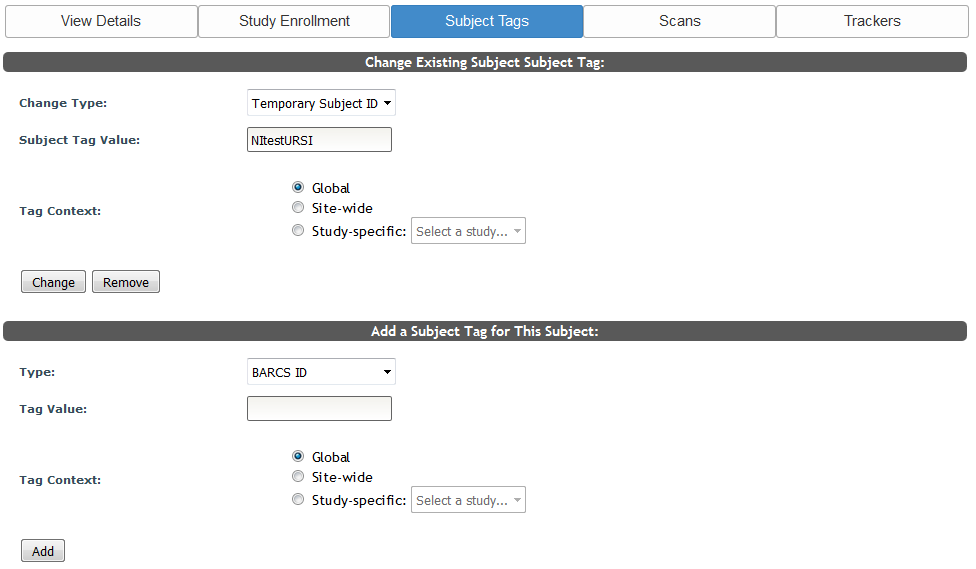
The Subject Tag page will list any existing tags for the participant. If the subject has multiple Subject Tags, they will appear in a list. PHI tags are not exportable from this table. To change or remove these tags, you must click Edit first. This will take you to the single tag view.

To change an existing Subject Tag, edit the necessary fields and select Change. Select Remove to delete an existing tag.
To add a new Subject Tag, select the type of tag that you would like to add, enter the value, choose the Tag Context and select Add.
Note: Upon adding a tag, you will be notified that URSIs that are no longer linked to PHI will not be searchable using subject tags. This means that if you unlink a subject's PHI, you will not be able to search for that subject using their assigned subject tag.
New tag types can be created upon request.
Tag Context determines who can see a given tag:
- Global: anyone with access to the subject will be able to see this tag, across sites.
- Site-specific: anyone with access to the subject that also has the same site ID as the user who creates the tag can see and search by this tag.
- Study-specific: anyone with access to the subject and permissions to the study will be able to see this tag.
The following tags types are considered PHI tags:
- U.S. SSN
- UNM-MR
- UIHC Patient Id
- NM Drivers License
- Facility ID
PHI subject tags are only shown on the Subject Tag page. They cannot be viewed on other pages or exported from any tables that contain them like the Review Submission table or Event Calendar.
Subject Tags can also be added at time of enrollment. Only one tag can be added when enrolling, but more can be added after enrollment by following the directions above. To add a subject tag at enrollment supply the appropriate information in the optional tag section.
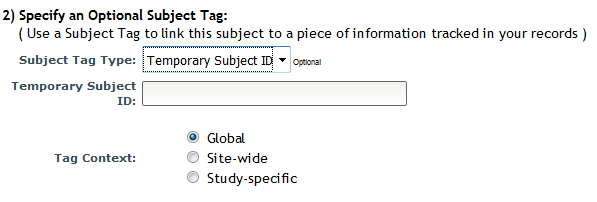
When the participant's enrollment is complete, the tag will automatically be added to their list.
Comments