Participants can be looked up by URSI, enrollment details, or by subject tag. To look up a participant, click Look Up a Subject from the Subjects menu.
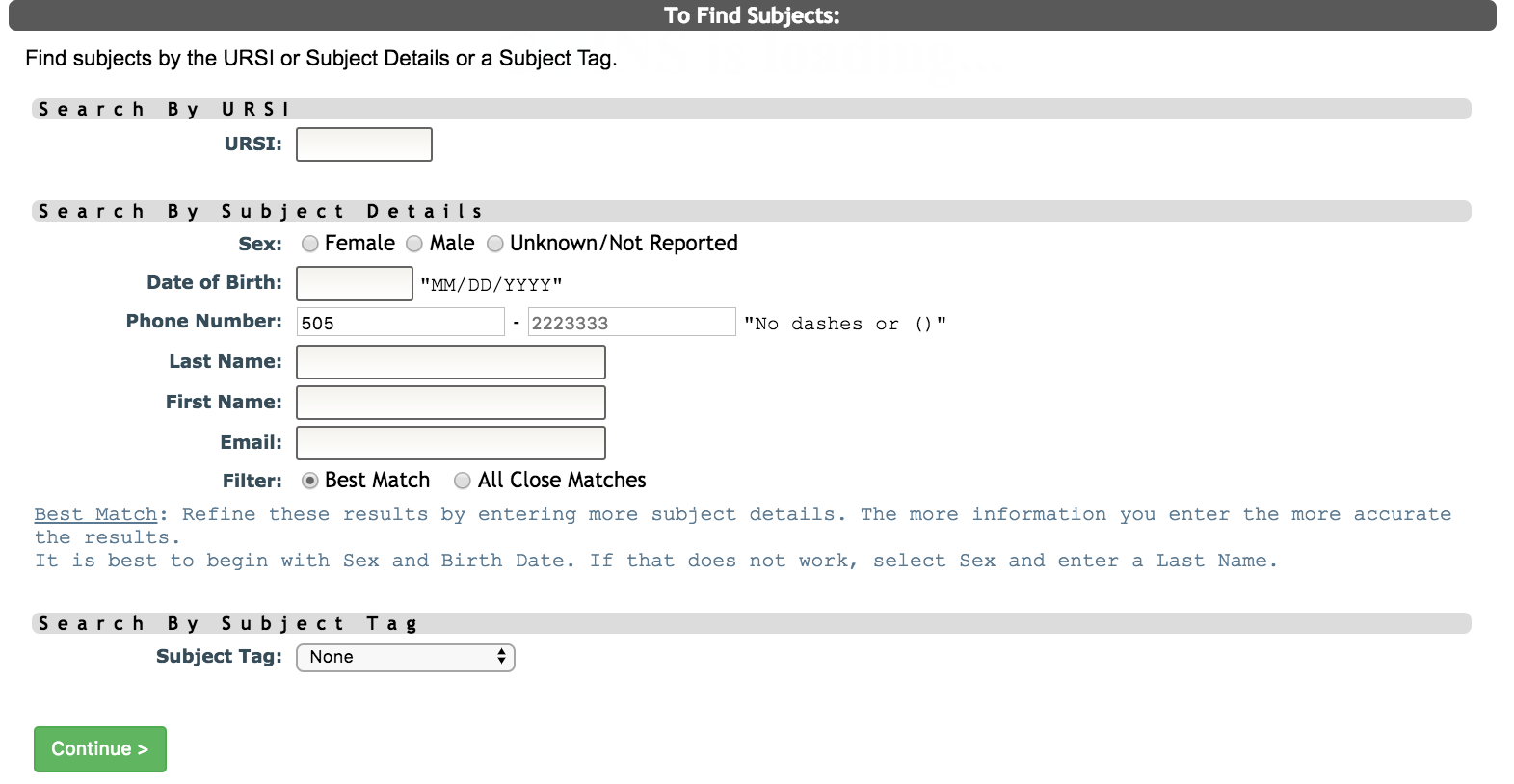
If you look a subject up by URSI, MICIS will send you directly to the enrollment information that are associated with that URSI.
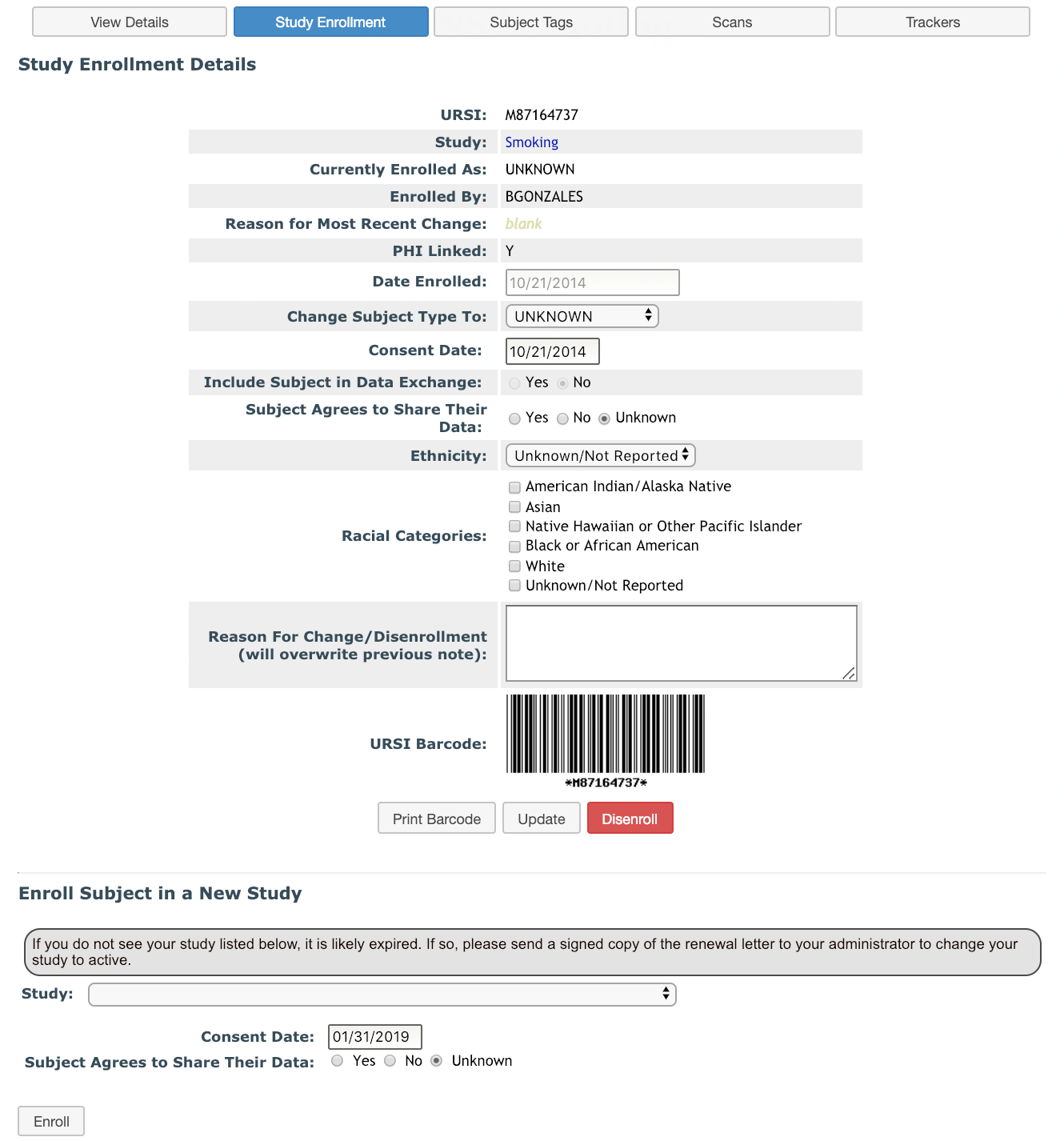
If the participant's PHI has been unlinked from all studies you have access to and they are looked up by URSI, you will be taken to a modified version of the Study Enrollment Details tab that will not let you access any other tabs for the participant.
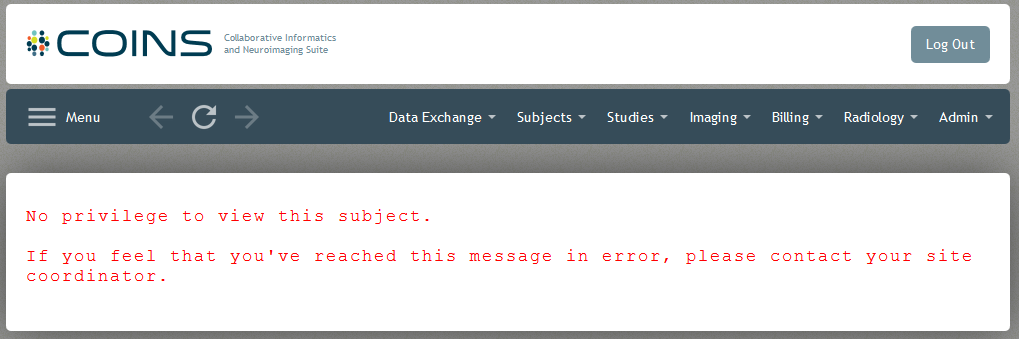
If the URSI you searched for is not part of a study you have permission to you will be prompted and will not be able to view the participant.
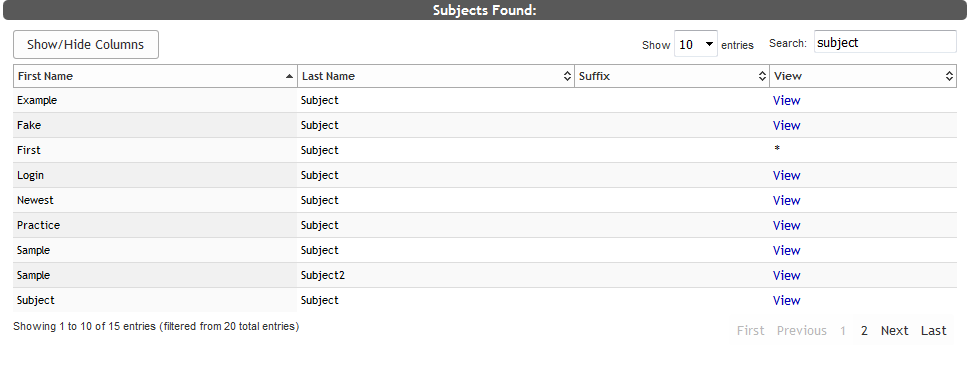
If you look a subject up by details you will be directed to a list of potential subjects that match the criteria that you entered (for example, date of birth). When looking up by Subject Details you can also choose to filter your results by toggling between Best Match or All Close Matches. When using Best Match you can refine the results by entering more subject details. The more information you enter the more accurate the results. It is best to begin with Sex and Birth Date. If that does not work, select Sex and enter a Last Name. When you find your subject in that list proceed by clicking the View button next to your subject. An asterisk indicates that you do not have permission to view the participant.
If the participant's PHI has been unlinked from all studies you have access to and they are looked up by details, you will not be able to view their enrollment information, but the can still be viewed if looked up by URSI.
If you are looking up a subject by Subject Tag, choose the appropriate tag ID from the list and the tag value in the text field and click Continue. You will be taken to the match list for that tag. Click the View button next to your subject to see their details.
Note: URSIs that are no longer linked to PHI will not be searchable using subject tags.

After looking up a participant, you will be able to see the Subject Details, Study Enrollment, Subject Tags, Scans, and Tracker tabs.
Comments