To access the Subject Details Menu you must look up your subject or select the subject from the list of subjects in a study’s details. From here you will be taken to the menu where the Scans tab can be selected. Scans the participant has completed for studies you have access to will appear on this tab separated by URSI.
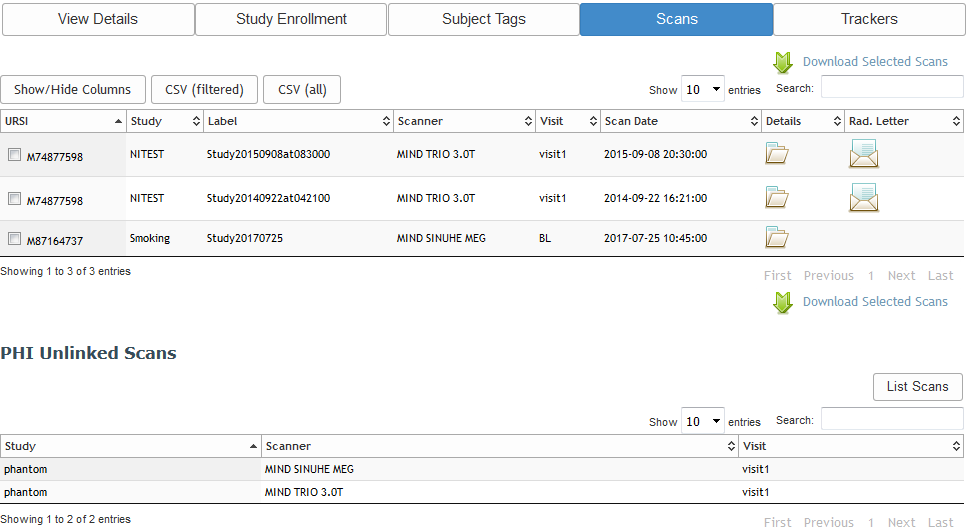
Each scan that has PHI linked will have a the following information listed:
- URSI
- Study
- Label - the scan's label which is created from the scan date stamp
- Scanner - scanner the scan was done with
- Visit - visit the scan was done at (optional)
- Scan Date - date scan was done on
- Details - click the folder icon to see details like sequences performed, sequence success statuses, notes, etc.
- Rad. Letter - Every MRI and MEG scan there will be a letter icon under the column labeled Rad. Letter (the EEG scans will not have radiological letters ). MEG scans are not actually reviewed, so those letters can be ignored. For MRI scans, select the letter icon to download the letter PDF for the associated scan. Note: these letters have names and addresses on them, along with medical information that constitutes PHI. These must be treated accordingly. Also, be aware that the date on the letter is the date you retrieved the letter, not the date the scan was read or given to the participant.
You can also download the raw image files for a scan by selecting the check box next to the scans you want to download and then click Download Selected Scans.
Scans for participants with unlinked PHI will be listed separately, with basic information. To view the scan's details, click List Scans to go to this page to search and view the scan.
Comments