To access a filterable list of scans, click List Scans through the Imaging menu.
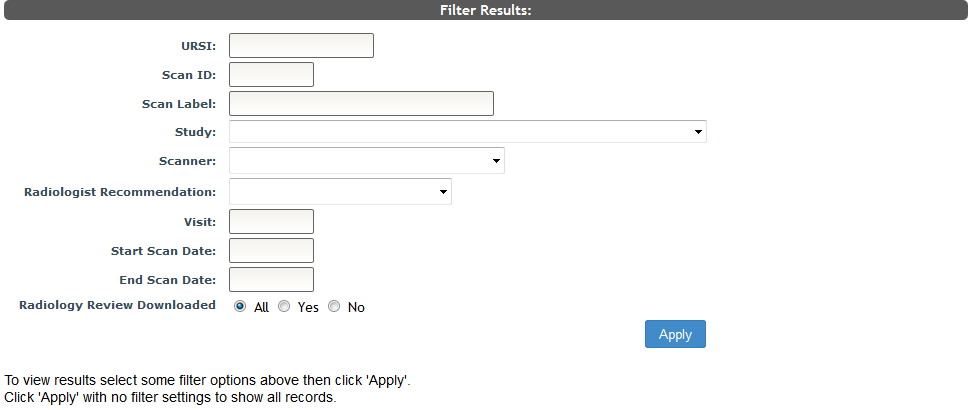
Use the filter criteria to find specific scans. The filter options include:
- URSI
- Scan ID
- Scan Label - scan label created from the date timestamp
- Study
- Scanner - the scanner the scan was performed on
- Radiologist Recommendation - the findings of the radiologist
- Visit - study visit the scan was done under
- Start Scan Date in mm/dd/yyyy format
- End Scan Date in mm/dd/yyyy format
- Radiology Review Downloaded - indicates if the review letter has been downloaded by the participant from the p2 Homepage
Press enter or click Apply to view the scans session information.
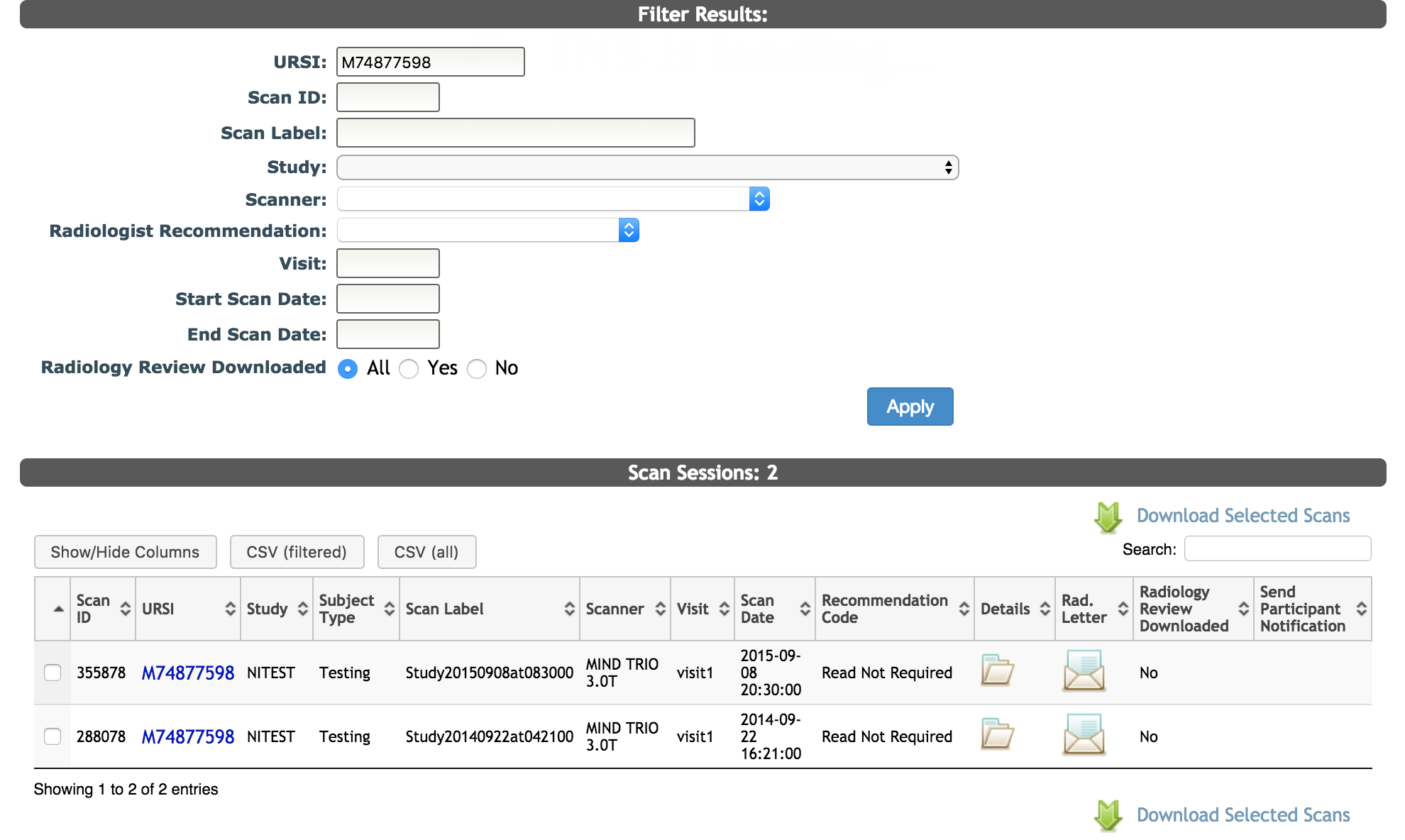
You will then see a list of scans that meet your filtered criteria as well as several details about the scans. The List Scans table has many built-in features to help users customize and retrieve table information. When downloading the csv from this table, you will receive the items listed in the table as well as study ID and Recommendation Comments.
You can click on the URSI to go to the subject details page or click on the folder icon under Details to go to the scan session page for the scan. You can also click on the letter icon under Rad. Letter to download the PDF radiology letter for the scan. Radiology Review Downloaded also indicates if the radiology letter has been downloaded by the participant, allowing study staff to know if reviews with findings have been accessed by the participant from the p2 Homepage.
If you would like to download the raw data for the scans, check the box next to the scans you would like to download and click Download Selected Scans.
Comments