To access the Subject Details Menu you must look up your subject or select the subject from the list of subjects in a study’s details. From here you will be taken to the first tab in the menu, View Details. On this tab you can view the demographic details that have been entered for the subject.
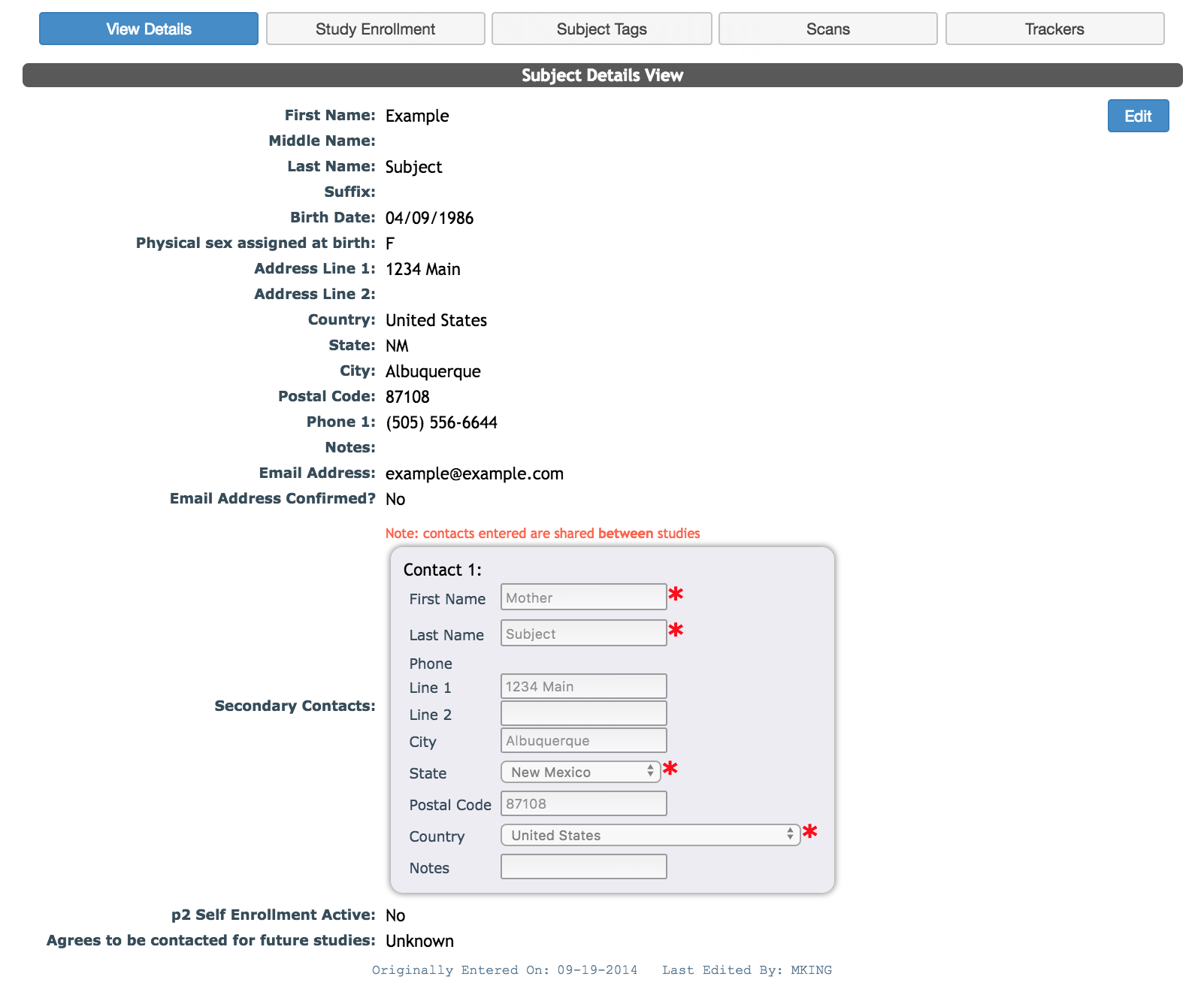
You can modify the details for a subject from this page by clicking Edit. The options on this page are the similar to the options on the Enter a New Subject page. Please visit that page for detailed information about each field.
Note: It is extremely important to remember that any notes that you leave on the subject details page can be seen by everyone who can access this subject or may access them in the future. Do not put any sensitive information in the notes section.
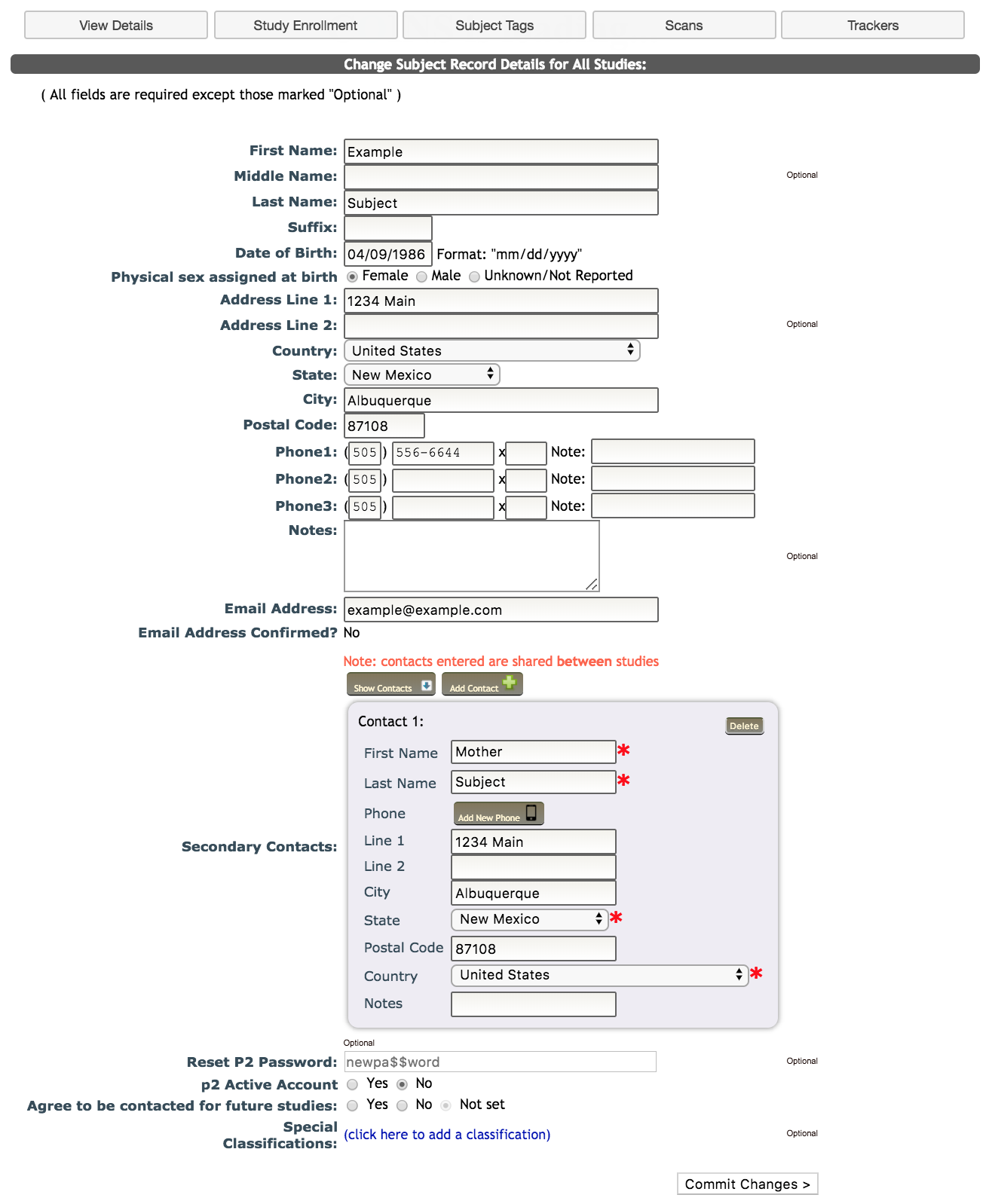
This page has four additional options that can only be used or changed after a subject account has been created.
- Reset p2 Password allows you to update the password for a subject that currently uses Participant Portal (p2) to complete assessments. This is used as an alternative to a Login ID. This is only editable if p2 edit account access is enabled.
- p2 Active Account can be used if you would like a subject who was enrolled through MICIS to use their email and password to log into p2 rather than their Login ID. This is only editable if p2 edit account access is enabled.
- Agree to be contacted for future studies allows you to indicate whether or not a subject has agreed on the consent form to be contacted for future studies by research staff at your institution.
- Special Classifications are used to indicate to staff entering new subjects that the participant may have special considerations. These classification will be displayed in the match list when enrolling a new participant. Click (click here to add classification) and select the appropriate classification and add a note if desired, then click Add Classification.

- Unreliable: Does not keep study appointments, shows up late, may give incomplete data
- Not MRI Safe: Enter notes to indicate concern and relevant time frame
- Banned from site: Prohibited from institution - cannot be enrolled in a study
- Not Recommended: Known to give bad/false data, difficult/rude/inappropriate behavior
After you have made your changes to any fields on this tab click Commit Changes> at the bottom of the page.
Comments