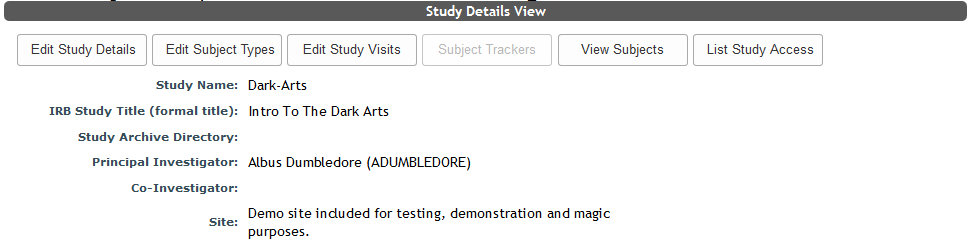
After looking up your study, to access a list of subjects in a study click View Subjects at the top of the View Study Details page.
Or, click View under Participant List from the list of studies.
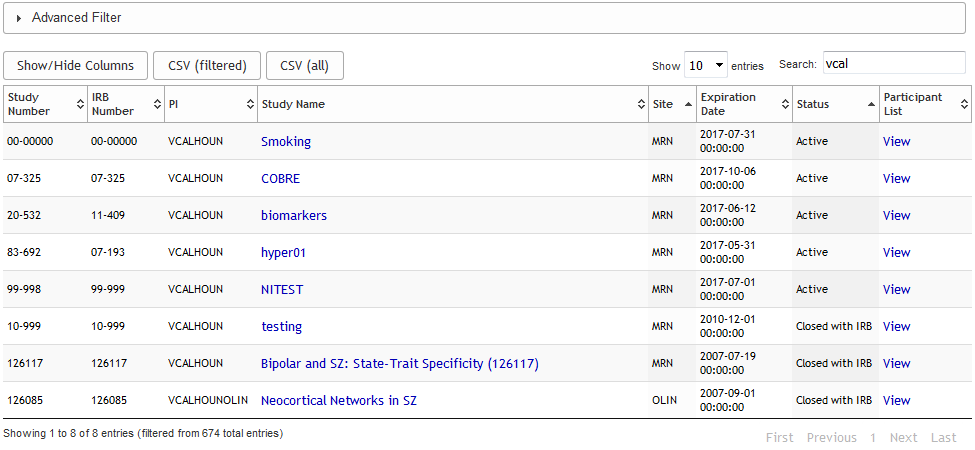
The list of participants can also be reached by selecting List Studies from the Studies menu and viewing the participant list.
Subject Enrollment
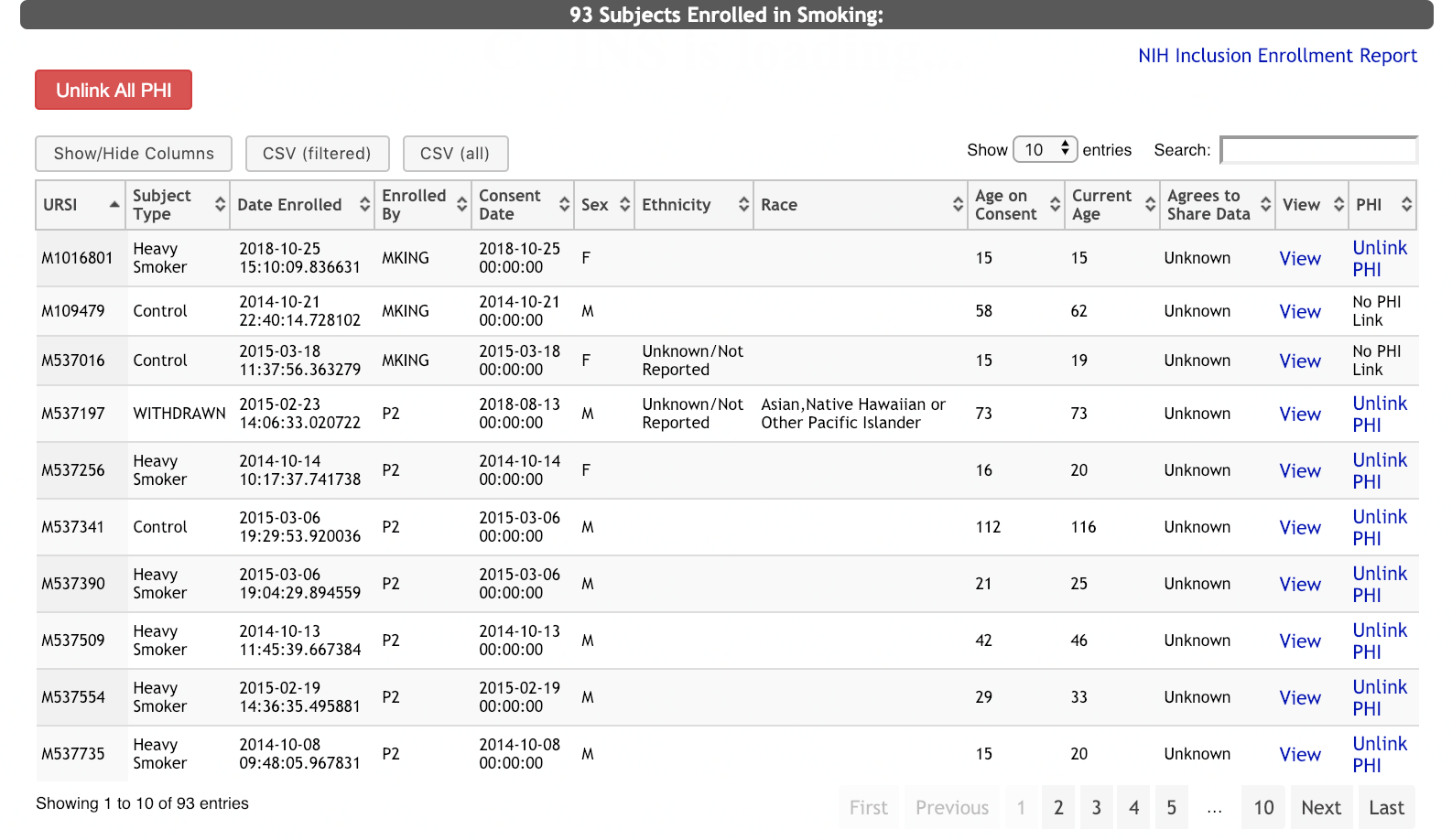
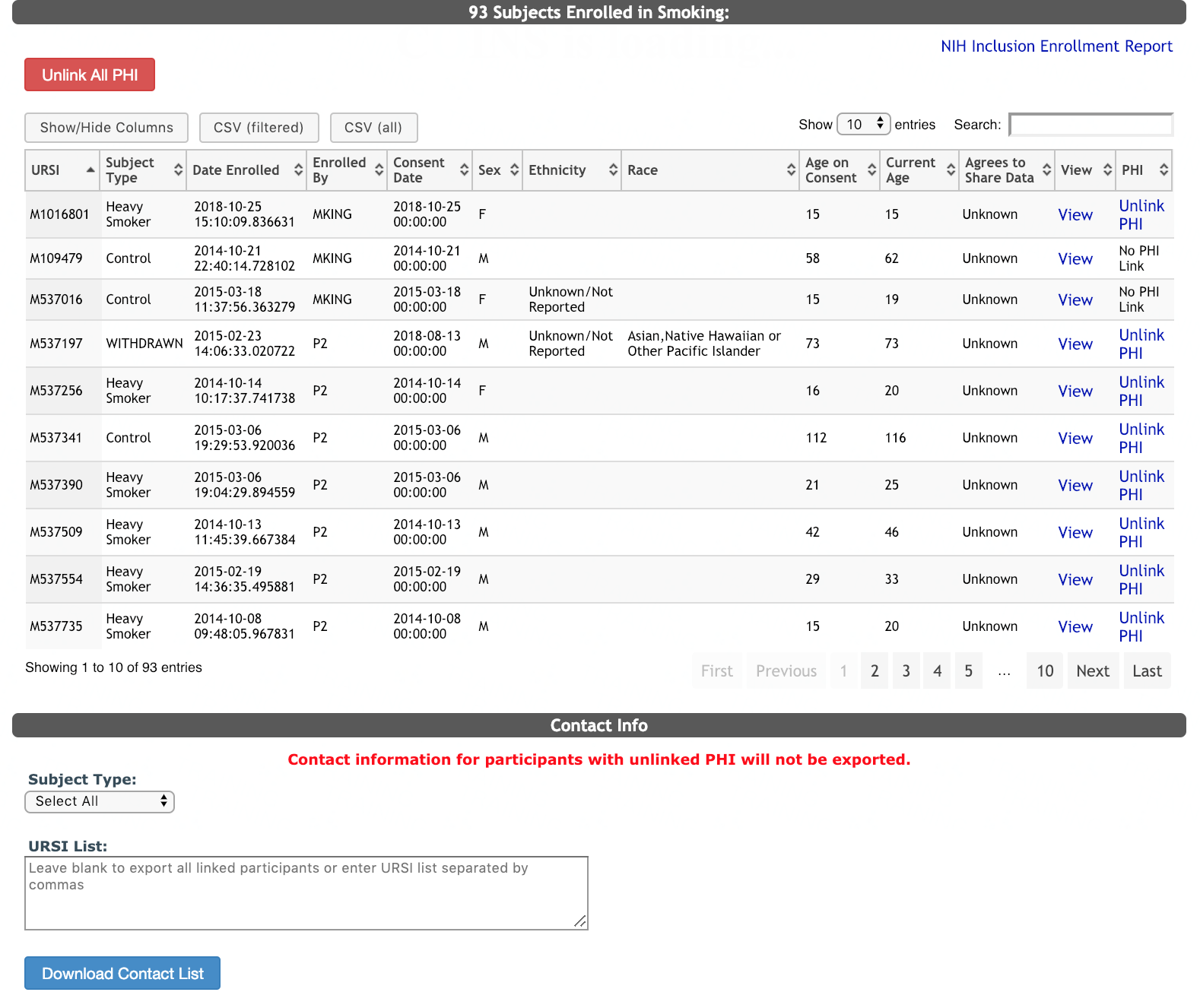
Here you will see a complete list of the subjects in a study. The View Subjects table has many built-in features to help users customize and retrieve needed information. The information for each subject includes:
- URSI
- Subject Type
- Date Enrolled
- Enrolled By
- Consent Date
- Gender
- Ethnicity
- Race
- Age at Consent
- Current Age
- Agrees to share Data
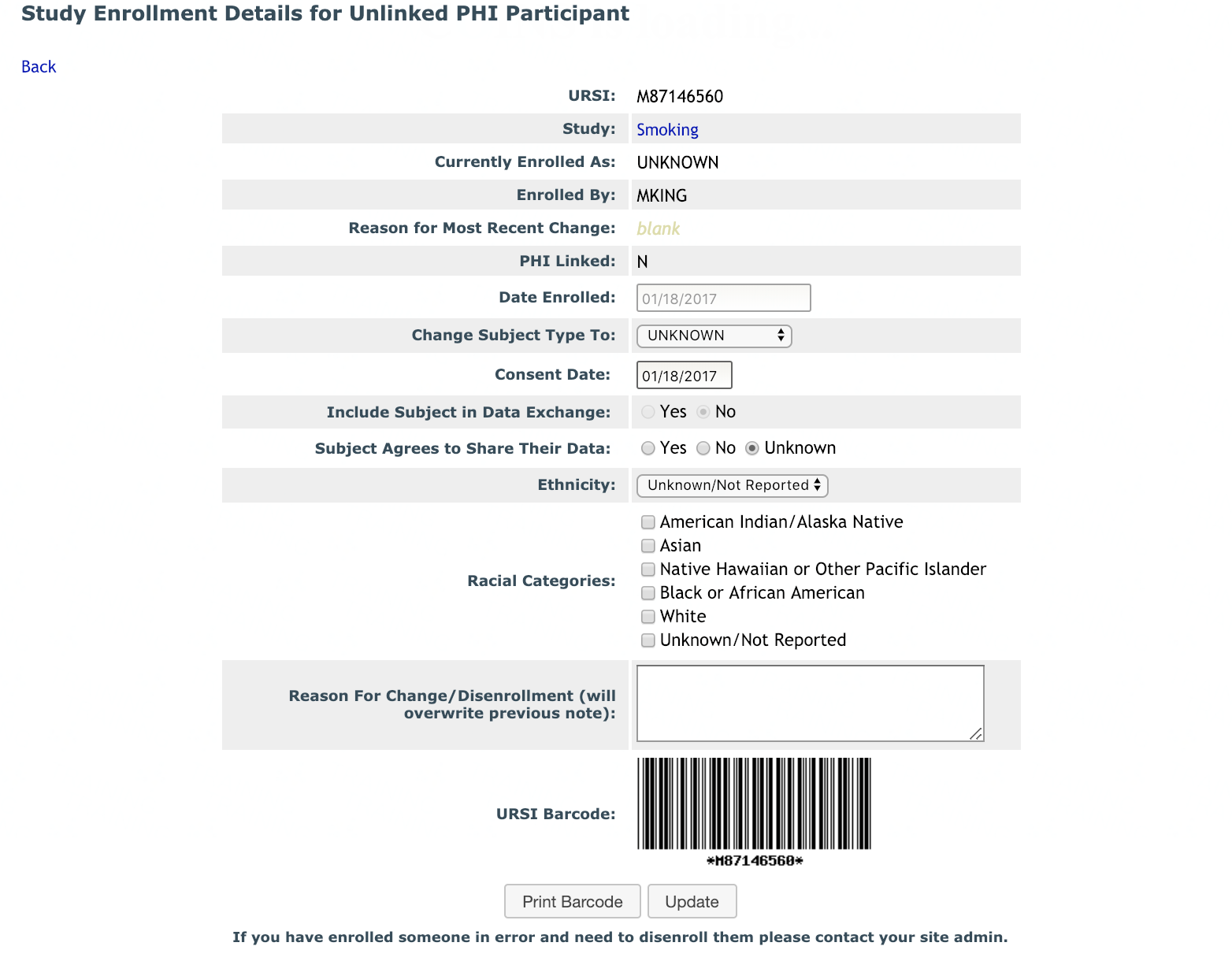
To further view or edit an individual subject select View to go the the Study Enrollment page. You can also unlink a subject’s PHI from this list by clicking Unlink PHI. If the participant's PHI is unlinked, you will see a modified version of the study enrollment page.
Note: Upon unlinking a subject's PHI, you will be notified that URSIs that are no longer linked to PHI will not be searchable using subject tags. This means that if you unlink a subject's PHI, you will not be able to search for that subject using their assigned subject tag.
Contact Info
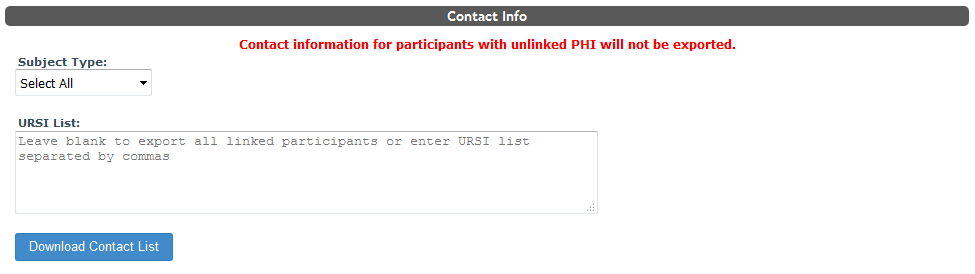
This section of the page allows you to download a contact list for the subjects in your study. The list includes the basic information listed when adding the subject as well as if the subject has had an MRI, MEG or EEG scan. Additionally, if the subject has any secondary contact information listed, this will be exported as well.
You can select which subject's contact information to download by selecting Select All or a Subject Type from the drop down list. You can also download information for a list of URSI that can be added into the search field.
Note: this will only download contact info for participants that have still have their PHI Linked.
NIH Enrollment Report
The PHS Inclusion Enrollment Report is required to be submitted for any NIH study's progress report. This form is used to assess enrollment by sex/gender, race, and ethnicity of the study participants. If a study is recording race and ethnicity during the time of participant enrollment, this form can be generated by clicking NIH Inclusion Enrollment Report.
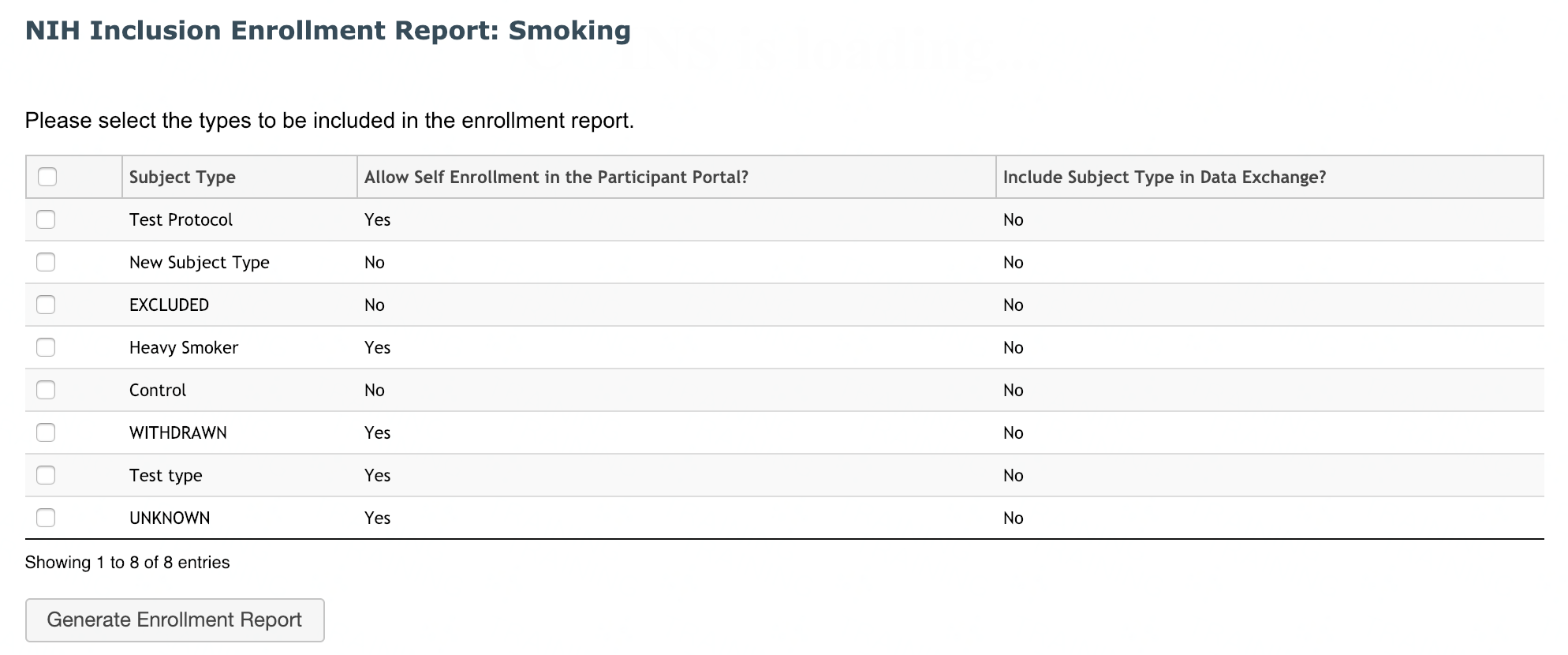
Select the subject types that you would like to include in the enrollment report. Then click Generate Enrollment Report.
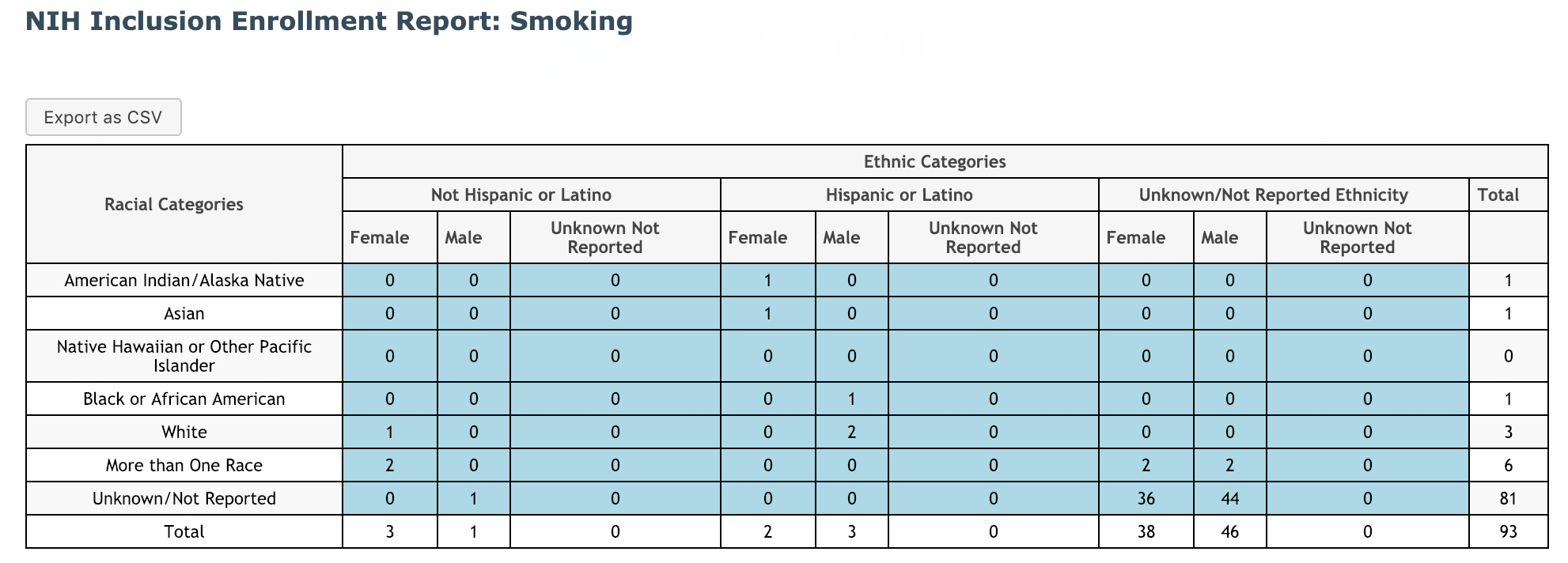
Click Export as CSV to download the csv.
Comments