To access the Subject Details Menu you must look up your subject or select the subject from the list of subjects in a study’s details. From here you will be taken to the menu. Click Study Level Details to get to that tab.
The Study Enrollment tab is a list with study specific information for the studies in which the participant is currently enrolled that the user has access to.
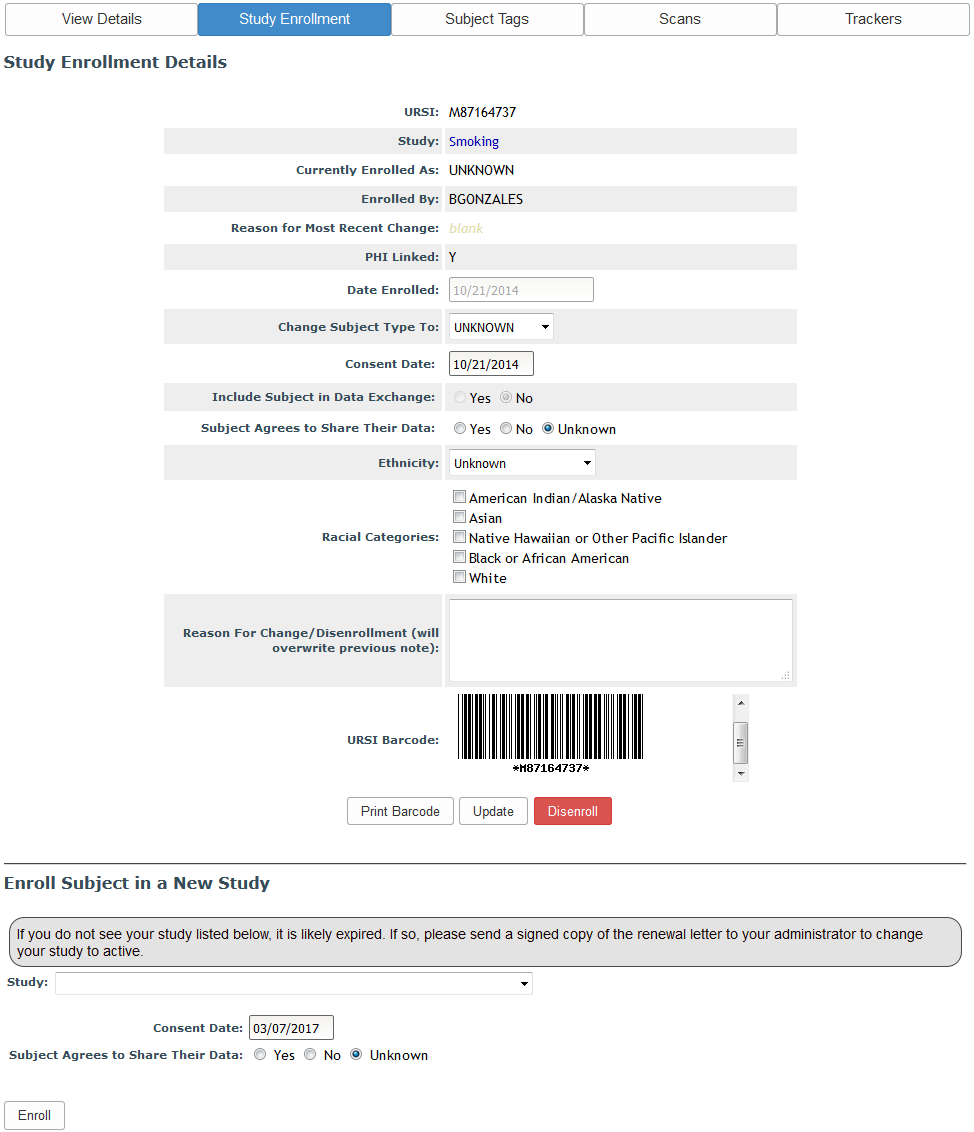
If the subject is only enrolled in one study, you will see enrollment details specific to the study. Here you can update the participant's Subject Type, race and ethnicity, add notes, or change other study specific details. If you have language in your consent form that indicates to participants that their data will be shared with other researchers you can select Yes. If your consent form does not have this language you will select No. There is an Unknown option as well, but it is strongly recommend that you have this information available when enrolling. Selecting Yes will not share any data. This is used indicate to the investigator which data can be shared when ready for data sharing. Click Update to save any changes. A barcode for the URSI is also supplied. Click Print Barcode, to print the URSI barcode.
Users with site admin access and above will be able to disenroll participants from this page. If you are not a site admin and need a participant disenrolled, please contact your site admin. Once a participant is disenrolled, study staff will no longer have access to their PHI, scans, assessment data and the participant will no longer be able to use self assessment for this study.
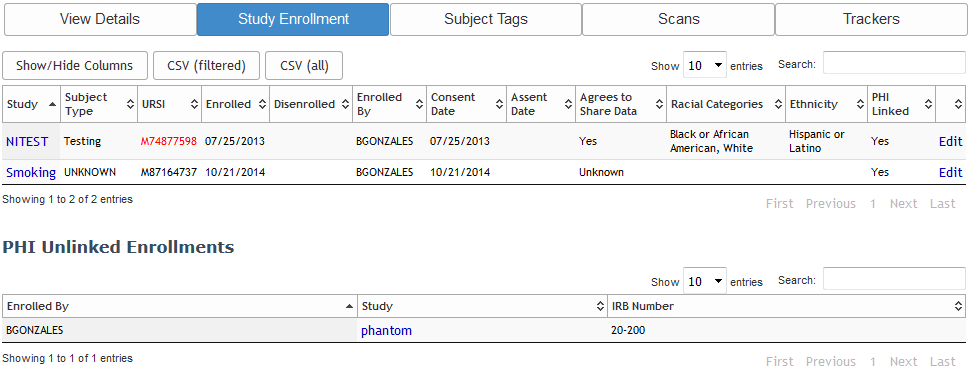
If the subject is enrolled in multiple studies you have permission to, you will see a smaller list of information on this tab and the oldest URSI will appear in red. To see the expanded details, as you can when the subject is only enrolled in one study or to make changes, click Edit for the study you want to edit. Any enrollments with unlinked PHI will be listed separately. Study enrollment information for unlinked PHI participants can be edited from the View Subjects table. Click the unlinked PHI study hyperlink to go to the table.
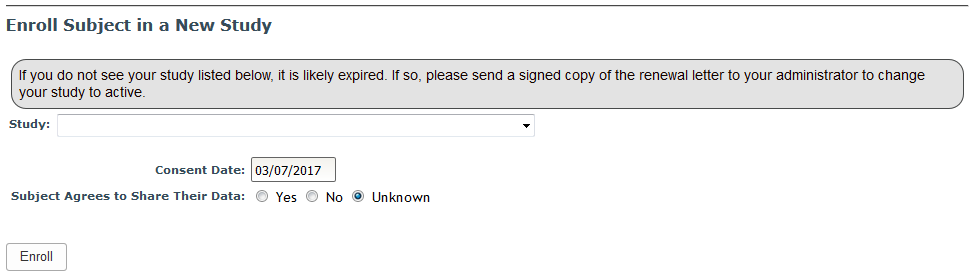
You can also enroll the participant in a new study from this tab.
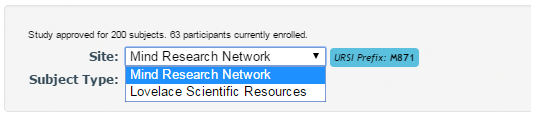
Study specific options will load after a study has been selected. If your study is a multi-site study as indicated in the study detail options, choose which site to enroll your subject into. The URSI prefix assigned will depend on the site chosen. Each study will have a default site, but this can be changed by choosing a different site from the drop down list. The URSI prefix for the selected site will be listed. Subject type can also be indicated once the enrollment study has been selected.
If race and ethnicity are enabled for the study through the study details options, they will also be displayed but are optional. If your study is an NDA study, the GUID fields will also be displayed here for entry.

If email is required at for the site and the participant does not have one on file, you will be asked to provide one. Click Enroll to enroll the participant in the selected study.
Comments