To access subject types, from the study page, click Edit Subject Types at the top of the View Study Details page. Subject Types are used to help studies classify and organize their subjects.
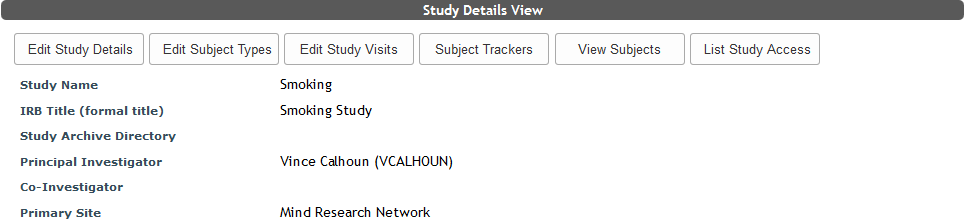
There are three default subject types for all studies: Unknown, Withdrawn and Excluded. If a subject cannot complete the study requirements because they do not fit the criteria (screened out after consenting) change their subject type to Excluded. If a subject no longer wants to participate (or your need to remove them from the study for other reasons) you would change the subject type to Withdrawn. The default types can be removed from the study. It is important to keep these types of subjects in your subject list for IRB reporting. These types DO count towards your total study enrollment. If you have not yet decided how to designate your subjects the Unknown subject type can be used.
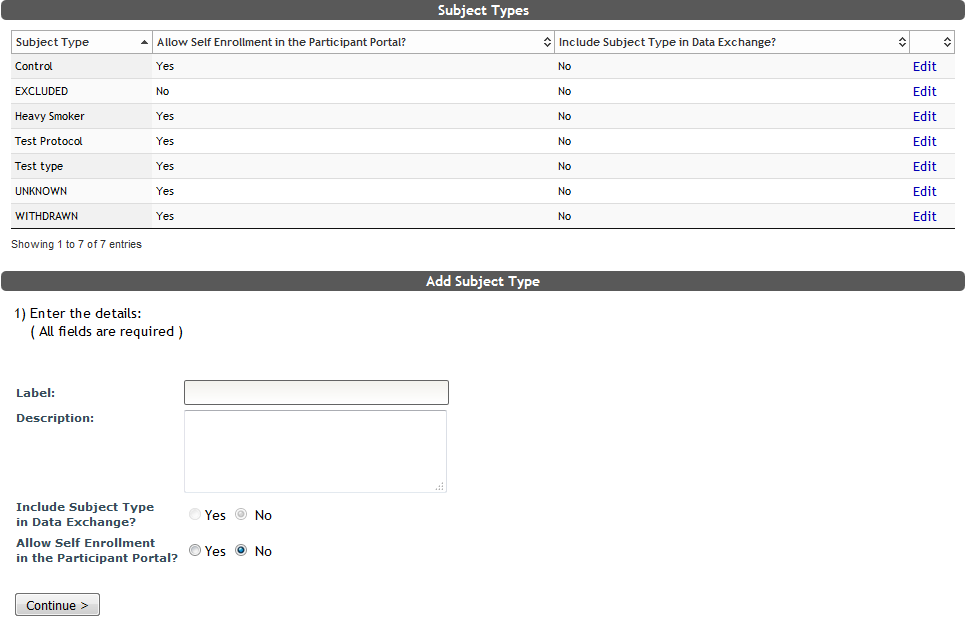
You have the option to create custom subject types in MICIS. To add a new subject type enter the type in the text box next to Label. In the description box enter a description for that subject type. From here you can also choose to Include Subject Type in Data Exchange and Allow Self Enrollment in Participant Portal by toggling the Yes/No buttons for each.
Select Continue> and the type you entered will appear in the Subject Types list as well as in the subject type drop down menu when you enroll subjects for that study. This is a good place to track various enrollment types like: patient, control, etc.
To Edit an existing subject type, click edit next to the type you want to change.
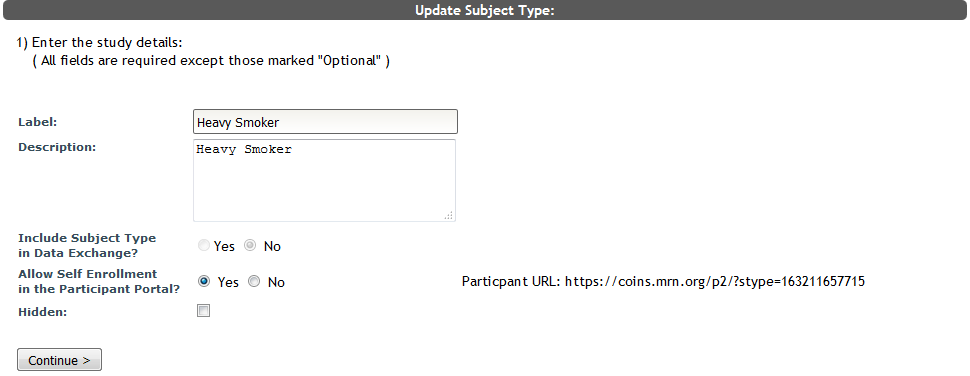
From here you can edit the Subject Type label and description. You can also change Data Exchange sharing options as well as enable Self Enrollment. If Self Enrollment is enabled, this is where you can access the subject type (stype) URLs for Self Enrollment. Each Subject Type has a different URL. You must use an stype URL for Self Enrollment and Auto Queuing. You can also hide the Subject Type by checking the Hidden box. This will make it so subjects can no longer be assigned this type. Click Continue> to save your changes.
Comments