Subject Trackers help study staff to log and track custom information for subjects in a study. Trackers can help manage and log phone contact, visit progress, medication compliance, etc. To access tracker information for a particular participant look up the subject or select the subject from the list of subjects in a study’s details and click Trackers at the top of the menu.

Only tracker enabled studies the participant is enrolled in that you have permissions to with linked PHI will appear in the drop down. Participants with unlinked PHI can be accessed from the study Subject Tracker. Select the study for the tracker you want to access. If you have yet to agree to the terms of using the tracker, you will be prompted to do so.
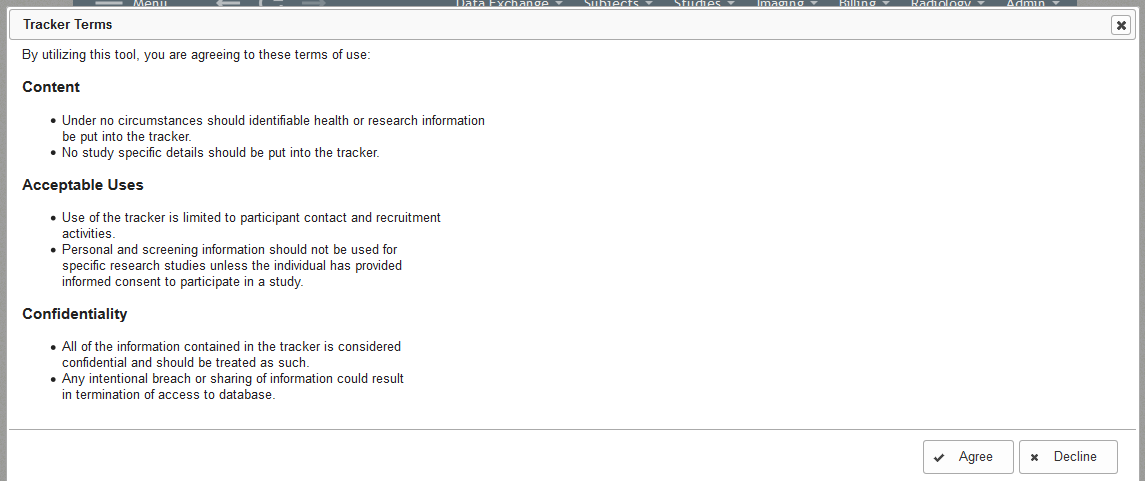
Select Agree to accept the terms and go to the tracker or Decline to not proceed. Once you have accepted the terms, you will be able to see the participant's trackers for the study.
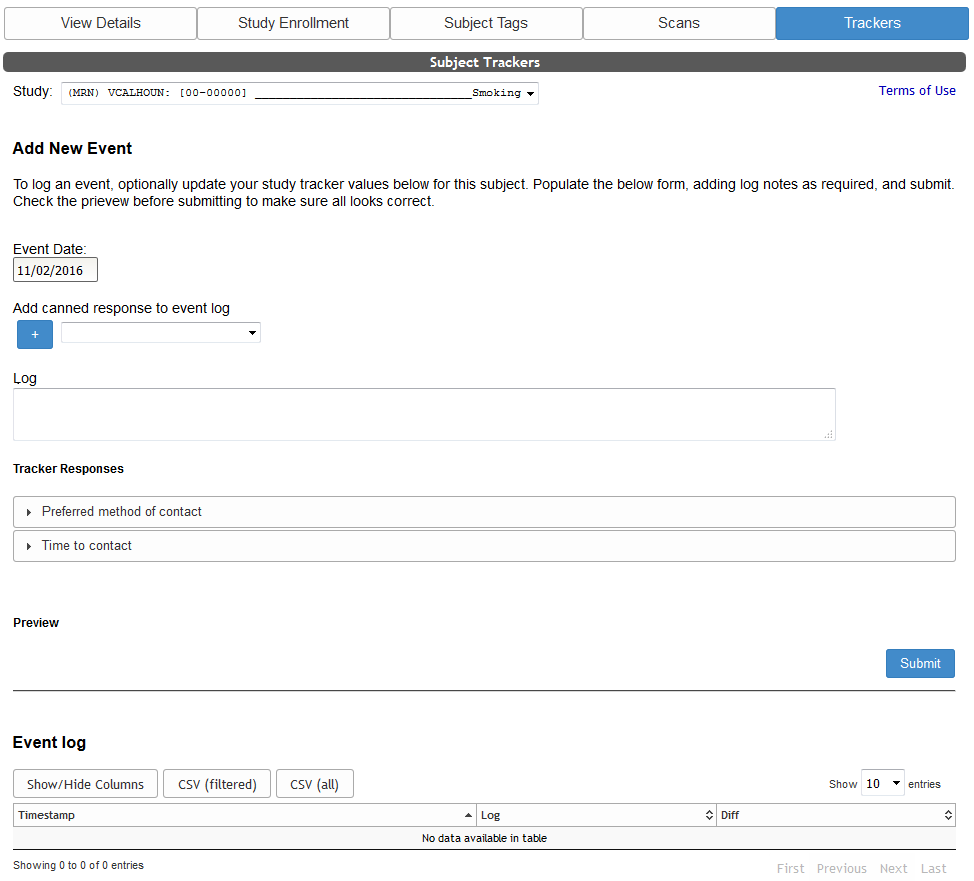
Now you can update the subject's tracker information by adding the date for the event (defaulted to current date) and any necessary Log notes. If you have added Canned Responses for the Log, you can choose one from the drop down list and click + to add it to the Log text field. Click the tracker you want to update, Phone Screen Log in the example image below, and then choose a Response Option from the Standard Response list. If this tracker has custom responses enabled, you can enter any desired text in the Custom Response field.
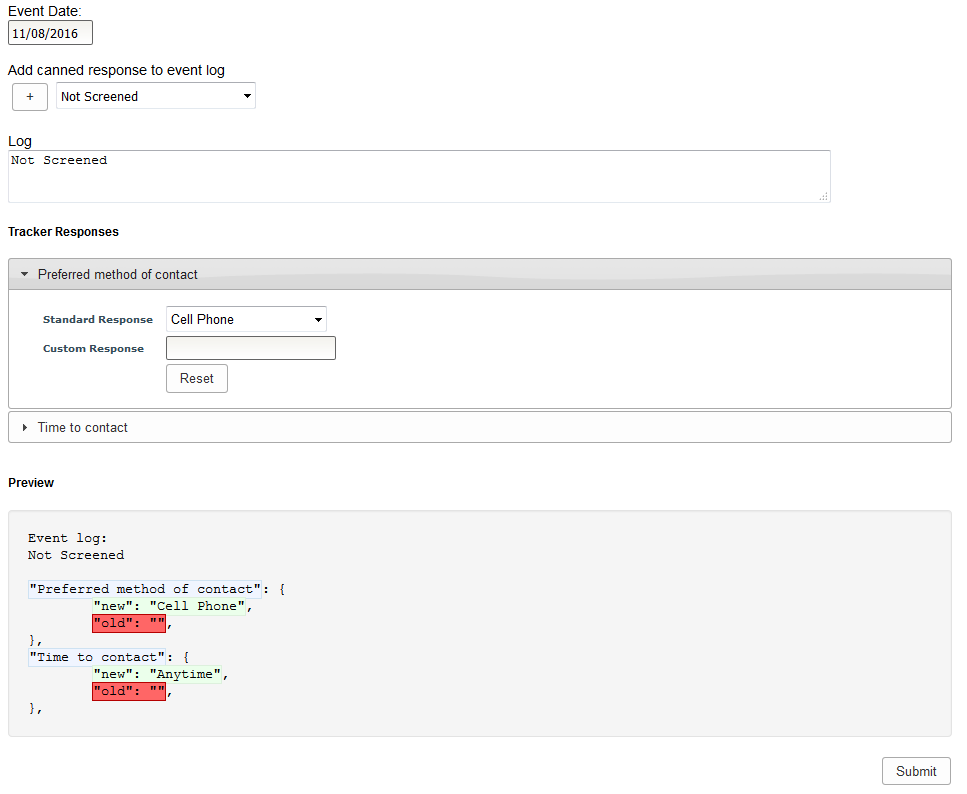
Below the trackers for the study, you will see a Preview of your changes that will be recorded in the Event Log for the subject. In the example above, we can see the new Log status is "Not Screened" and the tracker is being changed from being blank to "Not Screened". Click Submit to add your changes. The changes made will now be reflected in the subject's Event Log.
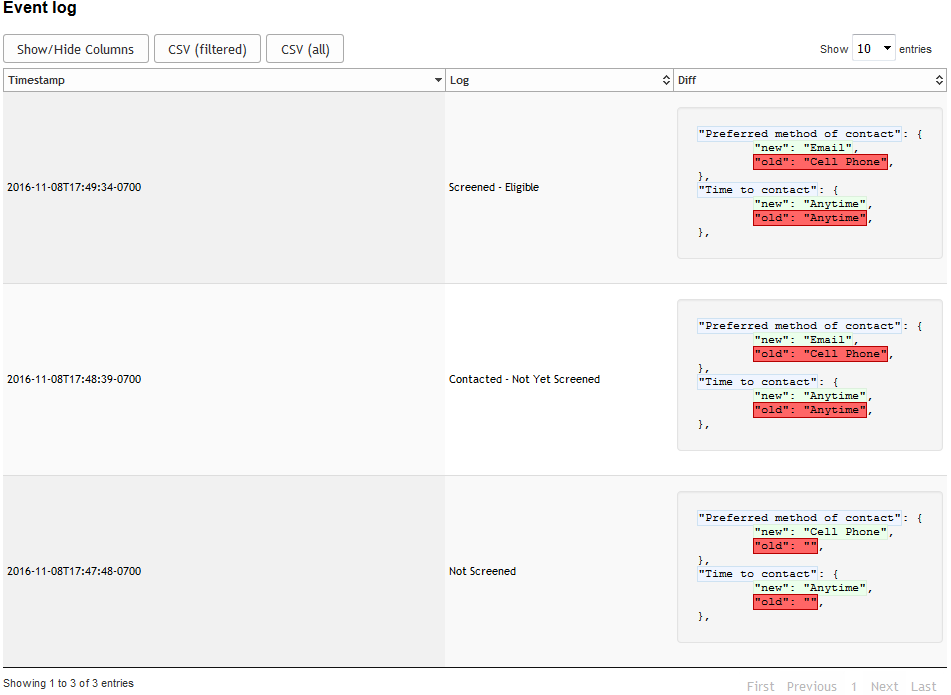
The Event Log will record all information changed for a subject. This provides study staff a full picture of the subject's progress and detailed logging of events.
Comments