Subject Trackers help study staff to log and track custom information for subjects in a study. Trackers can help manage and log phone contact, visit progress, medication compliance, etc.
To access Subject Trackers, click Subject Trackers at the top of the View Study Details page after looking up your study. The tracker must to be enabled by the site admin, PI or a coordinator in order to be used. The Subject Trackers button will be disabled until this has happened.
Enabling Subject Trackers

To enable trackers click Edit Study Details at the top of the page and click View Tracker Terms under Subject Tracker Enabled at the bottom of the page. Select either Agree if you accept the terms or Decline if you do not then click Continue> to save your choice. Trackers will only be enabled if you have accepted the terms.
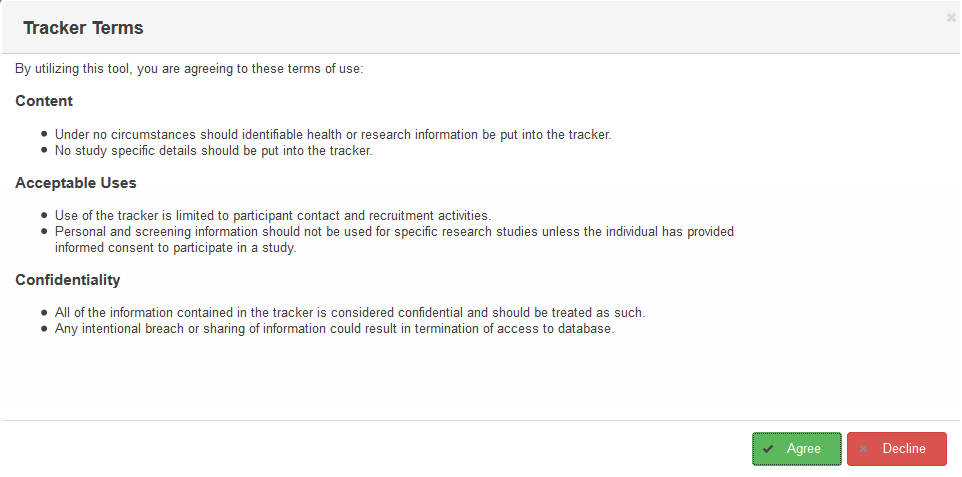
After the tracker is enabled, each user has to agree to the terms of use. A pop up will appear the first time each user tries to access the tracker, asking the user to accept or decline the terms of use for the trackers. The terms are the same ones displayed at the time the trackers are enabled. Users can only access the tracker if they have agreed to the terms of use.
Basic Tracker Information
After trackers have been enabled and terms have been agreed to, when Subject Trackers is selected, you will see a table of all subjects, excluding those who are , in the study as well as information for any trackers you currently have. A new tracker will have URSI, Subject Type, Enroll Date and Consent Date. The Assessment Search table has many built-in features to help users customize and retrieve table information.

Contact information can be viewed by clicking Search By Personal Details. Those with unlinked PHI will not be visible or exportable in this view.
Note: When switched, Personal Details view rows DO NOT match the URSI view rows.

Adding Tracker Options
To add or view existing trackers, click Manage Trackers.

Click Create New Tracker to open a new tracker.
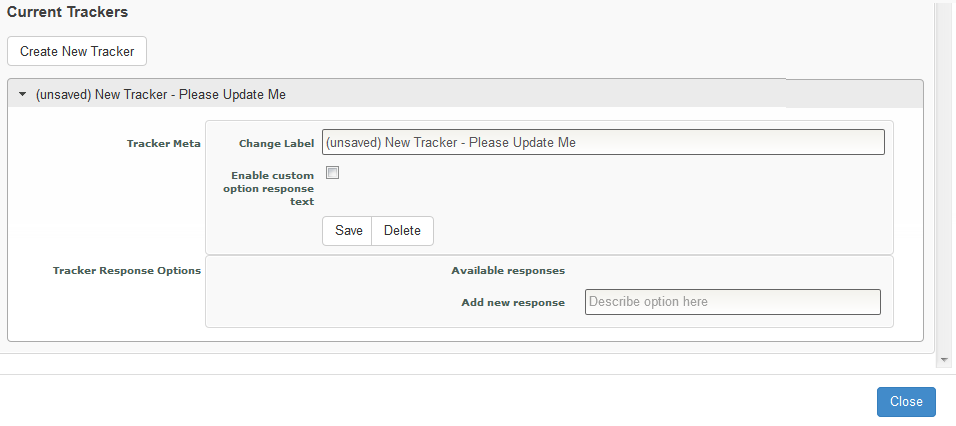
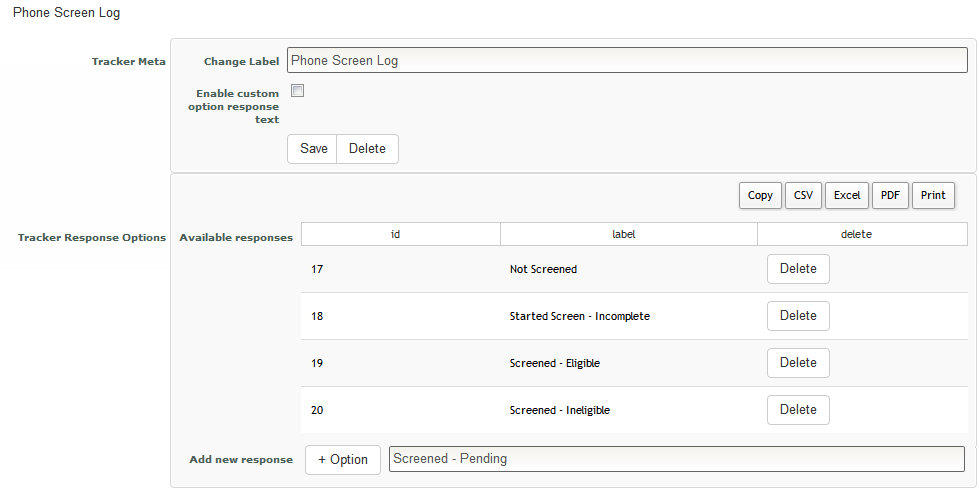
Update the Tracker's label under Change Label. Click Save to enable the ability to add Response Options. Tracker Response options are searchable on the Subject Tracker table face. Once saved, enter any Response Options you want to be available in Add new response field and click +Option to add the Response Option. As Response Options are added, they will appear in the Tracker Response Options table along with their Response Option ID. Contents on the face of the table can be copied, exported or printed by clicking the desired format or action at the top of the table. To delete an added Response Option, click Delete next to the desired option. Check Enable custom option response text to allow for custom responses to be entered. Click Close to return to the Subject Tracker table.
Subject Trackers also contain a Log that allows for custom notes to be entered. Note templates or Canned Response can be added by clicking Manage Trackers then Edit Canned Responses.
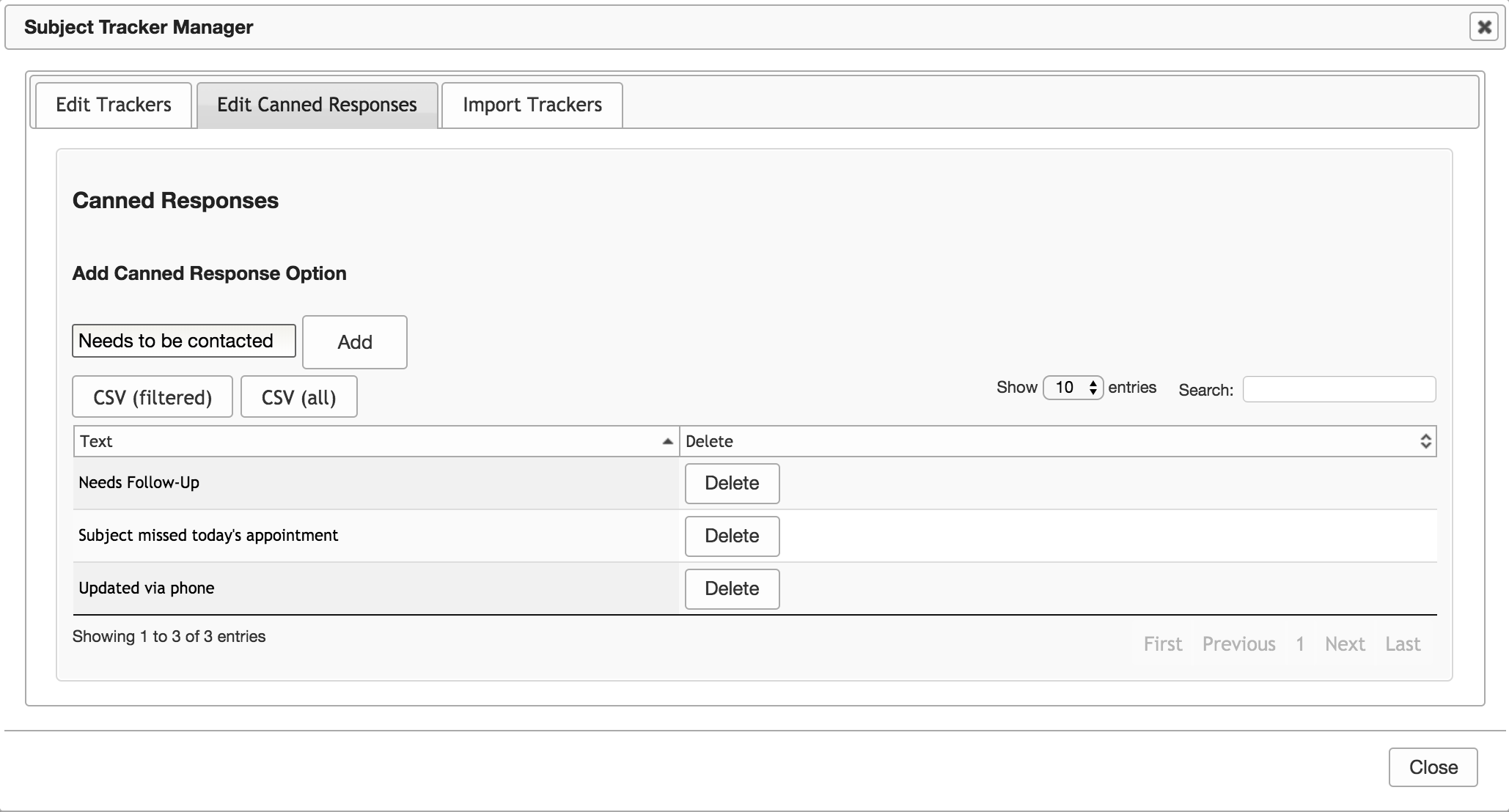
Here you can added Canned Response Option by typing the response into the field and clicking Add. These response options will be available to choose on all trackers Logs for this study. It's important to note that Logs are not searchable on the Subject Tracker table. Contents on the face of the table can be copied, exported or printed by clicking the desired format or action at the top of the table. To delete an added Response Option, click Delete next to the desired option. Click Close to return to the Subject Tracker table.
Import Trackers
You can import trackers using our import tool. First, click Manage Trackers and then click the Import Trackers tab.
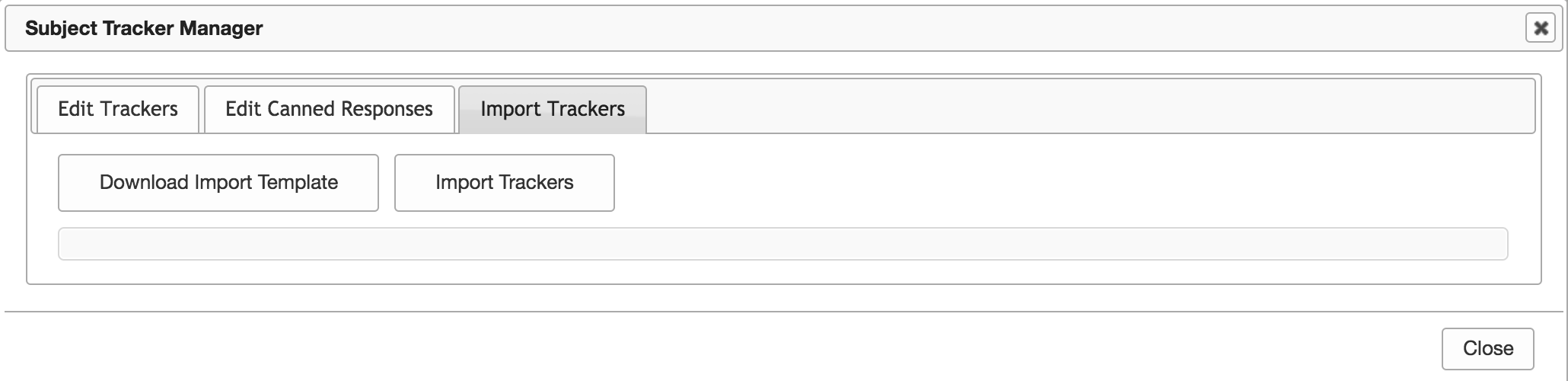
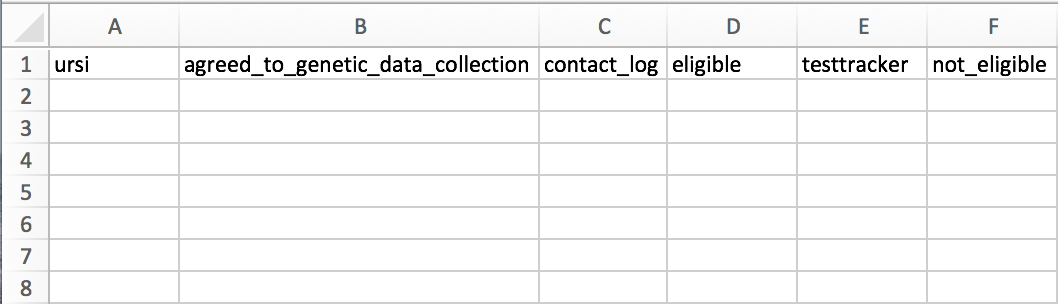
You can click Download Import Template to download a csv with all of your study's current trackers in the format in which the trackers need to be imported. If you leave any cells blank, the data that already exists will remain. If you enter new data into a tracker with existing data, the existing data will be overwritten with the new data. If you would like to import data for a new tracker, simply type the name of the new tracker at the top of a blank column, and then enter the data as you would an existing tracker. Each URSI will have its own row, and you cannot have two rows for the same URSI.
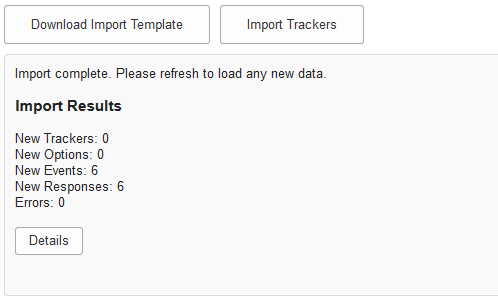
To import the trackers, fill out the csv, save it, and then click Import Trackers to upload the csv. You will receive a confirmation page showing that your import was successful. After importing a new tracker, you should refresh the page by clicking the reload button at the top of the COINS menu.
Importing Canned Response Trackers
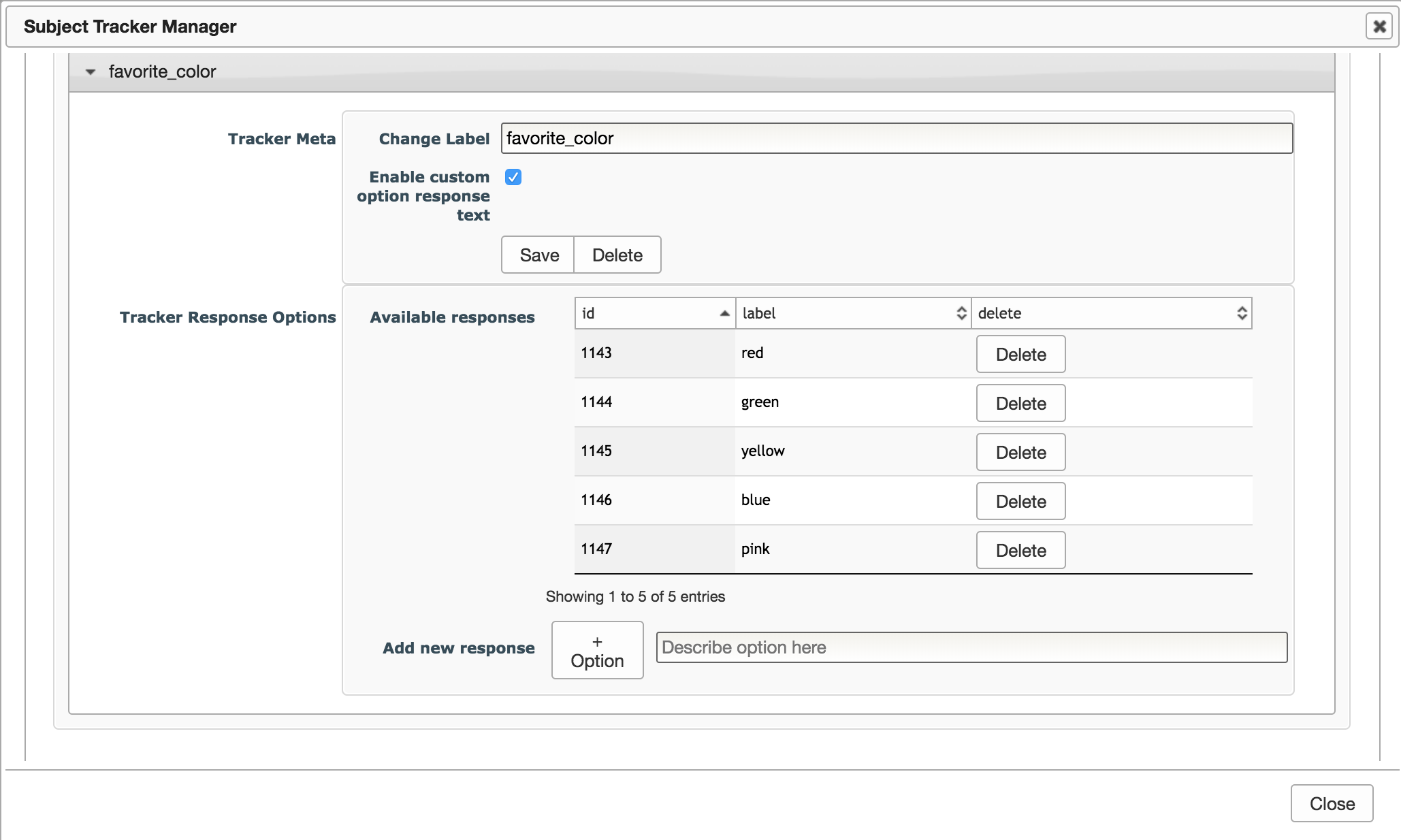
You can also use our import tracker tool to import new canned response trackers. To import a new canned response tracker, name your tracker and append ::canned to the end of your new tracker responses.
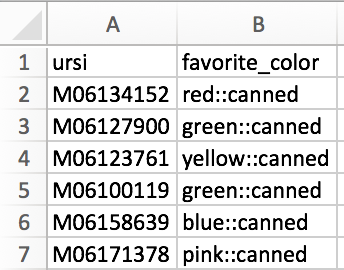
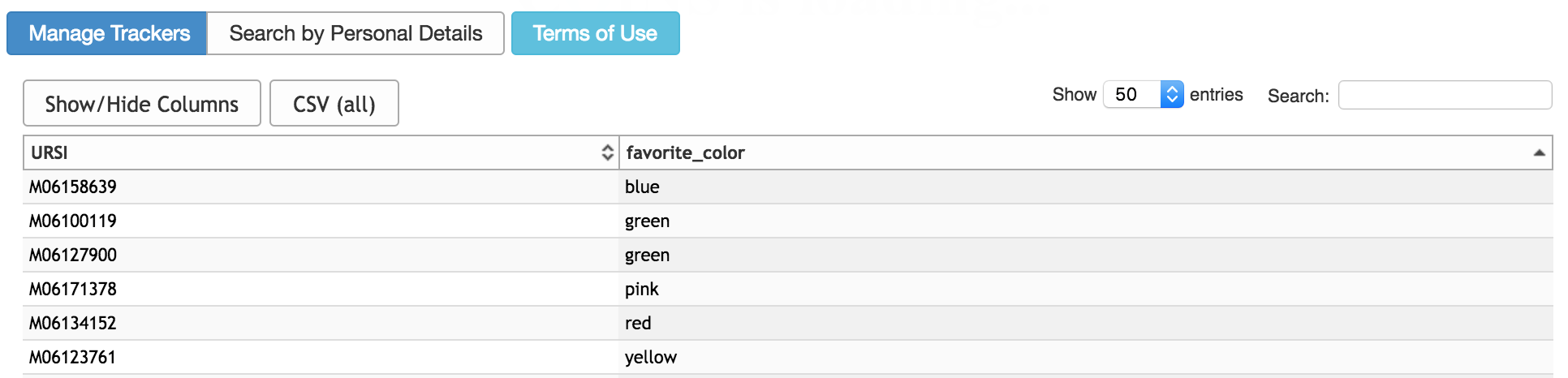
The canned responses added will appear as available responses in your tracker response options. This means that when importing data for this tracker in the future, you will no longer have to append ::canned. This is the case for all existing canned response trackers.
Note: When entering tracker information for canned responses, if you enter a new response option without the ::canned appendage, the response option will be added as a string only, not an available canned response.
Importing Blank Tracker Data
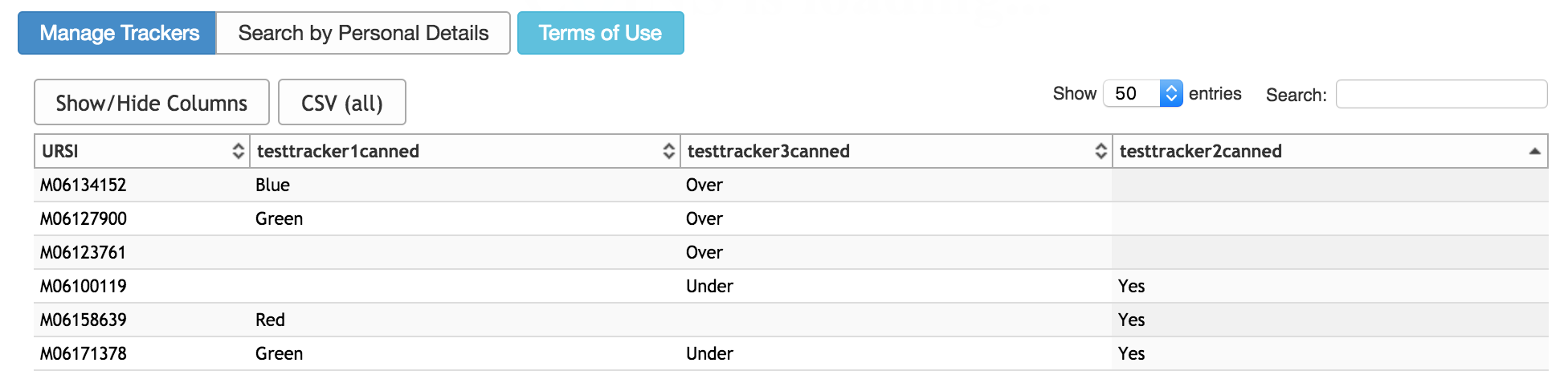
It may be the case that you need to import new tracker data for your participants, but you want their existing tracker data to stay the same. As stated above, if you leave any of the cells blank in your import csv, whatever is already existing in the subject tracker for that participant will stay the same. However, if you would like to remove existing tracker data without overwriting with new data, you will need to type ::blank into that cell. This will remove the tracker data that exists for the participant for that particular response.
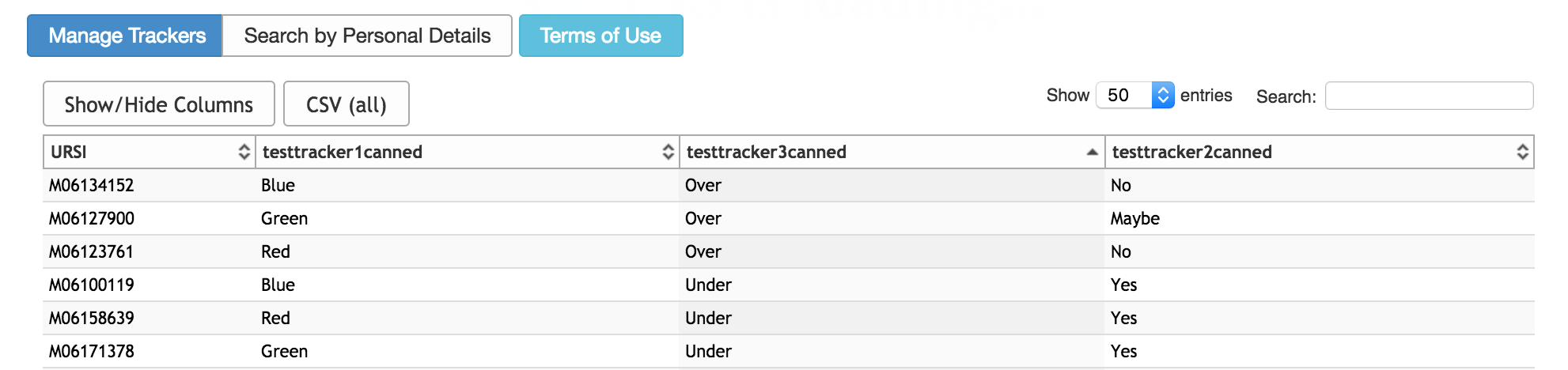
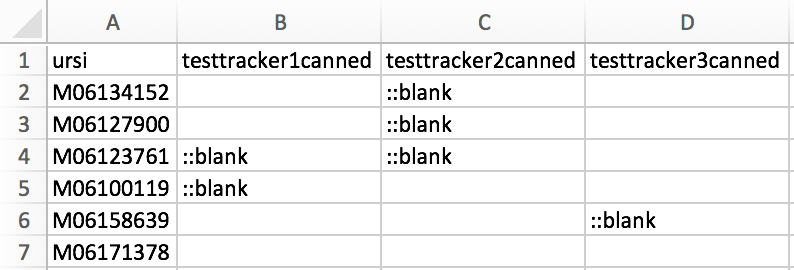
In the above example, the top image is what exists for these subject trackers in MICIS. If you import the csv shown in the bottom image, the tracker data will be removed for the cells that say ::blank. Below is the result of the import.
Using the Tracker
Note: when switched, Personal Details view rows DO NOT match the URSI view rows.
Find a subject you wish to update. The table can be searched and sorted from the URSI or Personal Information view. If you have trackers created, they will also appear on the Subject Tracker table and the responses for them can be searched and sorted as well. Click on the Subject/row you want to add information for to open the trackers available to them.
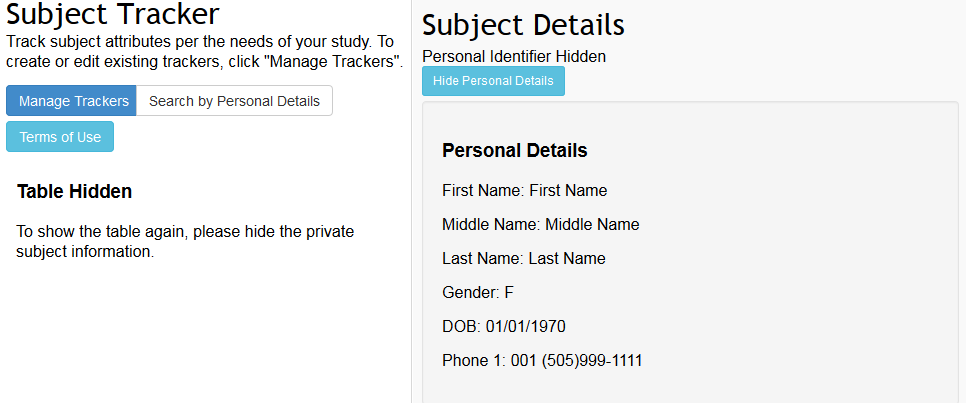
Click Reveal Personal Details to see the subject's personal information. If a subject's PHI is unlinked, their personal details will be hidden. Alternatively, if you are already searching by Personal Details, you can choose to see URSI and Subject Type information. Click Hide Personal Details or Hide URSI and Subject Type to go back to the tracker table.
Now you can update the subject's tracker information by adding the date for the event (defaulted to current date) and any necessary Log notes. If you have added Canned Responses for the Log, you can choose one from the drop down list and click + to add it to the Log text field. Click the tracker you want to update, Phone Screen Log in the example image below, and then choose a Response Option from the Standard Response list. If this tracker has custom responses enabled, you can enter any desired text in the Custom Response field.
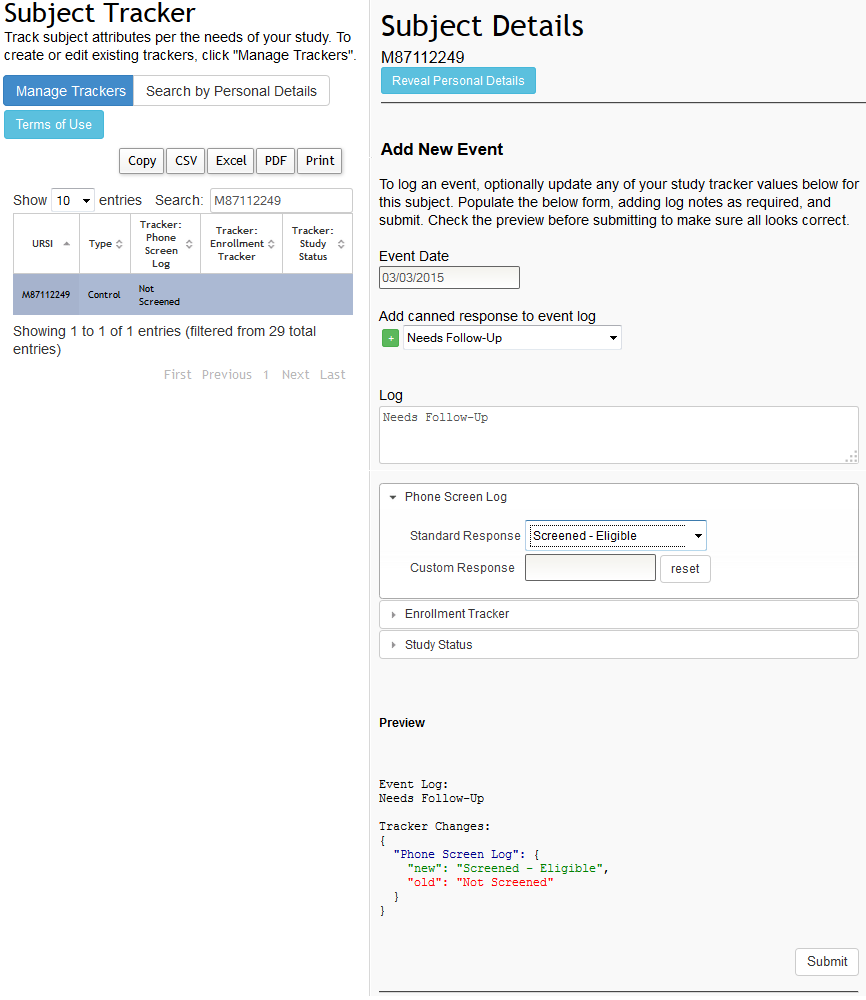
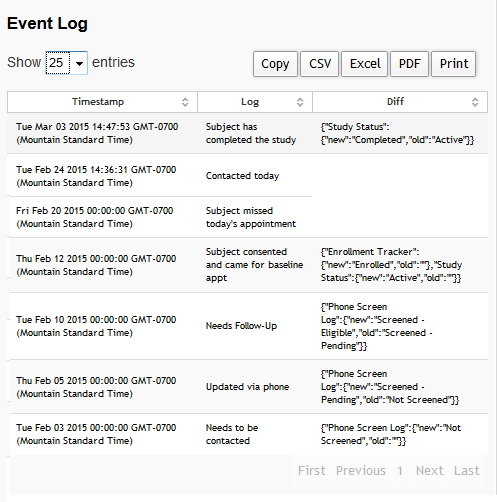
Below the trackers for the study, you will see a Preview of your changes that will be recorded in the Event Log for the subject. In the example above, we can see the new Log status is "Needs Follow-Up" and the tracker is being changed from "Not Screened" to "Screened - Eligible". Click Submit to add your changes. The changes made will now be reflected in the subject's Event Log.
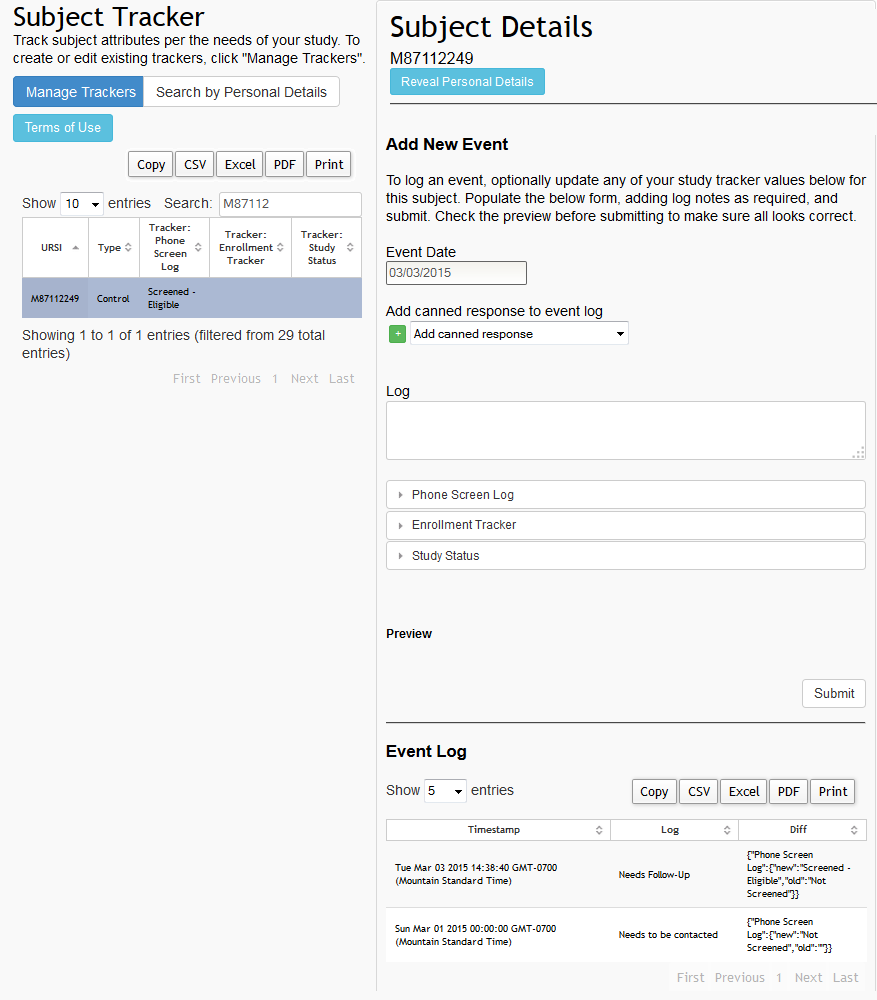
The Event Log will record all information changed for a subject. This provides study staff a full picture of the subject's progress and detailed logging of events.
Comments