The Event Calendar allows study staff to see upcoming visits that have event protocols as well as scheduled notifications. The calendar is intended to allow for Auto Queuing scheduling, but can also be used to send reminders to participants and to manage participant visits. Events displayed are from protocols that are due for participants based on their anchor date and time from baseline for each visit. For example, if a participant is enrolled on 09/01/2013 and Visit 2 had time from baseline/time unit set at 5 weeks, Visit 2 events would show up on the calendar for that participant on 10/6/2013. If a subject in your study ends up starting much later than expected, you can change their anchor date in order to move all of their events to the appropriate dates on the calendar.
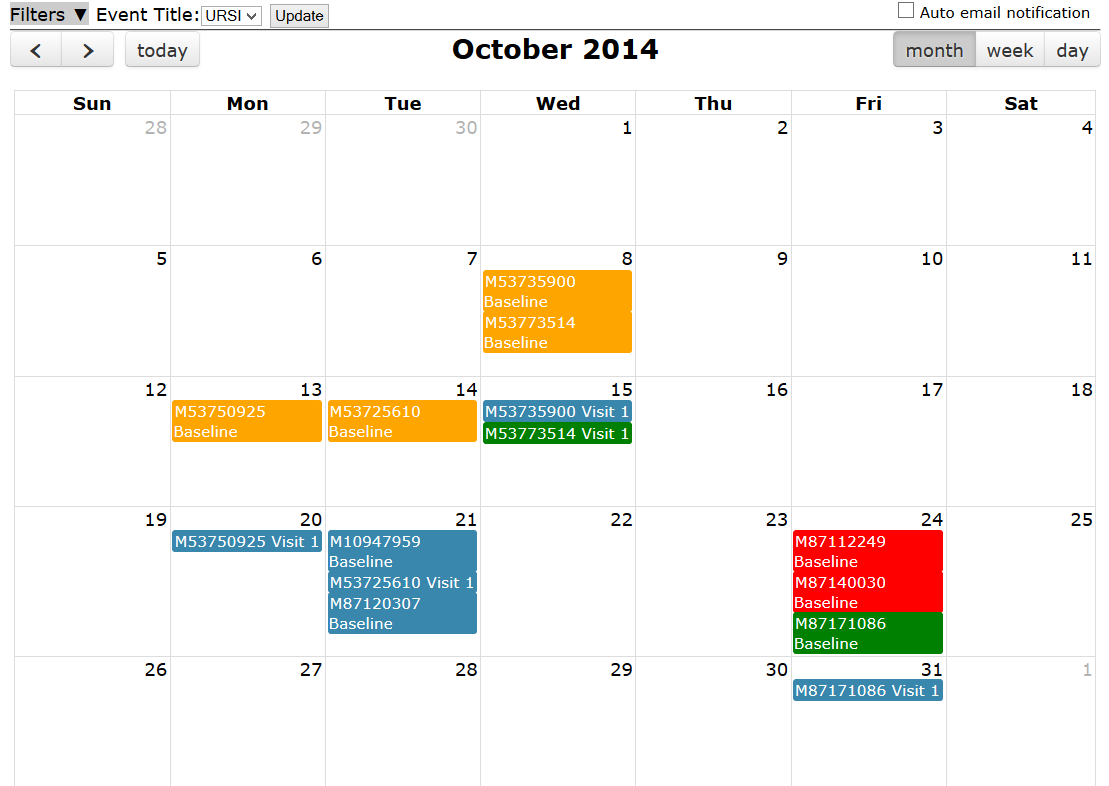
Events are displayed in different colors, signifying their status.
- Blue - templated: has not been scheduled
- Green - scheduled: visit confirmed, but has not been queued
- Red - queued: instruments have been queued
- Yellow - multiple events: there is more than one protocol for the visit
Click the < > under the filters to navigate to different months. Click today to return to the current date.
To take advantage of most features for events, the event schedule must be confirmed. Notification events can also be manually added for visits or communications not accounted for in the study visits.
Calendar Filtering
By default, the event calendar will show all participants in the study that have available protocols created for visits. The event calendar can be filtered by clicking Filters at the top of the calendar.
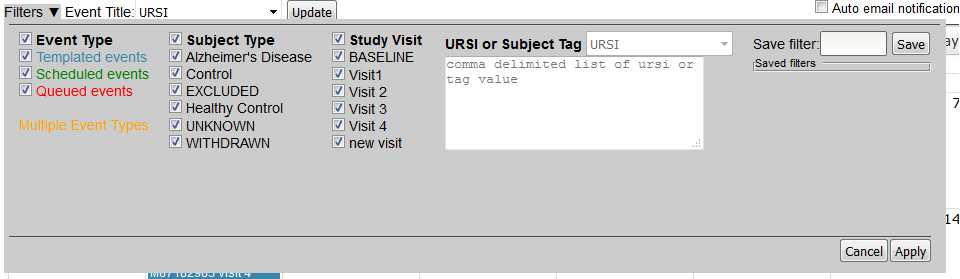
The event calendar can be filtered by any of the options shown by selecting the options you wish to filter on. Click the box next to the titles to select or deselect all boxes below. In the box labeled URSI or Subject Tag you can enter one URSI or list of URSIs to display on the calendar. Currently this feature does not allow a list of subject tags. Click Apply when you are finished and the calendar will only display events based on your filters. A filter can be saved by putting a name in the Save Filters and clicking Save.
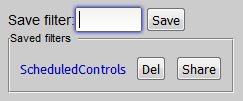
All saved filters will be listed here as well. Click the filter name to load it and then Apply. Remove a saved filter by clicking Del or share it with another user by selecting Share, providing the username to share the query with and then clicking OK.
By default, URSI is shown as the event title, but this can also be changed to the Subject Tag by selecting the tag type from the Event Title list at the top of the calendar near the Filter tab and clicking Update. PHI tags are not available on the list and will not be shown on the calendar.
Comments