Notification events can be added to the Event Calendar, which allow study staff to send participants automated email messages and display messages on their p2 Calendar. This feature can be used to notify participants about their upcoming visits, reminders to complete a diary, or for any other scheduled communications.
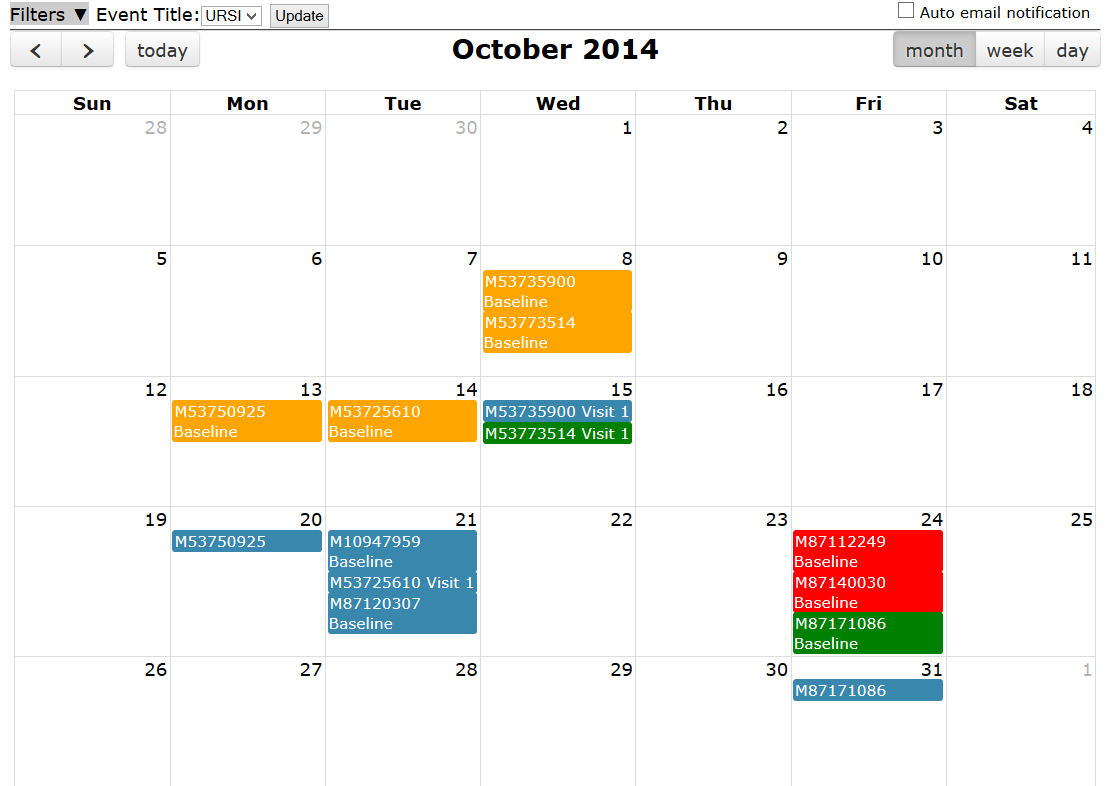
To add a notification, click on the date it should be added on.
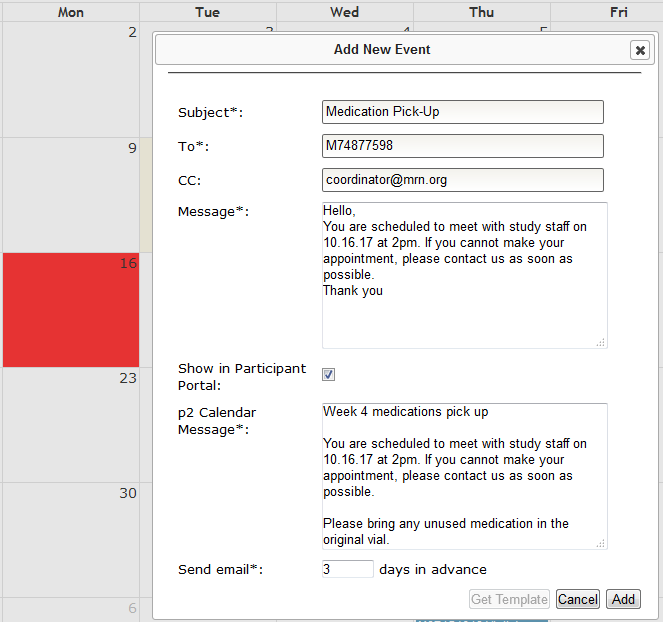
Complete the following information to set up the notification:
- Subject - email's subject line
- To - one or more URSI separated by a comma (email sent to address in Subject Details)
- CC - email CC list
- Message - email message
- Show in Participant Portal - denotes if message is shown on the participant's p2 calendar
- p2 Calendar Message - message displayed on p2 calendar
- Send email - indicate how many days prior to event email should be sent
Since the sending email address is a generic COINS email address, it is recommended that a staff member is on the CC list. For privacy purposes, it is best to leave the email notifications general and leave out any study specific information.
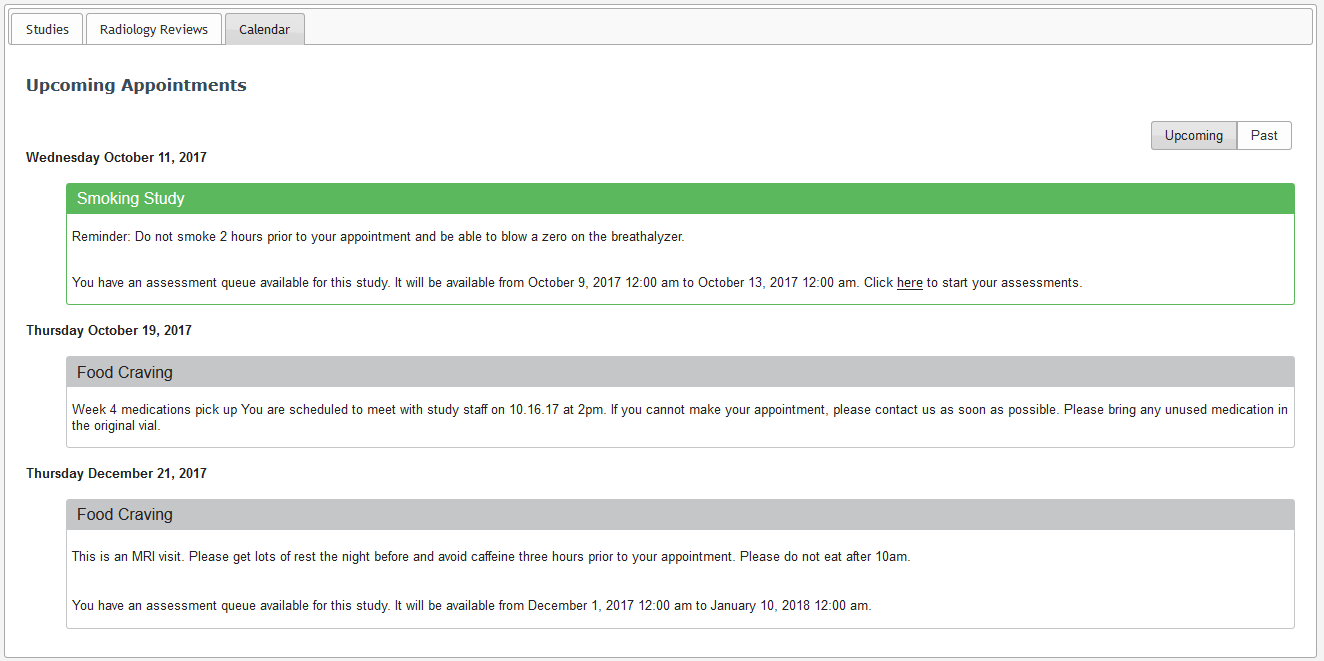
Any p2 Calendar messages will be displayed for the participant on the given date.
Automatic Email Notifications
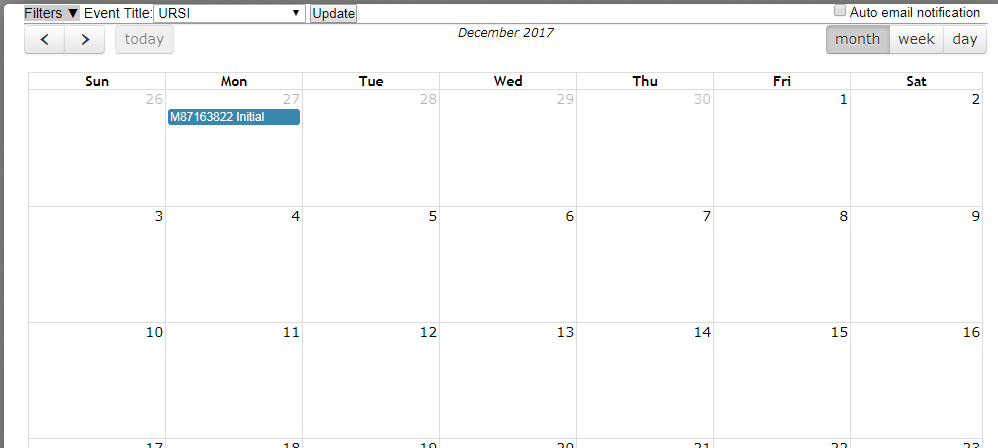
You can also set up automatic email notifications to be sent to your participants on specific days before their confirmed study visits. For this to work, you first need to set up your study visits. This is helpful when you have to send the same reminders to every participant before each visit. To manage automatic emails, click the checkbox next to Auto email notification in the upper right corner of the event calendar.
You will be redirected to a page that allows you to make changes to the Automatic email notifications.
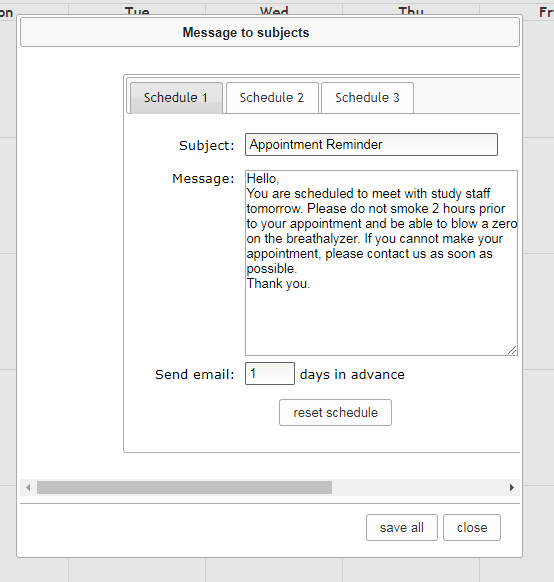
Complete the following information to set up the notification:
- Subject - email's subject line
- Message - email message
- Send email - indicate how many days prior to event email should be sent
In the example given above, the email under the Schedule 1 tab would be sent out one day in advance for all scheduled study visits. You can also select the Schedule 2 and Schedule 3 tabs if you would like to set up more automatic emails. For example, for a study with a 1-year follow-up visit, you may want to remind your participants one month prior to their appointment.
Comments