Participants can also access all confirmed scheduled events and notification events on the calendar tab.
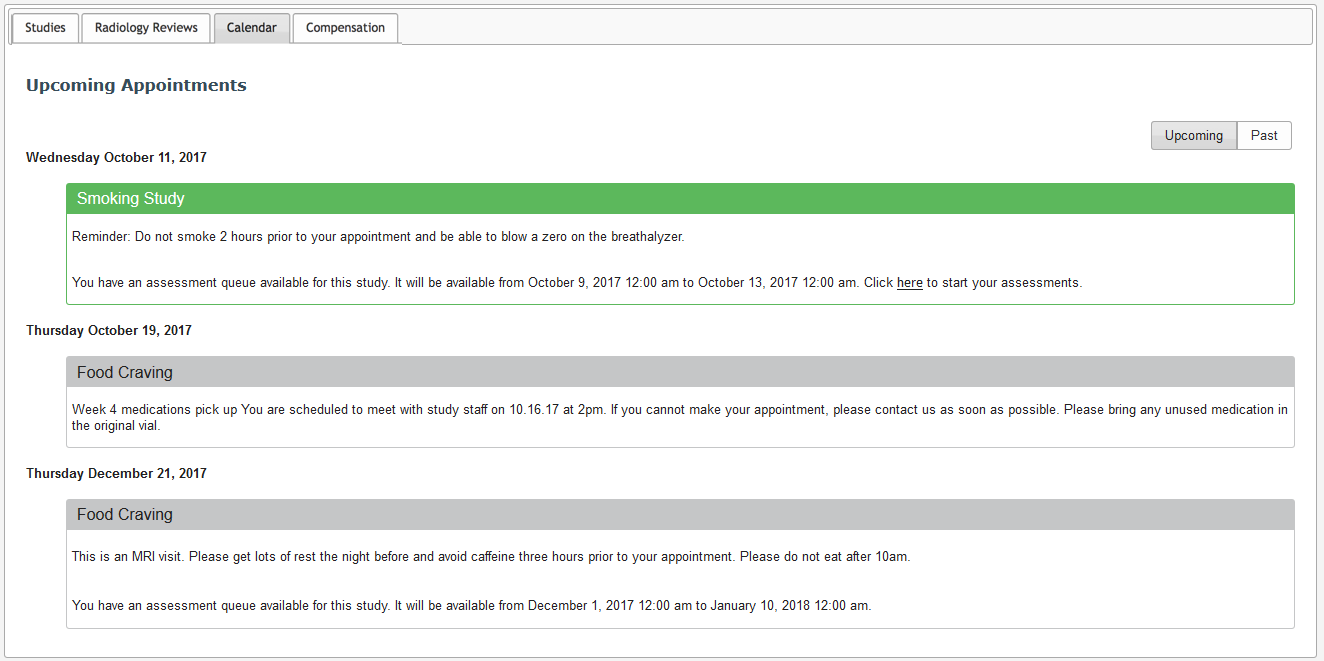
Upon navigating to the calendar tab, current and upcoming events will be displayed. The title of the event will be the study name. Any p2 Calendar messages for the events will be listed under the title. If a study is using auto queuing and the queue is available, the event will be green and the user can open the queue from the calendar by clicking the here hyperlink. The time frame for the queue's availability will also be listed.
Events with a confirmed or notification date after the current date will be considered past events and can be seen by toggling the view to Past.
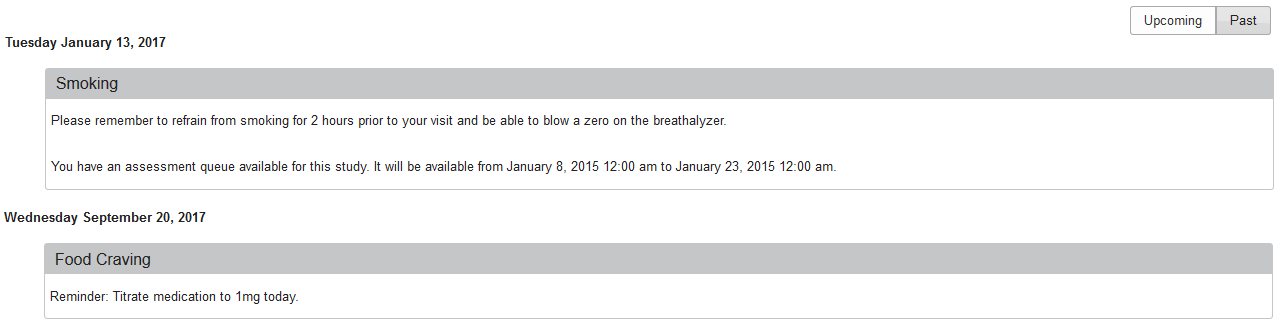
When toggled to past, events and messages set after the current date will be displayed. If an event has an auto queue associated with it that is still available after the confirmed date, the event will be green and the queue can still be accessed until the queue end date.
Comments