If your study is a mapping study, you can access management tools specific to NDA and FITBIR studies that have built to help studies better interface between COINS and the data sharing initiative's database. To access these tools, select Study Mapping Management from the Studies menu.

Only studies that have been set as a mapping study through the study details page will be displayed in the drop down list.
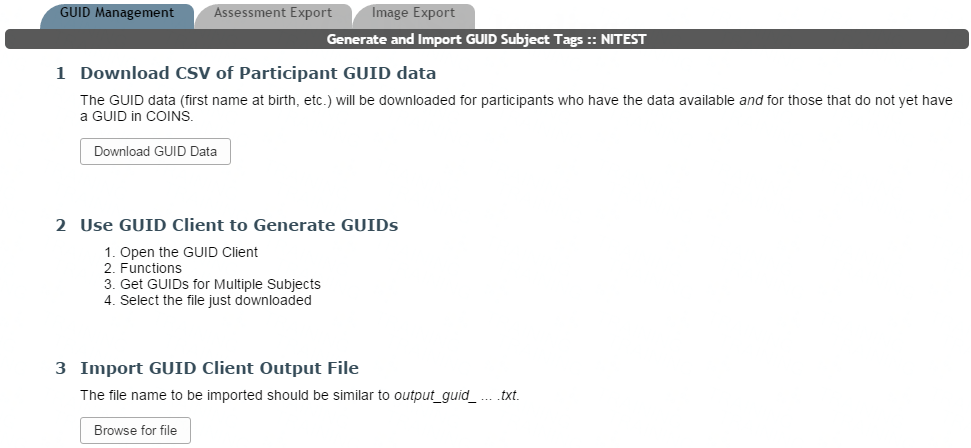
This page allows for exporting of participant information from COINS that can be imported to the NDA or FITBIR database to create a GUID. The GUID information can then be imported back into COINS in the form of a study specific subject tag. Prior to uploading any GUIDs, it is recommended that you review the NDAR GUID page or the FITBIR GUID guide and are familiar with the process.
Click Download GUID Data to download the NDA or FITBIR compatible CSV. If you are opening the CSV in Excel, you will receive to warning messages. These messages are shown when downloading the GUID import form from the data sharing initiatives' site and can be disregarded. This tool will only download GUID information for participants that have GUID details (e.g. first name at birth, etc.) and that do not already have a GUID, which is denoted by the subject tag. The GUID at birth fields are available for studies when they are enabled as a mapping study.
For NDA GUIDs, after your CSV is exported, ensure that the Use Existing GUID column is correct. This will automatically be defaulted 'YES', but in some cases it may need to be changed to 'NO'. This information is covered in the GUID creation video found through the link at the top of the page. It is very important that no other cells are altered after export, as this will affect the integrity of your data.
For FITBIR GUIDs, only required GUID data points are collected in COINS. Optional data points can be added to the CSV after export. It is very important that no other cells are altered after export, as this will affect the integrity of your data.
The CSV can now be saved and sent to the GUID tool. Open the GUID Client and navigate to: Functions > Get GUIDs for Multiple Subjects > Select the COINS file just downloaded. Once GUIDs have successfully been generated, you will receive a text output file that needs to be imported into COINS.
When a GUID output file is imported into the COINS GUID tool, it will automatically match up your imported participants to the proper GUID in COINS. A subject tag for each participant will be created and with their GUID as the tag value. Now each your URSIs and GUIDs will be linked and accessible in COINS. Click Browse for file to import the NDAR GUID output. The file you need to import should be named similar to 'output_guid_ ... .txt'. Do not edit the output file prior to importing it.
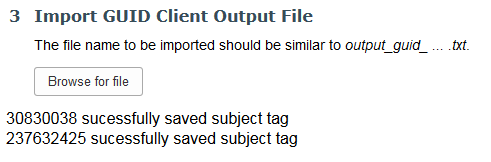
Successfully imported GUID link IDs will be printed. This is not the actual GUID, but it can be seen through the subject tag listing.
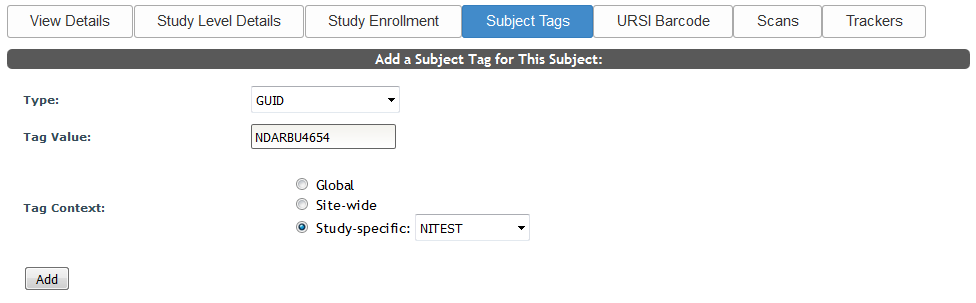
Now the participant can be searched for by their GUID where subject tag look up is available.
Comments