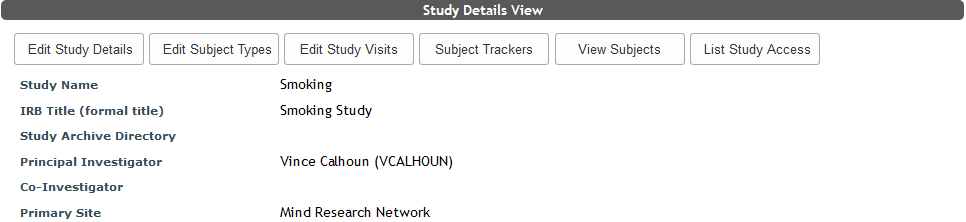
To change a study's details, click Edit Study Details at the top of the View Study Details page.
As indicated at the top of this page you must fill in all fields that have an asterisk next to them. Some fields will not be visible due to permissions. Most fields are restricted to site admins.
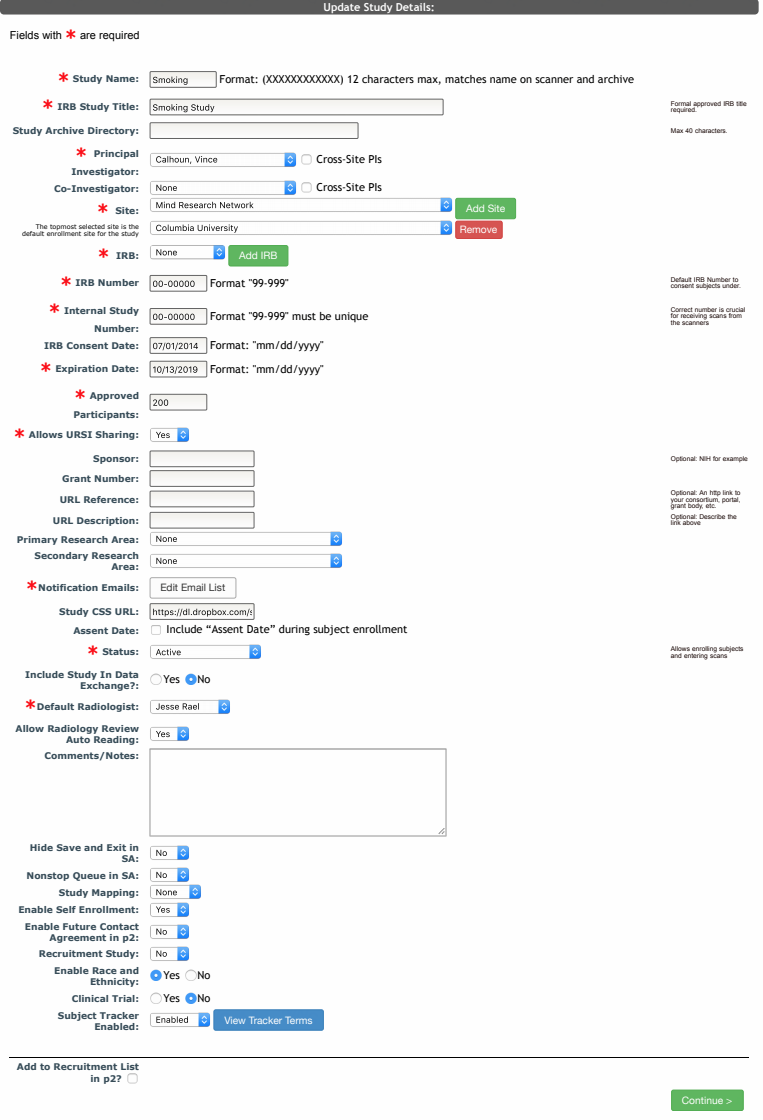
- Study Name - 12 characters max, matches name on scanner and archive
- IRB Title - Formal approved IRB title required
- Study Archive Directory - location study data is archived
- Principal Investigator - you will select the PI from a drop down menu. If you do not see the PI this list you will need to add them with the Add a PI tool in the Studies menu. Check Cross-Site PIs to see a list of all PIs in COINS.
- Co-Investigator - Optional, you can select the Co-PI from a drop down menu. If you do not see the Co-PI this list you will need to add them with the Add a PI tool in the Studies menu. Check Cross-Site PIs to see a list of all PIs in COINS.
- Site - Site study will be at. If the study will be performed at multiple sites, additional sites can be added to the study. The assignment of URSI prefix at the time of subject enrollment is determined by the site selected at time of enrollment. To account for this, you can allow studies to be associated with multiple sites. Click Add Site to add another site to the study. Click Remove to remove a site for a study. The first site selected will be the default site. When enrolling a subject (from the Enter a new subject and Study Enrollment pages), after selecting the study, a site drop down will appear to allow you to select the appropriate site and create an URSI with that site's prefix.
- IRB - Indicate the IRB the study is using. Click Add IRB to add another IRB to the list. IRBs can also be added and viewed in the site configuration page.
- IRB Number - Default IRB Number to consent subjects under
- Internal Study Number: Must be unique. The correct number is crucial for receiving scans from the scanners.
- IRB Consent Date - IRB/HRRC study consent approval date
- Expiration Date - IRB/HRRC study expiration date
- Approved Participants - IRB/HRRC number of approved participants
- Allows URSI Sharing - indicates if the study allows URSI sharing
- Sponsor - Optional, NIH for example
- Grant Number - Optional, Study’s grant number
- URL Reference - Optional, An http link to your consortium, portal, grant body, etc.
- URL Description - Optional, Describe URL reference
- Primary Research Area - Optional, Select from a drop down menu
- Secondary Research Area - Optional, Select from a drop down menu
- Notification Emails - add emails for system notifications (see Notification Emails below for more information)
- Study CSS URL - URL for study specific CSS for Self Assessment customization
- Assent Date - indicates if the study has the ability to record an assent data upon enrollment for studies with minors. Enabling assent date will also automatically prevent the study from allowing Self Enrollment
- Status - There are five possible study statuses
- Active - Allows enrolling subjects and entering scans
- Closed to enrollment - Cannot enroll subjects, but you can still enter scans
- Data Analysis Only - can only access data but cannot enroll subjects or enter scans
- Closed with the IRB - The study is frozen. Cannot enroll subjects, enter scans, or access any data
- Expired - The study is frozen. HRRC reactivation required.
- Never Started: IRB approval was obtained, but study procedures never initiated. Subjects cannot be enrolled and data cannot be collected.
- Suspended - The study has been suspended by the IRB. Subjects cannot be enrolled and data cannot be collected.
- Include Study In Data Exchange? - Choose if they study's data should be included in Data Exchange.
- Default Radiologist - the default radiologist for image reads (only for sites with radiology enabled)
- Allow Radiology Review Auto Reading - allow scans with no structural data or scans done within the last 6 months (3 months for adolescents) to be automatically reviewed, skipping the radiologist (only for sites with radiology enabled)
- Comments/Notes - Any relevant comments or notes
- Hide Save and Exit in SA - Choose whether Save and Exit is displayed in Self Assessment
- Nonstop Queue in SA - Choose if Self Assessment for this study should default to a nonstop queue
- Study Mapping - Denote if the study is an NDA or FITBIR study to enable study specific mapping initiative features
- Self Enroll Enabled - set if Self Enrollment is allowed for the study. If the study has assent date enabled, Self Enrollment will not be allowed, even if this option is set to yes.
- Future Contact Agreement in p2 Enabled - if enabled, participants will be asked during self-enrollment if they agree to be contacted for future studies
- Recruitment Study - denote if the study is a recruitment study and should allow MICIS account merging and Silent Enrollment
- Enable Race and Ethnicity - allows for collection of race and ethnicity at the time of enrollment
- Clinical Trial - Denote if the study meets clinical trial criteria. Users accounts with clinical trial access will be flagged.
- Subject Tracking Enabled - select to enable or disable Subject Tracker. Click View Tracker Terms to see terms of use.
- Add to Recruitment List in p2? - Check this box and fill in the information below to add this study to your site's recruitment website (if applicable).
Recruitment Website Info
If the study has decided to be part of your site's recruitment list, you can also edit the fields below by checking Add to Recruitment List in p2?.

- Self Enrollment Subject Type - This is the subject type that will be assigned to participants that self enroll into the study from the recruitment site. Self enrollment must be enabled for the study and only subject types with self enrollment enabled will appear in the drop down list. If no type is indicate or self enrollment is not enabled, the study will still appear on the recruitment list with details, but participants will not be able to self enroll.
- Purpose of the study - Add the purpose of the study you want displayed on the recruitment website
- Protocol Summary - Add a protocol summary for the study you want displayed on the recruitment website
- Any age range eligibility criteria can be specified here.
- Basic Eligibility Criteria - Provide a description of basic criteria participants should meet
Contact Information
- Name - Study name displayed on recruitment website
- Email - Study email listed on recruitment website
- Phone - Study phone number provided on recruitment website
Notification Emails
Click Edit Email List to choose who receives important study notification emails.
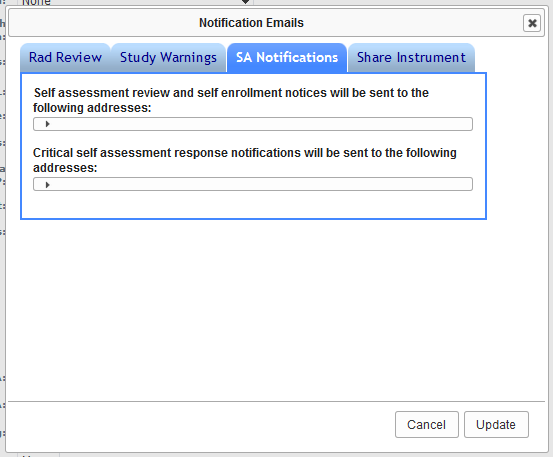
In the pop-up list the email address of study staff who should to receive each different type of notification.
- Rad Review Emails - Notifications for when a scan has been reviewed by the radiologist
- Study Warnings - Notifications about study expiration, approaching target enrollment, scan credit addition and expiration, and Data Exchange.
- SA Notifications - p2 related notifications
- Self assessment review notice will be sent to the following addresses - Notifies listed staff that items are in the Review Queue and needs to be reviewed and when a participant Self Enrolls.
- Critical self assessment response notifications will be sent to the following addresses - Notifications when a participant has entered critically flagged responses in a Self Assessment
- Share Instrument - Notifications requesting an instrument to be shared will be as well as notifications when an instrument shared with this study is updated/edited.
Click Update to save the listed emails and to leave the pop-up. After leaving the pop-up, the study will also need to be saved to retain the changes made to the notifications.
Comments