To access a tool that allows you to customize your site, click Site Configuration from the Admin menu. This tool is available for super users and site administrators. The Site Configuration page will list the following information, which is all editable unless otherwise noted. After you have made your changes, click Save.

Site Information
This section of the page lists basic site information.

The User Contact Email is the email address given to users or participants when an administrator needs to be contacted. Any IRBs affiliated with the site will be listed here. Click Add IRB to add another IRB to the site.
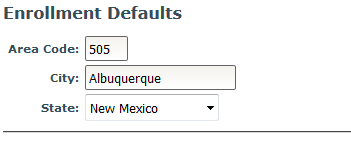
Enrollment Defaults
Here site admins can set site defaults for new subject enrollment.
Note: This only applies to MICIS enrollment, not self-enrollment through p2.
Features
Toggle the check boxes to enable/disable each feature.
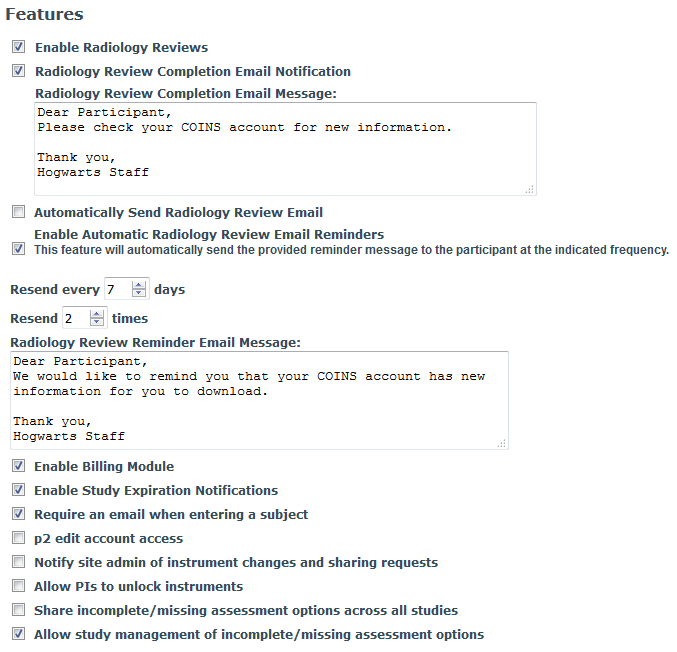
- Enable Radiology Reviews - for sites that have a radiologist reviewing scans
- Radiology Review Completion Email Notification - If radiology reviews are enabled, the site will have the option to enable notification emails to participants when their reviews have been completed by the radiologist. Emails will be sent from the User Contact Email listed above. This allows for any undelivered email notifications to go to the site admin for follow-up.
- Radiology Review Completion Email Message - If radiology review emails are enabled, the site will be able to paste their custom message for the participant email
- Automatically Send Radiology Review Emails - When enabled, email notifications will be sent to participants when the radiologist signs the review. When disabled, only manually sent emails will be sent.
- Enable Automatic Radiology Review Email Reminders - This feature will automatically send the provided reminder message to the participant at the indicated frequency. Reminder emails are only sent to participants who have not downloaded their reviews from the p2 Homepage.
- Resend every ___ days - choose how soon after the first radiology email notification a reminder message should be sent
- Resend ___ times - choose how many times the reminder email should be sent
- Radiology Review Reminder Email Message - custom email message set by the site that is sent to the participant
- Radiology Review Completion Email Notification - If radiology reviews are enabled, the site will have the option to enable notification emails to participants when their reviews have been completed by the radiologist. Emails will be sent from the User Contact Email listed above. This allows for any undelivered email notifications to go to the site admin for follow-up.
- Enable Billing Module - for sites that use COINS for scanner billing
- Enable Study Expiration Notifications - choose to have notification emails sent to addresses listed in the study warnings section of the notification emails, warning the study is about to expire
- Require an email when entering a subject - enabling this feature requires study staff to enter an email address for every participant upon enrollment and when updating enrollment details
- p2 edit account access - When enabled, study staff can edit participants' p2 passwords and account activation status. When disabled, only site admins and above can access these items.
- Notify site admin of instrument changes and sharing requests - choose if site administrator is notified when an instrument for a study belonging to their site is updated or is requesting to be shared
- Allow PIs to unlock instruments - choose if PIs can open a locked instrument
- Share incomplete/missing assessment options across all studies - choose if incomplete/missing assessment options are shared site-wide
- Allow study management of incomplete/missing assessment options - choose if incomplete/missing assessment options are to be managed by each study
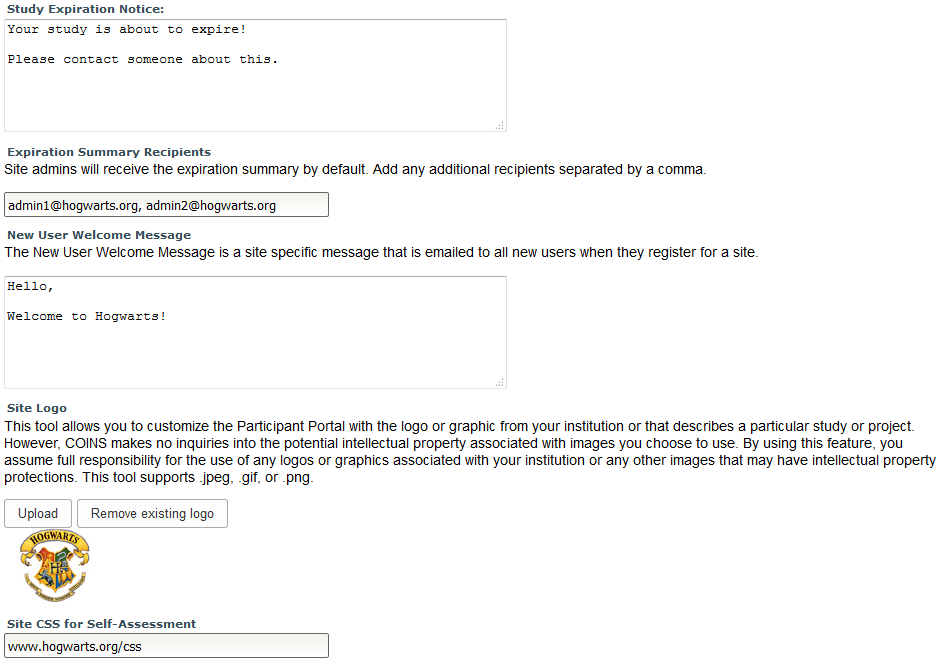
- Study Expiration Notice - add your customized study expiration notice that is sent to study staff when the expiration date is approaching
- Expiration Summary Recipients - Site admins will receive the expiration summary by default. Add any additional recipients separated by a comma
- New User Welcome Message - the New User Welcome Message is a site specific message that is emailed to all new users when they register for your site. It is most useful for telling people how to access studies. i.e.: To obtain access to specific studies, please contact your local COINS administrator or follow the link: www.example.com
- Site Logo - This tool allows you to customize the Participant Portal with the logo or graphic from your institution or that describes a particular study or project. However, COINS makes no inquiries into the potential intellectual property associated with images you choose to use. By using this feature, you assume full responsibility for the use of any logos or graphics associated with your institution or any other images that may have intellectual property protections. This tool supports .jpeg, .gif, or .png. Choose a logo to import by clicking Upload click Remove existing logo to remove the currently uploaded logo.
- Site CSS for self-assessment - choose a CSS file to upload to help customize your site's Participant Portal
Imaging Storage
Choose settings for your imaging data storage.
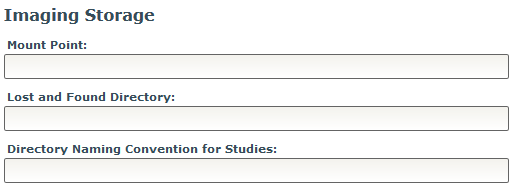
- Mount Point
- Lost and Found Directory - directory for scans that do not have correct information and are not able to be matched with an URSI, study, visit, etc.
- Directory Naming Convention for Studies
Comments