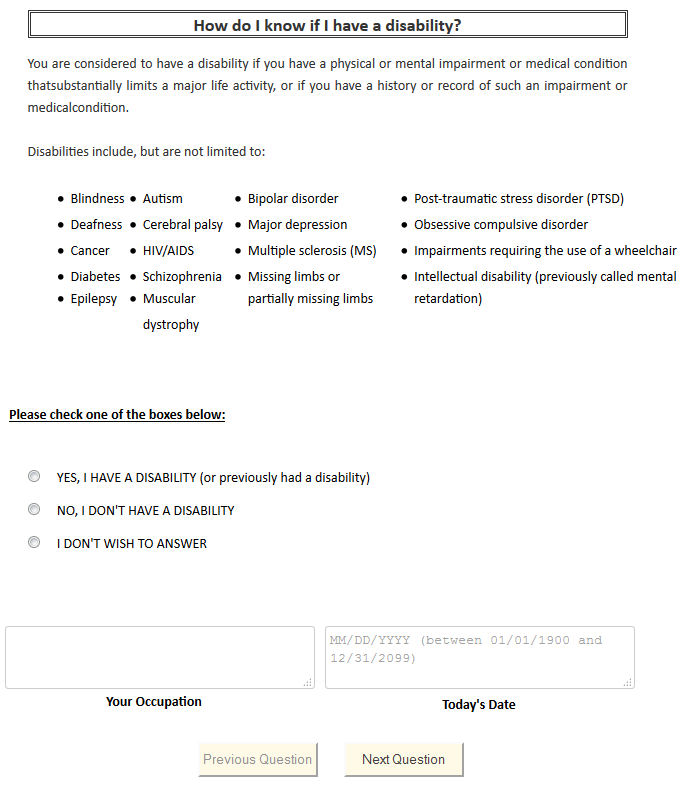
The look of p2 can be altered with cascading style sheets (CSS) by uploading a style sheet either on a study or site level. Site level CSS will need to be managed by the site admin through the site configuration page. Studies can upload their own through the study options.
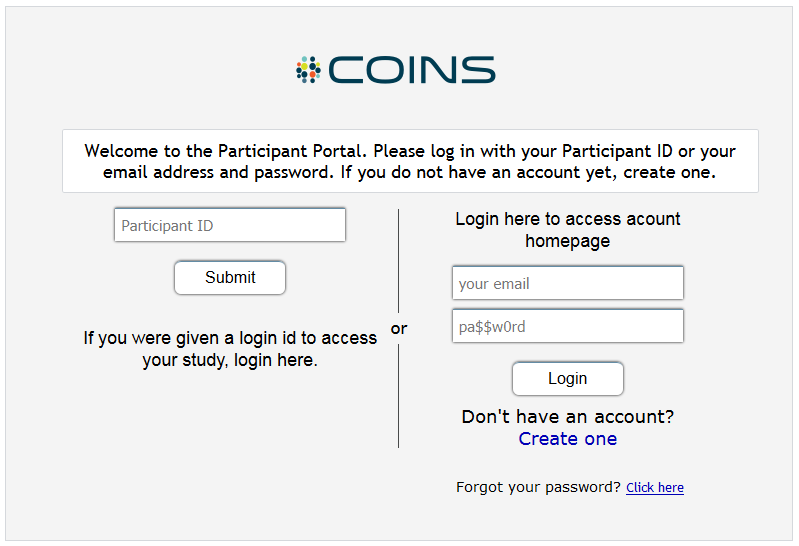
Default p2 CSS

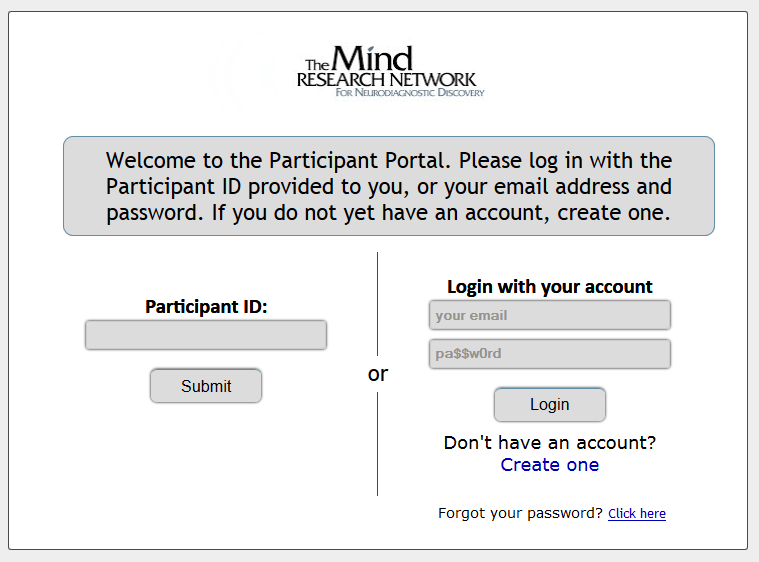
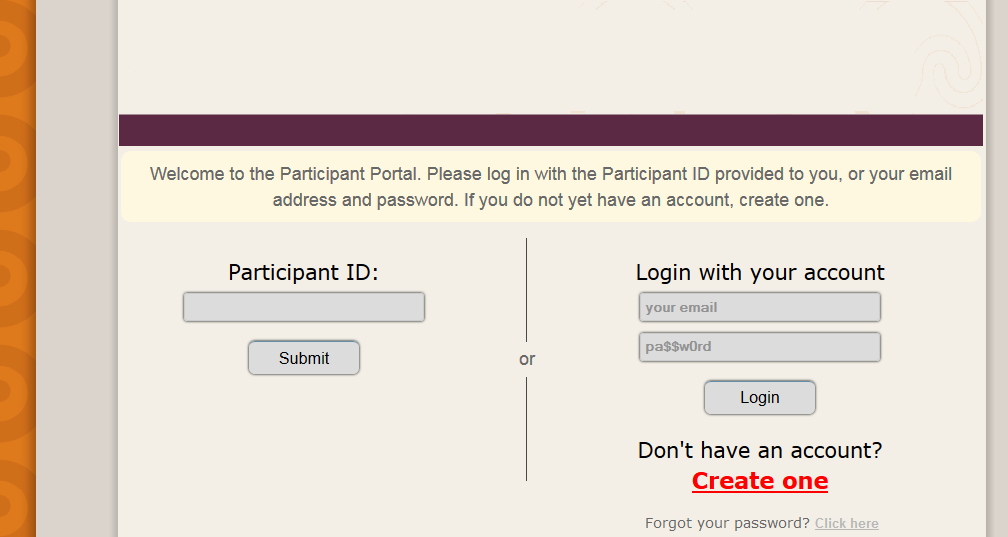
Uploaded CSS
Changing CSS
Below is a guide to the p2 CSS elements. For an easy-to-use CSS tutorial, click here. For any assistance with uploading a CSS link or with modifications, please feel free to submit a ticket to the COINS team.
To change background, color, and fonts contained inside an element:
body {
background: url("example.com”);
color: #33333;
font: Helvetica;
}
To do this for an id:
#frmPage {
background: url("example.com”);
color: #33333;
font: Helvetica;
}
To do this for a class:
.className {
background: url("example.com”);
color: #33333;
font: Helvetica;
}
To do this for a specific element-type of the class:
textbox.className {
color: #33333;
font: Helvetica;
}
You can also find an element with an id that matches a substring, this is useful for questions as they all start with ‘questionList_’
li[id^="questionList_"] {
color: #33333;
font: Helvetica;
}
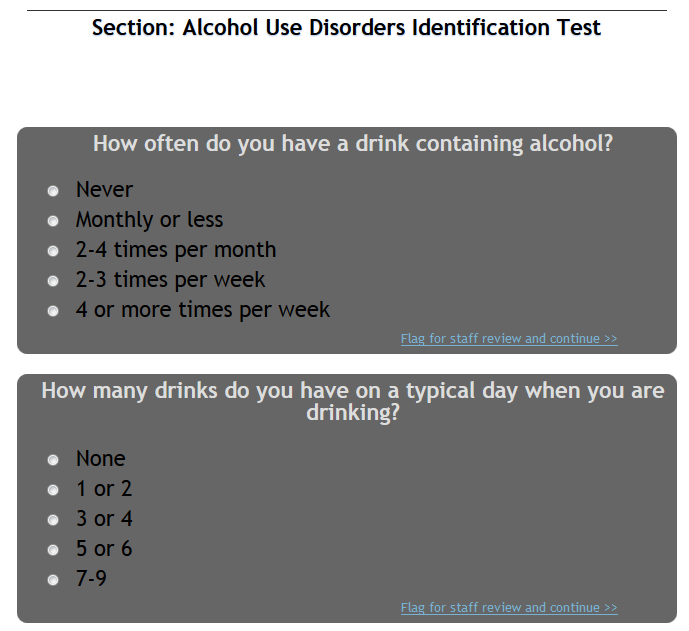
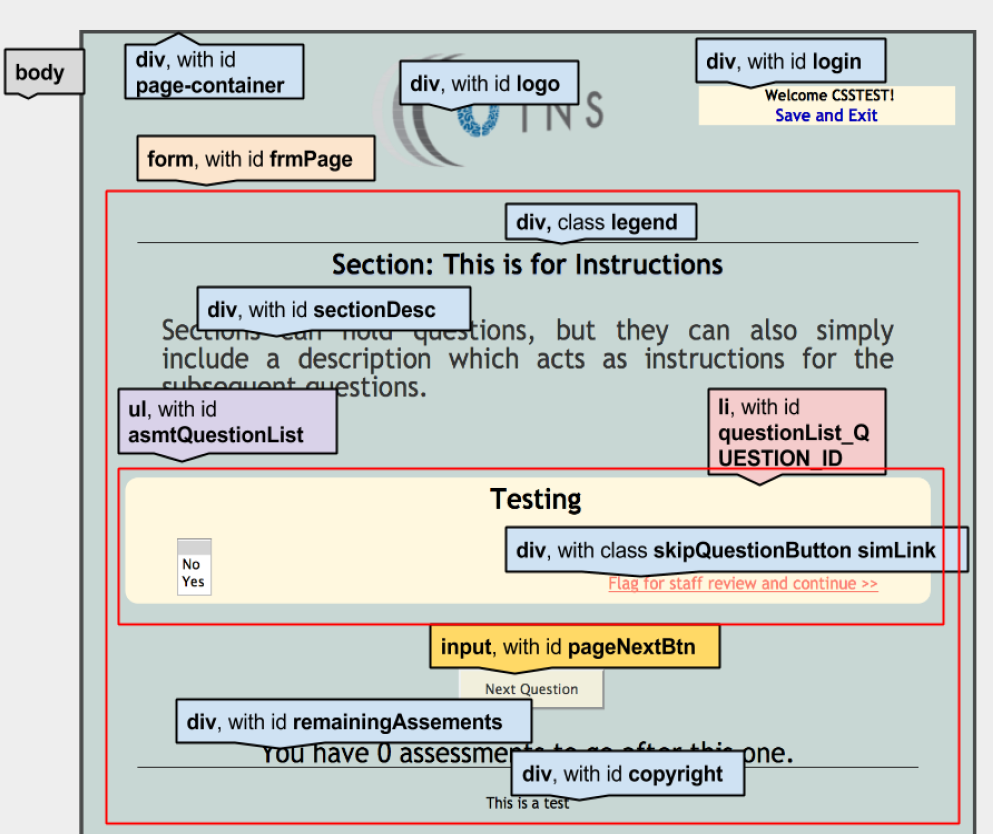
Below is an image containing most of the important elements/ids/classes on the p2 page, all of these can be modified using the syntax above.
Comments