Features
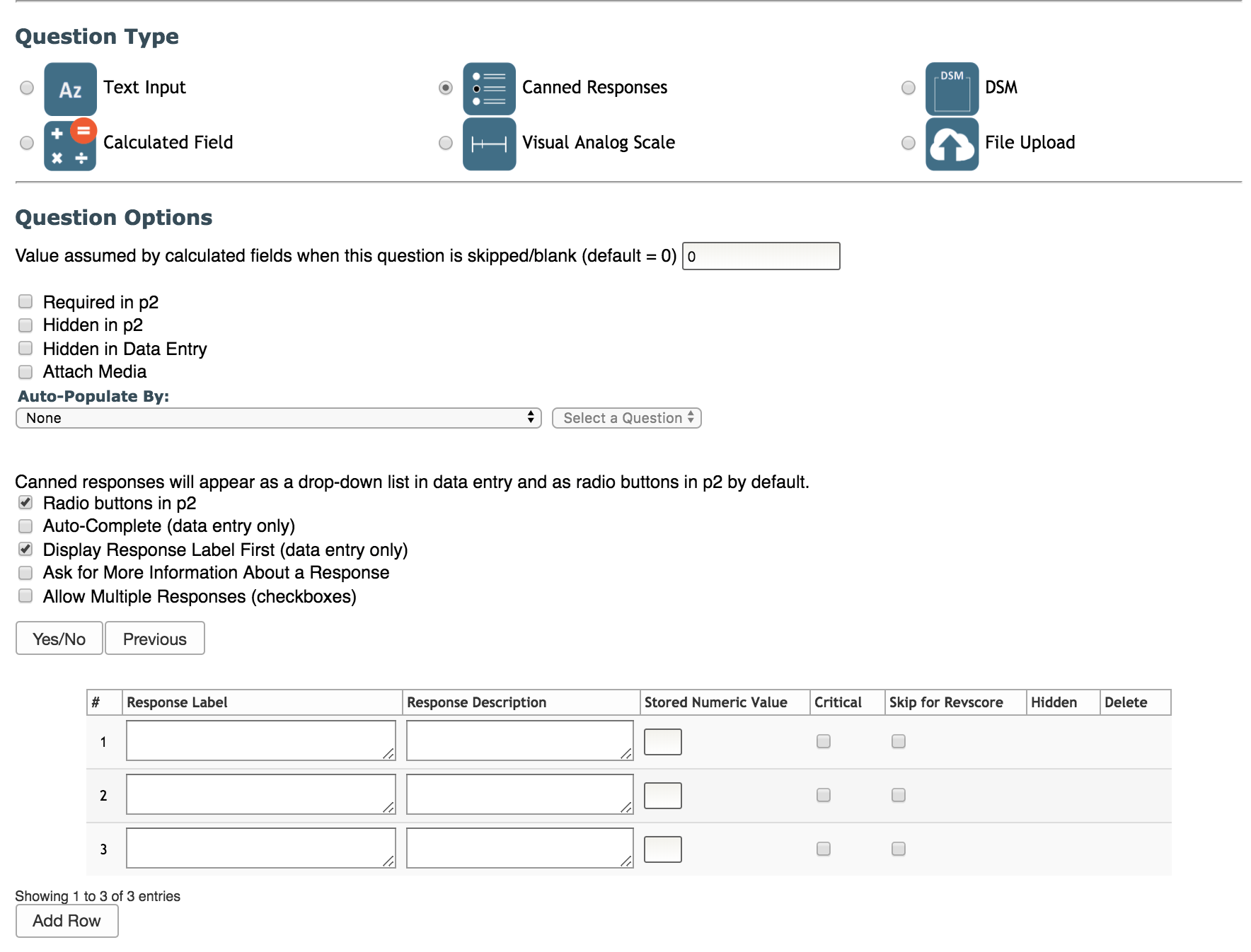
Canned Responses lets the user selects from a list of responses. You can customize this question type by choosing which features below to use.
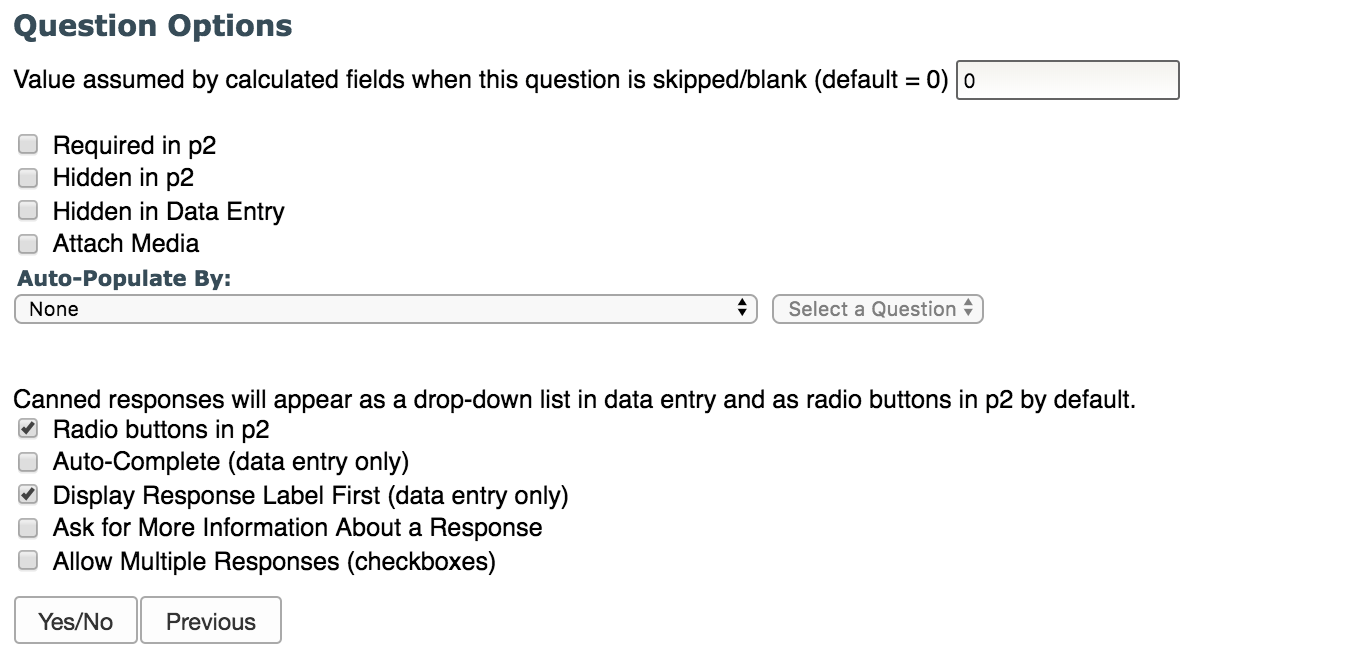
Information regarding the first five question options can be found in the Question Options article. Information for the remainder of the options can be found below:
- Radio buttons in p2 - canned responses will appear as radio buttons in Self Assessment and the Participant Portal only. If unchecked, responses will appear in a listbox.
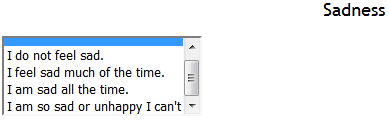
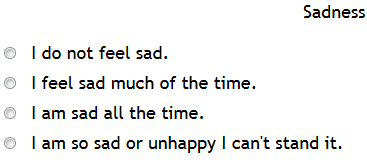
- Auto-Complete (instead of drop down)? - a text-box will be presented to the user, which will suggest matching entries when the user begins typing in Data Entry. In the participant portal responses will appear as radio buttons.

- Display Response Label First in Listbox - during investigator data-entry, this option will cause the label to be listed in front of the numeric value of each response
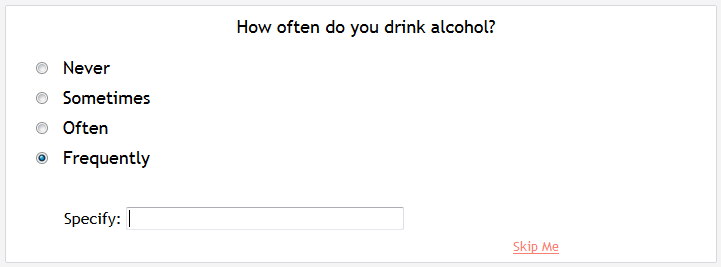
- Ask for More Information About a Response - allows user to select which responses should appear with a 'specify detail' text box next to them
- Allow Multiple Responses (options will appear as check boxes) - creates a check all that apply question
Responses
After you have added features to your question you can begin creating your responses by completing the response fields at the bottom of the page.
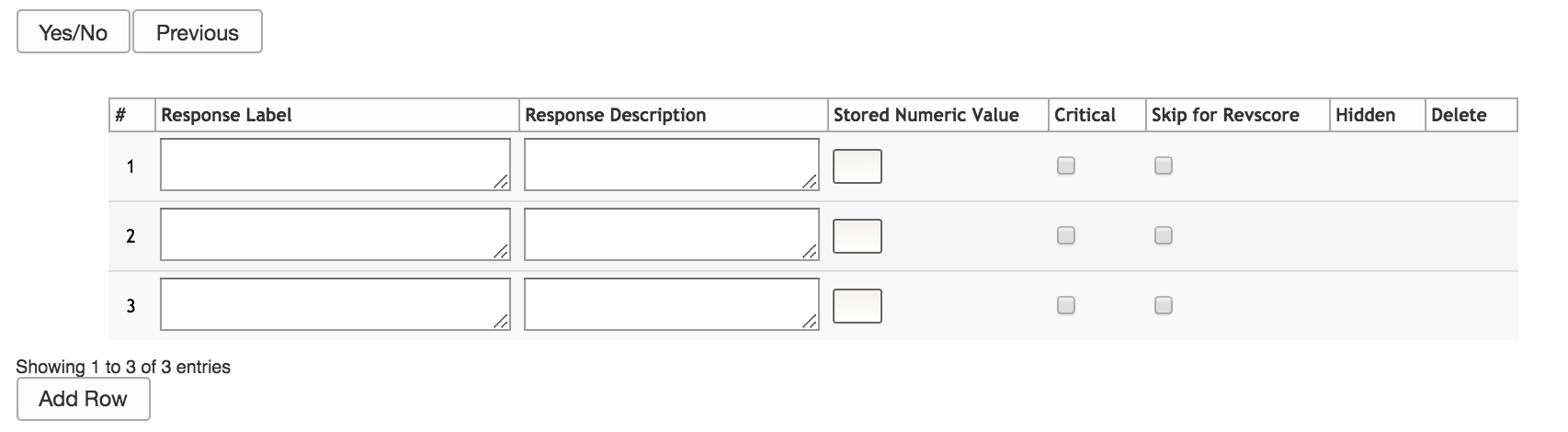
By default, three rows will load when the canned response option is chosen. To add more click Add Row.
Continue to add the question by completing the canned response rows with the information below.
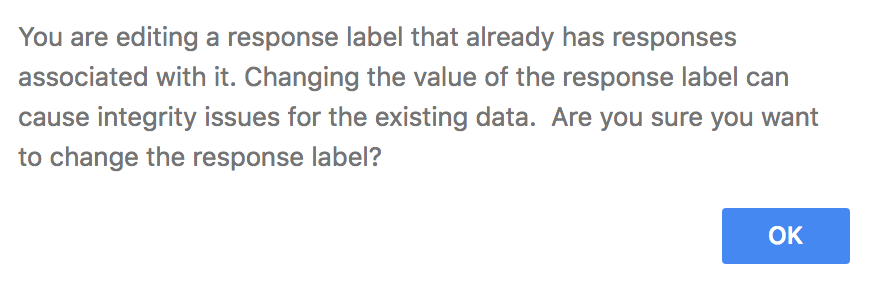
- Response Label (required) - type in the response text. You may edit response labels, but once data is associated with a response, you will be warned before editing that changing the response label can cause problems for existing data.
- Response Description - fill in any descriptive language for the response. This is not viewable to the participant in participant portal.
- Stored Numeric Value (required) - Type in the value associated with the response, which will be the value seen when data is exported. Duplicate stored numeric values for a single question are not allowed. Once data is associated with a response this cannot be edited.
- Specify Detail - this column only appears if you check the Ask for More Information About a Response option. When a box in this column is checked your subjects will be prompted to provide more information when they select that response option (see image above). Note: you can chose to Specify Detail on more than one response.
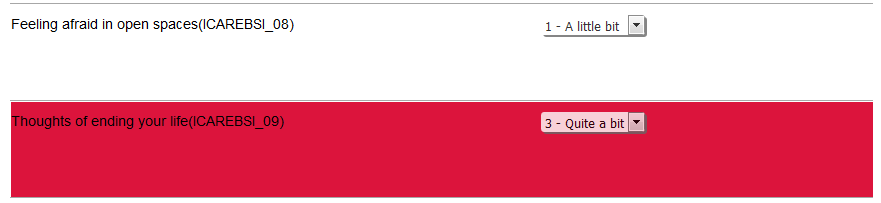
- Critical - denote if the response option is critical and when a subject triggers a critical flag the question will be highlighted in red upon review, as well as the assessment in the review queue. This will help the reviewer locate the question quicker and alert them to the critical answer. Question flagging can only be seen by study staff and is the participant is never alerted that their answer is critical. Email notifications can also be sent to staff when critical responses are endorsed by signing up for SA critical emails in the study notifications in the study details.

- Skip for revscore - question can be skipped if summing responses but question is reverse scored
- Hidden - hide a response from Data Entry and Self Assessment
- Delete - select this to delete a response. Note: you cannot delete responses for which data has already been entered. Choose to hide the response instead.
To use the same response options from the question that you just added, select Previous and the response options from the previous question will populate.
Select the button labeled Yes/No and No (Numeric Value = 0) and Yes (Numeric Value = 1) will populate for the response options.
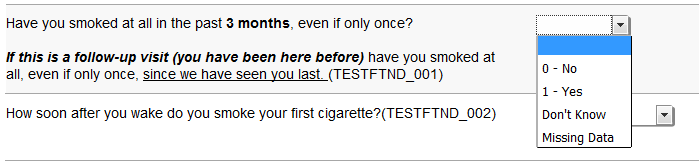
Additionally, all assessments entered through data entry that are canned responses will have the options Missing Data (MD) and Don't Know (DK) by default. This is in case the person entering/transcribing the data cannot tell what the response is (DK) or if the response is really missing (MD).
Comments