After you have completed the cover sheet, you will be able to enter data. All that is need is to complete the question fields in the Instrument with the data on the paper form if performing dual entry or by putting information directly into the fields if you are interacting directing with the participant (direct and on-going entry only). Entry for Calendar Instruments will differ from this process.
You can navigate through questions by clicking on them or by using tab to move from field to field.
Note: In Data Entry not all questions need to be completed before sending data to the database. It is also important that all assessment pages have been entered before clicking Complete.
Basic Assessment details will be listed at the top of the page. The navigation menu at the top and bottom of the page can help you to move through instrument pages, complete, escape or save assessments.
- Complete - finishes entry and sends data to database
- Escape - allows you to exit data entry. If you escape an assessment, you will need to resume entry to complete it as opposed to starting a new entry.
- Save - saves any entered data
The bottom navigation menu only consists of the page navigation arrows and the Complete, Escape and Save buttons.
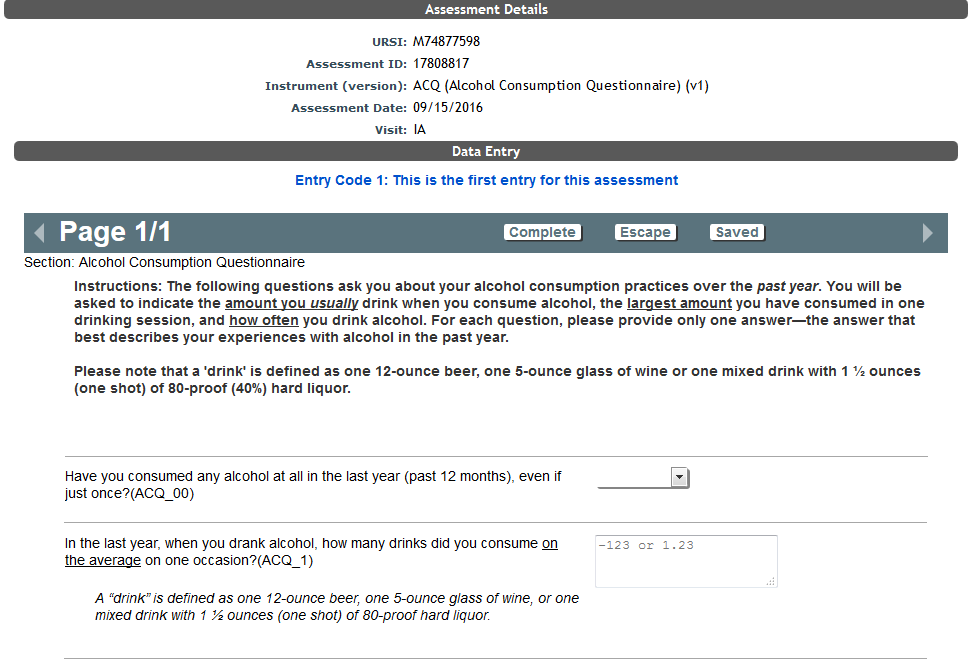
All assessments entered through data entry that are canned responses will have the options Missing Data (MD) and Don't Know (DK) by default. This is in case the person entering/transcribing the data cannot tell what the response is (DK) or if the response is really missing (MD). However, Self Assessment mode does not include these options because the participant should have knowledge of what they are entering since they are not transcribing. If you want to provide a true "Don't know", for example a participant is asked a question which they do not know the answer to, this should be added as a true response option.

If the entry is a second entry, you can use the Mark Conflicts tool to view conflicts in real-time. Check the Mark Conflicts box next to the listing of pages to use this feature. Note: This feature is only available for second entries, where the matching first entry record is complete. If the first entry has been started, but not completed, this option will not be available.

The questions with conflicts are denoted with a X appearing in the bottom left corner of the question box.

If the X appears on a question, the X can be clicked and a Dual-Entry Conflict popup will open. From this popup, you can see the First Entry and Second Entry response and correct the incorrect response by editing the answer and clicking Change. By doing this, you have eliminated the need to view and resolve conflicts through the Unresolved Assessments page under View Conflicts. However, if a correction is made to entry 1 using real-time conflict resolution and the response corrected is involved in a calculation, the assessment will still go to conflict resolution. When opened, there will not be any visible conflicts, but resolving will re-execute the calculations for both assessments, removing it from the conflict list.
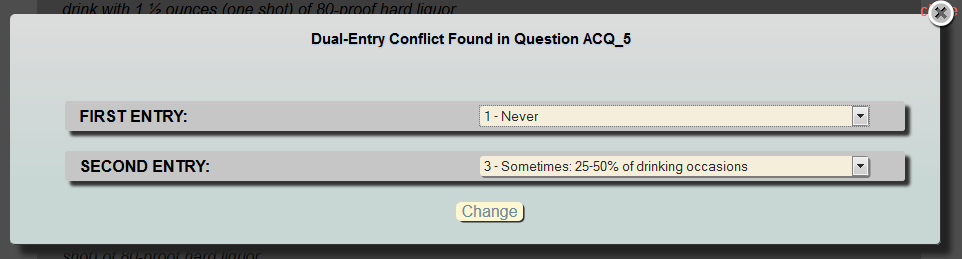
If you like the more traditional approach or if it is not possible or wanted for the second entry user to resolve conflicts in real-time, you can always use the Unresolved Assessments page. This is done by selecting View Conflicts in the Manage tab.
Comments