To view conflicts for your dual entry assessments, go to View Conflicts under the Manage menu.
On this page you will see all of the assessments that had conflicts between the 1 and 2 record for your study. The search field can be used to search any text that is in the table.
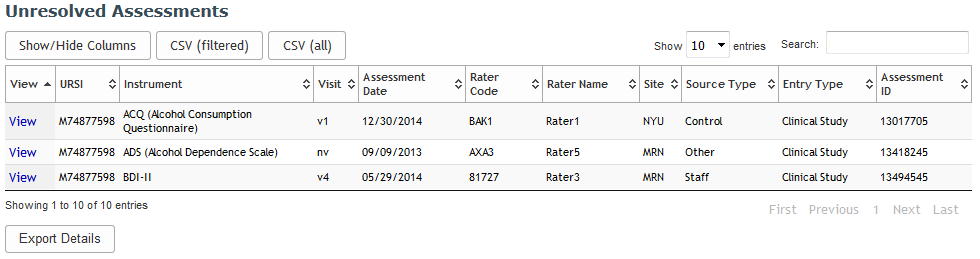
The Conflict Resolution table has many built-in features to help users customize and retrieve table information. Actual conflict data can be exported by clicking Export Details. This will export the data for all conflicts listed in the table.
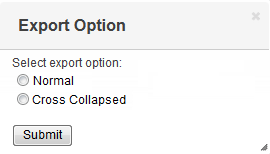
Choose to have the conflict data exported Normal, which is an expanded view of the data, or as Cross Collapsed, which is a condensed version of the export.
To view and resolve the listed conflicts, click View next to the assessment you would like to see and resolve. This will then take you to the Conflict Resolution page for that assessment.
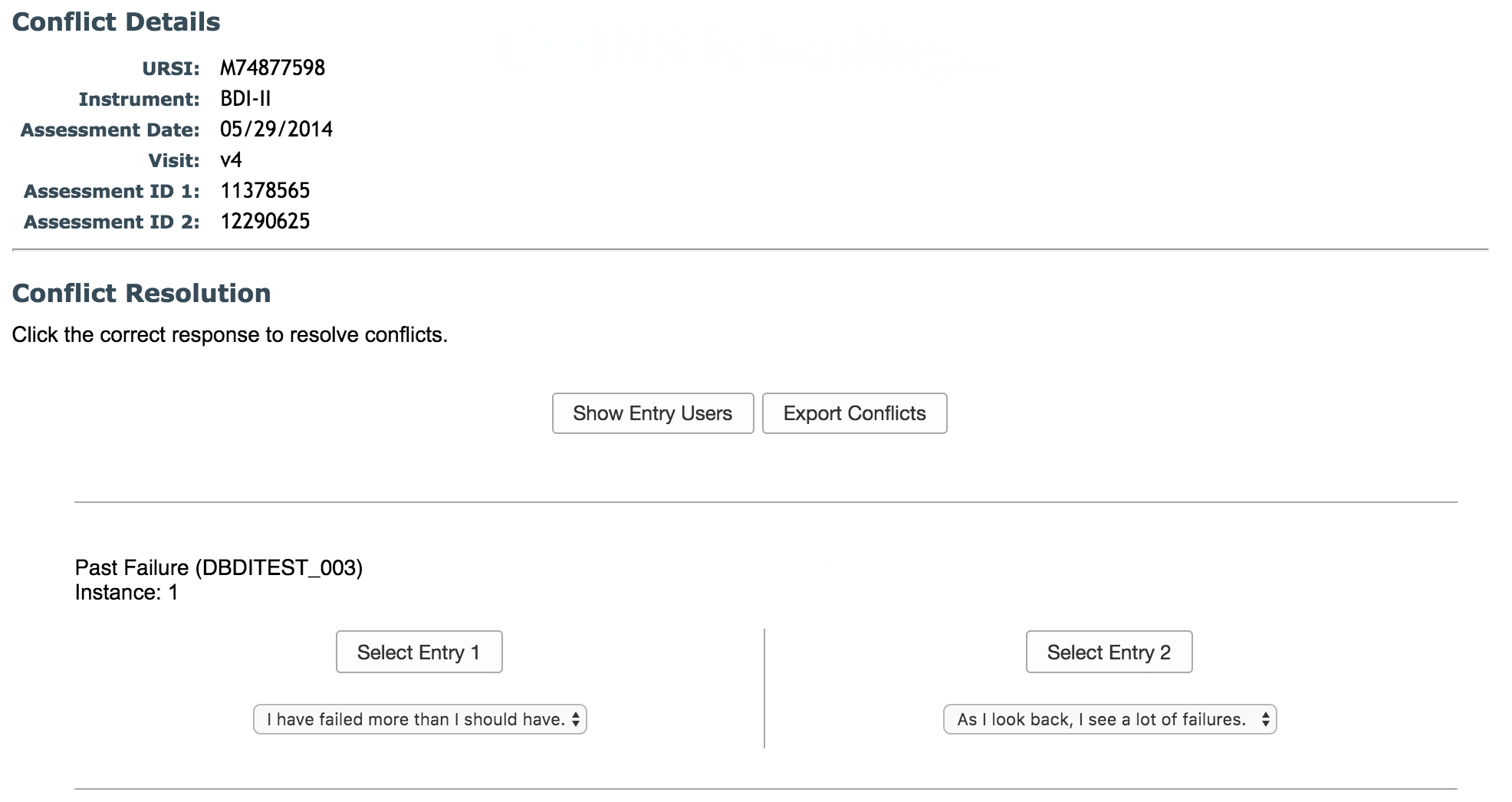
All conflicts for the assessment will be listed here. Metadata for the assessment will be displayed at the top of the page. Below this, the actual question, instance and responses from first and second entry that are in conflict will be displayed.
You will then select the correct response by either clicking Select Entry 1 or Select Entry 2. When you select the correct entry, it will override the incorrect response. Click Resolve once all conflicts have been corrected.
To view the users who entered entry 1 and entry 2, click Show Entry Users. Click Hide Entry Users to hide them again.
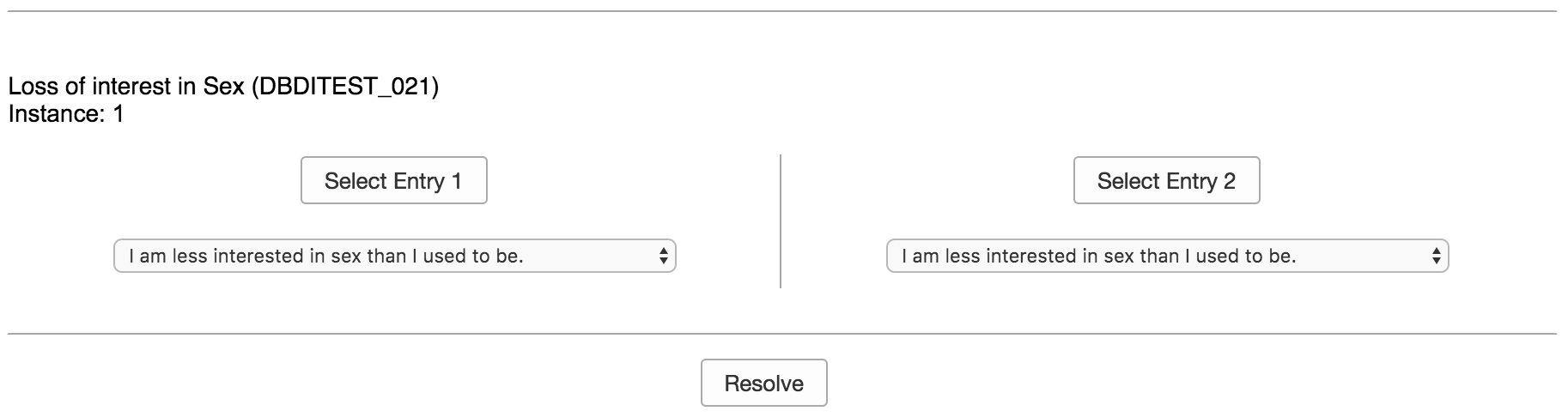
If both responses are incorrect, you can change the response to one of the entries and then select that entry. Once all conflicts are resolved for the assessment, the third record for the assessment will change from a Failed Entry to a Complete Entry.
To export the conflict data into a csv, click Export Conflicts.
Note: Conflicts can also be resolved during second entry in real time. Click here to learn more.
Comments