A list of all users can be accessed by site admins or a new user can be created by clicking Users from the Admin menu.

This is the tool Site Admins use to manage user accounts, including study permissions, expiration dates, and regulating account availability to ensure users are HIPAA compliant by their site's standards. Account information and permissions can be changed by clicking Edit. Click Add User to add a new user account.
Note: If you are a Site Admin, you can give users at other sites access to studies at your site, but you will not be able to change any other account information for these users (i.e. name, password, expiration dates). You can only edit permissions for studies and study portals at your site.
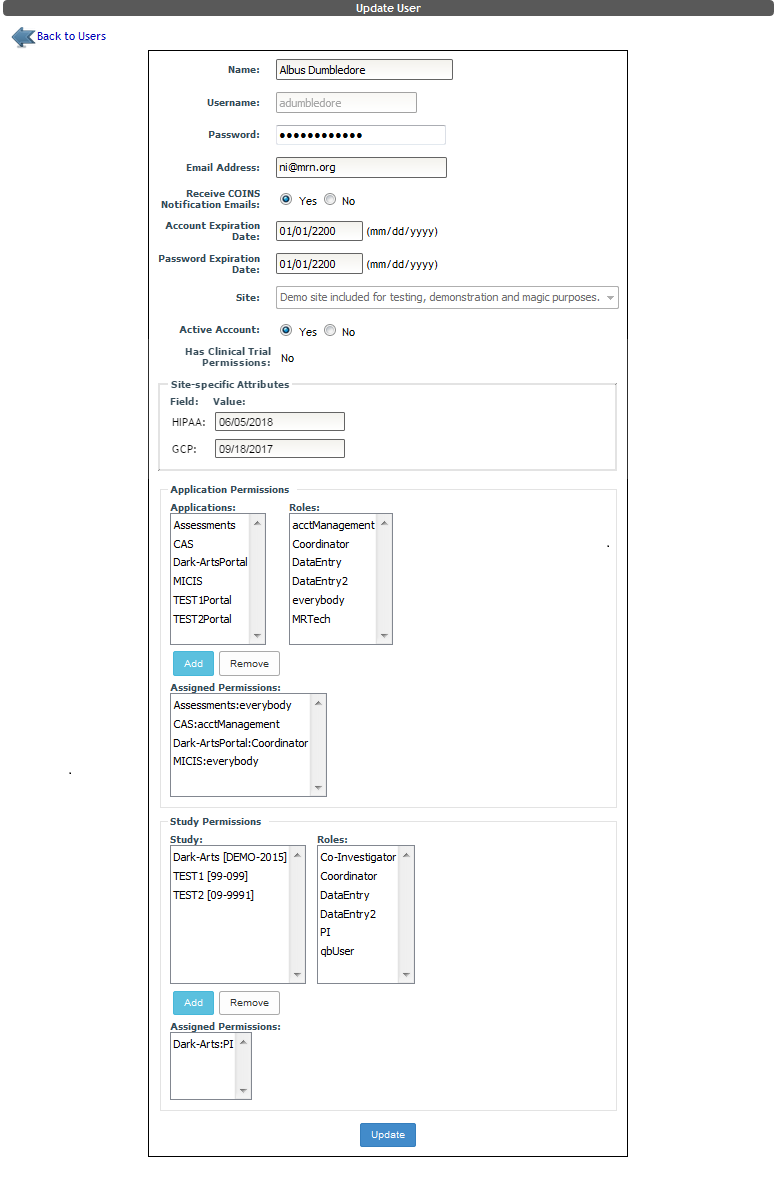
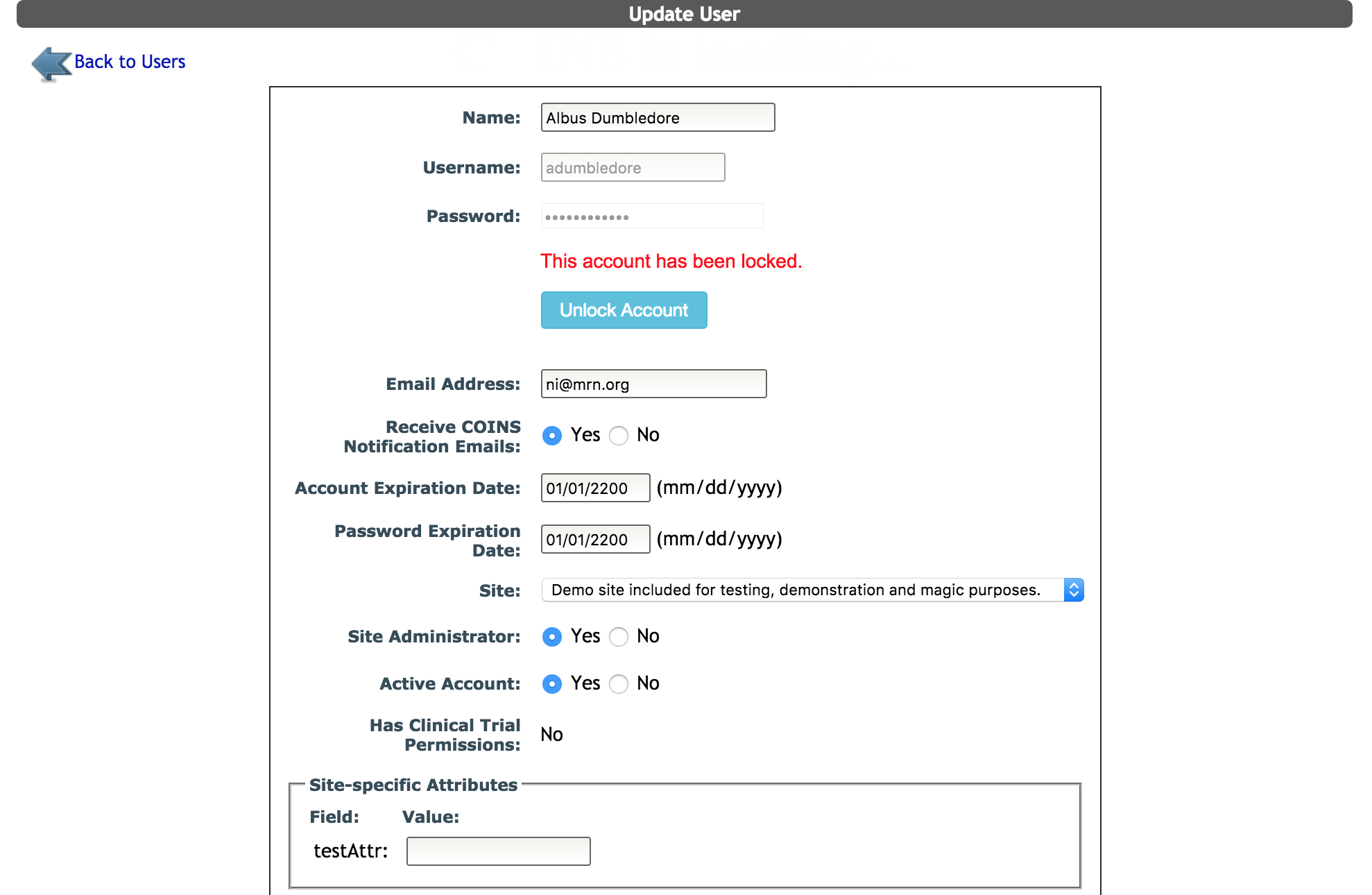
The information at the top of the page deals with general account information. Although site admins can update passwords from this page, users can also reset it on their own from the login page. If a user's account is locked because they exceeded the number of incorrect password attempts while logging in, it will be noted on their user page. Site Admins can click Unlock Account to unlock the user's account.
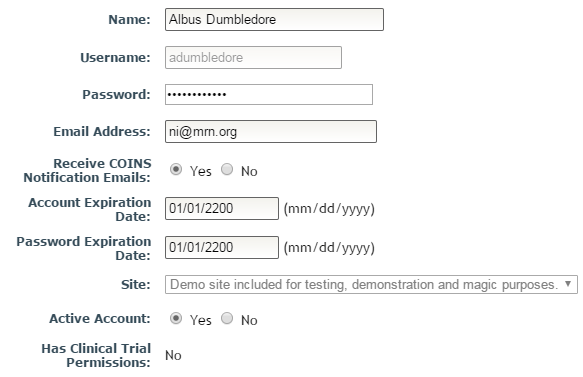
If an account is expired, the user will not be able to access their account, even if it's set to active. If an account is not active, the user will not be able to access the account regardless of expiration date. Has Clinical Trial Permissions will indicate if the user has access to any studies denoted as clinical trials in the study details.
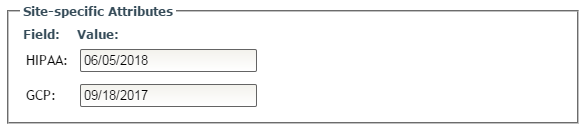
If the user's site has attributes, they will be listed here. Attributes are helpful for tracking site specific information for users. For example, staff for studies that are considered clinical trials must have GCP training. A site can add a GCP attribute to track the training for users who are on studies that are clinical trials. Site admins and PIs can then check the status of users with access to the study in List Access. Only site admins and supers will be able to edit attribute fields. Please submit a ticket to have attributes added to a site.
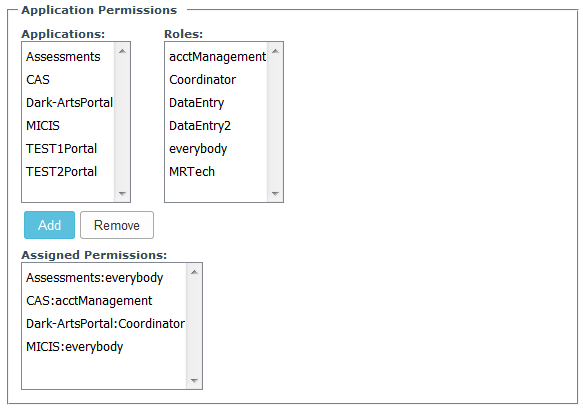
Application Permissions allow access to be granted to different COINS applications. Every user will have Assessments (ASMT), CAS (Central Authentication System), and MICIS listed under Applications, along with any other study portals available for the site. Select an application and the role for it, and click Add to give the user this permission. Current application permissions are listed under Assigned Permissions. Click an assigned permission and then Remove to delete the permission.
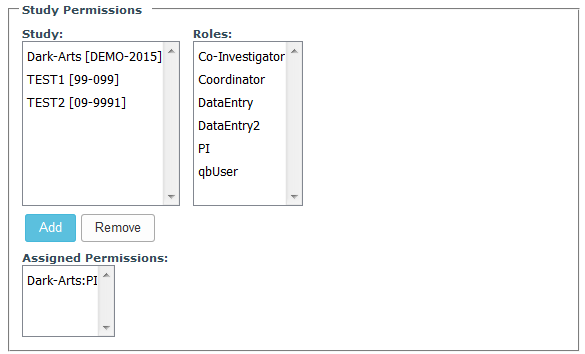
Similar to application permissions, study permissions allow user access to studies. Every study for the site will be listed under Study. Select a study and the role for it, and click Add to give the user this permission. Current study permissions are listed under Assigned Permissions. Click an assigned permission and then Remove to delete the permission.
Click Update to save changes.
Comments