Questions can be set to auto populate the response from another question. Essentially, this is setting a questions response equal to that of another question. This can be done from Question Options.
Once an auto populate has been set up for a question, the question will be presented to the user with the answer populated from the instrument's question specified below. The user may then change the answer if needed. This option is available for Text Input, Canned Responses and VAS questions and works with Self Assessment as well as Data Entry.
For example, think of a question belonging to an instrument called Years of Abuse and the question is asking for the participant's age. Age was already asked in the Demographic Form, which means the age in Years of Abuse can be automatically populated from the Demographic Form. You can do this by choosing the correct instrument to populate from in the drop down box (Demographic Form in this example) and the question from which you want to populate the answer from ([DEMO_3] in this example). Now when the user is presented with this question in Years of Abuse, age will already be completed, automatically populated with the age entered in the Demographic Form. The user may then change the answer if needed.
Note: Auto-Populate By does not work with assessments that are in a different study. The response populated will be from the most recent assessment date and only from C and R records. If there is a C and an R record with the same assessment date that is the most recent date, the R responses will be populated. If the question the auto populate is pulling from is blank, the question being populated to will have ~<autoPopBlank>~ inserted into them as the response.
Auto populated questions can also be hidden in the Participant Portal, allowing for a unique method of skipping within different instruments based on previous responses. To hide a question from in p2, check the Hidden in p2 box. For example, age is asked in a demographics form, which is the first instrument administered. In a subsequent instrument, you have a section that should only be answered by users who are 21 - 30 years old. A hidden question previous to the section can be created that auto-populates the previously reported age from the demographic form. Logic can then be set up to skip past the section if the age is not between 21-30 years old. Now Self Assessment can seamlessly navigate the user to the correct section without the need to answer duplicate questions or have the user see or change the Auto-Populated By question.
The auto population can be set for a question at any time. Upon adding or updating an auto populated question, you will be able to backfill this data into existing assessments. Upon saving, you will be asked to indicate which assessments the auto populated responses should be updated for.
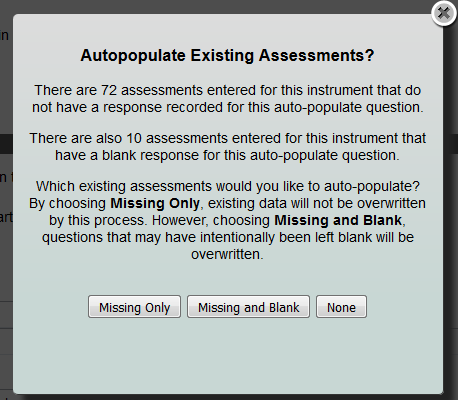
In this context, missing refers to assessments that do not have the question id with the auto population specification associated with them. This is due to the the auto populated question being created after the assessment was created. Therefore, the assessment does not contain this question. Backfilling assessments that have this question as missing will add this question id to the assessment and the data will be populated into it.
Blank indicates the question id exists for the auto population specification, but there is no data for it so it is blank. Since this data may have purposely been left blank, you can exclude it from being populated with data. Backfilling assessments that have this question as blank will overwrite the blank response with the populated response.
Select Missing Only, Missing and Blank or None to indicate which assessments should be populated or repopulated with data. After choosing which assessments to update, a summary of the results will be displayed.
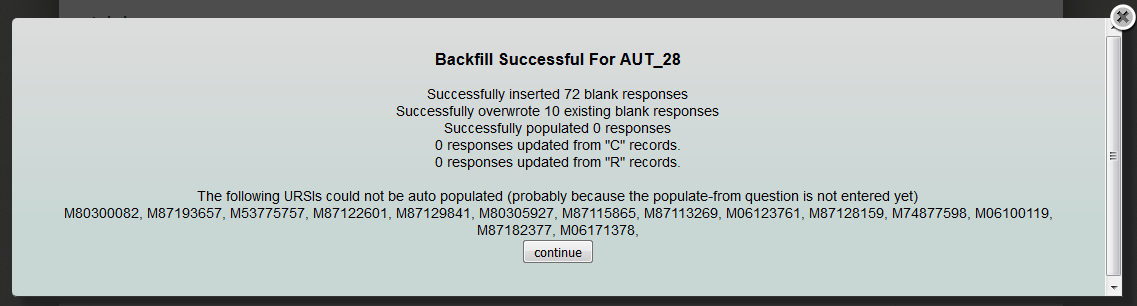
Backfilling of auto populated fields can be done in batch by instrument as well by clicking Back Fill Autopopulate from the Instrument page.
Comments