To begin entry, select the study you wish to enter data for from the study drop down selection list under the Assessment Manager menu. If the study you wish to enter data for is not on the list, you may not have permission to access the study. After you have chosen the study you want to enter data for, select New Assessment from the Data Entry menu.
You will be directed to a page with a list of all Instruments for the indicated study. If the Instrument you wish to enter data for is not in the list, it will either need to be created or shared from another study. You can create a new Instrument by choosing Create Instrument from the Instruments tab or you can share an Instrument from another study by selecting Share Instruments from the Instrument tab.
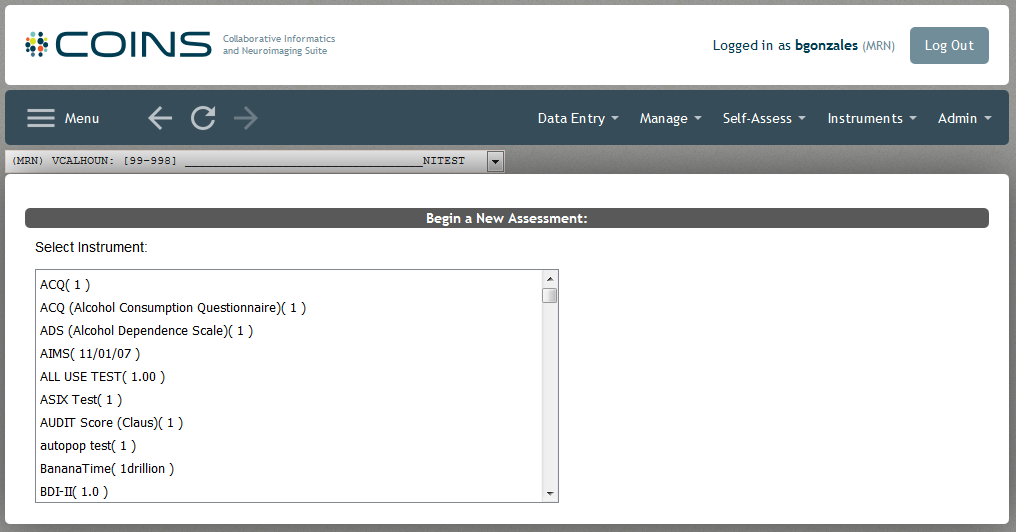
Assessment Manager supports three types of assessment entry; dual, direct and on-going. Each of these will have their own process for starting a new assessment. For more information on data entry, please follow the link.
Dual Entry
After choosing the Instrument you want to enter data for, COINS will navigate to the Data Entry Cover Sheet. The Data Entry Cover Sheet is how COINS decides if the data being entered is a First or a Second Entry. The Data Entry Cover Sheet will initially consist of four fields to complete.
- URSI: you will need to enter the URSI for the participant whose data you want to enter. You can also search for an URSI using a subject tag by clicking URSI Lookup next to the URSI box.

Select the tag type from the drop down list and then enter the subject tag. Choose to search global, site-wide or study-specific.
Note: URSIs that are no longer linked to PHI will not be searchable using subject tags.
-

Your look up result will be shown. Click select to use the URSI for data entry.
- Visit: this is the time point at which collected your data. You can create and edit study visits in MICIS from your study details page.
- Source: you have the choice of the following sources
- Control
- Informant
- Informant 2
- Medical Record
- Other
- Proband and Informant
- Proband and Other
- Proband, Informant and Other
- Proband/Subject
- Staff
- Assessment Date: the date the assessment was collected. This is NOT the date of data entry.
After you have completed all of the fields on the Cover Sheet click next. If you missed a field you will receive a message asking you fill in the forgotten field.
Using the information provided in these four fields in the Data Entry Cover Sheet, will help to determine if the data being entered is a first or second entry. For a first and second entry to match, each of these four fields must match one another exactly for both assessments. If there is no match, the assessment will be considered a first entry. If there is a match the entry will either become a 2 record or will create an error if max instances have been reached.
The Data Entry Cover Sheet fields will vary slightly depending on whether the entry is a first or a second. If this is a first, you will need to finish completing the Data Entry Cover Sheet by filling out the additional fields that will populate. If the entry is a Second Entry, these fields will auto-populate according to what was filled out for these fields in the First Entry. Populated fields should be reviewed for their accuracy and corrected if needed.
The additional fields on the Cover Sheet that appear for entry (First Entry) or are auto-populated (Second Entry) must be completed before you will be able to enter data.
- Assessment Start Time: the time the assessment was collected. This is NOT the time of data entry. You can fill in this field or leave 00:00 (default)
- Rater: you will select from a drop down list the person who administered the assessment. This is NOT the data entry operator. If the rater is not on the list, they will needed to be added. Go here for more information on raters and to see how to add a rater. You can select up to two raters, but only one is required.
- Site: The site where the data was collected and by default this will be set to the study's primary (default) site.
- Event Type: for all real data choose Clinical. Clinical data is the only data that can be double entered and is searchable with Query Builder. All other types are used for testing or training.
- Incomplete Assessment?: if the rater was unable to complete the assessment indicate here by selecting yes. If yes, select the reason why from the drop down box. These options are added to the study by selecting Edit Incomplete/Missing Reasons from the Admin tab.
- Notes: a free text box and completing it is optional. Any important Notes regarding this Assessment should be entered here.
Click next to continue after the fields have either been completed for first entry or reviewed for second entry. After continuing to the next page, Assessment Details as well as the entry code for the assessment you are entering will also be listed at the top of the data entry page.
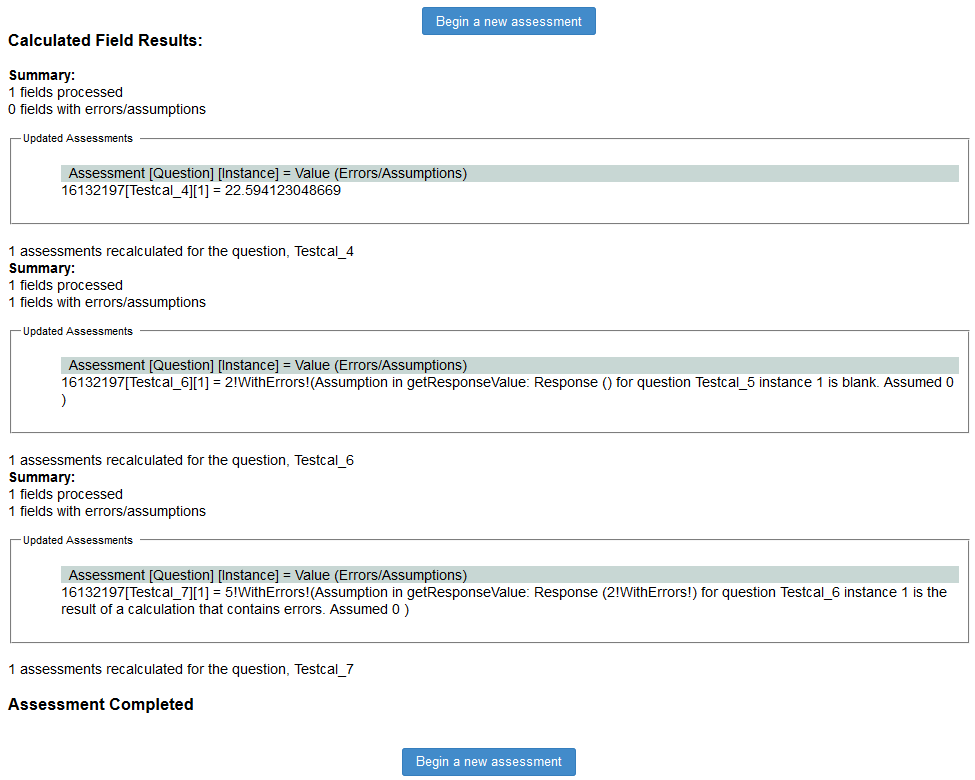
Once all data has been entered, click Complete to send the assessment to the database. If the assessment has any calculated fields, they will be executed and the results will be displayed. Click Begin a new assessment to start another entry.
Direct and Ongoing Entry
When performing Dual Entry there is a cover sheet check that indicates (in the form of a note on the cover sheet after entering the URSI, Visit, Source Type and Date) whether the current entry is a 1 record or a 2 record.
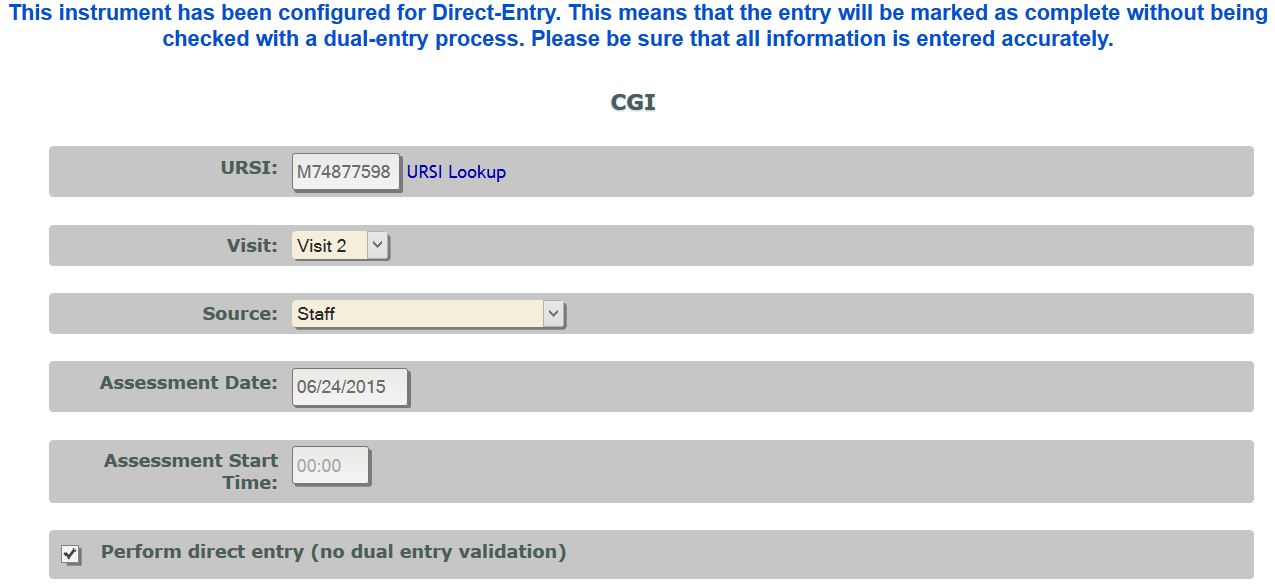
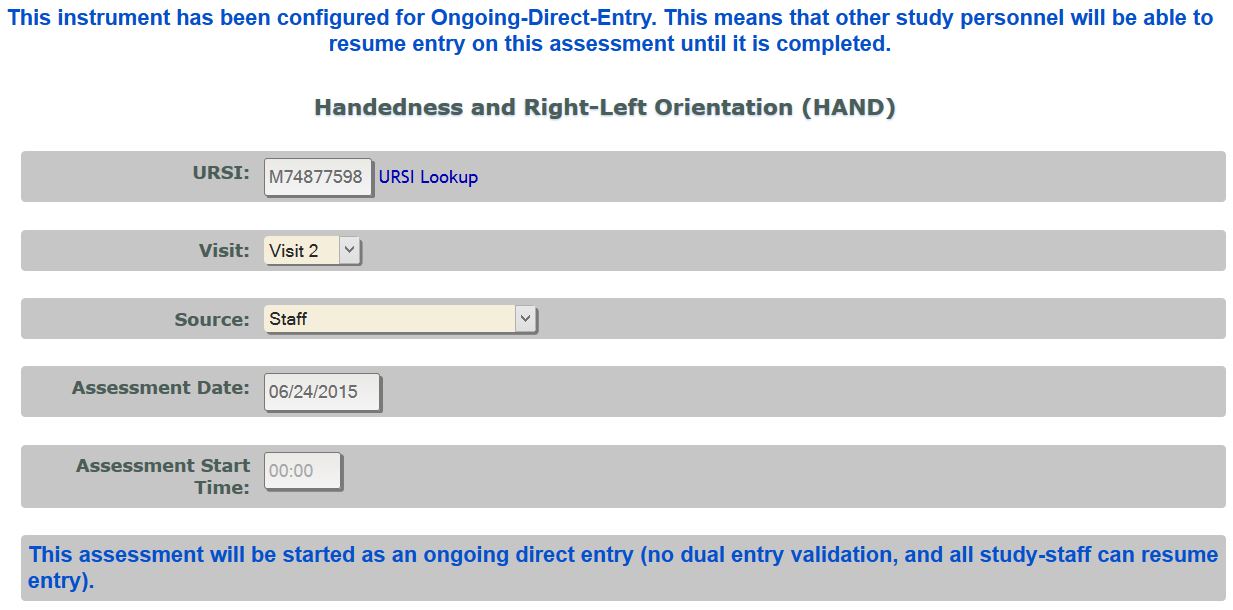
There will not be cover sheet check or note for Direct and Ongoing entry. If you attempt to enter a second record with the same cover sheet information as an existing direct or on-going assessment, you will receive a message (after you click Next on the cover sheet page) indicating that the assessment cannot be entered. At the top of the cover sheet page you will see a message reminding you of the entry mode for the instrument. After the initial fields have been entered (URSI, Visit, Source Type and Date) you will receive another message (images below) reminding you of the entry mode.
Assessment Details will also be visible on Direct and Ongoing Entries.
Direct Entry
This instrument has been configured for direct entry. This means that the entry will be marked as complete without being checked with a dual-entry process. This should be used when interacting directly with a participant, when data collection is interview style. Please be sure that all information is entered accurately. The Perform direct entry (no dual entry validation) check box can be unchecked to perform dual entry.
On-going Entry
This instrument has been configured for ongoing direct entry. This means that other study personnel will be able to resume entry on this assessment until it is completed.
Testing