Visual Analog Scale is a response scale or slider.
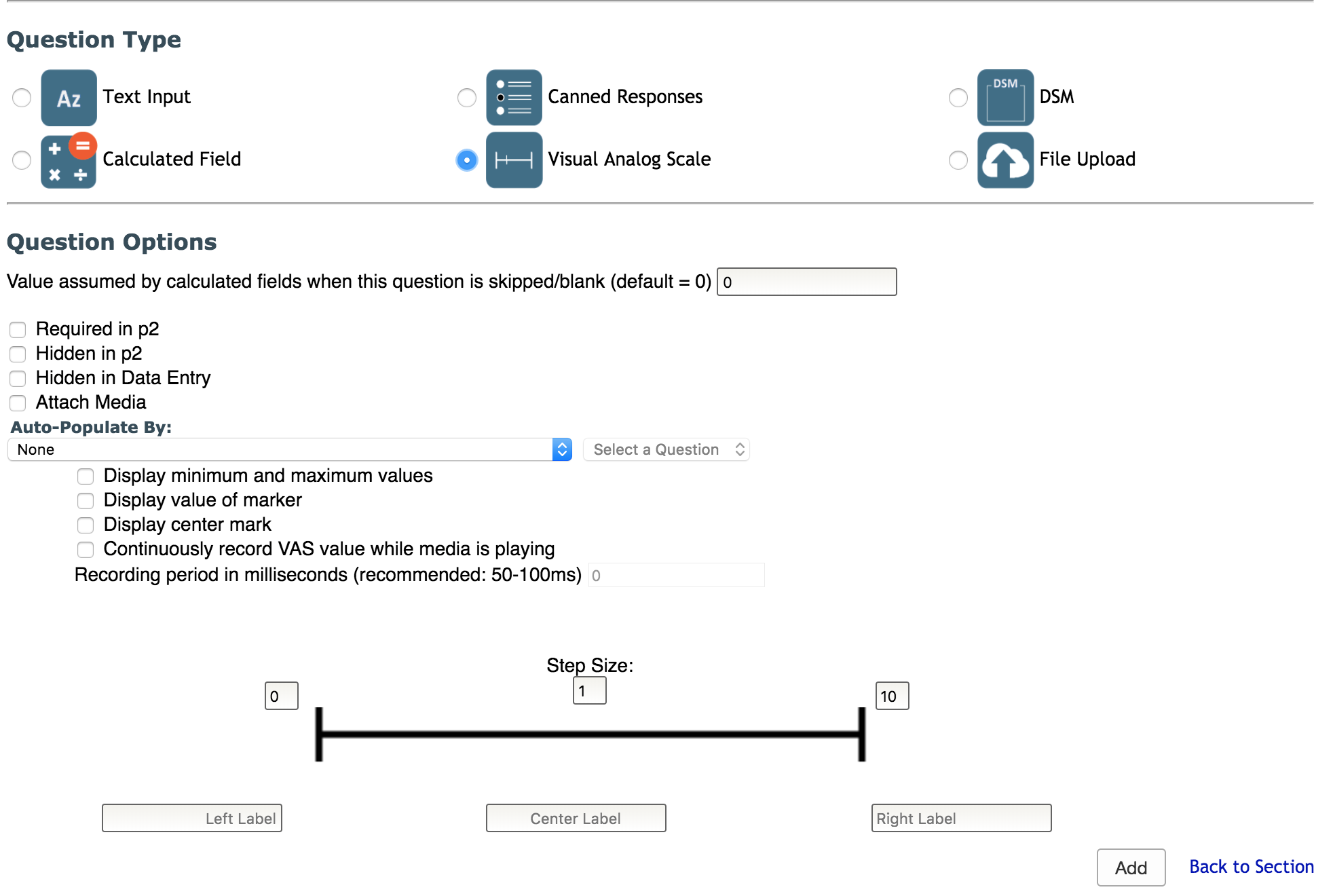
Customize the question by choosing which features to use. The first five options are explained in more detail in the Question Options article. You can also customize your scale by choosing the options that suit your scale the best.
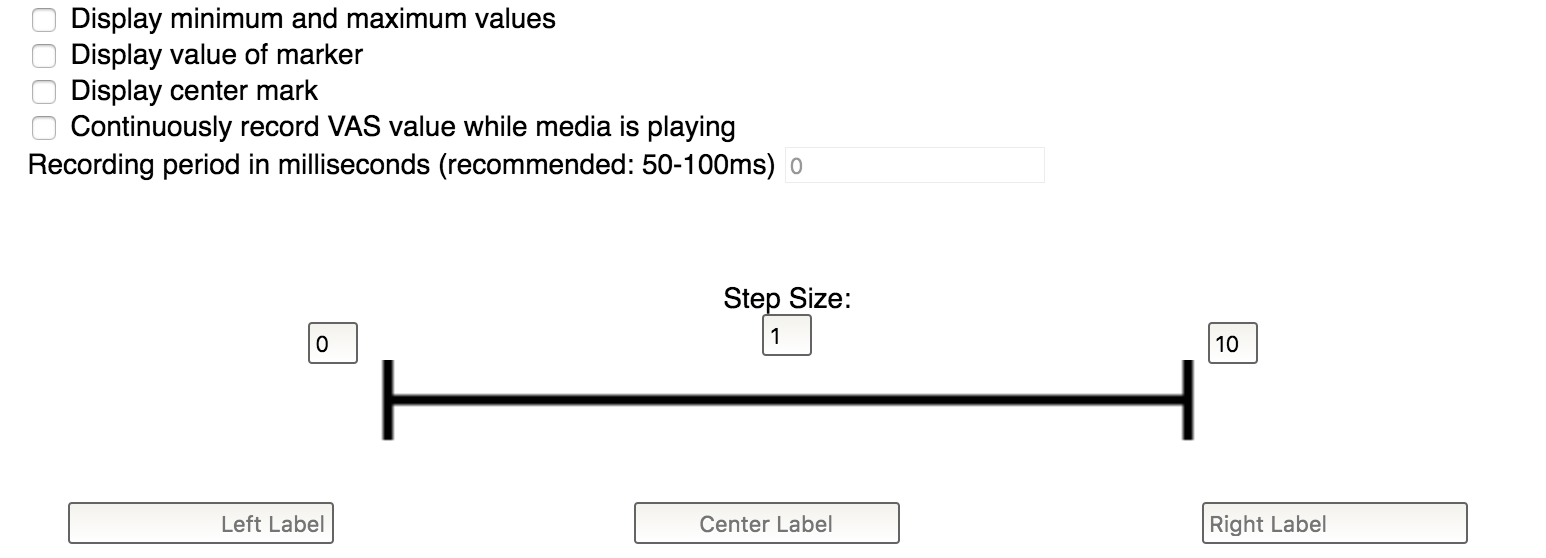
- Display minimum and maximum values: choose if the min and max values of the scale are displayed
- Display value of marker: choose if the value of where the scale is marked is displayed
- Display center mark: choose if the center mark is displayed on the scale
- Continuously record VAS value while media is playing:if this is a media question, you can choose to continuously record while the participant is viewing the media. If this is selected, you will also need to choose the Recording period(milliseconds, recommend 50-100ms) by filling in the text box.
- Select the range of the scale by typing in the minimum and maximum values (left box [0] and right box [10]).
- Step Size: determines the precision with which the cursor's position is recorded: a step-size of 1 will round the cursor's position to the nearest whole number (0, 1, 2, etc.), while a step size of 0.1 will round to the nearest tenth (0, 0.1, 0.2, etc.) and a step size of 5 will round to the nearest multiple of 5 (0, 5, 10, etc.).
- Labels: there are three text fields, two at either end of the scale and one in the center for optional range labels
The resulting scale will appear similar to the scale below:
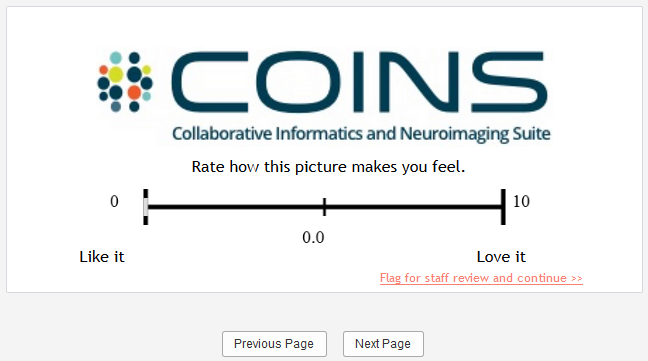
If you choose to add a center label, complete the center label field when you are creating or editing the question.
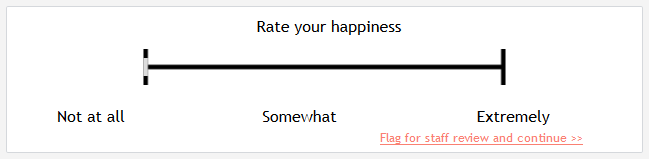
The scale will appear in Self Assessment as it does below.
Comments