After logging in with a login ID or selecting a study from the landing page, participants will be presented with questionnaires that have been queued. If the participant has multiple types of queues (one-time, ongoing or recurring), they will be taken to the queue menu to choose which queue to start with. Each queue type along with the amount of instruments in the queue will be listed. My Questionnaires refers to the one-time queue type.
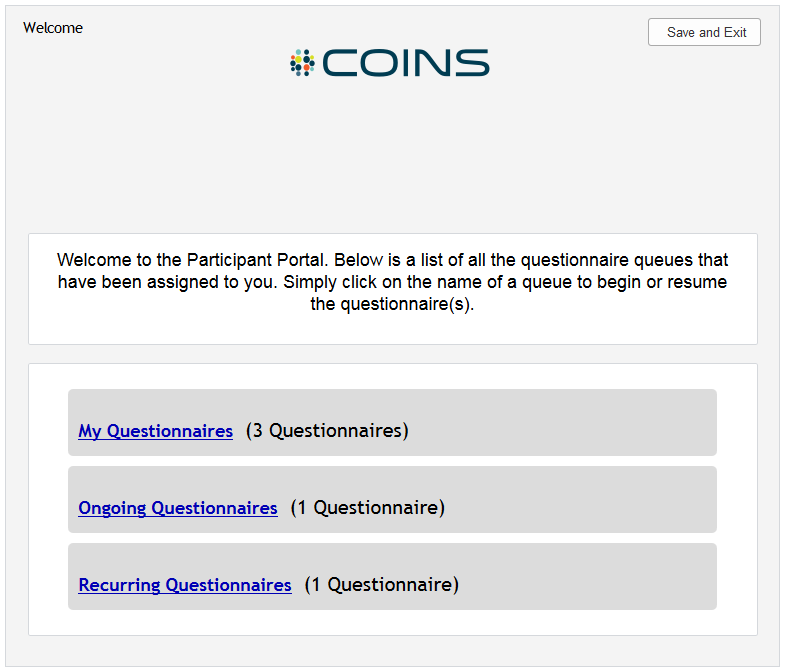
After completing the selected queue, if more than queue type still exists, the participant will return to the queue menu. If only one queue type is left, the participant will automatically be taken to it upon completion of the selected queue type. Most studies only use the default, one-time queue type. When this is the case, the participants are immediately taken to their questionnaires and will not see the queue menu.

Any section details that have been set for Self Assessment will be displayed at the top of the page and any copyright notices will be at the bottom. Also at the bottom of the page is the number of assessments remaining.
As participants complete the assessments, they can skip any optional questions by clicking Flag for staff review and continue>> under the question. The text for skipping questions can be modified to fit the study's needs, but is Flag for staff review and continue>> by default. In this example, the skip text has been set to Skip. Additionally, questions can all be marked as required so they cannot be skipped. In this case, the link to skip will not be present and the question must be answered to move on. Changing whether questions are option or required can be done individually from the question options or you can change all questions in an instrument from the instrument options.
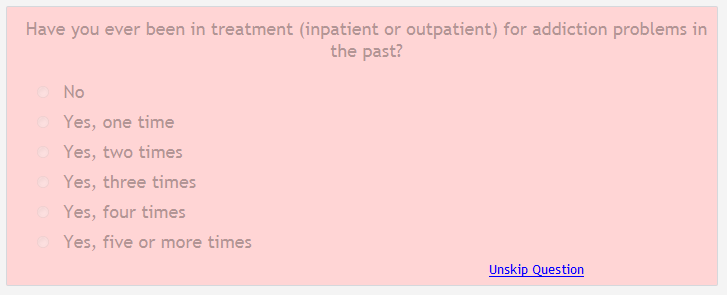
Once a question is marked as skipped, it can be reopened for answering by clicking Unskip Question.
If a participant tries to move to the next page without answering a question or marking it as skipped, they will be prompted to answer all question before continuing. The missed questions will be highlighted blue to aide in locating them.

Once all questions are answered on the page, the participant can click Next Page to move to the next set of question. The number of questions on a page is selected when the section is created and can be edited at any time. Participants can also go back to a set of questions by clicking Previous Page. Staff can remove the ability to go back by hiding the previous button.
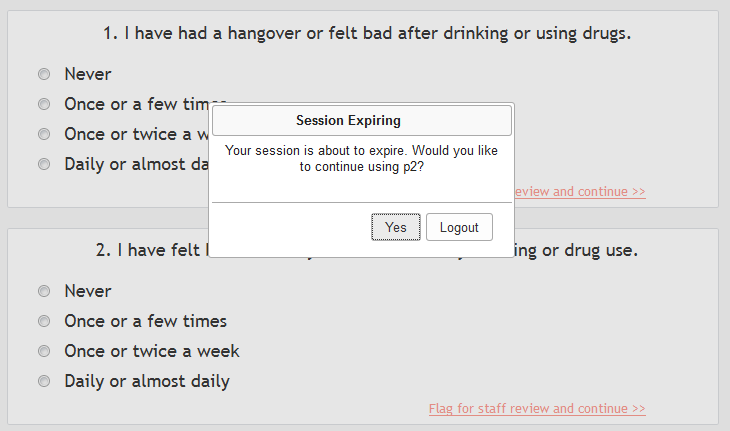
If a participant has not changed a page for nine minutes, responses will be saved and they will be asked if they would like to stay logged in. Clicking Yes will allow the participant to continue to answer questionnaires without being logged out. Clicking Logout will save and exit p2.
If no response is made within one minute, a lock screen will appear and the participant must log back in with either the email and password combination or with their login ID.
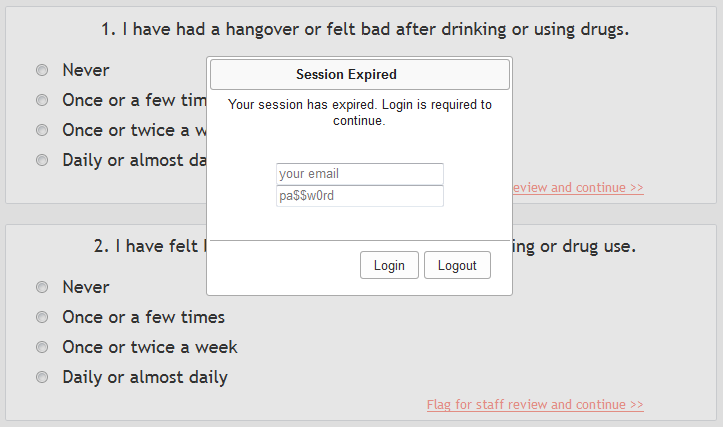
If the participant fails to log back in after 20 more minutes, they will be redirected back to the p2 login page.
As participants complete and instrument and start the next, they will be shown an intermission page displaying their progress.

Some studies wish for their participants to not see this page, because of this it can be skipped. There are two ways to set this option- if a study wants all participants to to skip this page, all queues can be set to nonstop in the study details or if the queue is manually set up, it can be changed at the time of set up.
Participants can save their progress and exit at anytime by clicking Save and Exit at the top of the page. The option to hide Save and Exit exists at a study level. However, it is strongly recommended that it is not hidden for studies that use shared computers or want to make sure no one else can access the participants account. If hidden, there is no way for the participant to logout. If they need to leave before finishing the assessments and a p2 link is accessed on the same computer prior to their session timing out, their questionnaires will be opened automatically.
When all questionnaires are complete, participants will be informed that their queue is finished. As assessments are completed, they will appear in the Review Queue where study staff can address any flagged or skipped questions.
From here the participant can click Save and Exit to end their session.

Comments