There are two ways for participants to log into p2, depending on whether or not the participant has an activate p2 account, collected email address/password and is using subject type (stype) URLs. Note: p2 is only fully compatible with Firefox and Chrome on non-mobile devices. A warning will appear if p2 is accessed by a browser that is not fully compatible. Accessing p2 through browsers that are not fully supported can lead to the loss of data.
To access the general p2 link, which is not study specific or used for Auto Queuing, have subjects navigate to https://coins.mrn.org/p2/.
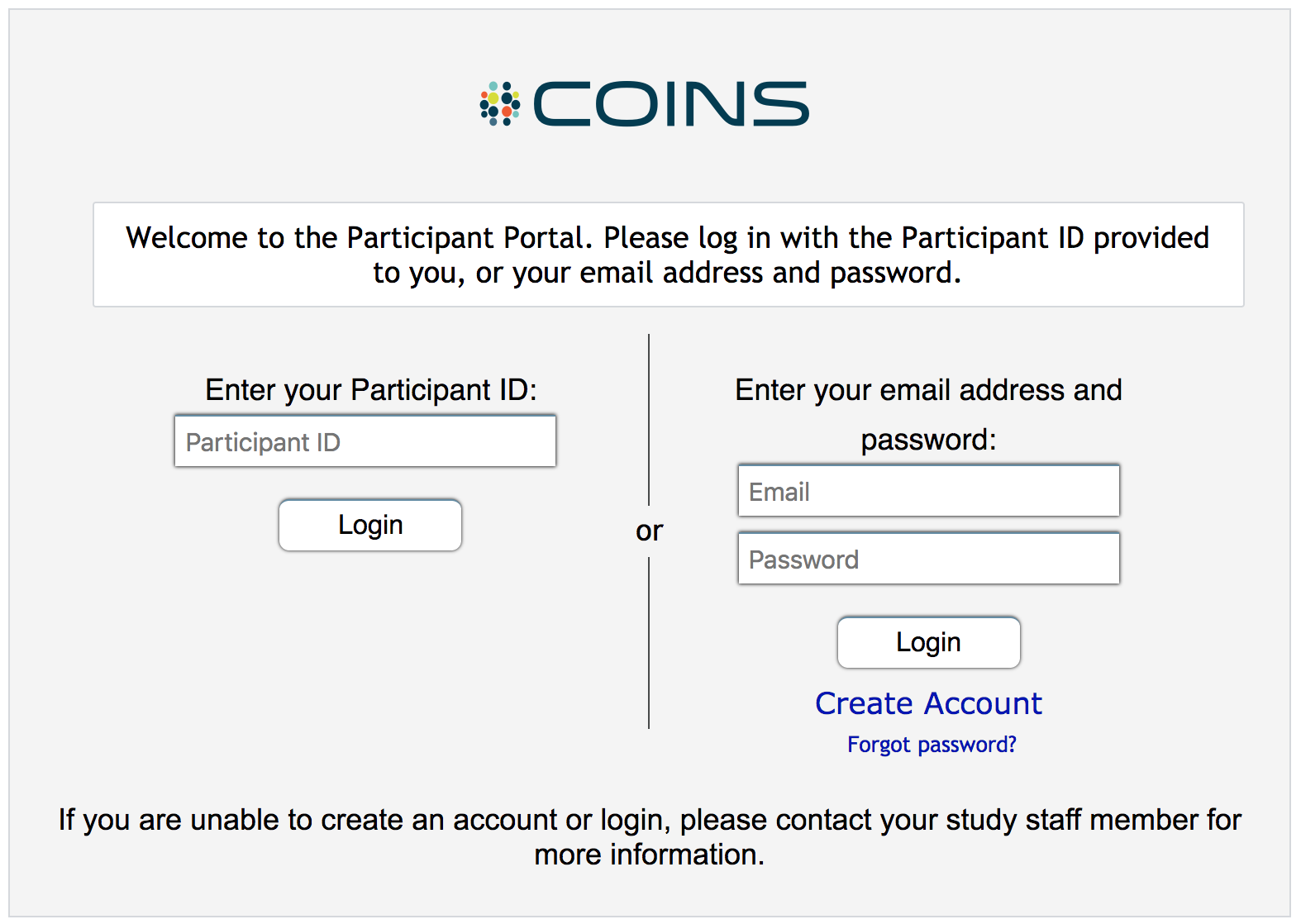
From here subjects can login with their assigned Participant ID to go straight to the associated study's questionnaires, or with their email and password combination to access the Participant Portal (p2) Homepage. For Auto Queuing, stype URLs must be used and can be found on the Edit Subject Types page by clicking enabled for Self Enrollment and copying the Participant URL. Logging in through the stype URL will also take participants directly to the questionnaires for the associated study.
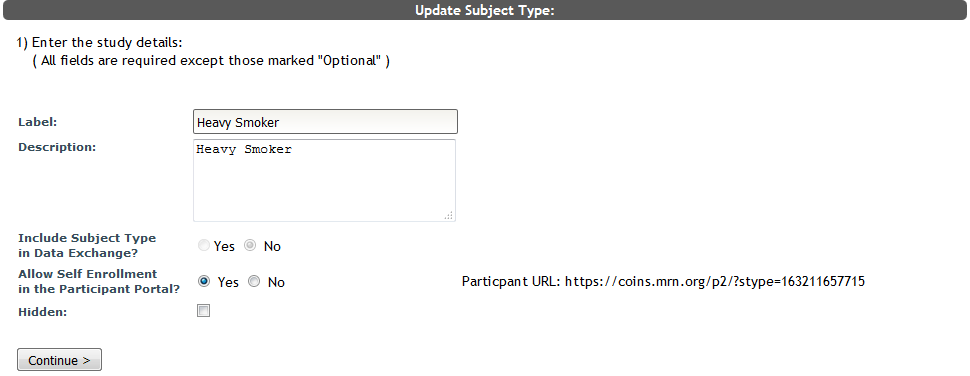
Participants who have had their PHI unlinked or have been disenrolled will not be able to access their accounts for those studies.
If a study has Self Enrollment activated, participants can also create an account and enroll themselves in a study using an stype URL by clicking Create Account. If a site does not allow a study to have Self Enrollment, this option will be hidden.
From either login page, after credentials have been added, the participant can click Submit or Login to enter p2. If the participant needs to recover their password for an account that already exists, they can click Forgot Password?. They will be asked to provide the email address for the account. An email will then be sent with a link, valid for 24 hours, that will allow them to reset their password.
All participants that register through self enrollment will automatically have a p2 account made with their email and password. To create a p2 account for a participant who was enrolled through MICIS, you will need to make sure they have an email address listed in their details. The participant can then activate their account by following the process listed under Self Enrollment for Participants with Existing Emails and Accounts.
If the participant is using their email and password and have yet to confirm their p2 account, they will be reminded to do so. This is a standard industry practice. Confirmation is not required, just requested.
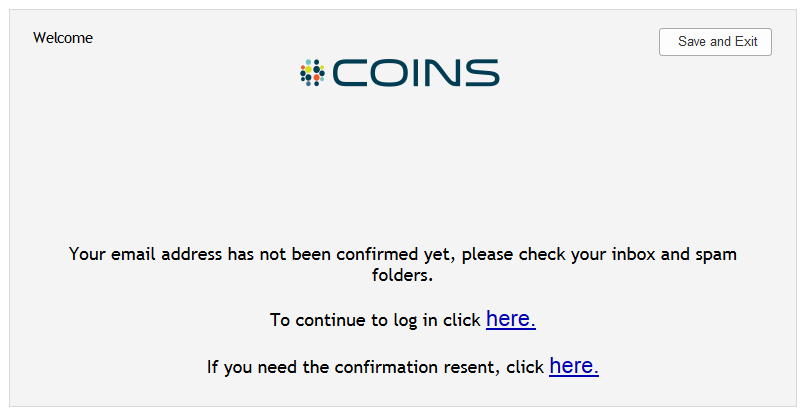
From this page, the participant can have the email resent or can continue their navigation process. Once confirmed, this message will no longer appear. This screen will only appear for participants using their email address to login who have not yet confirmed their account. All other users will be taken to their questionnaire queues or the p2 Homepage. If this is an stype login and the study has Auto Queuing set up, any available protocols that have been scheduled and confirmed will be queued and administered. If this is a Self Enrollment, the protocol set for baseline will automatically be queued after the first login following their account creation.
If your participants are having trouble with the Participant Portal, be sure to check out our FAQ article on p2 Errors here.
Comments