Self Enrollment allows participants to enroll themselves into a study by providing their details in p2, collecting and completing the same process study staff would in MICIS when enrolling a new participant.
If a study has Self Enrollment activated, participants can also create an account and enroll themselves in a study using a Subject Type (stype) URL. If the study does not allow for Self Enrollment or has assent date enabled for adolescent studies, this option will be hidden.
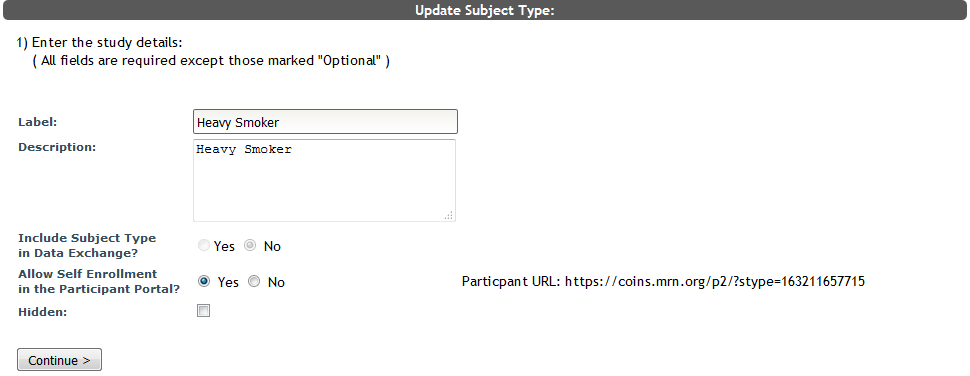
Stype URLs can be found on the Edit Subject Types page by clicking enabled for Self Enrollment and copying the Participant URL.
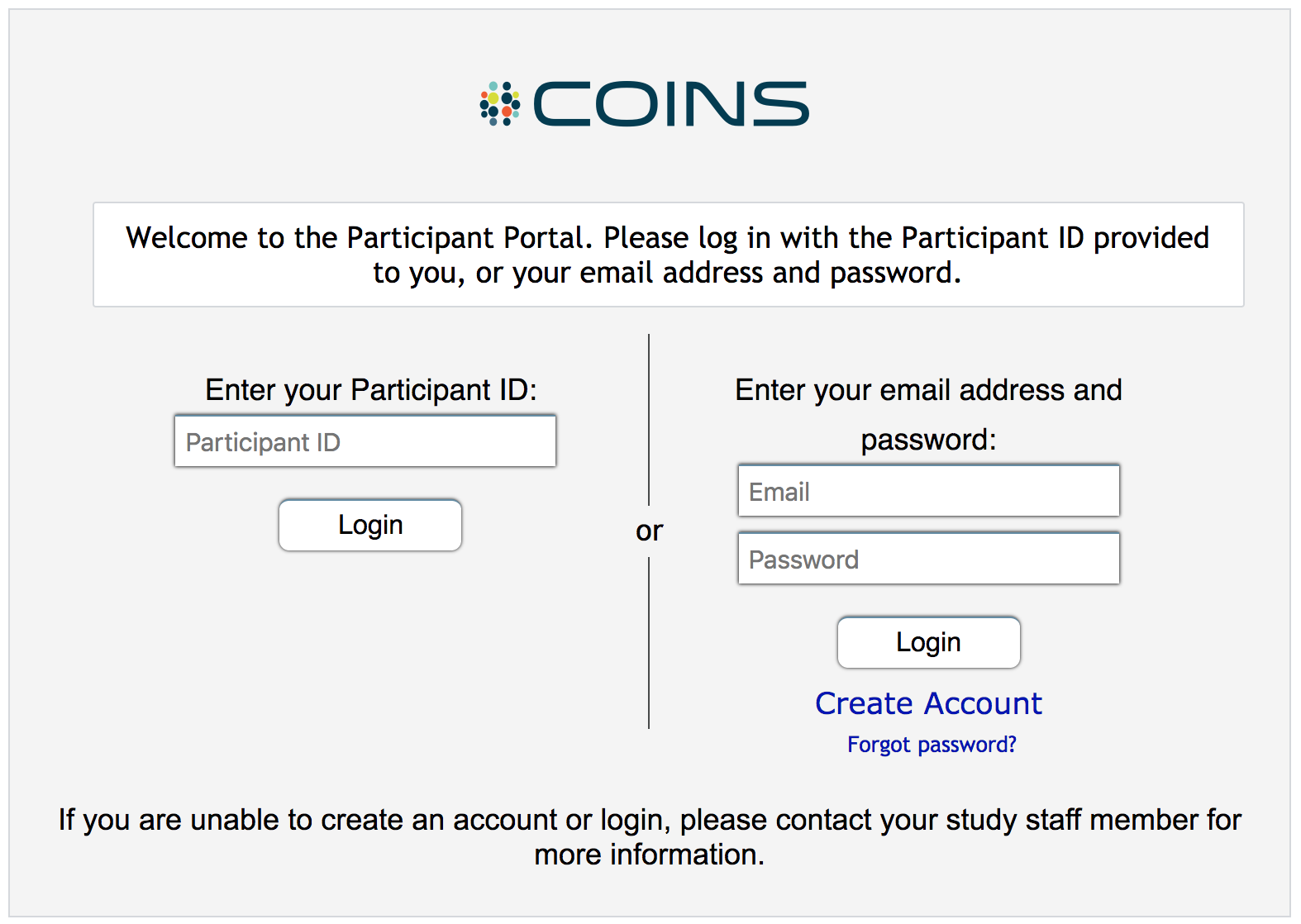
After the participant has been provided the stype URL and has navigated to it, they can click Create Account.
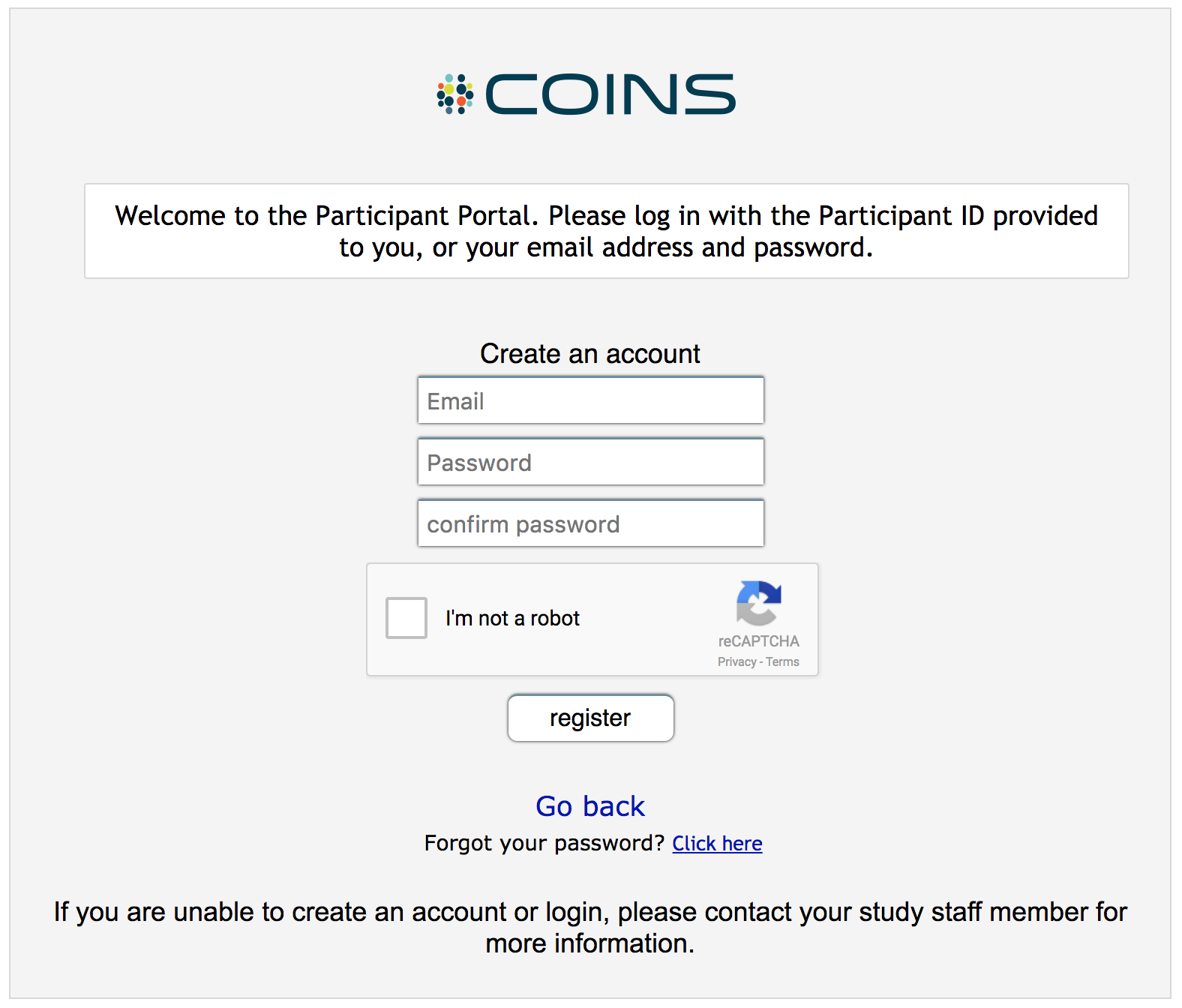
Participants must provide an email address and create a password for their p2 account. In addition, COINS confirms they are human by having the participant validate a CAPTCHA. To validate the CAPTCHA, the participant will need to click on the box next to the text.
After all information including the CAPTCHA has been input, the participant can click register to continue. They can also click Go back to return to the login page or if they need to recover their password for an account that already exists, they can click Forgot Password?. If the two passwords do not match or the CAPTCHA has not been validated, the participant will be asked to try again.
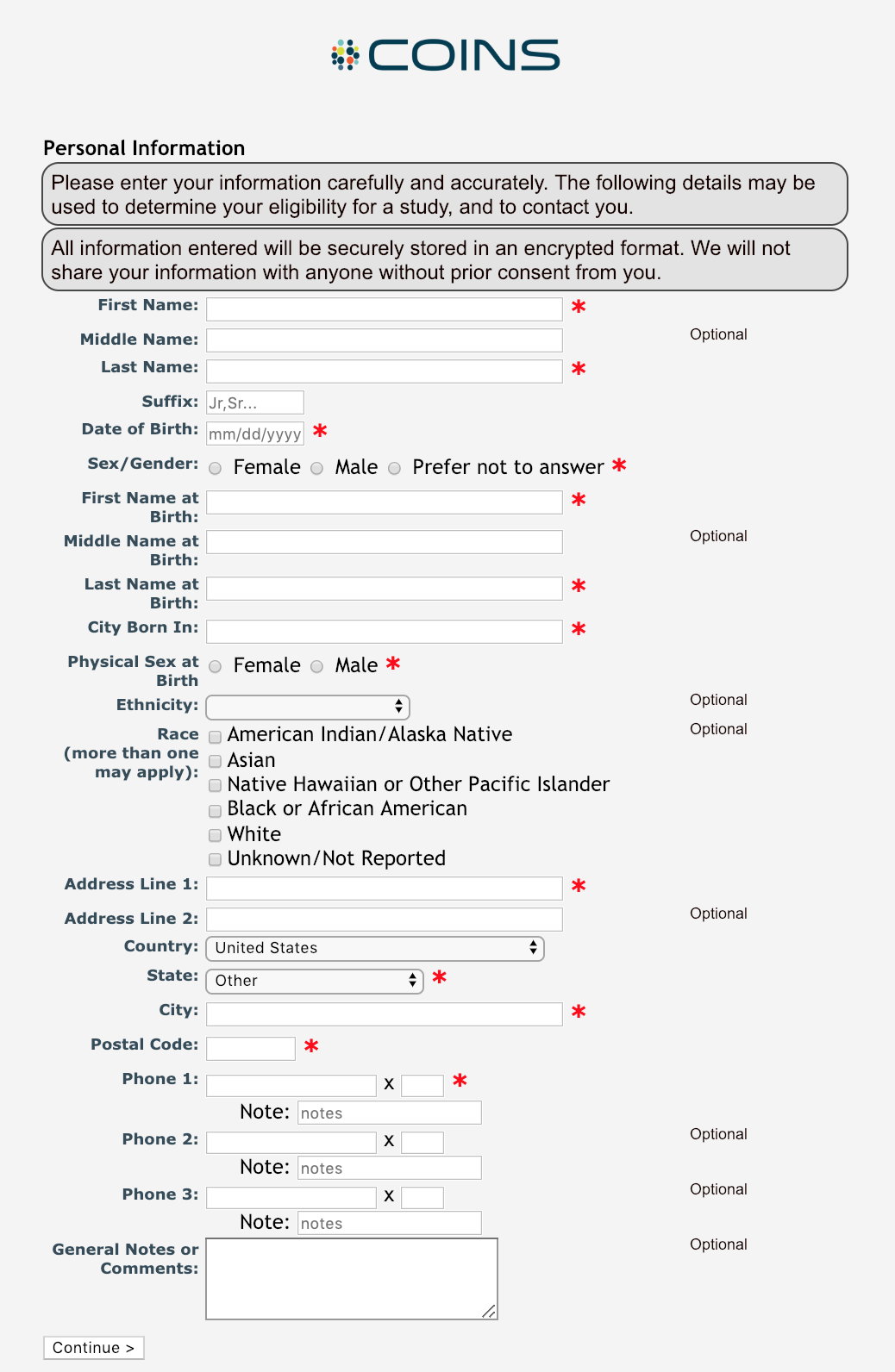
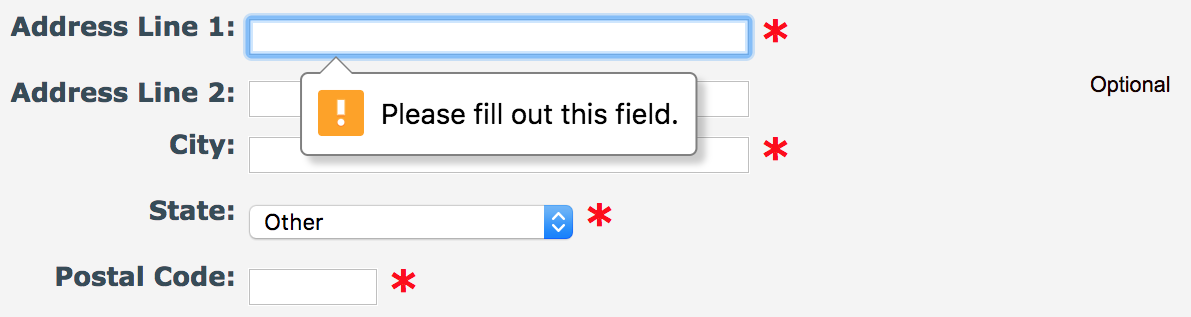
The participant will now be asked to complete the same information that is required when entering a new subject. If the study is a mapping study as indicated in study details, GUID specific questions will also be presented to the participant. If the study has race and ethnicity collection enabled, those fields will also be presented to the participant but will be optional. Additionally, if the study has Future Contact Agreement in p2 enabled, the participant will be asked if they agree to be contacted for future studies. This can be changed by going to the Edit Study Details page in MICIS. The participant can click Continue> once all required fields are completed. If they have skipped a required field, the field(s) will be outlined with red and they will be asked to complete the missing items.
At Self Enrollment registration, match list validation is still performed. Just like with MICIS subject enrollment, the subject will be matched against other participants at the site. If a match is found the participant will be given a generic error (Error 42) and will be asked to contact the site admin. These participants will need to be enrolled through MICIS and then their p2 accounts can be created if they do not already have one.

If the study is set to be a recruitment study, even though a match is found, the participant will still be allowed to enroll and then can be matched and merged if their account is a duplicate. This is also called Silent Enrollment. However, if the name and date of birth exactly match a participant already enrolled in the study, they will not be allowed to enroll, even if it is a recruitment study. It would be very unlikely that two people would have the exact same name and date of birth and actually be two different people, therefore, this is not allowed.
If the participant is trying to enroll with an email address that is already in use, they will also be asked to contact the site admin, unless the study is a recruitment study (see Self Enrollment for Participants with Existing Email). If they already have an existing p2 account from a different study, they can login by using their existing credentials (see Self Enrollment for Participants with Existing p2 Account).

Most participants will be able to successfully create accounts and will not run into matching issues.
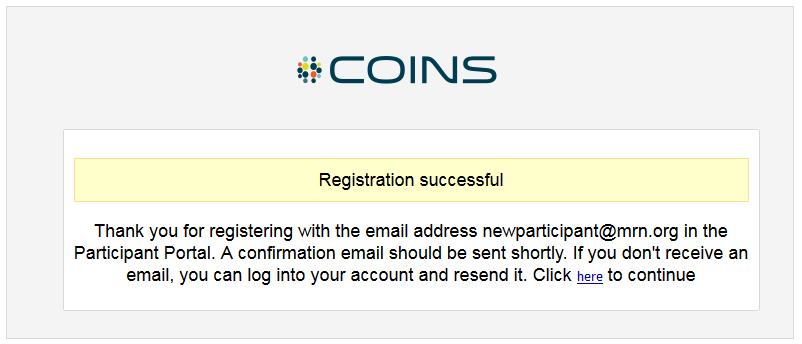
Once enrolled, participants will receive a message that they have successfully created an account, which means they are now enrolled in the study as the subject type that is linked to the stype URL they were given. They will be stored in MICIS like all other subjects. If a baseline auto queue is set up, the participant will be taken directly to their questionnaires. Participants who login through stype URLs will not be directed to the p2 Homepage.
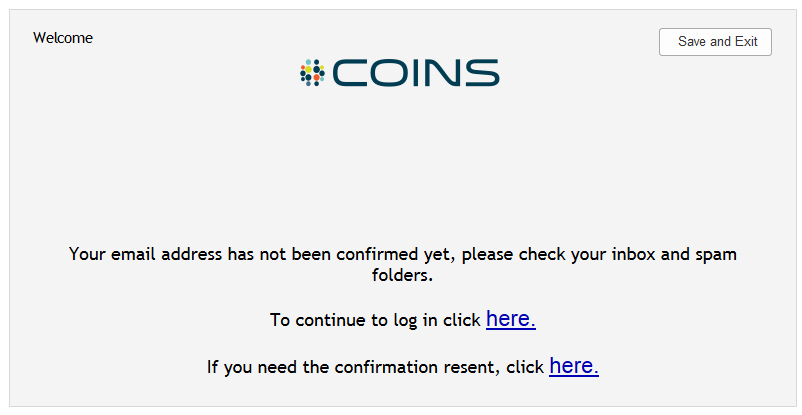
Each Self Enrolled participant will be asked to confirm their email address. This is a standard industry practice. Confirmation is not required, just requested and upon initial account creation, the participant can click the here hyperlink to start their questionnaires and bypass the confirmation message.
Upon return to the site, the participant can now login with their new credentials. At each login, the participant will be asked to confirm their account until it has been confirmed.
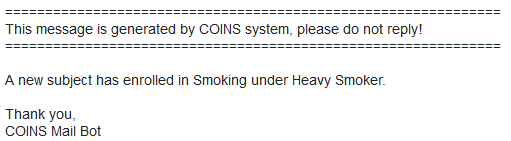
Study staff on the SA Review email notification list for the study will also be notified of the enrollment.
If your participants are having trouble with the Participant Portal, be sure to check out our FAQ article on p2 Errors here.
Comments