This tool allows sites to match recruitment subjects (those who self enroll via participant portal into a recruitment study) with existing subjects in COINS. This 'silent enrollment' is done instead of preventing matched subjects from enrolling, the way typical self enrollment does. Once subjects are matched and staff verifies they are the same subject, they can be merged and any subject detail discrepancies can be resolved. Silent enrollment does not allow the enrollment of the same subject into the same study. It only allows enrollment into studies they are not already enrolled in. The merging tool is only available to site admins.
To access the merging tool, click Recruitment Merging from the Studies tab. From here you can select a study from the drop down list. Only studies marked as recruitment studies will appear in the list. See Edit Study Details for more information on indicating a study is a recruitment study.
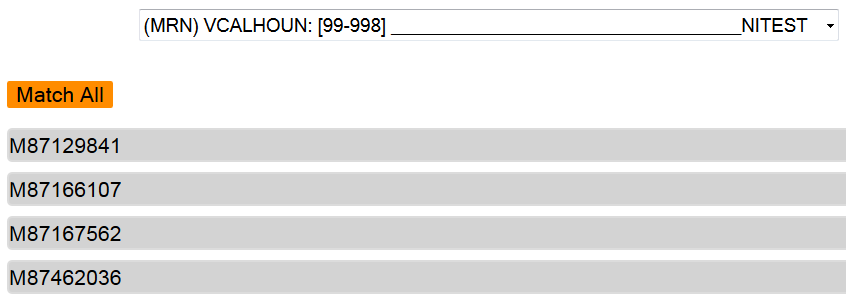
Once a study is chosen, all URSIs for subjects whom are enrolled in that study will be listed. Click an URSI to see the subject's information. When PHI is displayed, the URSI will be hidden. This is to protect the subject's PHI.
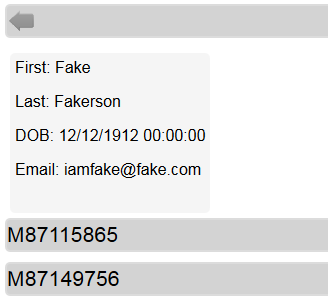
Click Match All to find potential matches to other subjects at your site. After the match is ran, all URSIs will have a corresponding number indicating the amount of matches found.

Click the URSI with a match to see the match list.
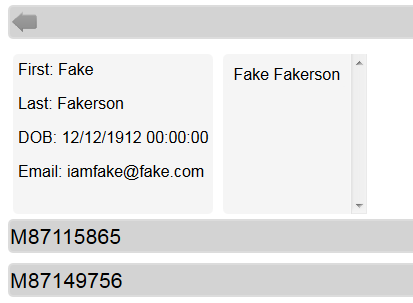
After clicking the URSI of a subject who has a match, you will be able to see the details of the subject who is enrolled in the recruitment study as well as a list of potential matches on the right. Click the name of the match you wish to open to see that subject's details.
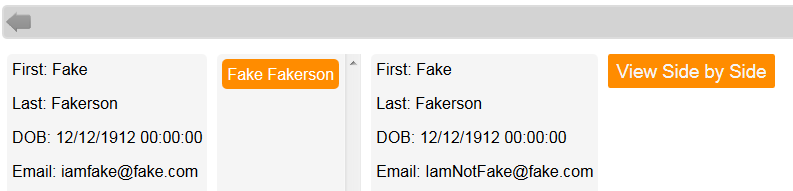
After clicking on a match, a preview of the matching subject's details will be displayed. Click View Side by Side to see all details and to access merge options.
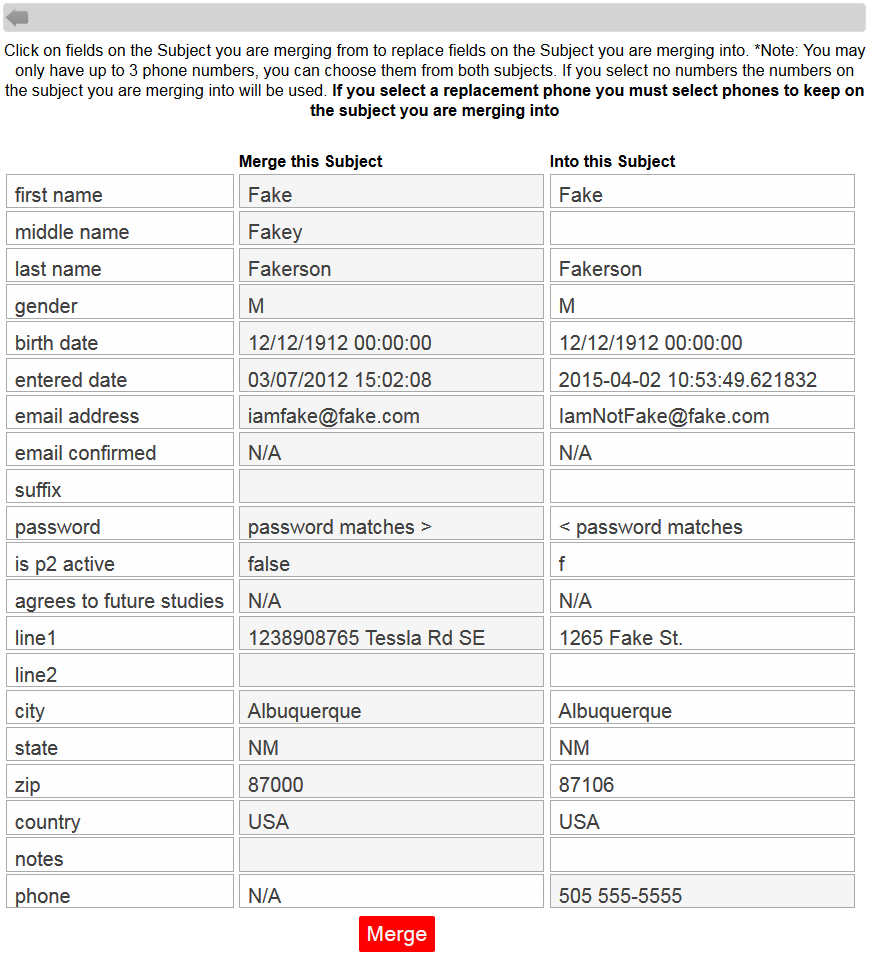
From the Side by Side view, you can see any difference between the two subjects to help determine if they are the same person. If they are the same person and you wish to merge them, click on fields of the subject you are merging from (left/new recruit subject) to replace fields for the subject you are merging into (right/old existing subject).
Note: You may only have up to three phone numbers and you can choose them from both subjects by selecting multiple numbers from the list. If you select no numbers the numbers on the subject you are merging into (right) will be used. If you select a replacement phone you must select phones to keep on the subject you are merging into.
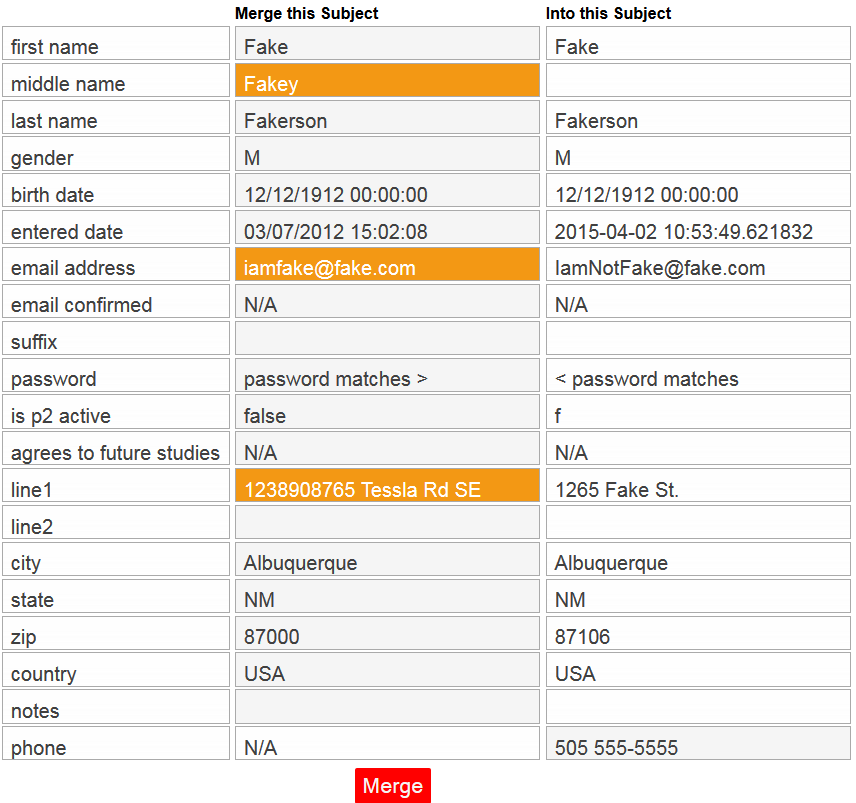
After you have selected items you want to keep from the subject you are merging from (left), click Merge to combine the accounts. If the merge was successful, this will be indicated.

Now both URSIs will belong to a single subject. If you incorrectly merge two subjects, contact support.
Note: When merging subjects, the merged from subject's USID will be removed after it is merged to the to URSI. The two URSIs will now share the same USID. Any payment records that are associated with the deleted USID will be transferred to the new USID.
Comments