Create a Section
When you create a new instrument, ASMT will automatically create one section for you to add questions into. Once your instrument is created, you can edit this section and add more sections. First click Add/Manage Sections.
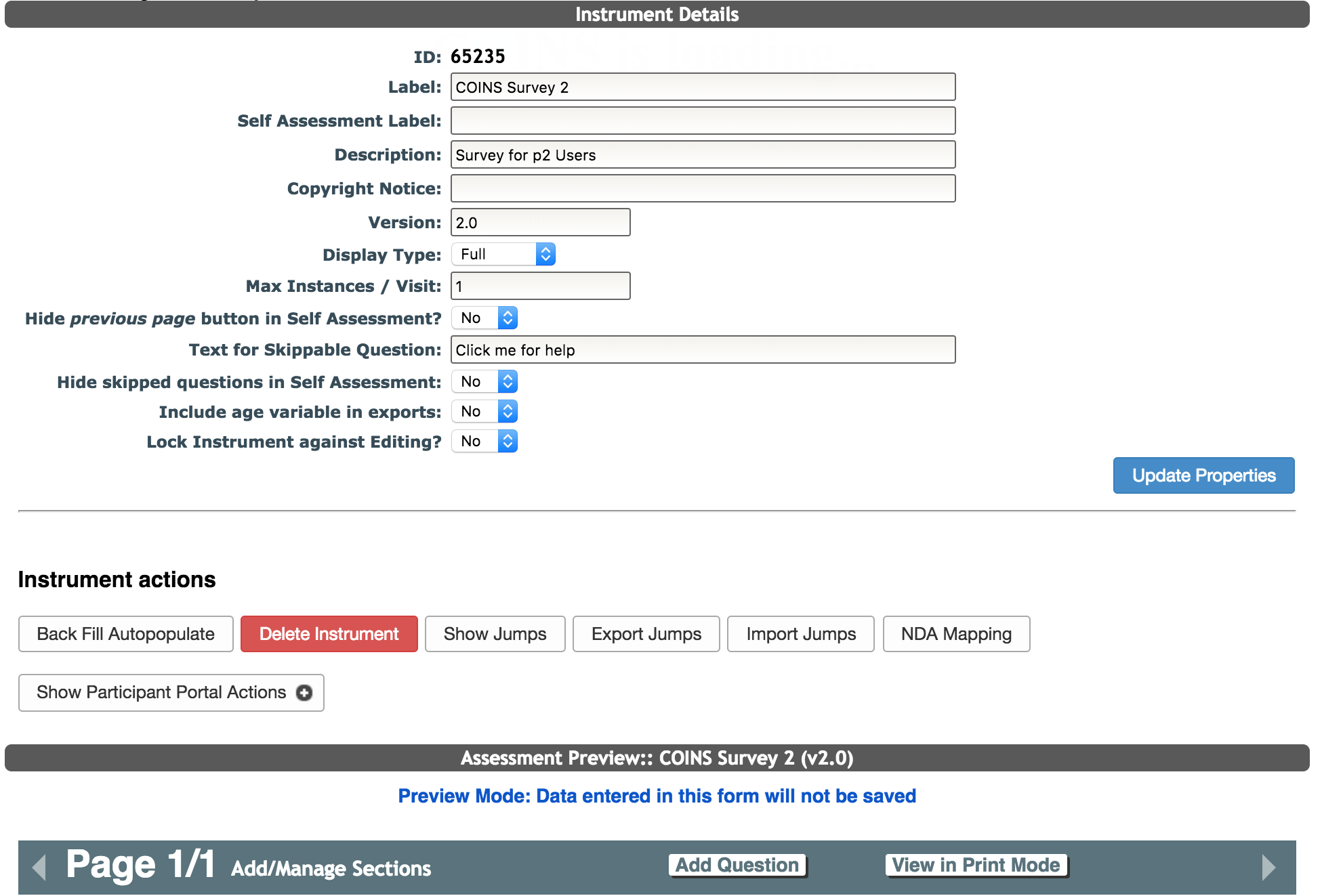
A window will pop up labeled Section: Add New Section. Fill in the required information to add the section.
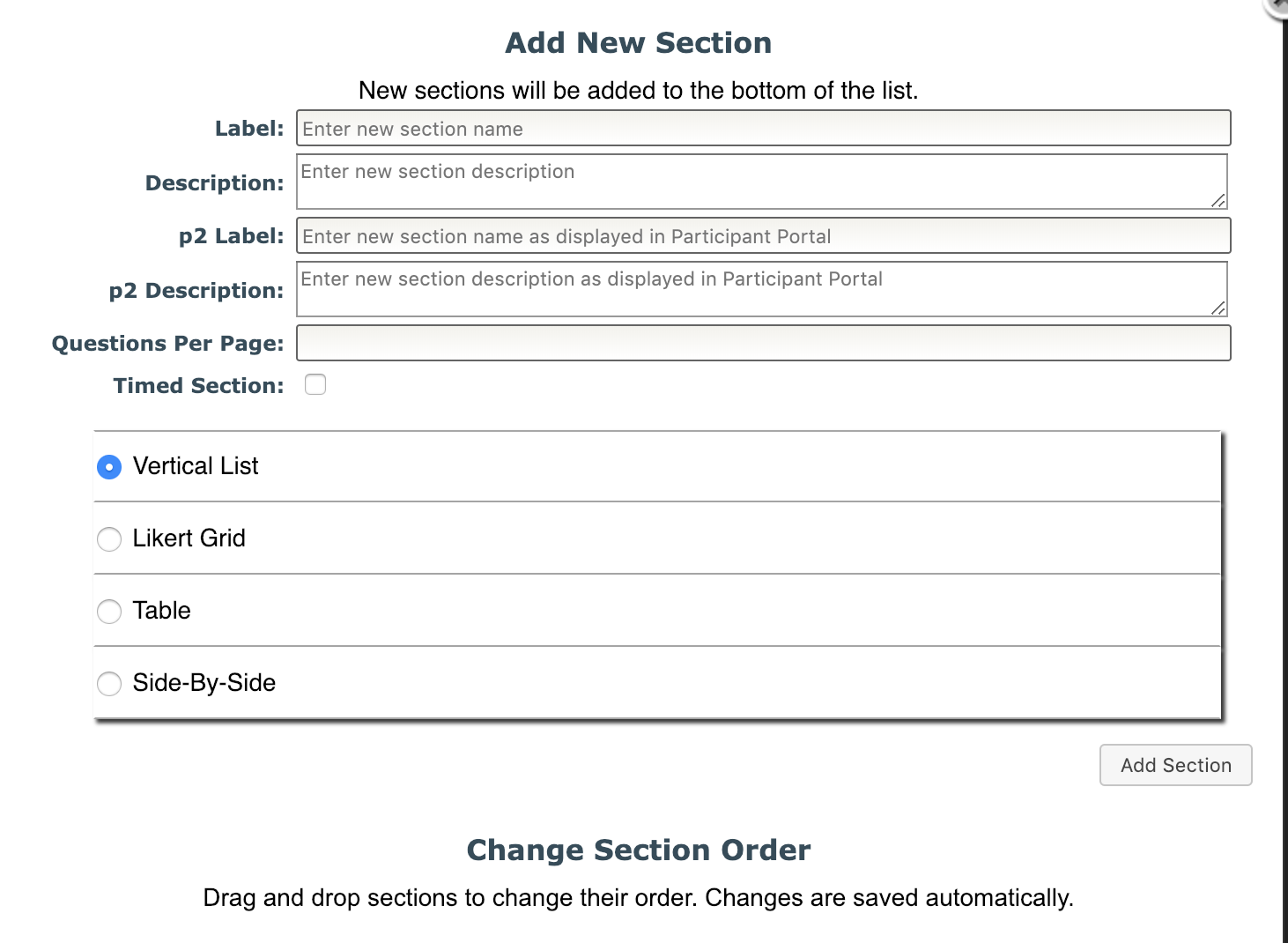
- Label - this will be the name of the section and is not viewable by participants in Self-Assessment
- Description - this will be a brief description of the section and is not viewable by participants in Self-Assessment
- p2 Section Label - this will be the name of the section and will be viewable by participants during self assessment in Participant Portal
- p2 Section Description - this will be a brief description of the section and will be viewable by participants during self assessment in Participant Portal
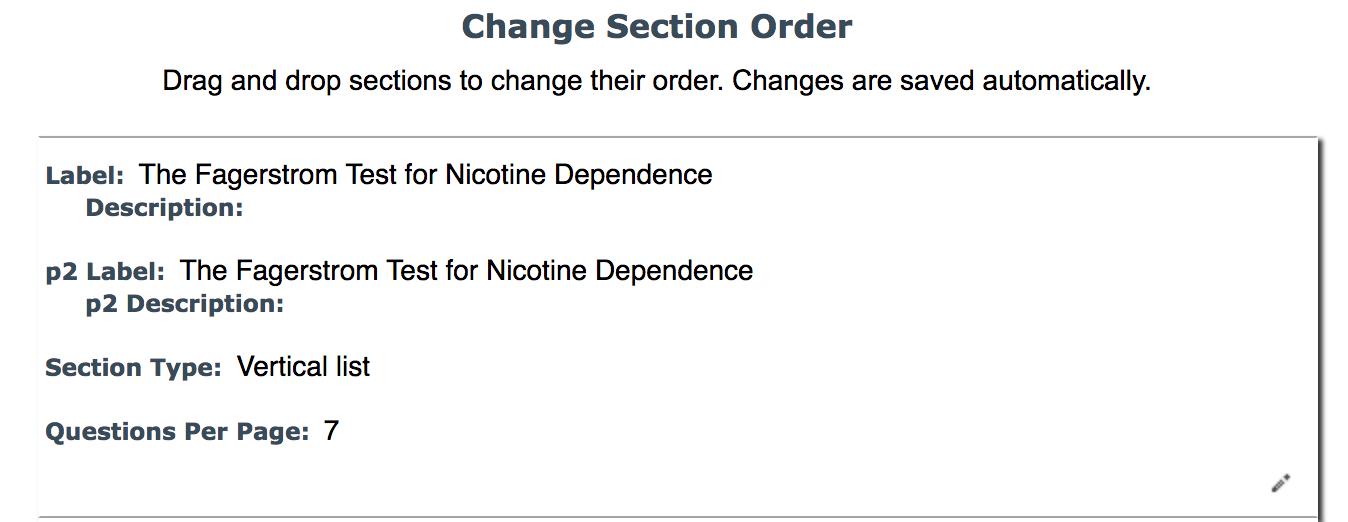
- Questions per page - choose how many questions are to be listed per page in Self-Assessment. For the Likert Grid, this will be how many questions are listed in the grid. Number of question per page does not affect Table sections or data entry
- Timed Section - click the checkbox if you would like the section to be timed in Self-Assessment. After clicking the checkbox, you will specify how much time you would like to be allotted for the section. This is the amount of time the participants will have to answer all of the questions in this section. Time allotted will not affect data entry

- Question Orientation Options:
- Vertical List (default) - questions are listed vertically
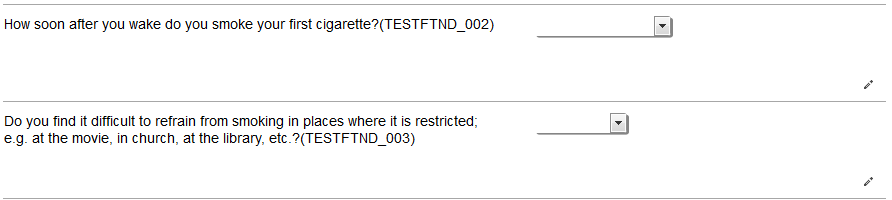
- Likert Grid - List questions as vertical list with responses to right. Questions must have the same responses and response values assigned to them and only appear as a grid in Self-Assessment. Likert Grids currently only work with radio buttons and does not support check all that apply or text fields.

- Table - List questions as a matrix or table. For more on table type questions click here.
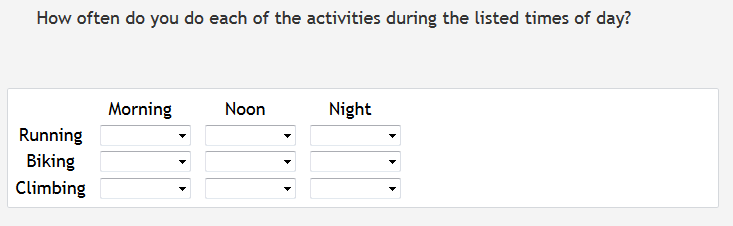
- Side-By-Side - questions are listed left to right
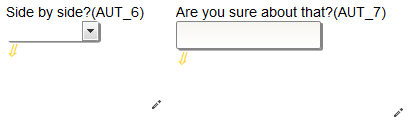
After filling out the New Section fields click Add Section. The new section will be added at the bottom under Section. Drag and drop sections to change their order.
You can also manage sections by clicking the Manage Sections button when you are adding a new question.

Now that you have added sections, you can start adding questions.
Edit/Delete a Section
Sections can also be reordered by dragging and dropping them into the order you want. If you wish to edit a section click the pencil icon in the lower right hand corner. If you would like to delete a section, hover over the pencil icon and a trashcan icon will appear for you to click.
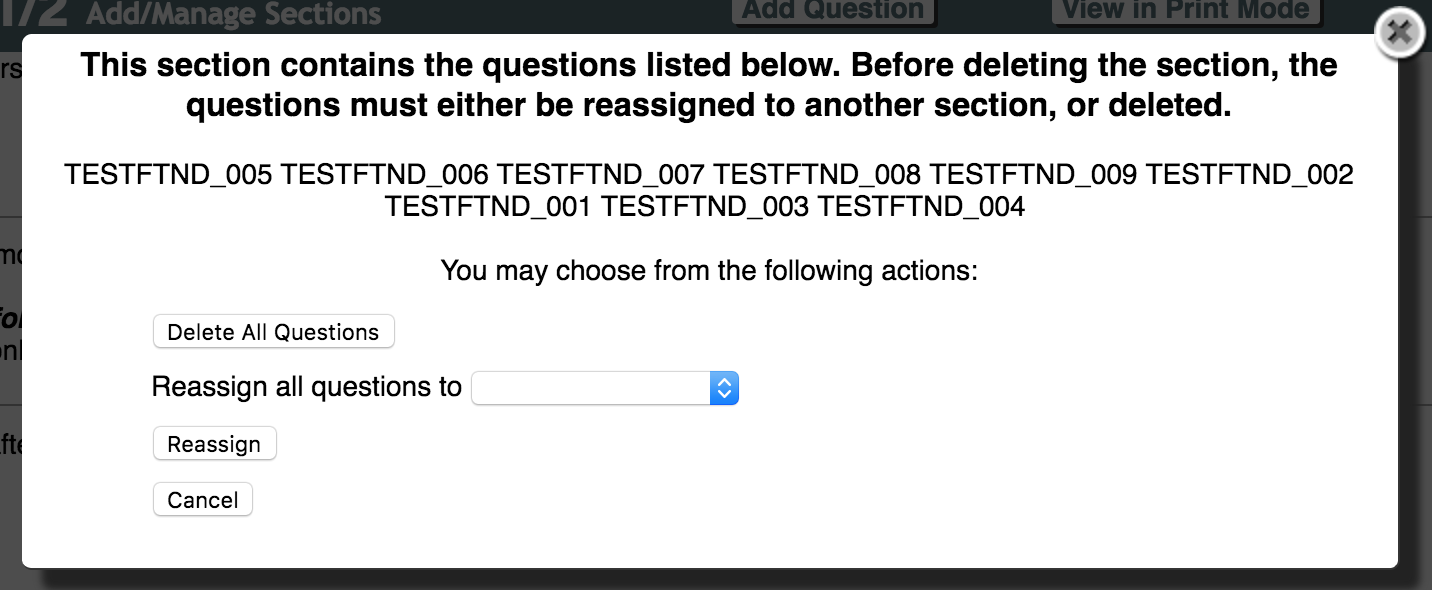
When deleting, if there are questions already assigned to that section you will be asked if you would like to reassign the questions to a different section or delete all of the questions. To move the questions to another section, choose the section you want to move them to from the drop down list and click Reassign. To discard all of the questions, click Delete All Questions. Click Cancel if you no longer want to delete the section.
Section Navigation
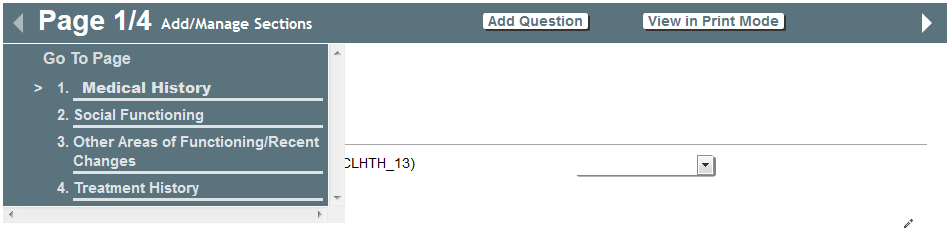
In order to move from section to section hover your mouse over Page. All of the sections that you have created will appear in a drop down list. Select which section you would like to move to by clicking it. You can also use the arrow buttons to move through sections.
View in Print Mode
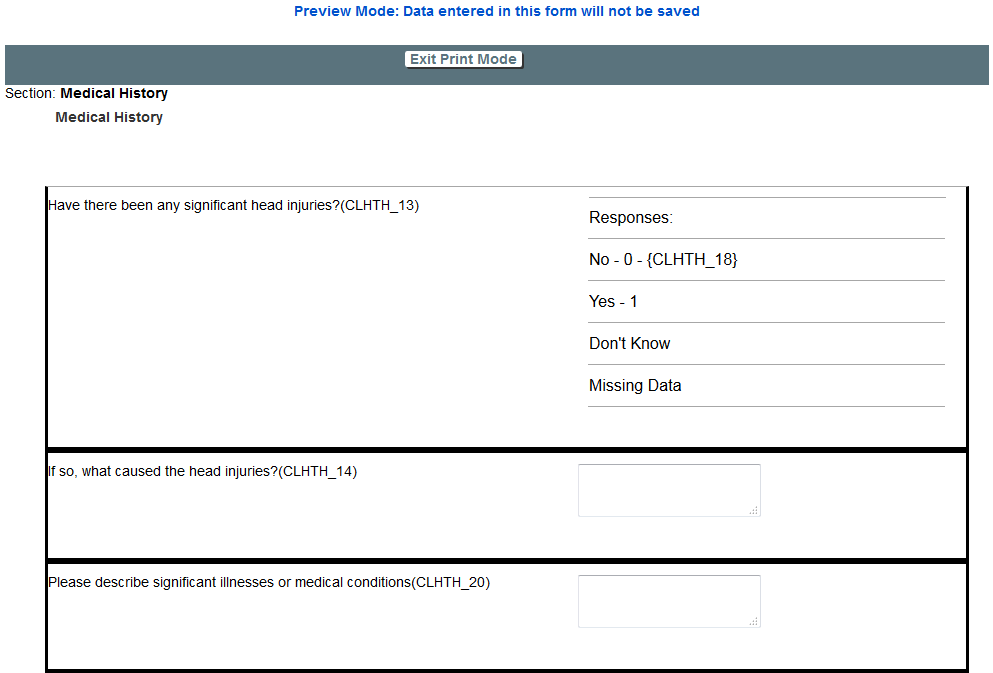
Sections can also be viewed in print mode by clicking View in Print Mode from the section menu.. This view shows the question information (label, response options, jump targets, etc.) in a nice format that is easy to follow and is printable. Click Exit Print Mode to return to the section page.
Comments