To add a new question click Add Question. Note: When you create a new instrument, ASMT will automatically create one section for you to add questions into. Click Manage Sections to edit this section or add more.

Complete the fields to add the new question.
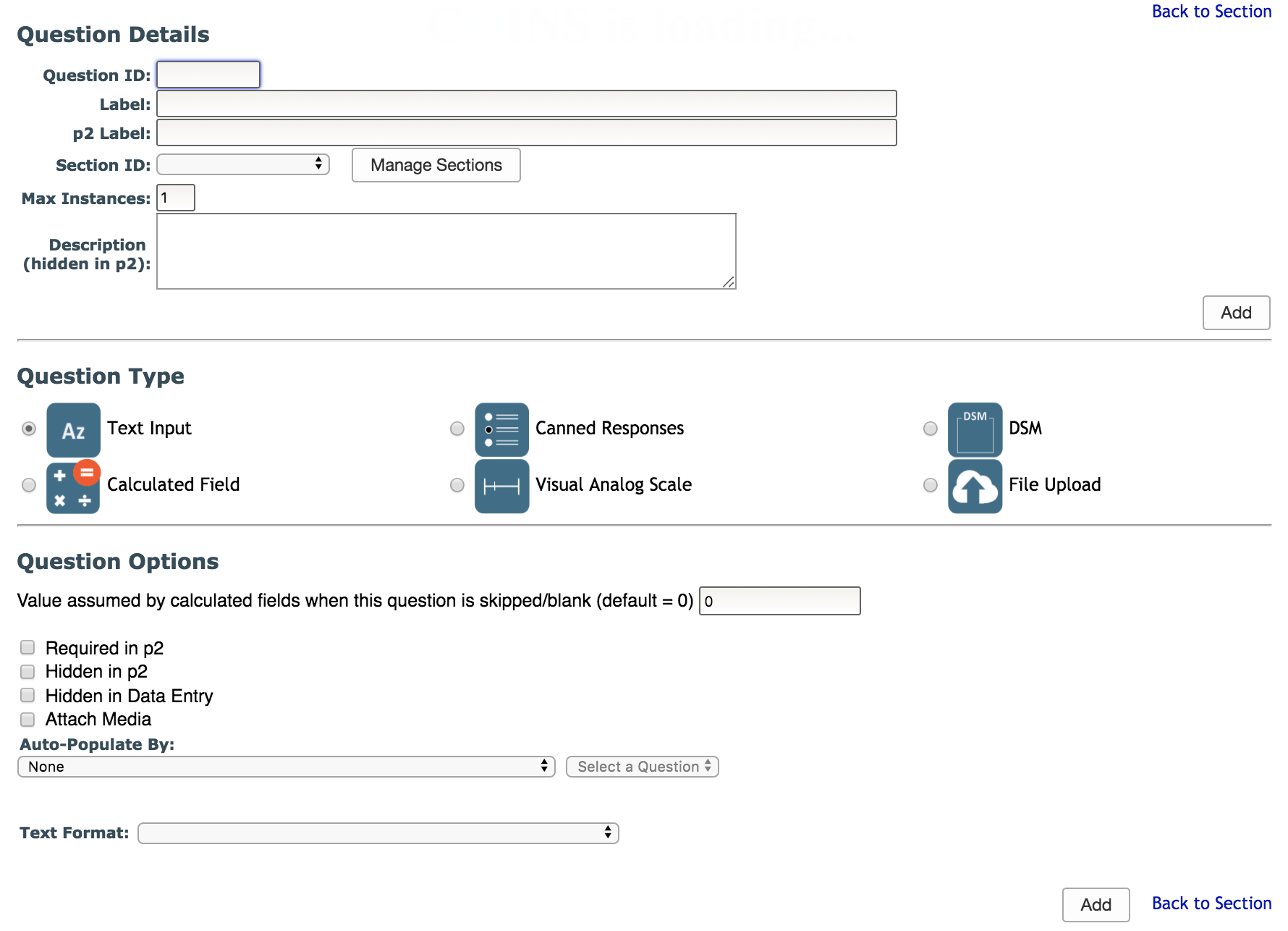
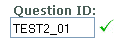
- Question ID - all questions have a question ID associated with them. Characters must be alphanumeric, underscores are also accepted and the ID must be unique. If you enter a question ID that is already in the database you will see an X next to it that indicates that you cannot use that question ID and will need to choose a new one. If you see a ✔ you can proceed and fill out the remaining fields. Once data is associated with a question ID, it can no longer be edited.

- Label - the label serves as the question text (e.g., Do you smoke?). If the Self-Assessment Label below is filled out, then this label will not be visible to the participant in Self-Assessment.
- p2 Label - the label you want displayed in the participant portal. If this is blank, the label displayed in the participant portal will be the Label above. Click here to learn more about Self Assessment.
- Section ID - in the drop down list you will select the section that the question will be under. Note: you can click the Manage Sections button next to Section ID to manage or add sections.
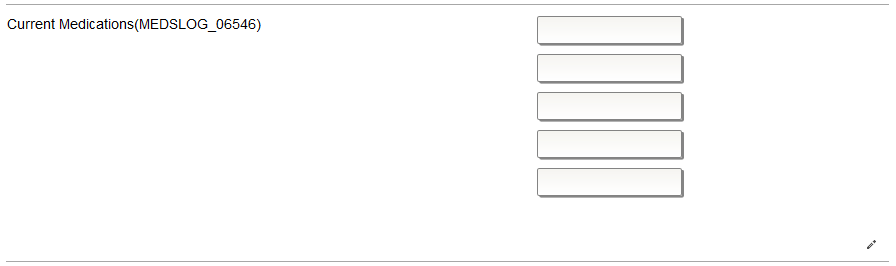
- Max Instances - if the question is only asked once you will put a 1 in this field. If you have a question that is asked more than once in a sequence (e.g., medication list). Enter in the amount of times the question is asked under Max Instances.
- Description - here you can give more information about the question if you would like. This is not visible to the participant in the participant portal.
Question Types
There are several question types you can use when creating an instrument. You can click each type to learn more. Once data is associated with a question, the question type cannot be changed.
- Text Input - written response
- Canned Responses - user selects from a list of responses
- DSM Question Type - this type creates three sub-questions (Description, Code, Specifier) which are populated by selecting the Axis, Group, Description, Code and Specifier from drop-down menus.
- Calculated Field - the value for this type of question is calculated according to a customizable formula, which can use the responses from other questions in this instrument as variables. The calculation takes place when each assessment is completed.
- Visual Analog Scale - a response scale or slider.
- File Upload - Allows a person doing data entry to upload files
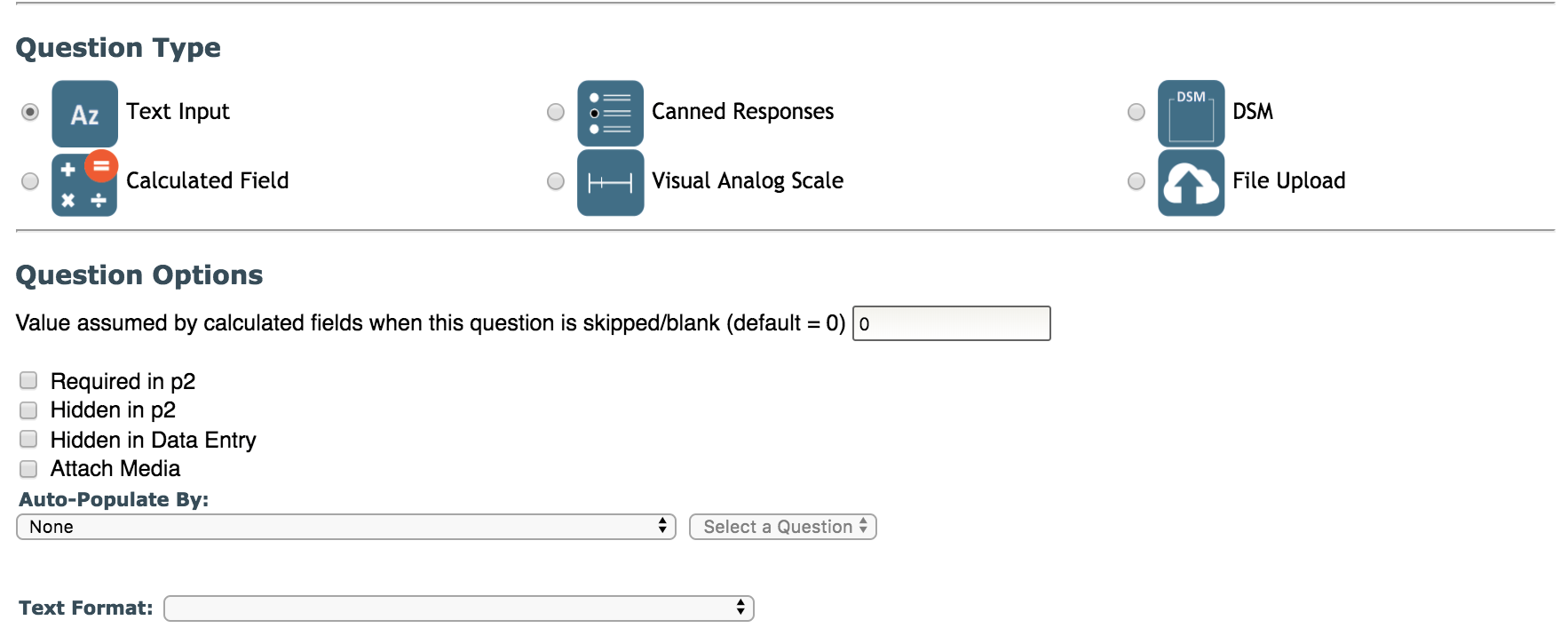
Questions can be customized to meet your study's needs. Click here for more information on Question Options.
If you would like to change order of your questions simply click and drag the question to the proper location. Note: nothing about the question will change other than the location on the data entry page.
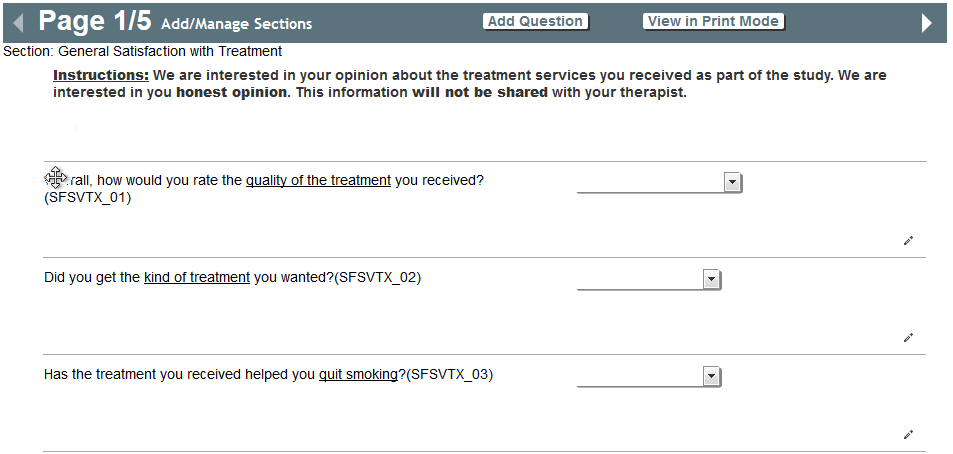
Question Menu
Hover over the pencil icon on any question to access the question menu.

The menu consists of the following tools:
- Preview in Self Assessment
- Create/Edit Loops and Jumps
- Delete Question
- Duplicate Question
- Editing Questions
For more information on the options in Question Menu, click here.
Comments