When creating sections for your instrument, any section type can be made into a Timed Section. This will give participants a time limit for answering questions in Self-Assessment. Open Add/Manage Sections to begin.
Note: Time allotted for answering questions will not affect data entry.
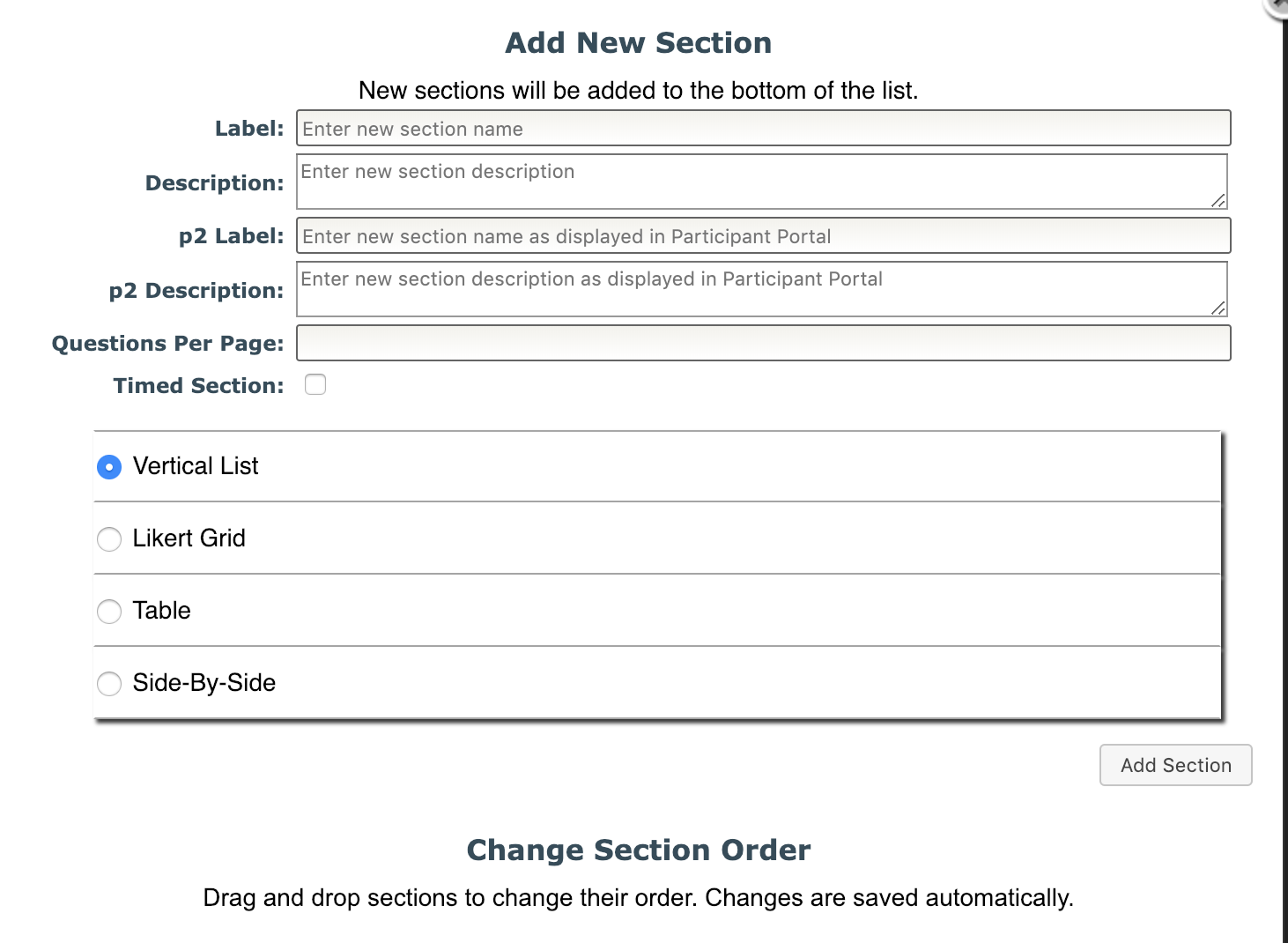
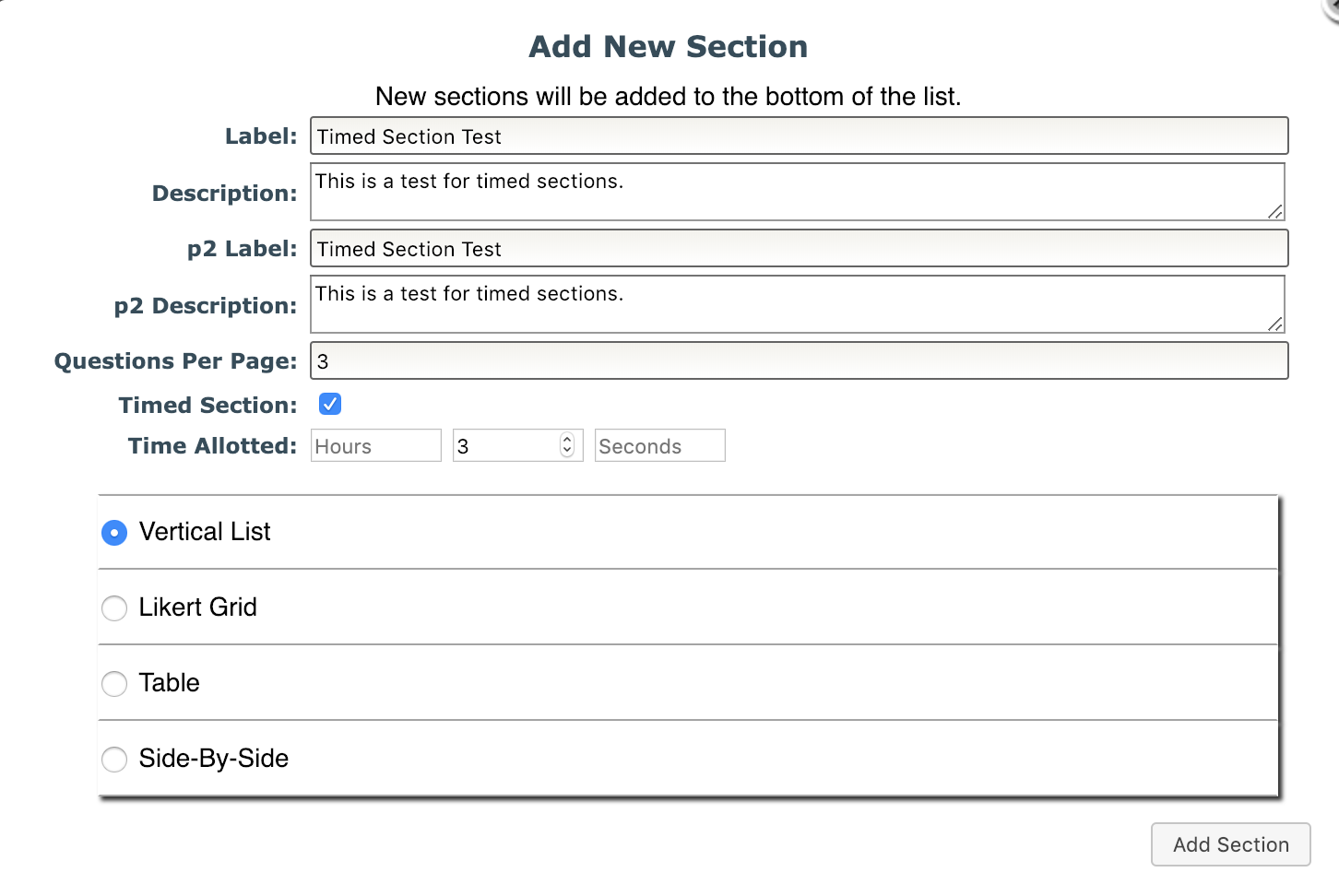
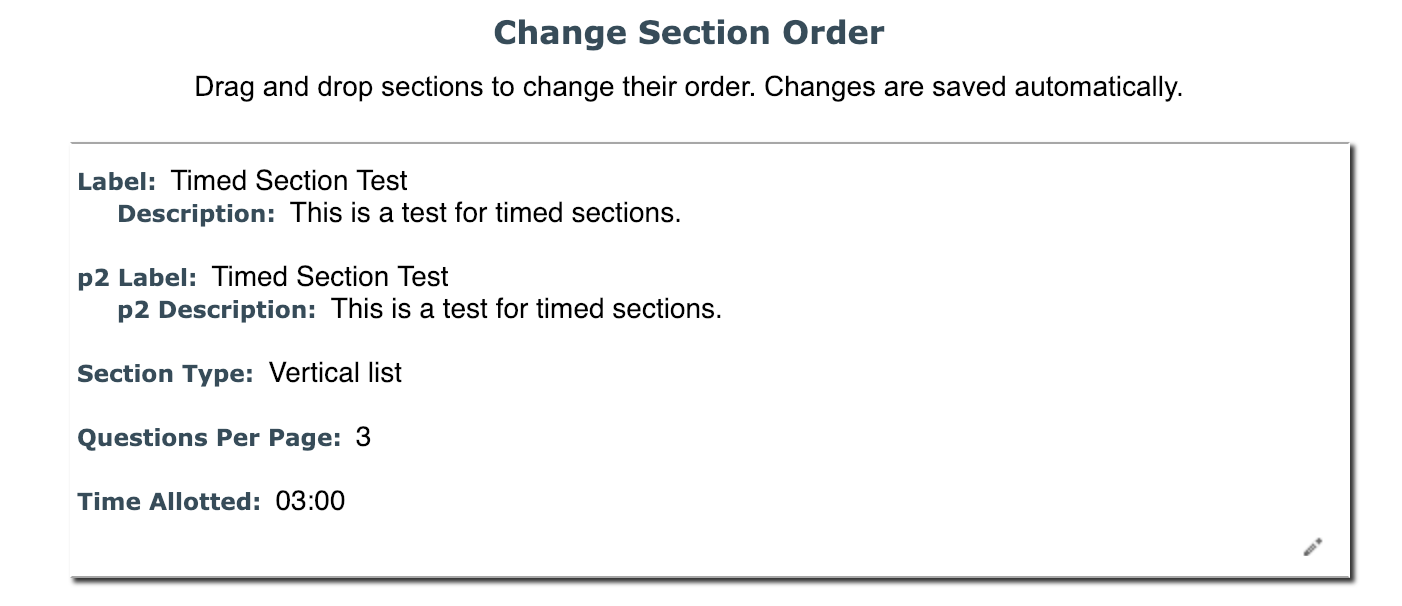
First, fill in the labels, descriptions, and questions per page. Then, click the checkbox next to Timed Section. You will need to specify how much time you would like to allow participants to answer all of the questions in that section (Hours, Minutes, Seconds). Select from the question orientation options and then click Add Section.
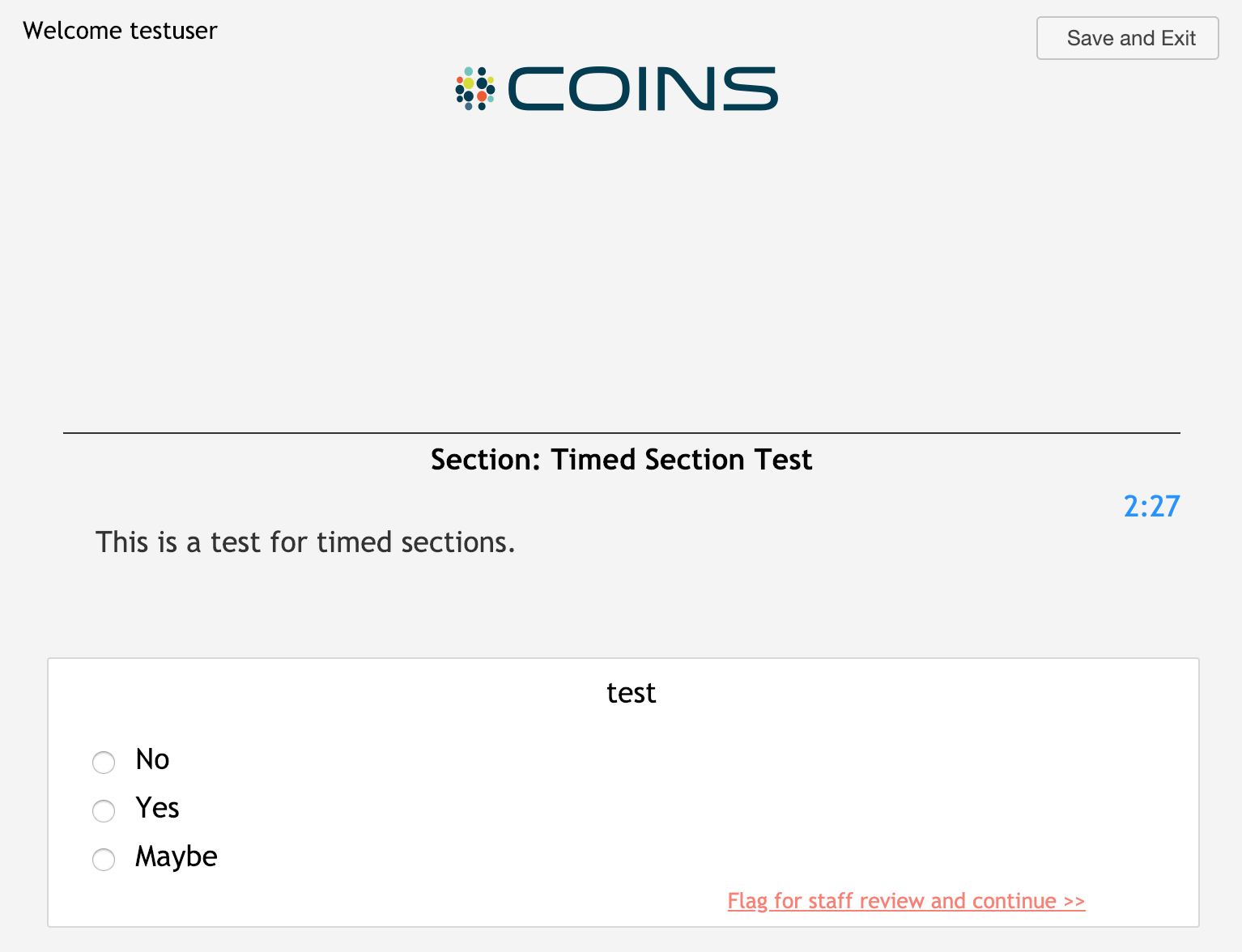
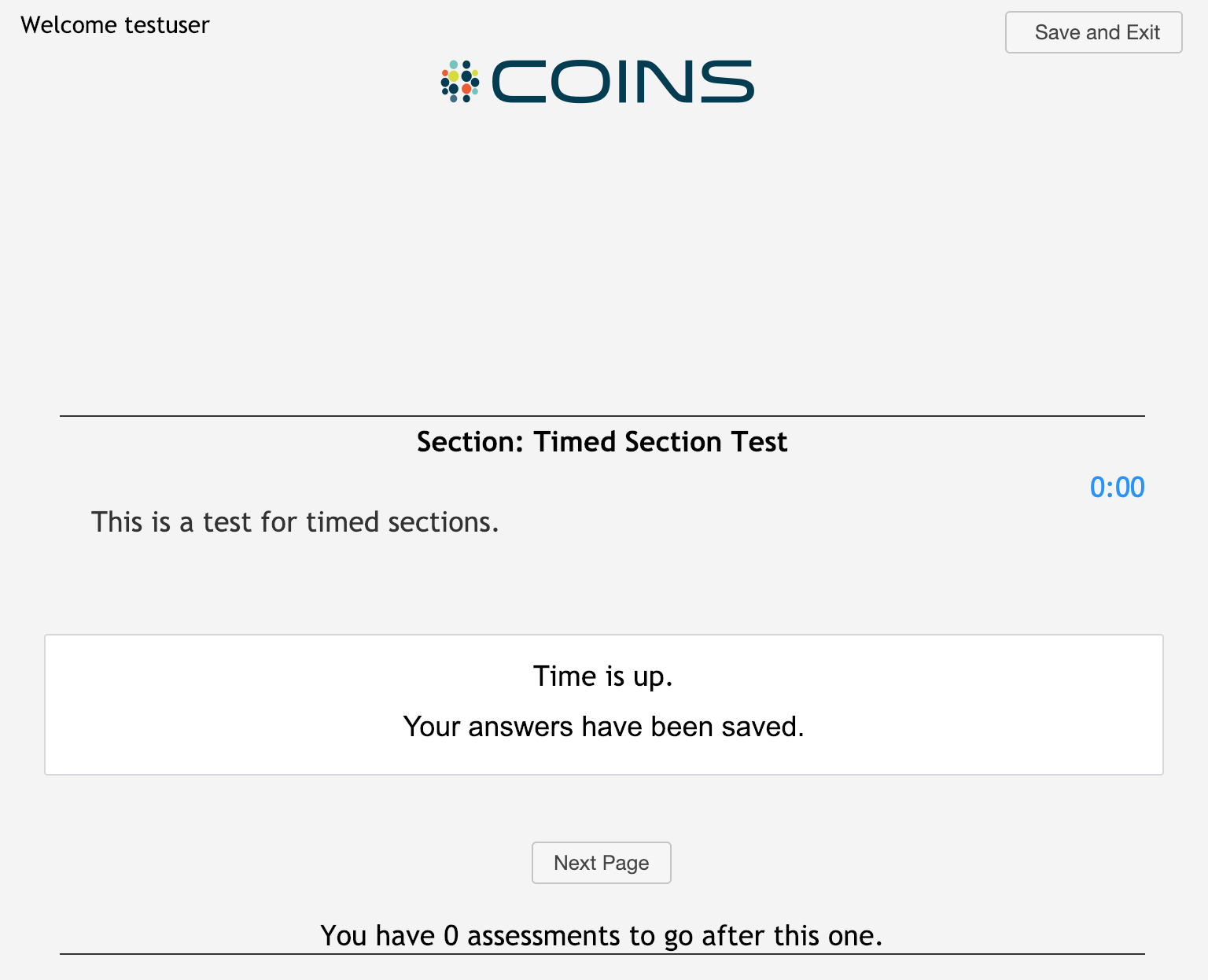
When completing a self-assessment in p2 for an instrument with timed sections, there will be a countdown timer in the top right corner of each page that will show participants how much time they have to complete the section.
If a participant does not answer all of the questions in the time allotted, they will be told that their time is up and that their answers have been saved.
Comments