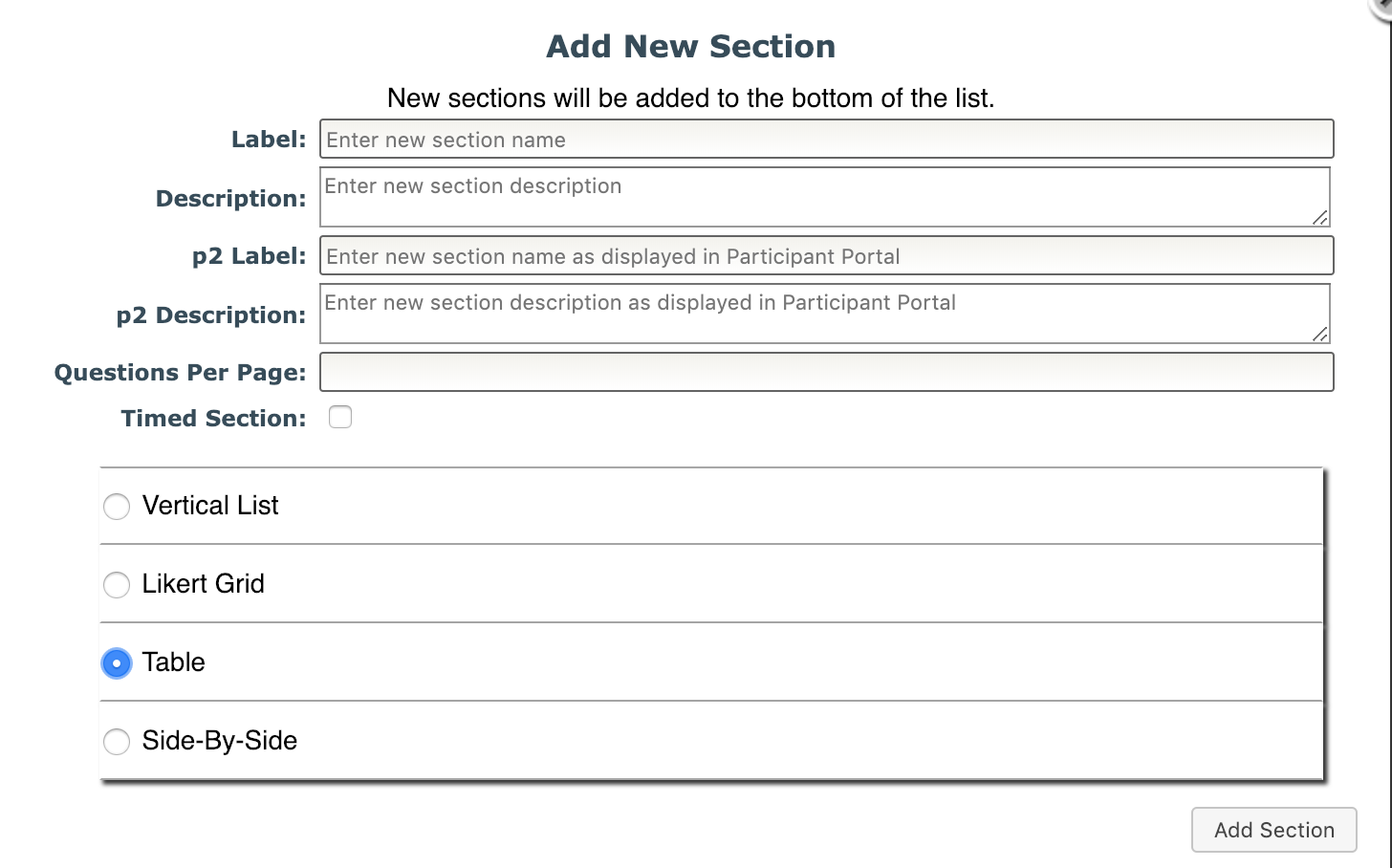
Open Add/Manage Sections, fill in the labels and descriptions, select Table and click Add Section.
Navigate to the table style section and click Add Table.

First select Question Type, text or canned responses. If you choose canned responses, you will be prompted to enter the number of responses. On the next page you will choose the label and value for each response. Then, enter the number of rows and columns of the table.Click Next.
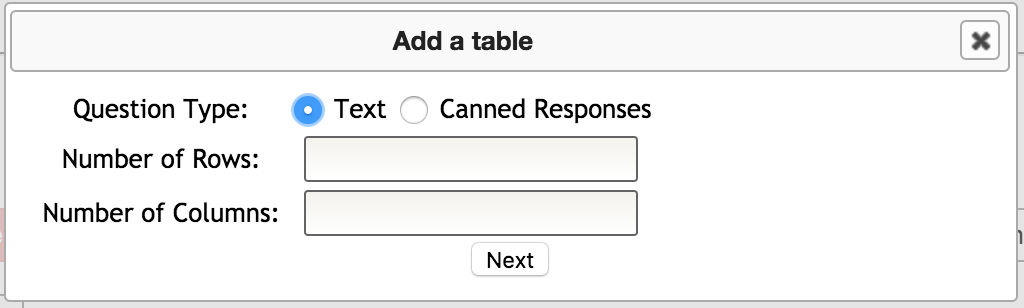
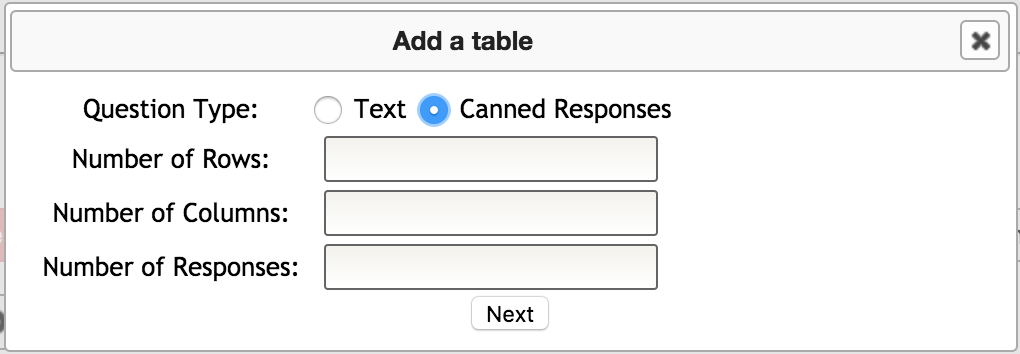
Enter the label and value for each response. Then fill in the column labels and row labels. Enter the question IDs in the gray cells. The question ID uniqueness check will be performed on each cell. If a red X appears, the question ID entered is already in use and you will need to choose a new one.
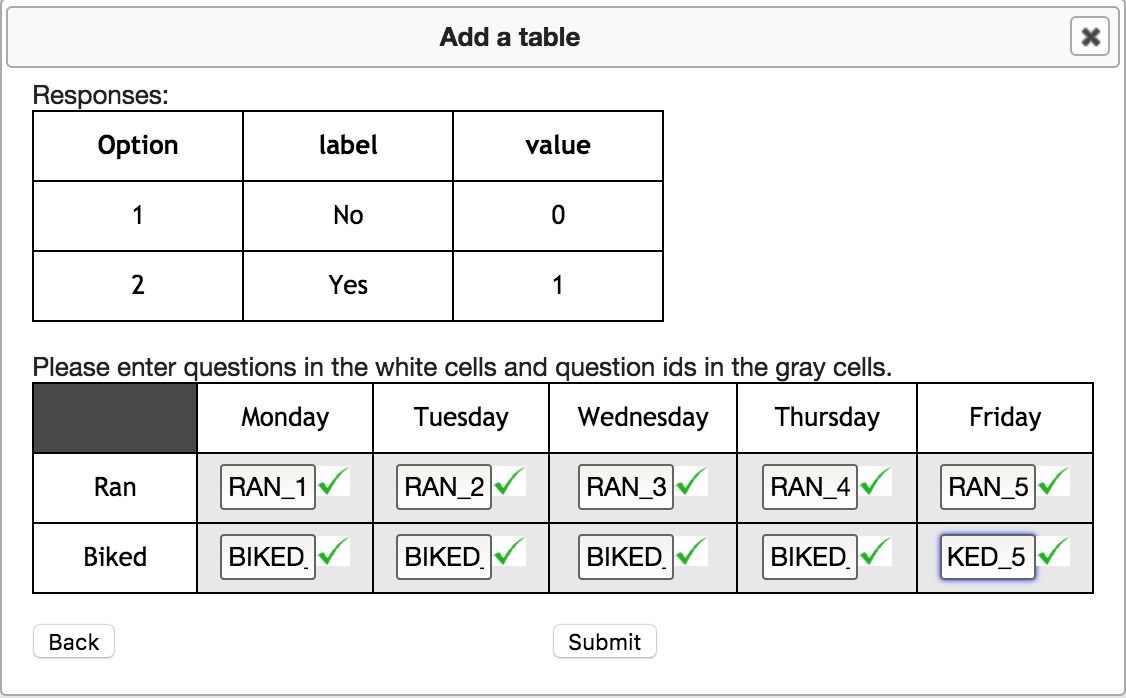
When all is complete, click Submit. If you would like to change the number of rows, columns or responses, click Back.
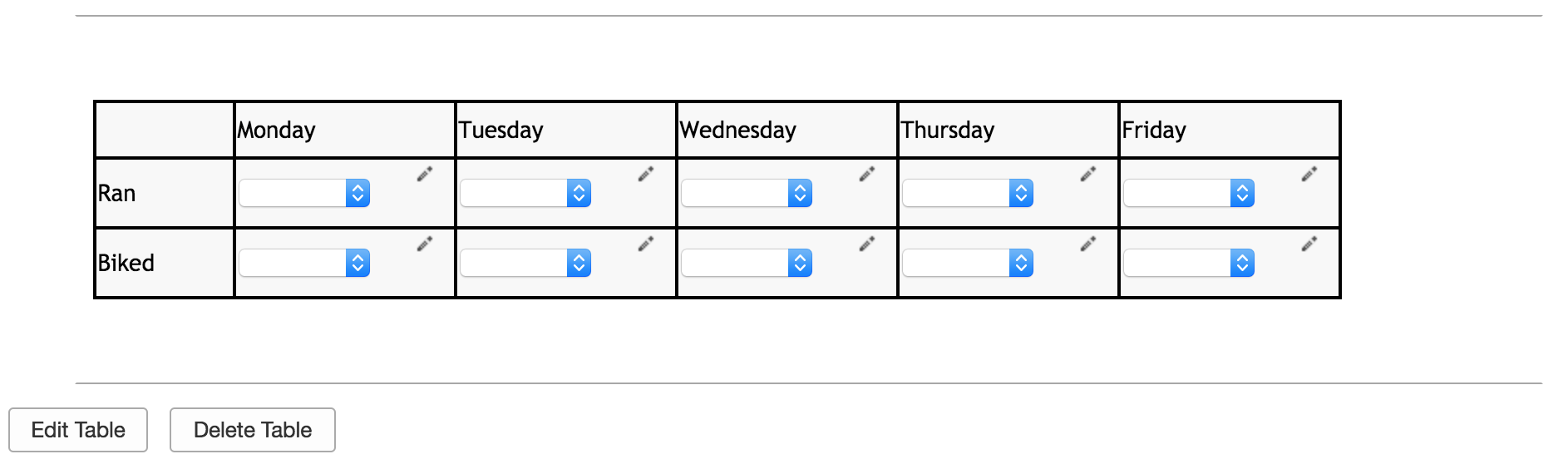
Click Edit Table to change the column and row labels as well as add or delete rows and columns.
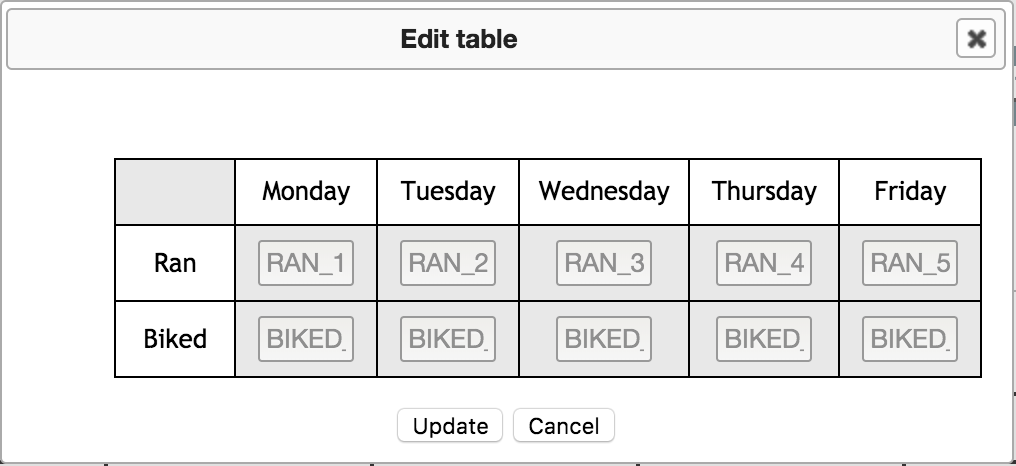
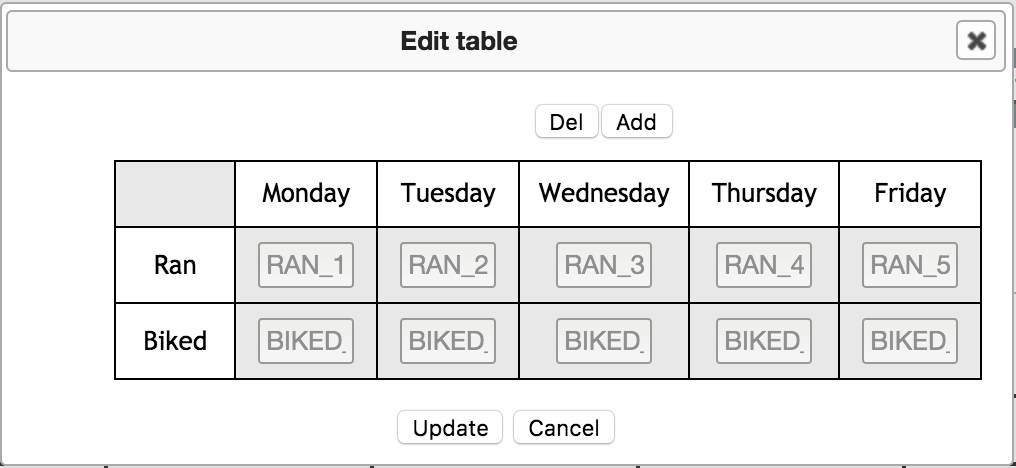
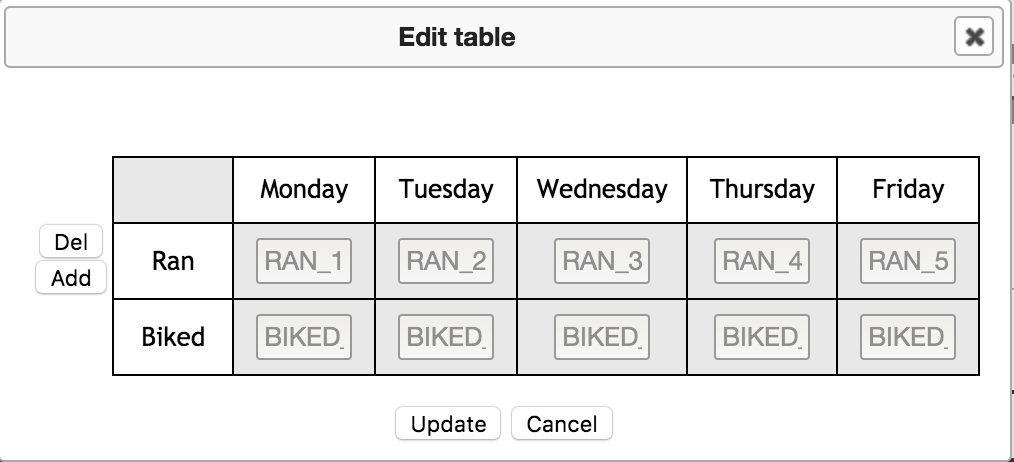
Hover over the top of a column or left of a row to see editing options. Click Add to insert a row or column after the current column/row. Click Del to delete the row or column if data has not been associated with the questions in it.
Click the pencil icon next to a cell to edit the response options. Click Add a row to add more responses. Select Text Response to change a canned response to a text response. You can also manage auto-populate options by clicking the checkbox next to Set Auto-Populate-By.
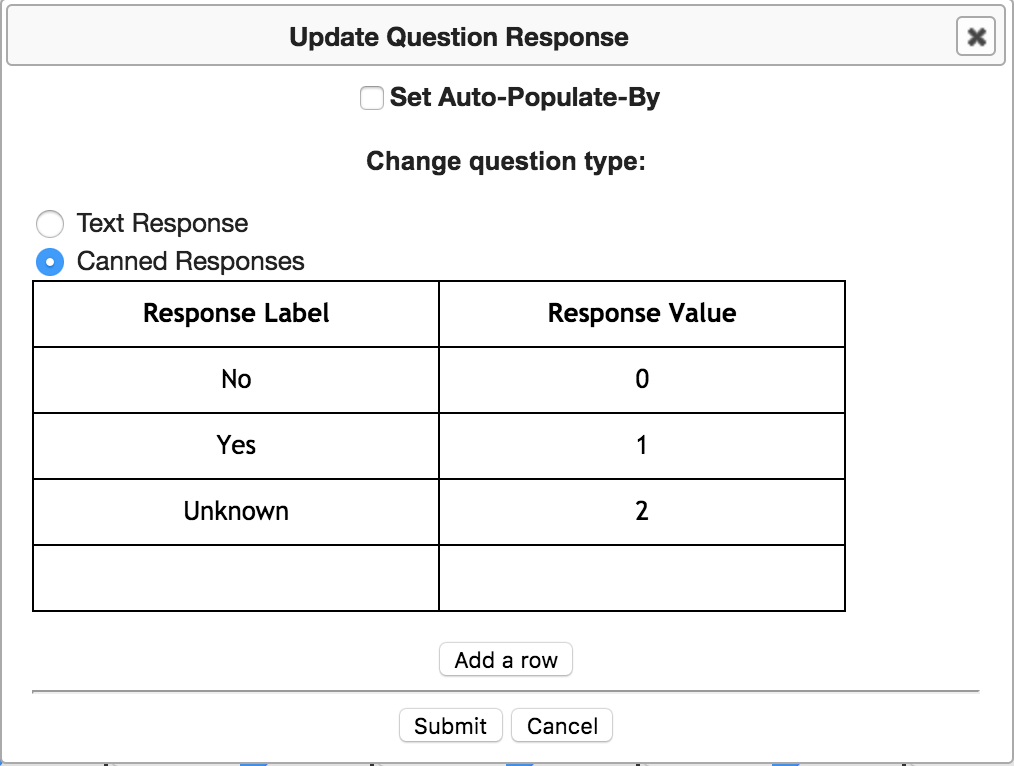
Click Delete Table to delete the table. Tables with data associated with them cannot be deleted.
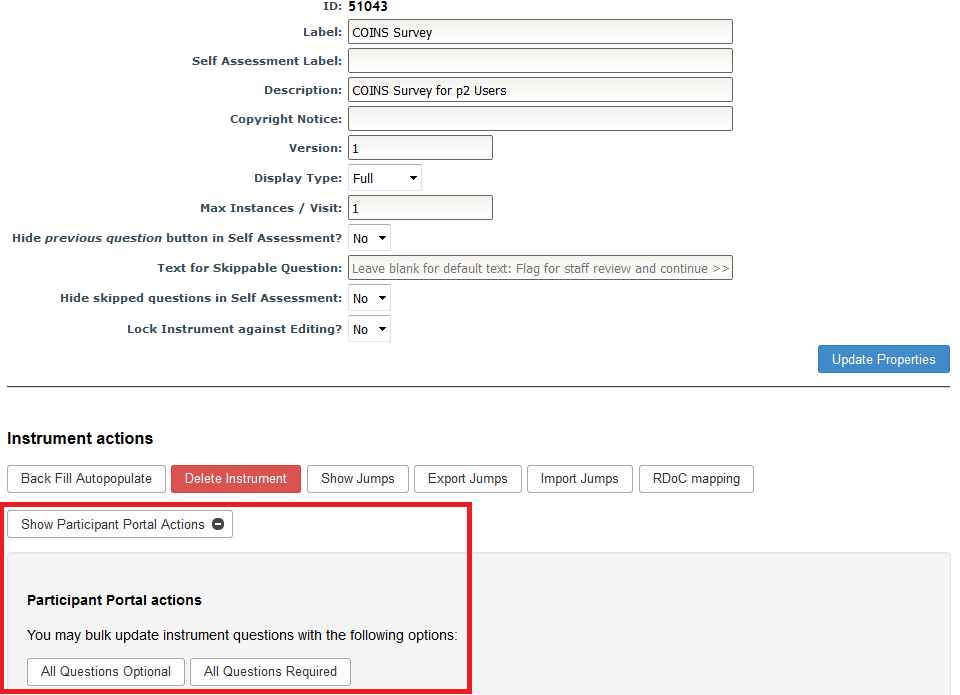
The only way to set table questions as required or optional is to use the All Required/Optional In Participant Portal selectors. Note: All Required/Optional In Participant Portal work differently with table style sections. If All Required is chosen, every table cell must be answered, as is true for all sections. However, if All Optional is selected for the instrument, any cell in the table can be skipped without having to click Flag for Staff Review and Continue, as you have to with other sections types.
The export of the data associated with the table style questions exports with the assigned question ID. The column label and row label associated with the question ID are printed in the question label field separated by a space. 
Comments