To search for your assessments, go to Search Assessments through the Manage menu.
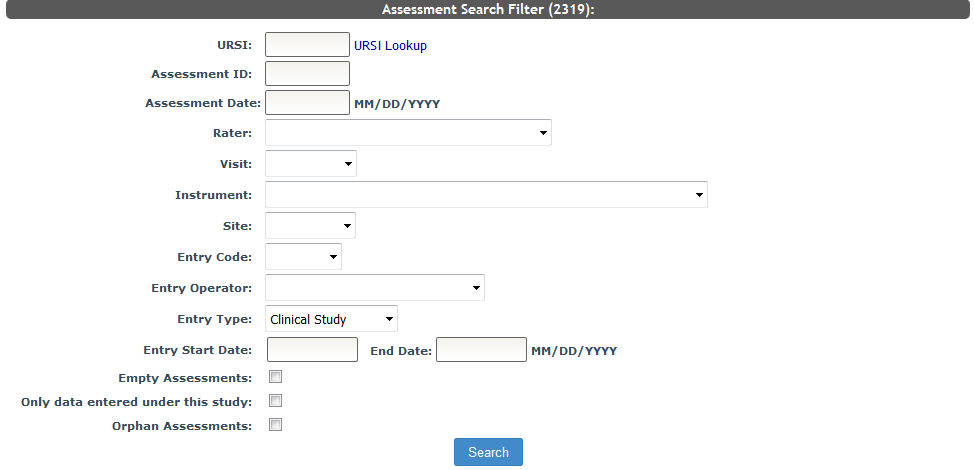
You can use this tool to view all assessments records in your study. Use the filter criteria to find the assessment of interest.
If your study has sharing rules, you can also choose to search assessments that were are shared with the study or only assessments collected through this study by selecting Only data entered under this study check box. If you want to search for orphans, check the Orphan Assessments box. Orphans records are those that do not have a C or F record associated with them. To learn more about 1st, 2nd and complete records, click here. The orphan search only works for data entered under the study and does not include shared data.
You can also search for assessments using a subject tag by clicking URSI Lookup next to the URSI box.

Select the tag type from the drop down list and then enter the subject tag. Choose to search global, site-wide or study-specific.
Note: URSIs that are no longer linked to PHI will not be searchable using subject tags.

Your look up result will be shown. Click select to use the URSI for searching.
After searching for your assessments, the results will be displayed. On the results list you will see basic information about the assessments. The Assessment Search table has many built-in features to help users customize and retrieve table information.
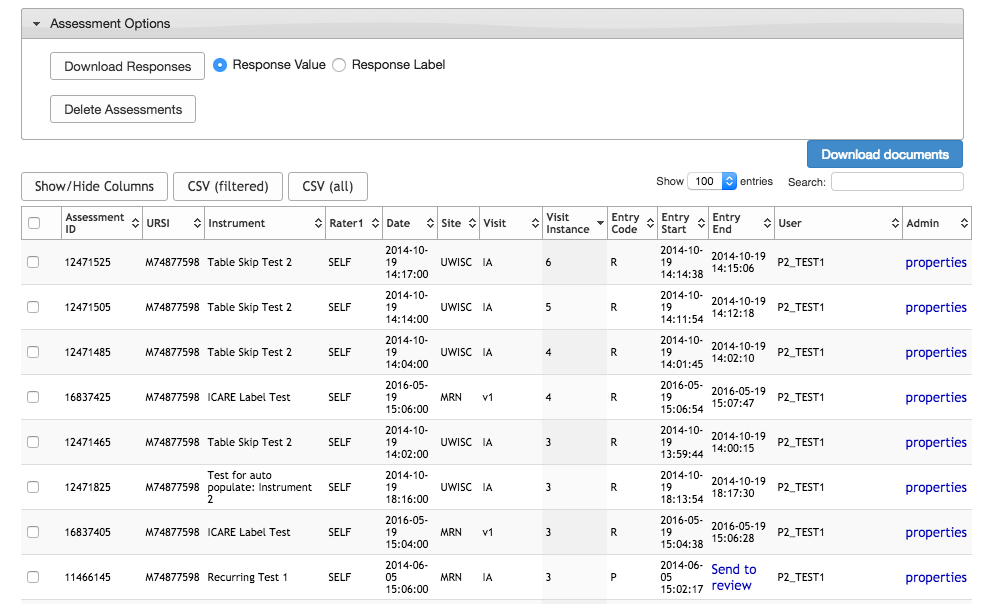
Under the Code column you can see the type of record the assessment is. Assessment entry codes reflect the entry type of an assessment and where it is in the entry process.
- 1 - First Entry (dual entry)
- 2 - Second Entry (dual entry)
- C - Complete assessment (all assessment types)
- F - Failed Dual Entry (dual entry in Conflict Resolution)
- R - Review Queue (in the Self Assessment Review Submissions queue)
- P - Pending assessment (Self Assessment entry has not been completed)
- O - Ongoing assessment (data entry only, not Self Assessment)
- S - Single (a direct entry before it is completed)
Hover over the entry code to see the definition.
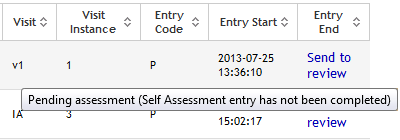
If an assessment is pending and is a being completed via Self-Assessment, and you want to send the incomplete assessment to the review queue, click Send to review in the End column. You can also send unfinished Self-Assessment assessments to the review queue from the participant queue. If an assessment is being filled out via Data Entry and has been started but not finished, and you want to end data entry for the incomplete assessment, click Complete in the End column. You can also complete the assessment by resuming it. If the study has sharing rules, the Send to review and Complete links for incomplete assessments will only work from the owning study. If the study is not the owning study, you will see "Cannot Complete" which can be hovered over to display the owning study's name.
From this page you can also include/exclude assessment data from the Data Exchange by clicking on the toggle Yes/No under the Include in DX column.
If the study is a mapping study, the Mapping Export Excluded column will indicate if the assessment will be exported when only exported non-submitted data.
If you chose to upload files to your assessments you can download files from C records in your results by clicking Download documents. This button is only visible if instruments in your search contain a file upload question.
From the search table, click properties to view or edit the assessment's cover sheet properties. If a record is complete or if the search is an orphan search, you can click responses to view or update the responses for that assessment. Click Files to download uploaded files the selected assessment.
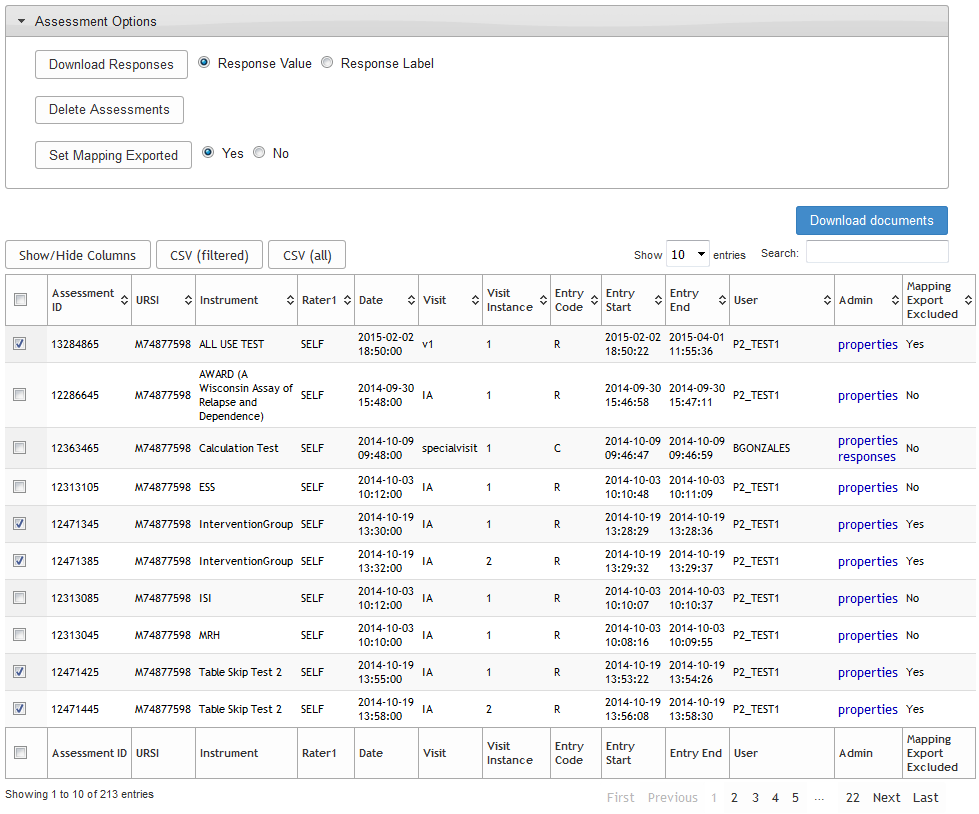
Assessment Options
Download Responses
You can download orphan and complete record sets by clicking on Assessment Options, selecting the check boxes next to the assessments you want to download responses for, and then click Download Responses. This will produce a csv with the assessment data that you indicated for download. You can choose to download the response value or the response label.
Note: If you have "Include age variable in exports" set to Yes for the instrument you are downloading responses for, a column labeled Age (participants' age when they completed the assessment) will be included in the csv.
Delete Assessments
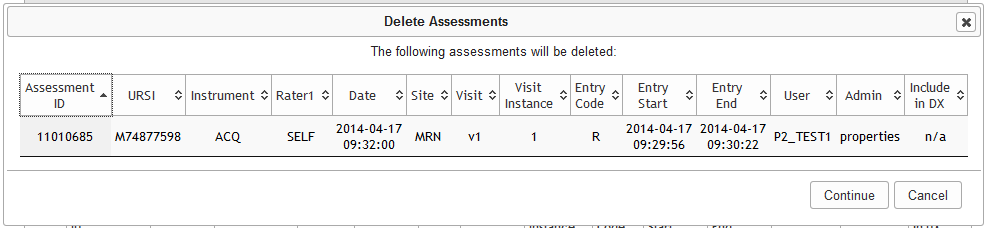
To delete assessments, click the checkbox for the assessments that you wish to delete in the assessment table. Currently only R, P, O, S and C records can be deleted. Use this tool only for assessments that you truly want to delete as you will not be able to retrieve them. Once you have selected the appropriate assessments click Delete Assessments. A summary of all assessments to be deleted will be shown. Click Continue to delete the assessments in the list or Cancel to go back without deleting.
Set Mapping Exported
If the study is a mapping study, you can toggle the exclude from export flag for assessments by selecting the check boxes next to the assessments you want to toggle. Select Yes or No next to the button and then click Set Mapping Exported.
Comments