When a participant logs into p2 with their email address and password combination from the default (non-stype) login page, they will be directed to the p2 Homepage studies tab. Logging into the default login page with the Participant ID will bypass the Homepage because the Participant ID is study specific.
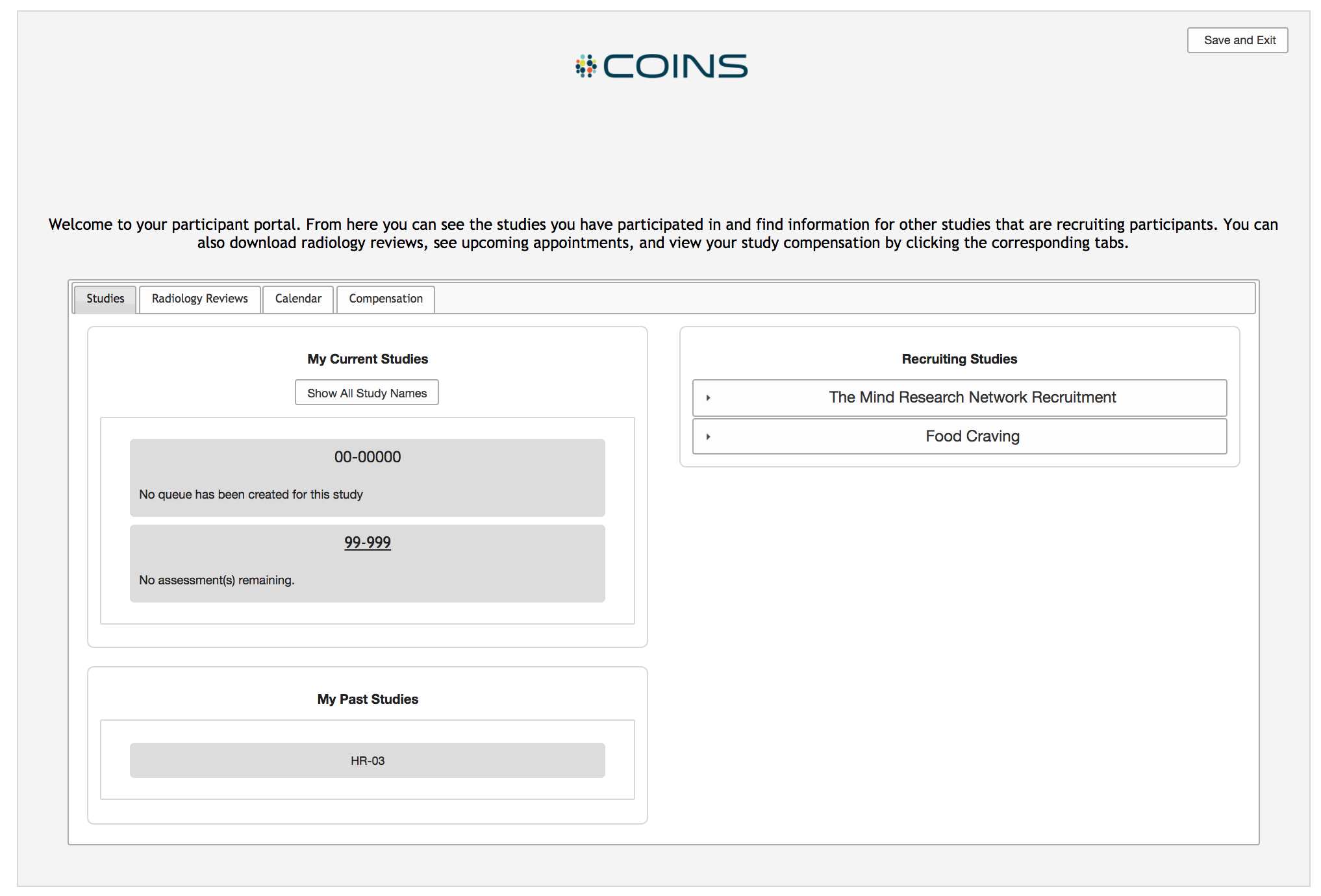
The studies tab will allow participants to see their studies as well as any studies that are recruiting. The participant can also navigate to the Radiology Reviews tab, Calendar tab, or the Compensation tab.
Studies Block
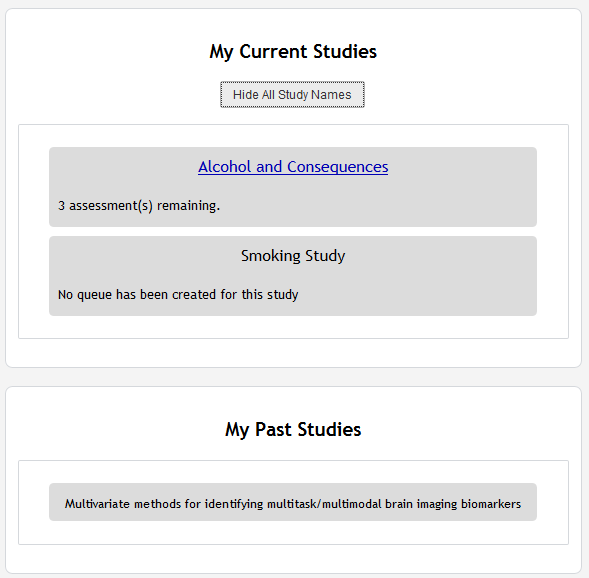
In the My Current Studies block, the participant will see any studies they are enrolled in that are active or closed to enrollment and still have linked PHI. All other studies will appear in the My Past Studies block. Any studies they have been disenrolled from will not appear. In the My Current Studies block, study queues will be shown for the proband/subject source type only. All other source type queues will need to be accessed with the login ID or with the stype URL. If a queue has not be created for proband/subject for a study, the message "No queue has been created for this study" will be displayed. If a queue does exist for the proband/subject source type, they will be able to click the hyperlink for the study to go to their questionnaires.
In the studies block, the study names will be hidden and the IRB number will be displayed instead. This is for privacy reasons. The participant can hover over the IRB number to see the study name or can click Show All Study Names to display all names. Clicking Hide All Study Names will re-hide them. The name displayed for the study is the name listed under IRB Study Title (formal title) in the study's details.
Recruitment Block
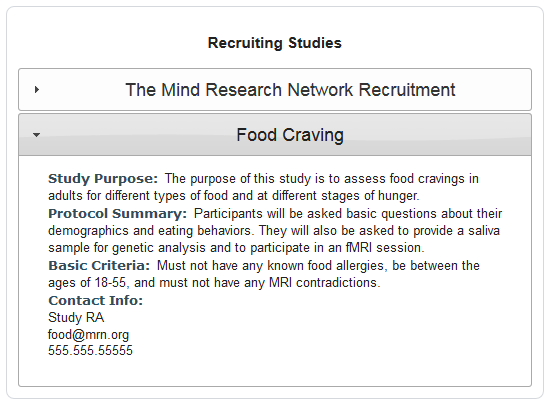
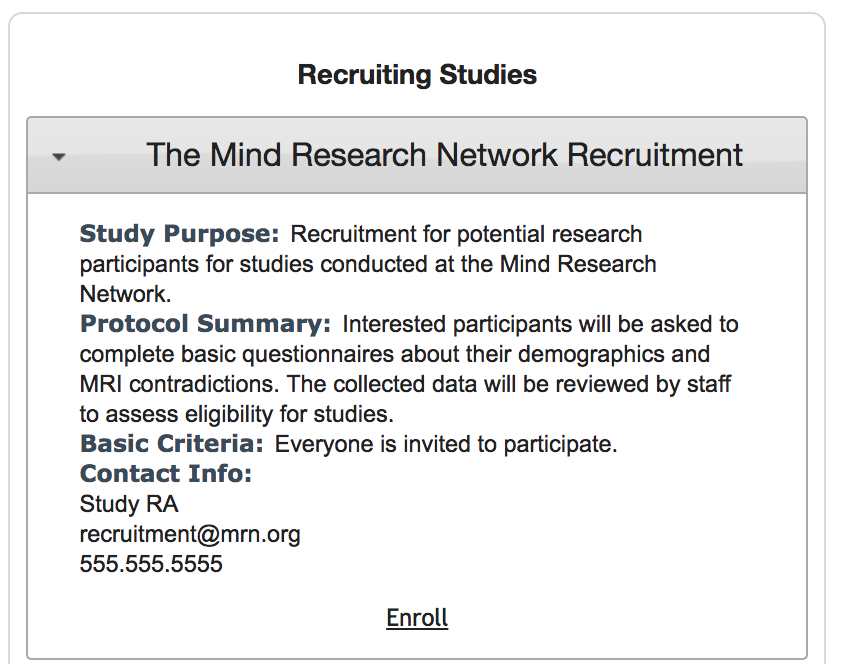
The recruitment block will show studies from the site that have been marked as Add to Recruitment List in p2? in the study's details and are active. The study information, criteria, and contacts set in the study details will be shown here.
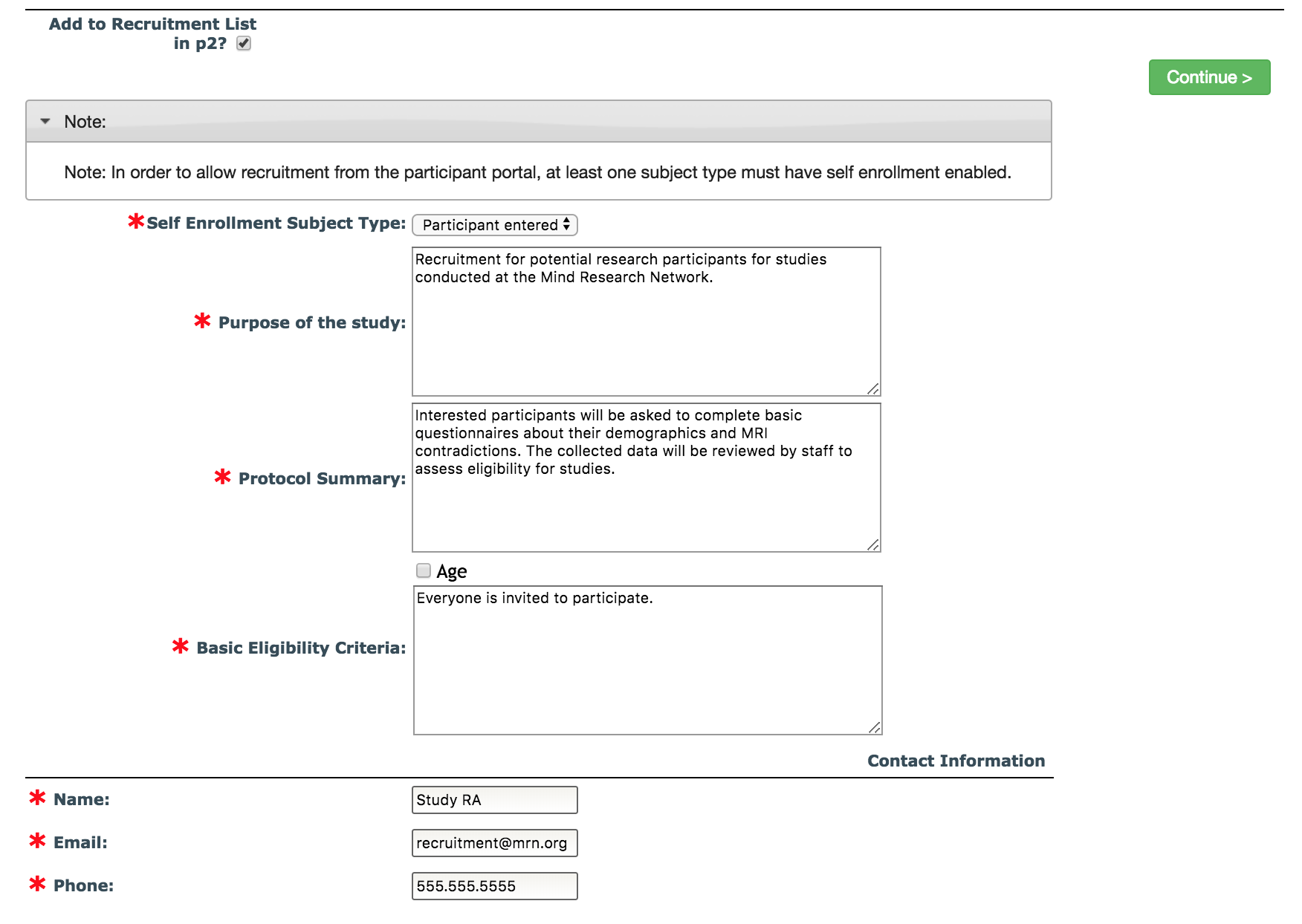
Each study will be listed by IRB title, which can be clicked to expand the accordion to view the study's information. If the study has self enrollment enabled and has selected a subject type to be the default enrollment type for the homepage, participants will see study information as well as be able to click Enroll to enroll into the study and start any auto queued questionnaires.
If a participant is already enrolled in a study that is recruiting, it will not be displayed in their list.
Comments