Setting Up Instruments for Self-Assessment
Before you begin self-assessment, you will need to make sure that the instruments are set up properly according to your preferences.
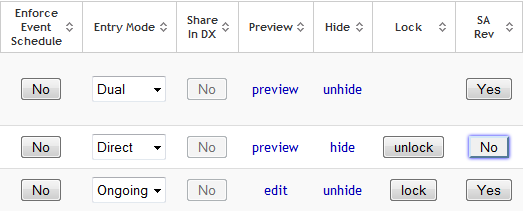
From the List Instruments page, you can customize if the instrument you are administering is required to go through the Self Assessment Review Queue process. Toggle the SA Rev button to choose the behavior of the Instrument. If SA Rev is set to Yes, all assessments for that Instrument will go to the Review Queue when completed in Self Assessment. If it is set to No, when assessments for the Instrument are completed in Self Assessment they will not be sent to the Review Queue and will be considered automatically complete with no staff review needed.
Why is SA Review Important?
The purpose of the review queue is for study staff to review the completed assessments to ensure data was completed accurately and that the participants did not have any questions. This is similar to checking each paper assessment after completion to be sure the provided info is fully completed and makes sense. Here are some examples of instances in which it is helpful to review assessments before completion:
- Participants often flag/skip questions if they need help. If they are flagged but you do not review the responses before completion, the data will be unnecessarily missing.
- Assessment review allows you to check for nonsensical answers. For example, if you ask about age and a participant enters "twelve", you can correct it to "12" so that data analysis isn't impeded.
- If the participant answers a question and the response doesn't make sense, you can talk to them and ask them to clarify their answer. You can then send the assessment back to the participant so that they can correct their response.
For some instruments, it might make more sense for the review portion to be skipped. For example, if you have a short instrument with straightforward canned response questions and you are certain the questions cannot be misinterpreted, you can set the instrument to skip review so that you do not have to go through the extra step of reviewing every time. Also, you can require that all questions be answered for certain instruments to ensure that assessments are completed in their entirety. To do this, click edit from the List Instruments page. This will take you to the instrument's properties.
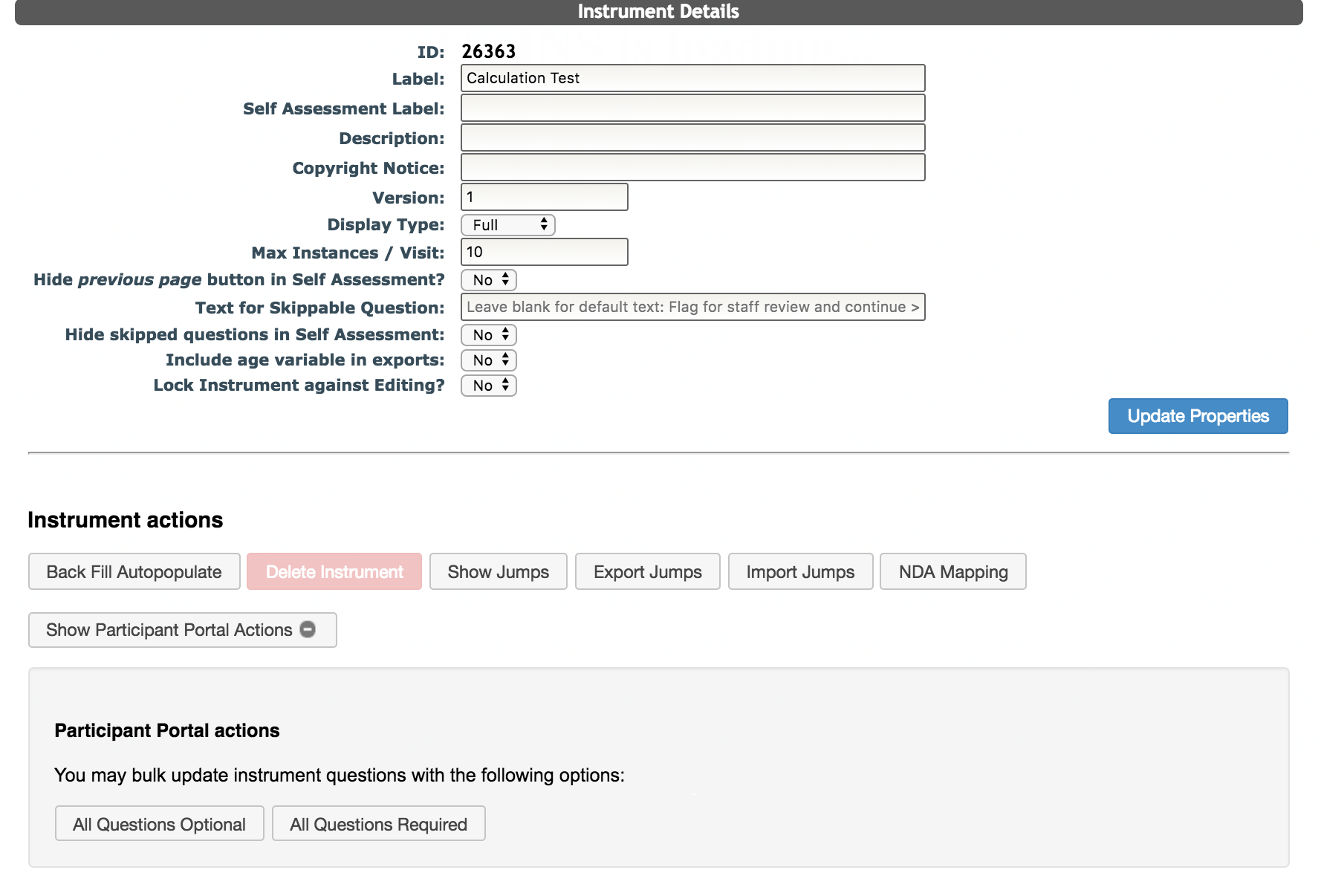
From here, click Show Participant Portal Actions under Instrument actions. You will be able to select that all questions are required.
For more details on how to review assessments, check out our Review Submissions article.
Setting up Self-Assessment Queues: Manual vs. Auto Queues
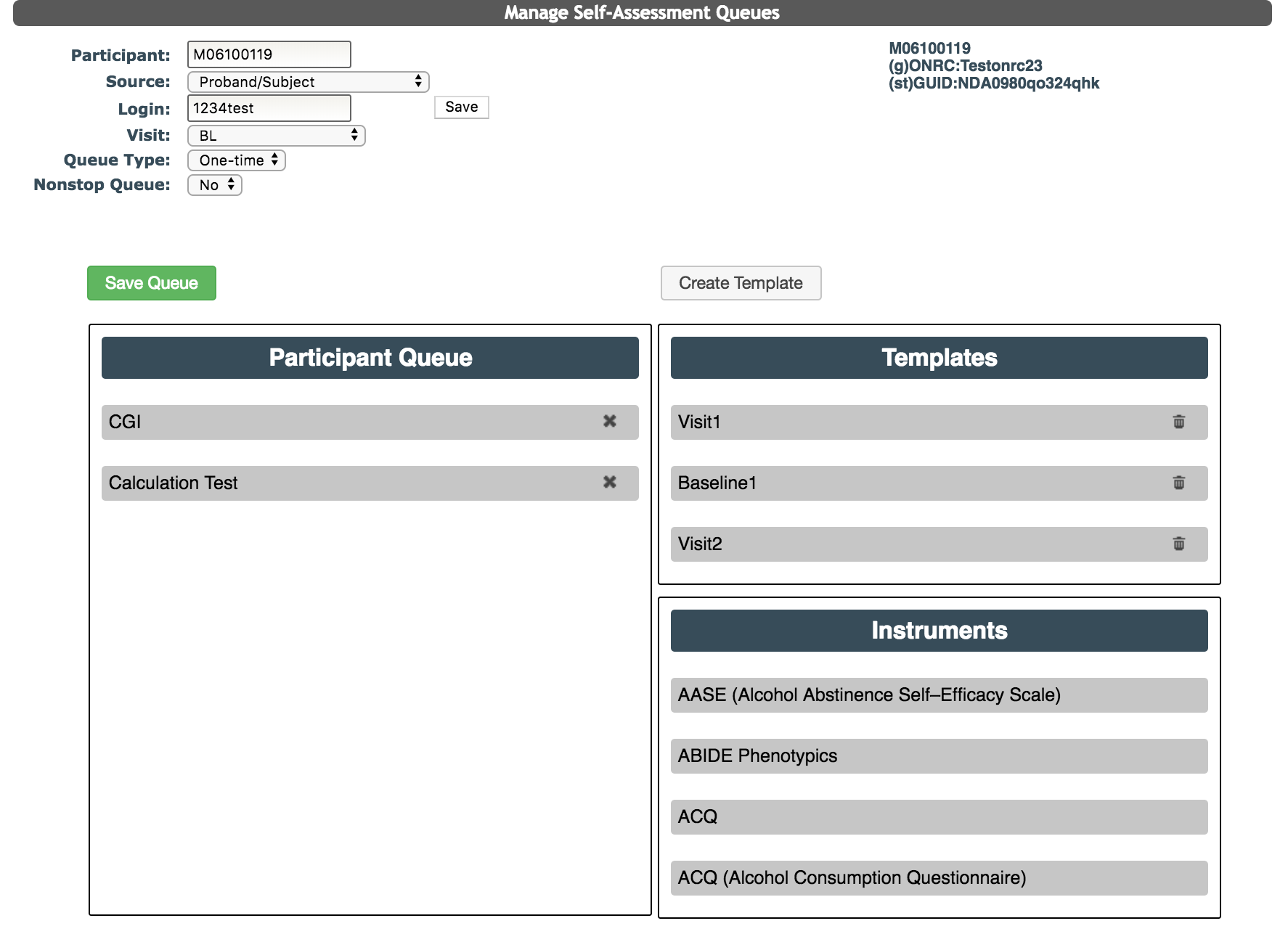
You can set up participant queues manually by going to Manage Subject Queues from the Self-Assess menu in ASMT.
You can also set instruments to Auto Queue for certain visits from the event scheduler in your Study Portal.
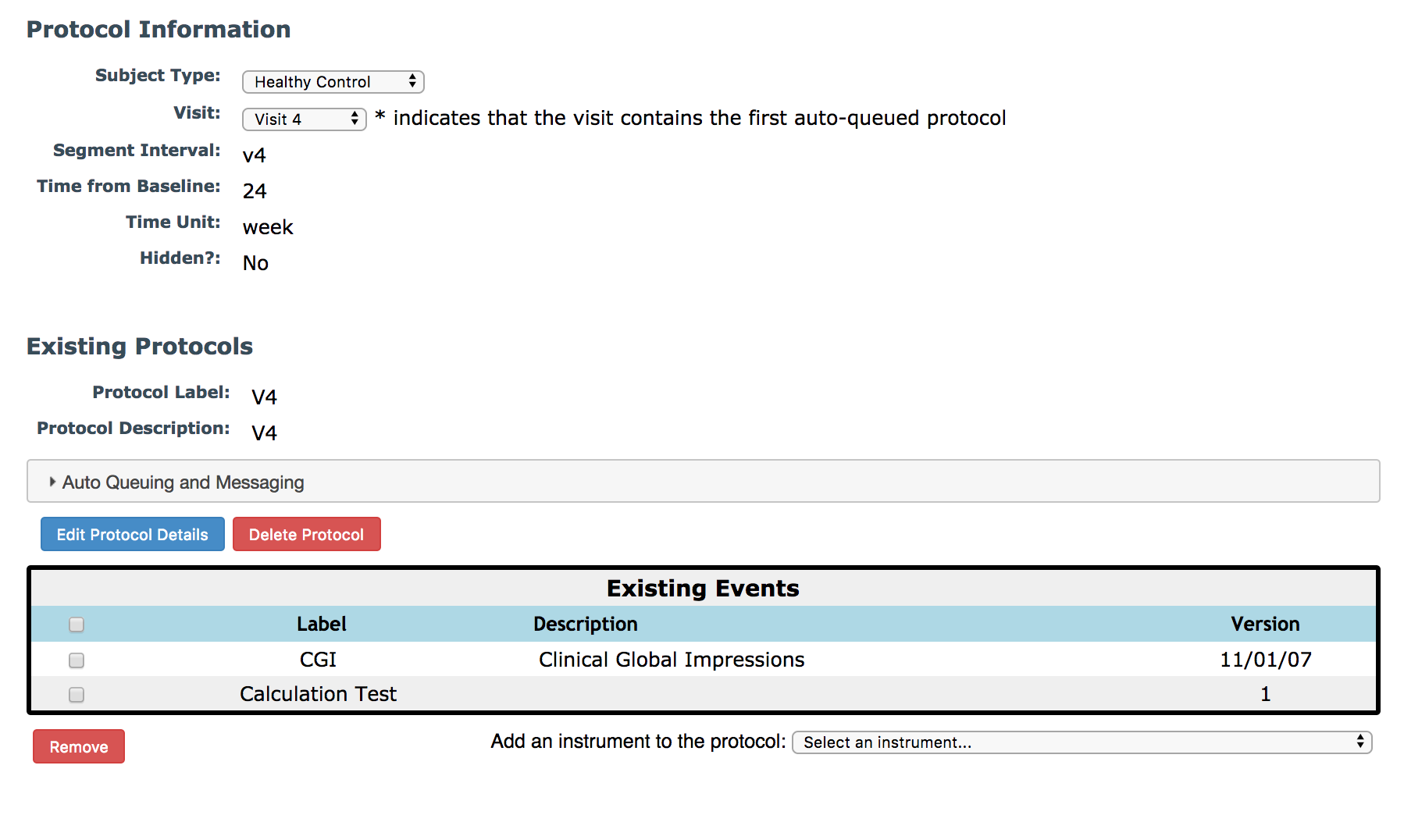
The event scheduler uses the study's subject types, visits and instruments to allow you to set up a schedule for each study visit. If you do not have these items set up please go here to see how to get started.
What Happens After Assessments Have Been Completed?
If the instrument has self-assessment review set to Yes, you will navigate to the Review Submissions page under the Self-Assess menu in ASMT. You will see all the assessments for your study that have not been reviewed yet.
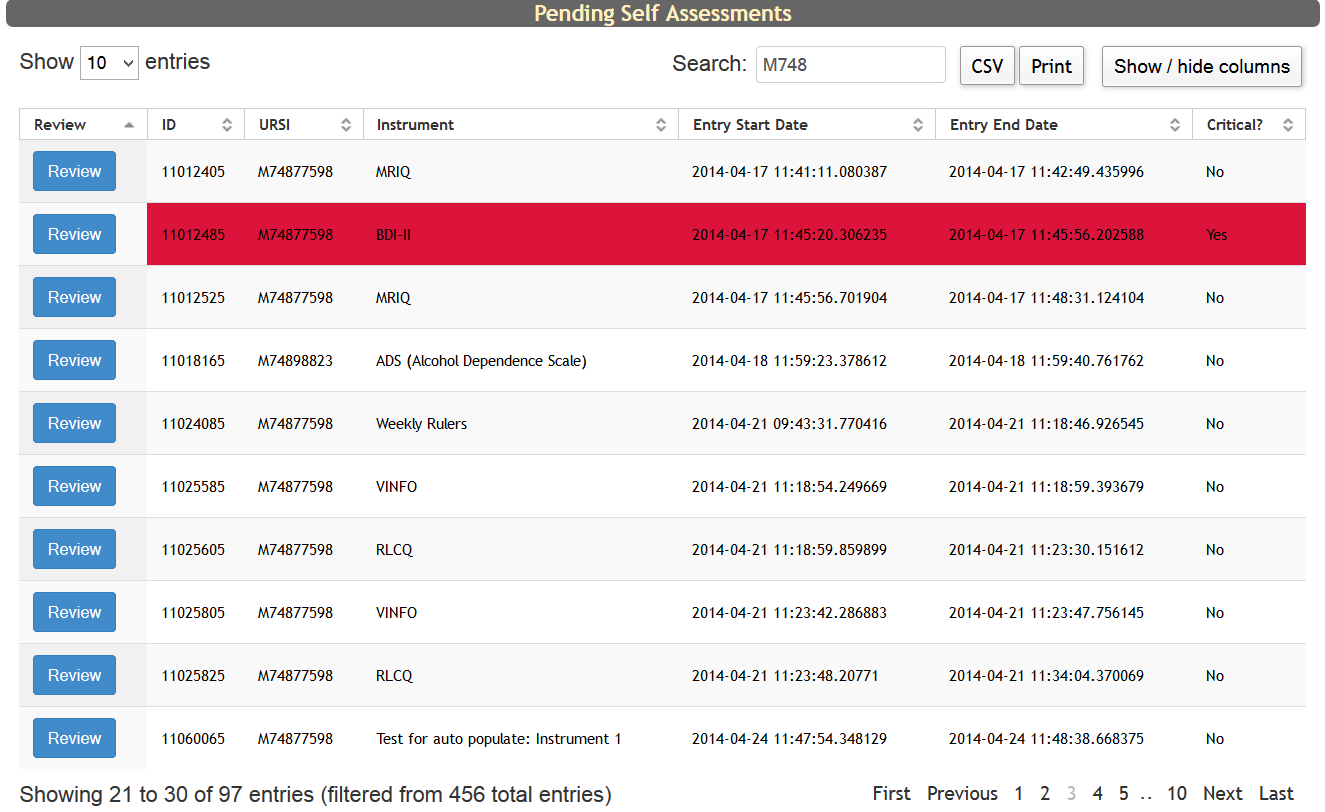
If the instrument has self-assessment review set to No, the assessment will not be sent to the Review Queue and will be considered automatically complete with no staff review needed.
Searching for Completed Assessments
You can search for assessments by going to Search Assessments from the Manage menu in ASMT.
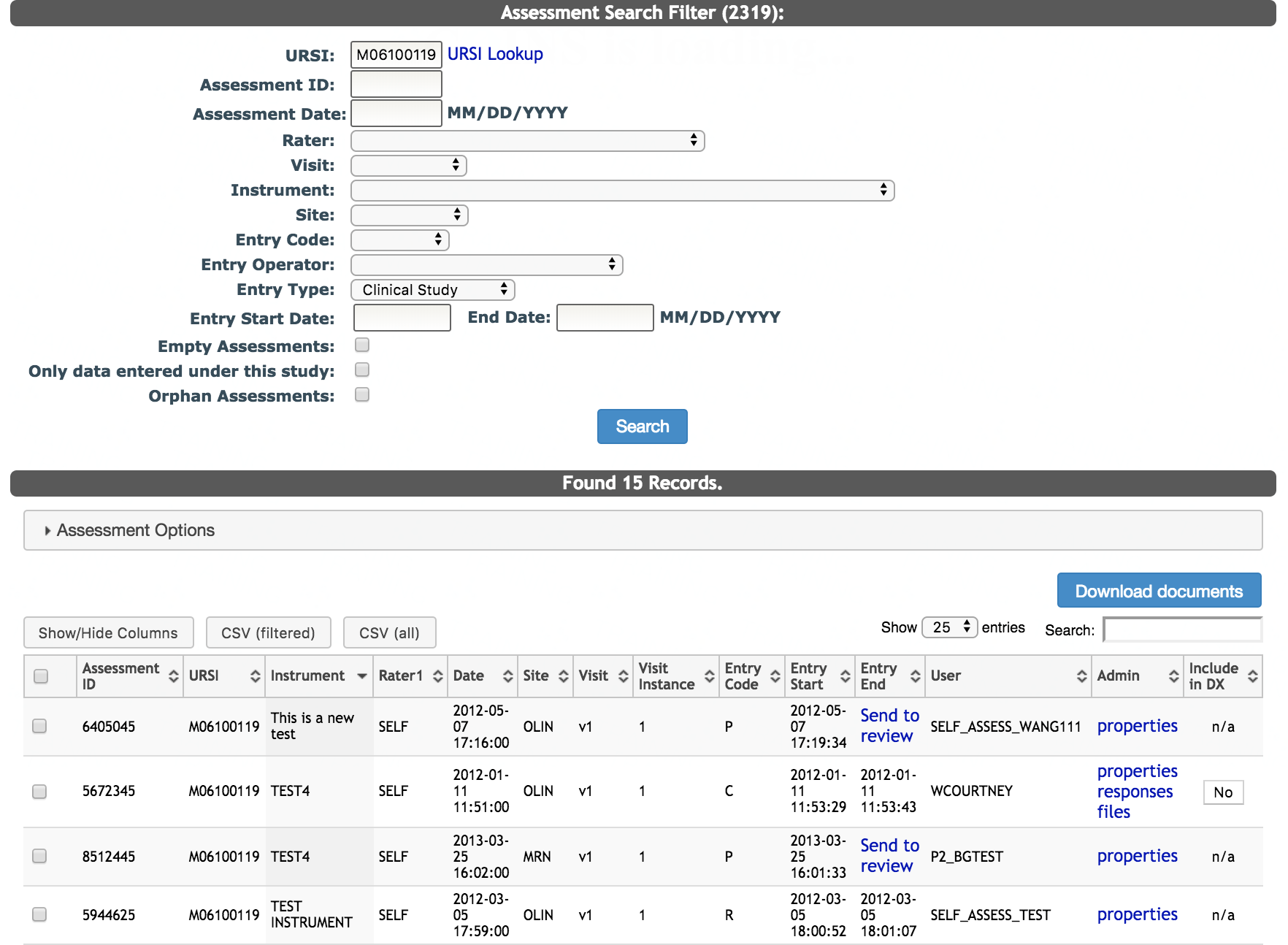
After entering criteria and clicking Search, you will see basic information about the assessments in the results table, including the Entry Code. Assessment entry codes reflect the entry type of an assessment and where it is in the entry process. Self-assessment records will have one of three entry codes:
- C - Complete assessment
- R - Review Queue (in the Self Assessment Review Submissions queue)
- P - Pending assessment (Self Assessment entry has not been completed)
If an assessment is pending and is a being completed via Self-Assessment, and you want to send the incomplete assessment to the review queue, click Send to review in the Entry End column. You can also send unfinished Self-Assessment assessments to the review queue from the participant queue.
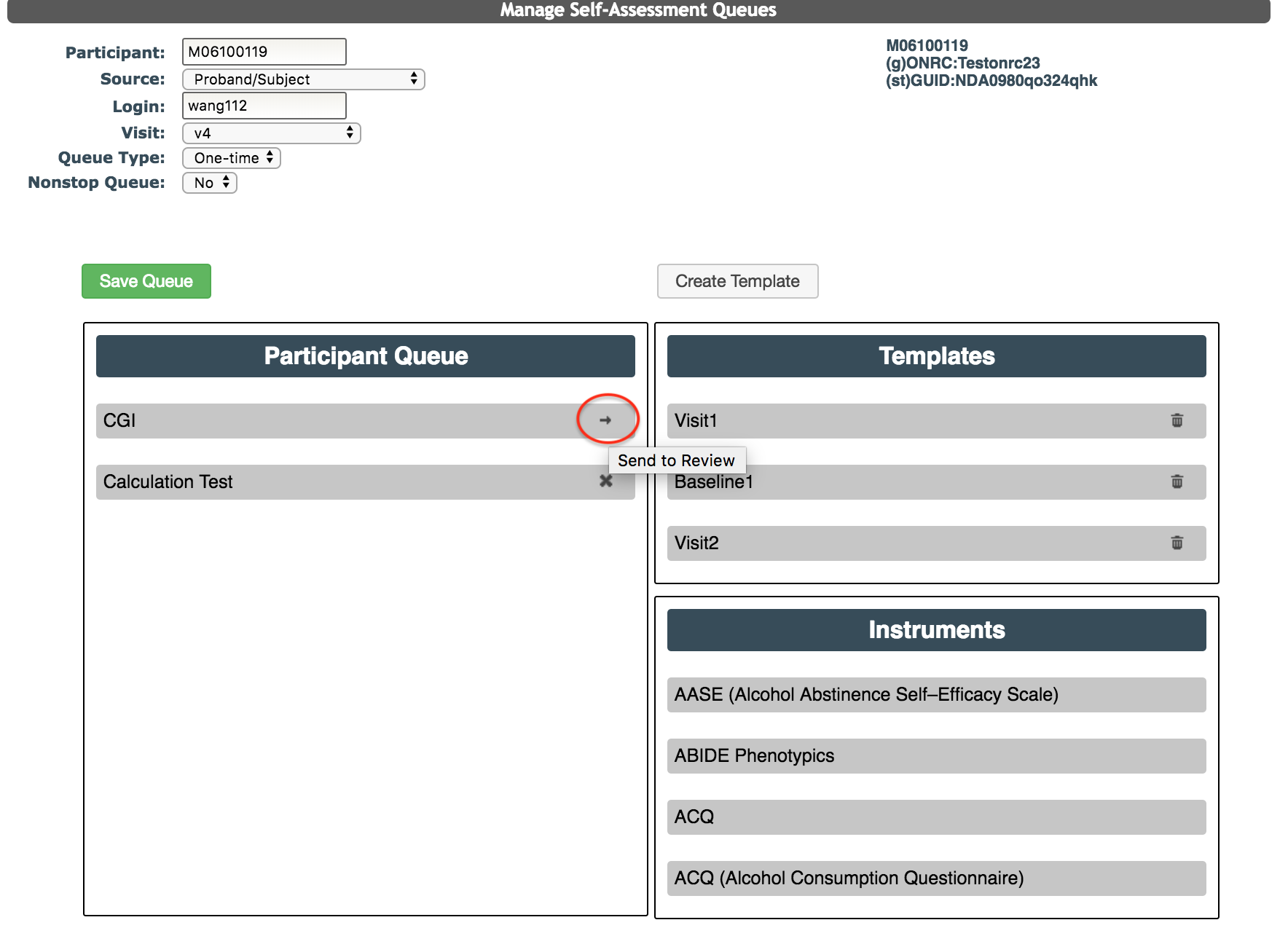
From the search table, click properties to view or edit the assessment's cover sheet properties. If a record is complete, you can click responses to view or update the responses for that assessment.
Comments