COINS allows user to customize conditional logic to facilitate assessment entry. With jumps and loops, study staff can define the flow of question administration with each question answered. To create conditional skips, jumps or loops, click on the arrow loop icon from the Question Menu.
Select which question you want to jump to from the drop down list. In the Formula box, enter the criteria which must be met for the conditional jump to occur. Keep in mind that the jump is only associated with the question to which it is added. It defines what should happen after you answer that question. Note: the jumps do not work with the check all that apply question option at this time. Looping has been designed to work in Self Assessment and works best with one question per page.
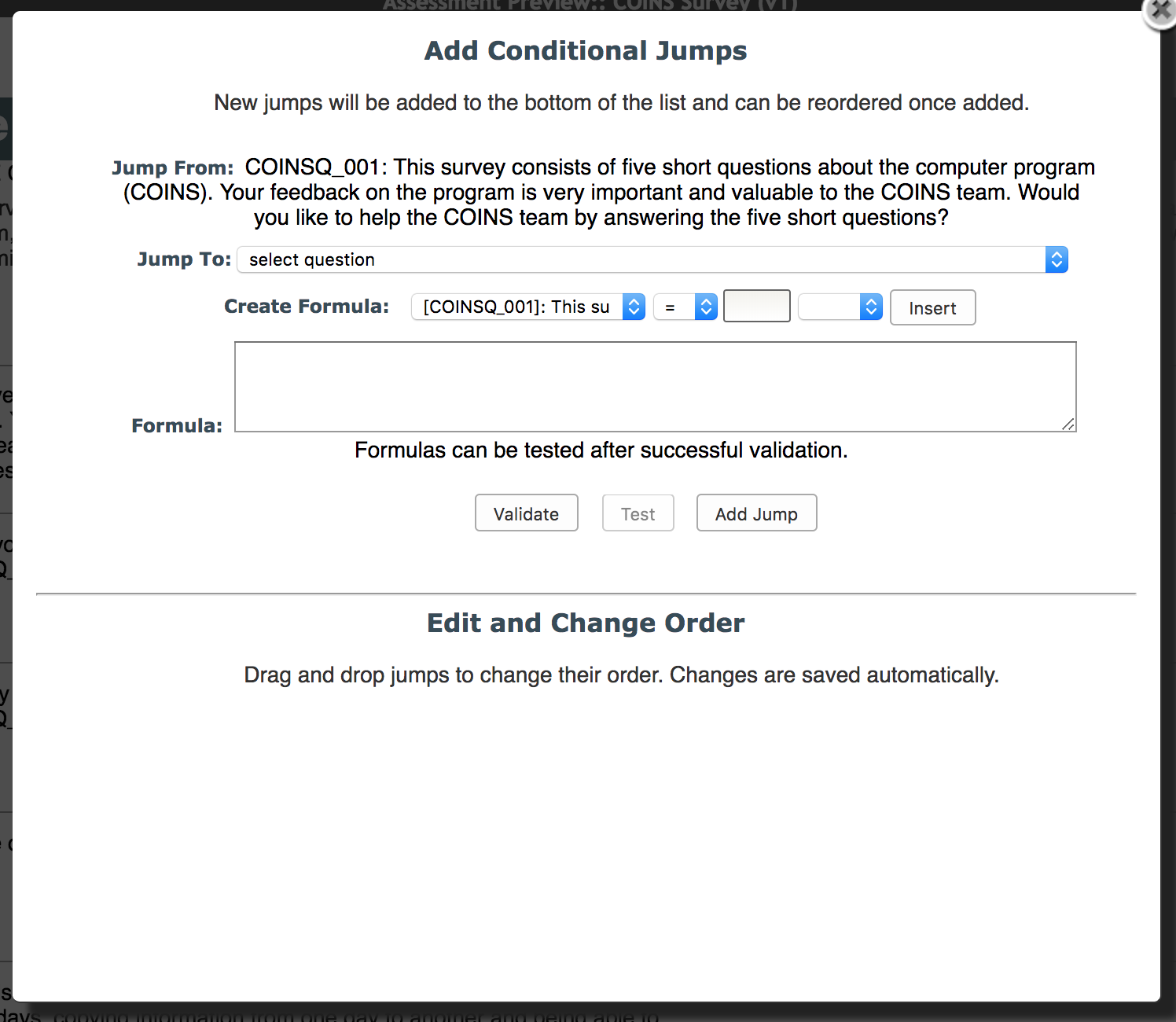
When creating a conditional jump for an instrument, you can only use question IDs from that instrument. Question IDs must be put in square brackets (e.g., [CGI_01]) if want to include them in your formula. Conditional jumps support several logic operators like equal to, greater than, less than, etc. It is best to use the jump builder to assist in your formula creation.
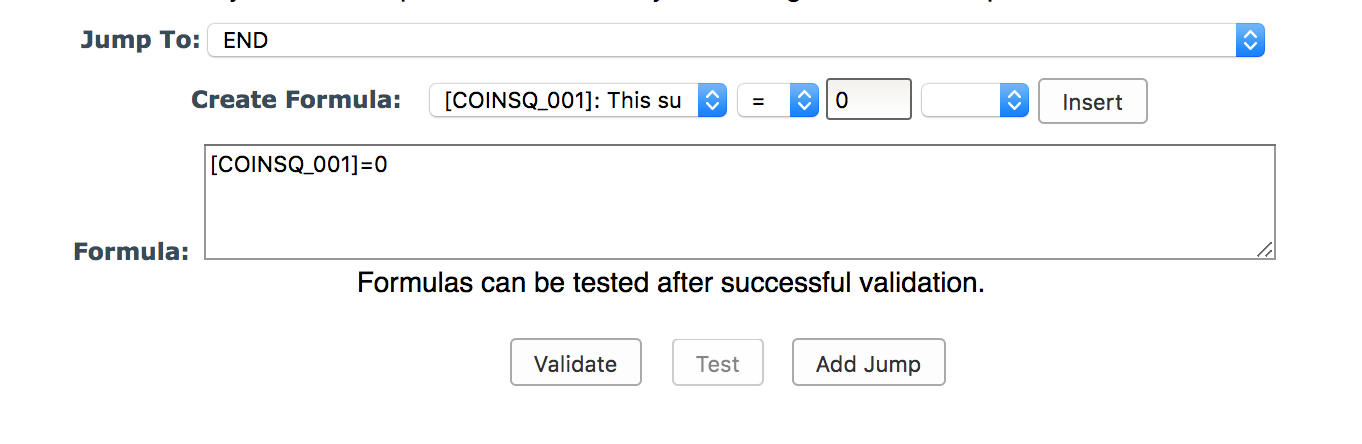
To use the Jump Creator tool, select the question you want to jump to from the Jump To drop down list. Next you'll create your formula. The question you selected will automatically be populated as the jump question ID in the formula builder. Note: This can be changed, but it is important to remember that jumps are only evaluated when they are the source question, target question or a question between the two. If the question ID in the jump formula is not the question the jump is placed on, it may not be evaluated until that question is reached. Now you can select an operator from the list and fill in the value for jump criteria. Click Insert to insert the formula into the the formula box.
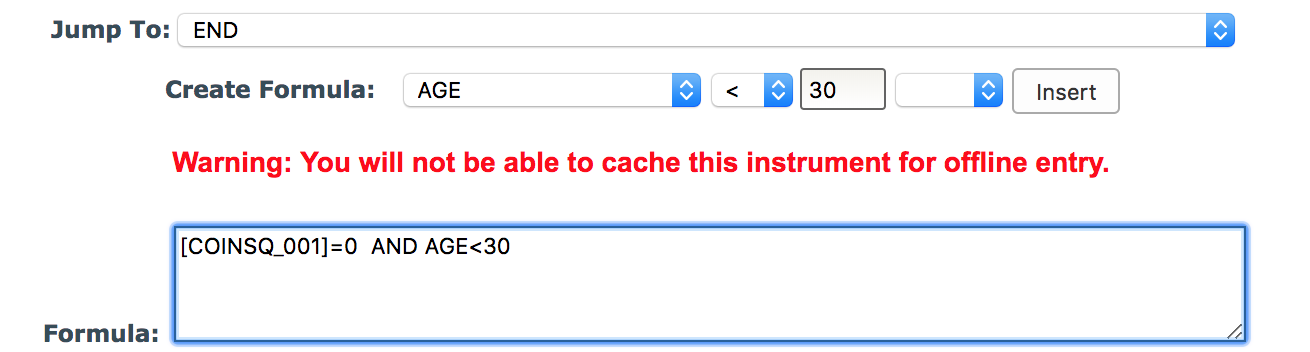
In addition to using question responses as jump criteria, you can also specify Age, Gender and Subject Type ID as formula criteria from the drop down list. You can also add And and Or conditions to your jumps by selecting them from the drop down list. Note: Studies that contain jumps with age, gender and subject type specifiers cannot be cache in Self Assessment entry mode in oCOINS. A warning will appear when jumps with these specifies is created.
There is also a "counter" function that can be used. This is useful if you would like to loop through a set of questions a specific amount of times. A counter formula looks like this: COUNTER=4, with this formula the participant will go through a set of questions (from the question in which you are adding the counter to the "Jump to" question selected from the drop down) 4 times.
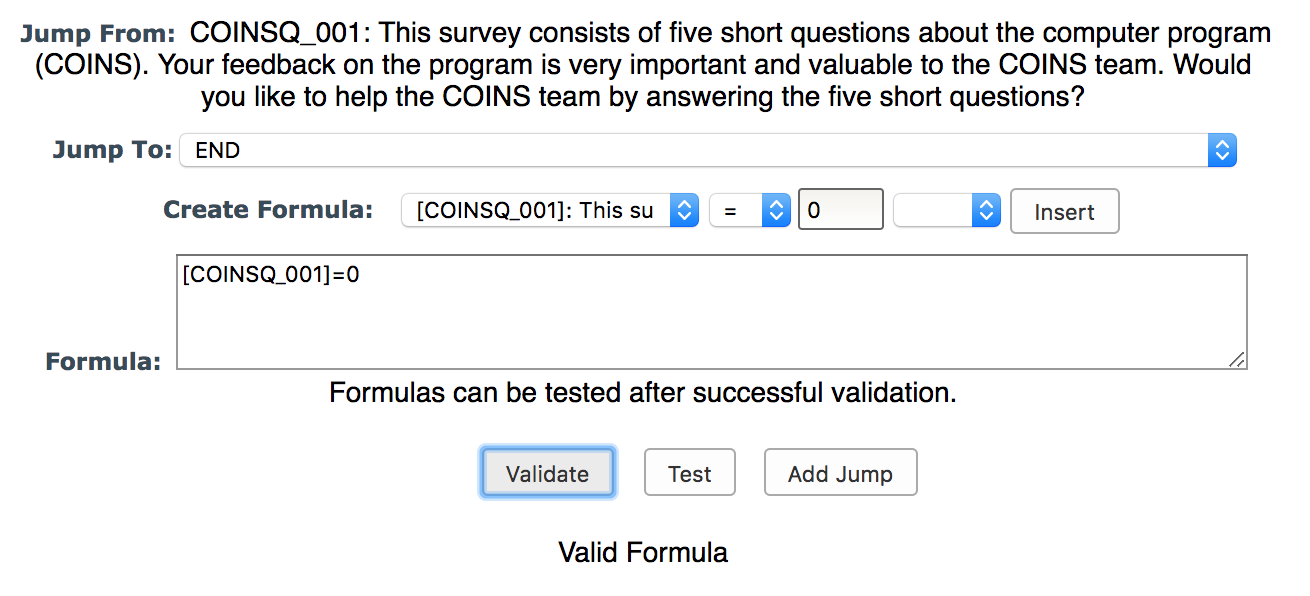
Once you have inputted the correct formula select Validate. If your formula is not valid you will receive a message indicating the formula is invalid. If your formula is valid you will receive a Valid message. The validate button only checks the syntax of the formula (e.g., brackets around the question ID, appropriate operators, etc.). It’s important to note that it does not check to make sure that the formula you have entered is correct or will do what you intend it to do.
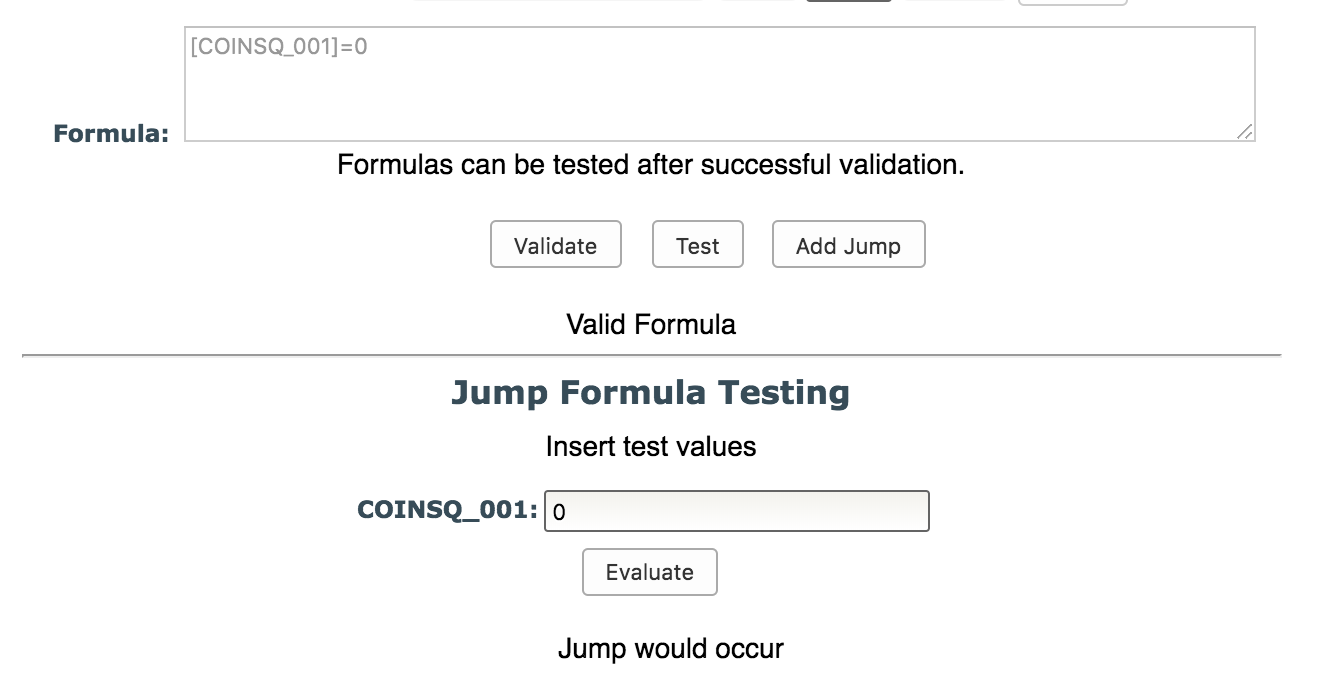
After validating the formula, you can test the logic by clicking Test. You must first validate the formula before testing it. Put the value for the any questions listed in the formula into the text field next to the question ID. Click Evaluate to receive a result of jump would occur or jump would not occur.
Conditional jumps can also be added to text input questions by specifying the value in quotes.

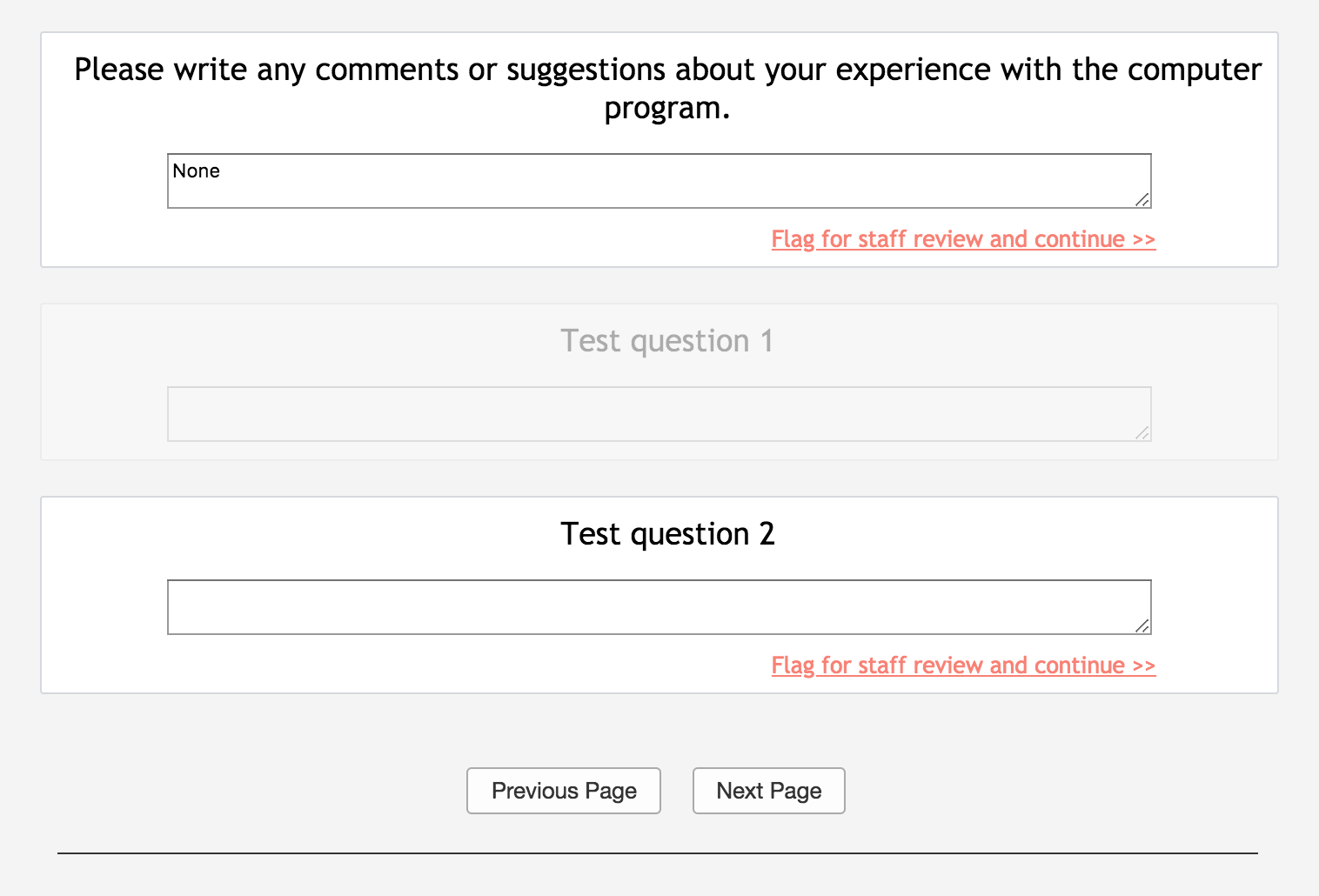
When the participant enters the specified text, the jump will occur. Similarly, if you would like a jump to occur when Missing Data or Don't Know are selected, you should enter the values MD or DK in quotes, respectively (e.g. [COINSQ_006]="DK").
Jumps can also be based on dates, as long as the date is in quotes and the text question is set to be date format (MM/DD/YYYY) in the question options.
When you are satisfied with your formula click Add Jump. When questions are skipped due to a jump, the text ~<condSkipped>~ will be inserted into the database. This is a flag to help indicate that the question was skipped due to logic and is not just missing.
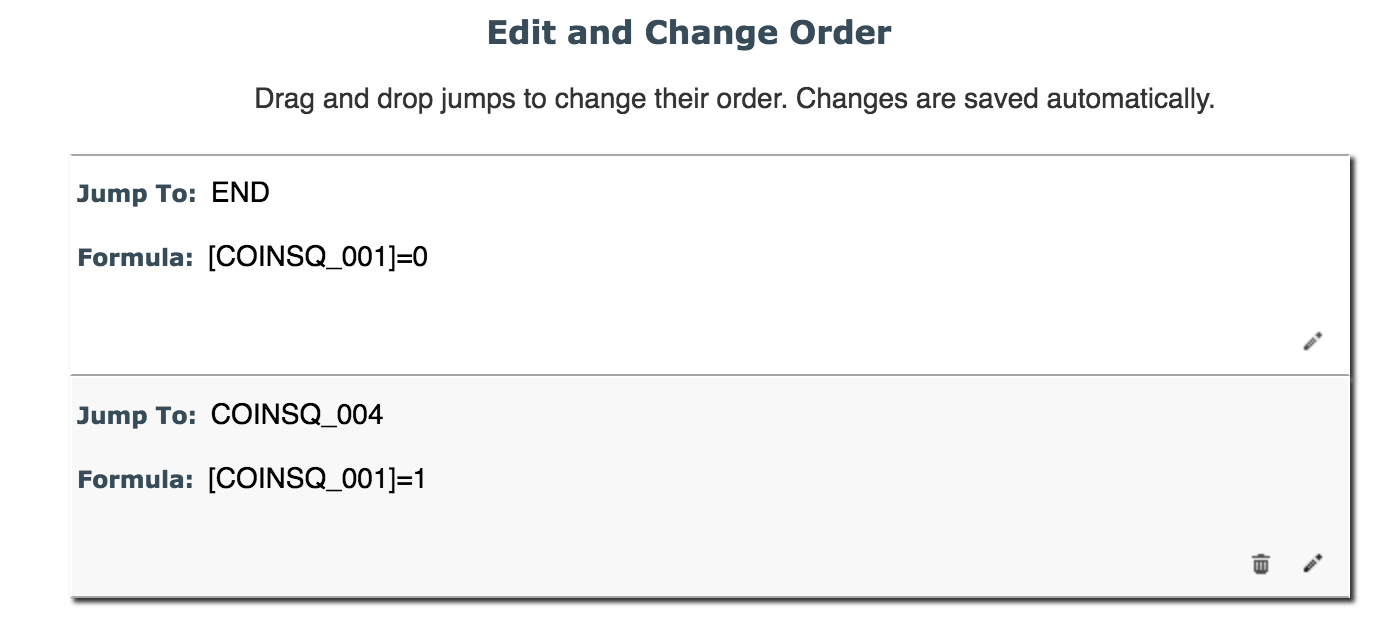
To view or edit existing Conditional Jumps, hover over the pencil icon, click the Create/Edit Loop icon and scroll down to Edit and Change Order. More than one conditional jump can be created for each question. Change the ordering of the jumping by dragging and dropping each jump into the order you want.
To edit an existing jump, click the pencil icon for the jump you wish to edit. If you wish to delete a jump, hover over the pencil, click the trashcan icon, and confirm you want to delete the jump.
When a question is skipped in p2 or data entry, the skipped question will be grayed out and disabled.
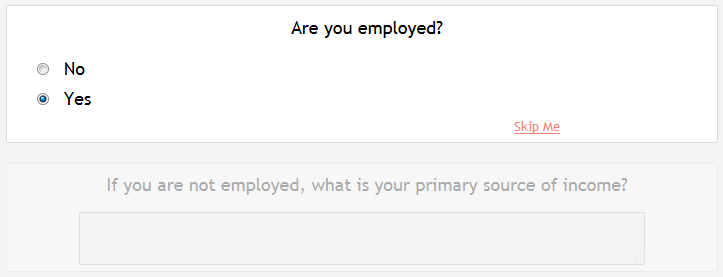
However, you can also decide if the skipped question are grayed our are simply not shown. To hide skipped questions, set Hide skipped question in Self Assessment to Yes from the instrument edit page.
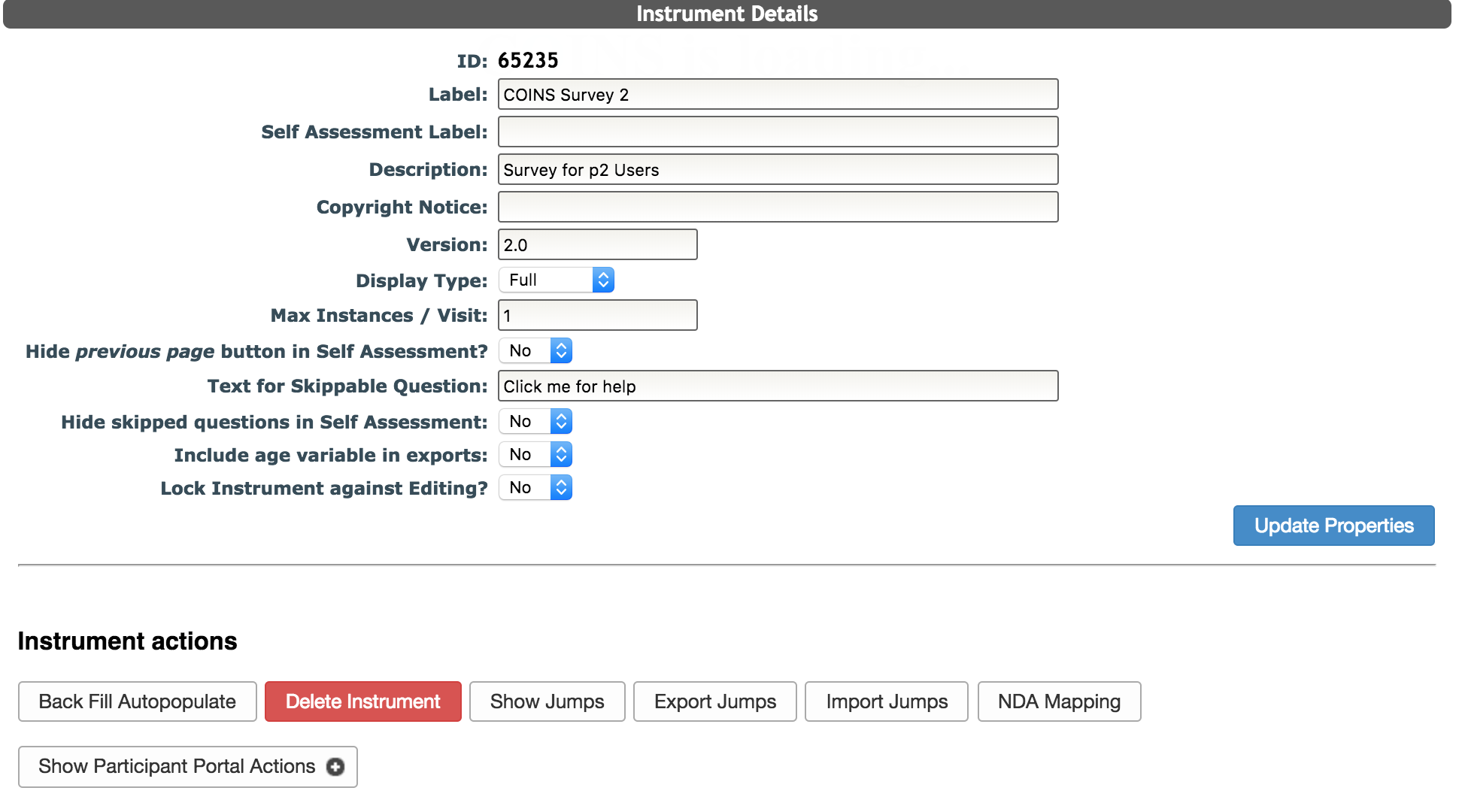
By doing this, once a jump is executed, any questions that should be skipped will be completely hidden as opposed to grayed out. This feature can also hide all questions that are conditional and only present them when they are applicable. This is done by setting a jump that is always true along with the real jump you wish to execute. Typically, 1=1 is used and it must be ordered as the last jump.
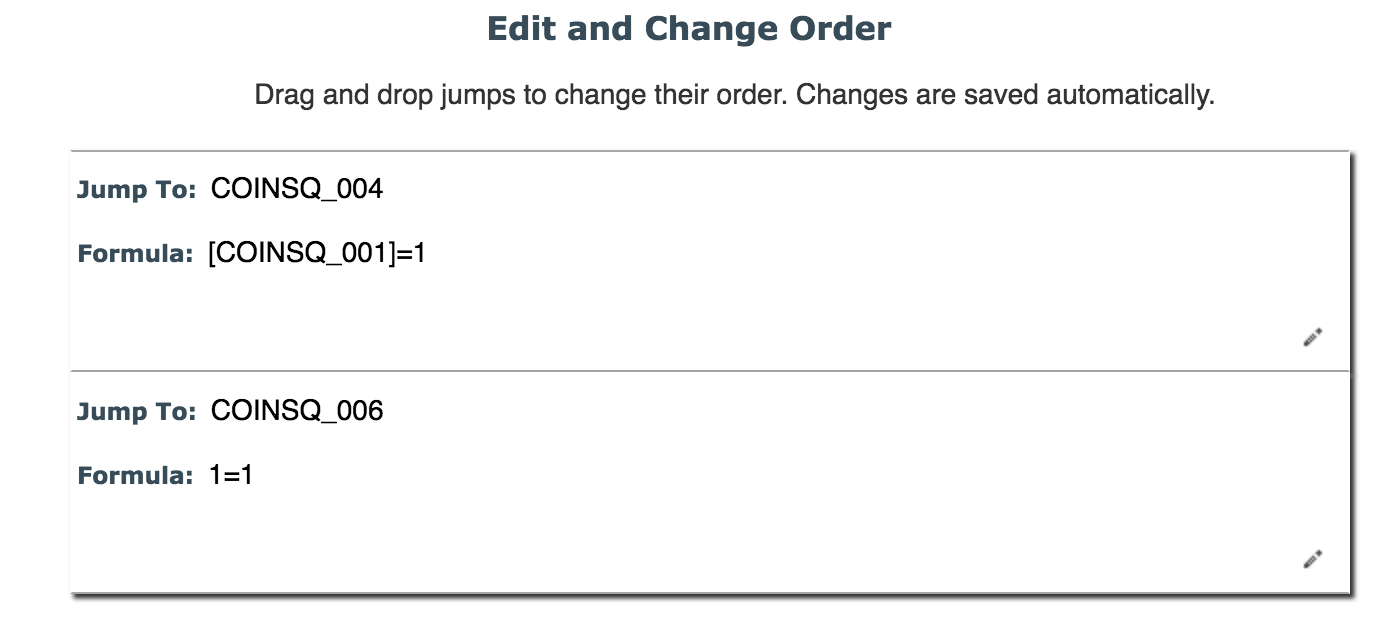
1=1 works because conditional jumps are executed in order and at every change to the response. For this example, when the participant reaches COINSQ_001, the first conditional jump is executed, COINSQ_001 = null so there is no jump to COINSQ_004. The next conditional jump is executed which is jump to COINSQ_006 if 1=1. Since 1 will always equal 1, this jump essentially means that COINSQ_006 will always appear and the questions between this jump and COINSQ_006 will always be hidden unless criteria for the first jump is met.
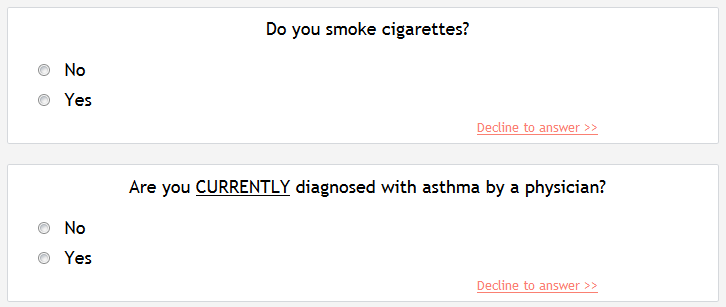
In the example above, Do you smoke cigarettes? has a real jump and a 1=1 jump and the instrument is set to have jumps hidden.
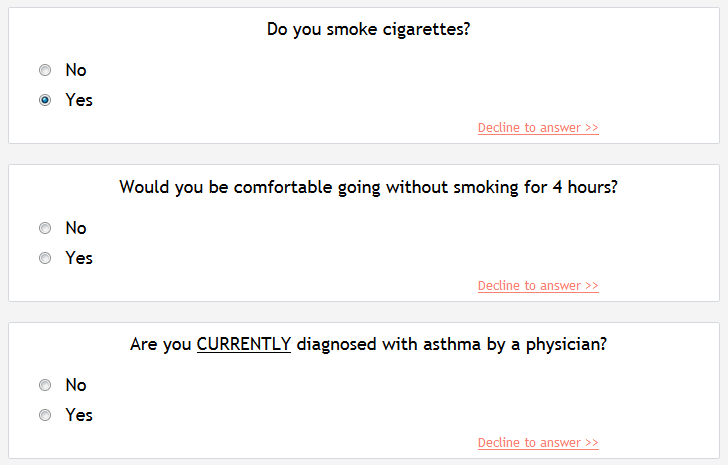
When Yes is selected, the real jump condition that is set to execute before 1=1 is met and the conditional questions will now appear.
If you try to delete a question that is associated with any jumps, you will receive a warning. You will be given the question ID(s) the jumps are associated with, and how they will be affected.

Comments