To use oCOINS offline, you must first have cached a study. Now that you are offline, open the browser you cached the data on and go to the offline data entry bookmark.

To start entry, you will need to choose a study and rater from the drop down list. All of your cached studies will appear in the study drop down. Click Submit to set your study. After your study has been selected, click Start Entry. Click Home at any time to return to this page.
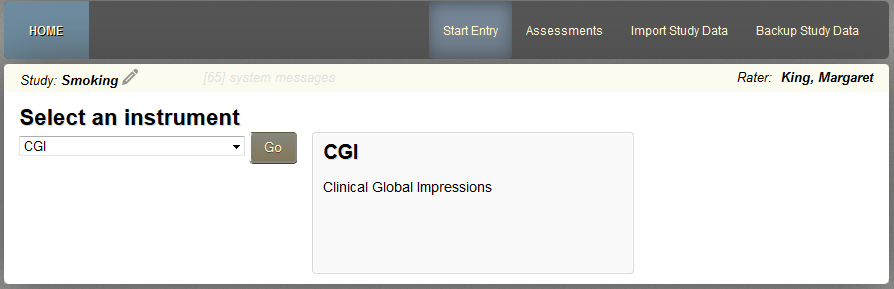
Select the instrument you want to start entry for from the drop down list and click Go.

Just like data entry in Assessment Manager, you'll need to complete the cover sheet for the assessment. Enter the URSI into the URSI box. While offline, URSI validation is minimal, however, the URSI will be validated upon syncing to Assessment Manager. To use an URSI you previously entered, click Select URSI to choose from a drop down list. If you are in the drop down list mode, click Enter URSI, to return to the URSI text field. Now select the correct visit, source type and event type for the assessment. Like all other assessments, only clinical entries can be queried in Query Builder. If you wish to use cover sheet information from the previous assessment, click Populate From Last Entry. Click Begin to start data entry or click Change Instrument if you need to enter a different instrument.
Depending on the mode the study was cached in, it will either appear as Self Assessment or Data Entry mode. To view the cover sheet information for the assessment, click View Coversheet. When you reach the end of the instrument, the assessment will be saved and stored in oCOINS Assessments. Once the assessment has been finished, you will be redirected to select another instrument for entry.
Self Assessment Mode
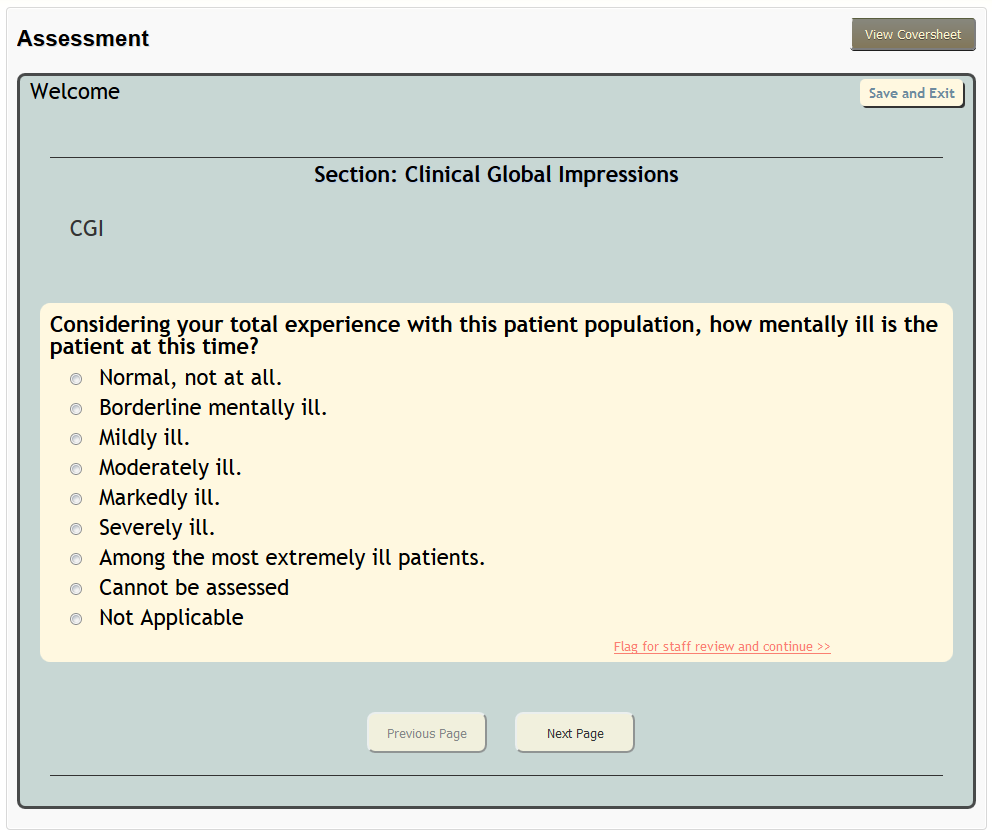
In Self Assessment mode, all required questions must be answered to move on or questions can be flagged for review. Once all questions on the page have been answered, click Next Page. Click Previous Page to return to the previous page. To leave the assessment click Save and Exit at any time.
Data Entry Mode
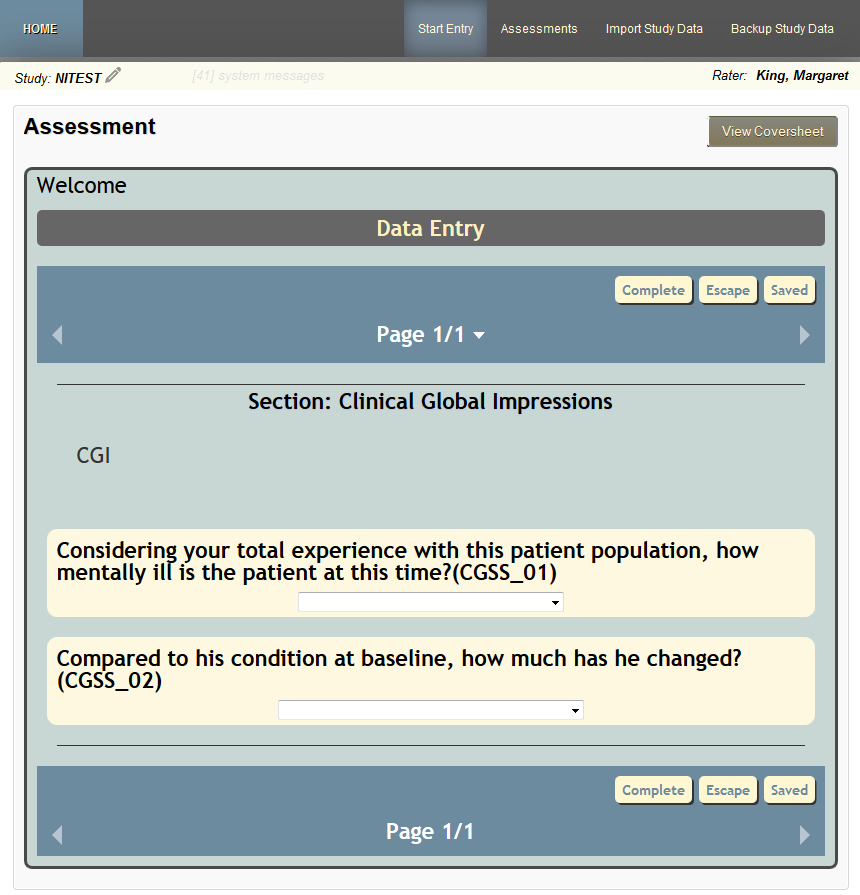
In Data Entry mode, the navigation menu at the top and bottom of the page can help you to move through instrument pages by clicking the arrows on either side or by using the page drop down. The navigation menu also give the user the ability to complete, escape or save assessments by clicking Complete, Escape or Save respectively. In Data Entry mode, not all questions need to be completed to finish the assessment.
Comments