Using the device you will be using offline, navigate to the provided link. If this is the first time you have accessed oCOINS from the device, it will ask you to register the device. Next, find the study you want to enter data for offline from the table. You will only be allowed to cache studies that are active and allowed to collect data.
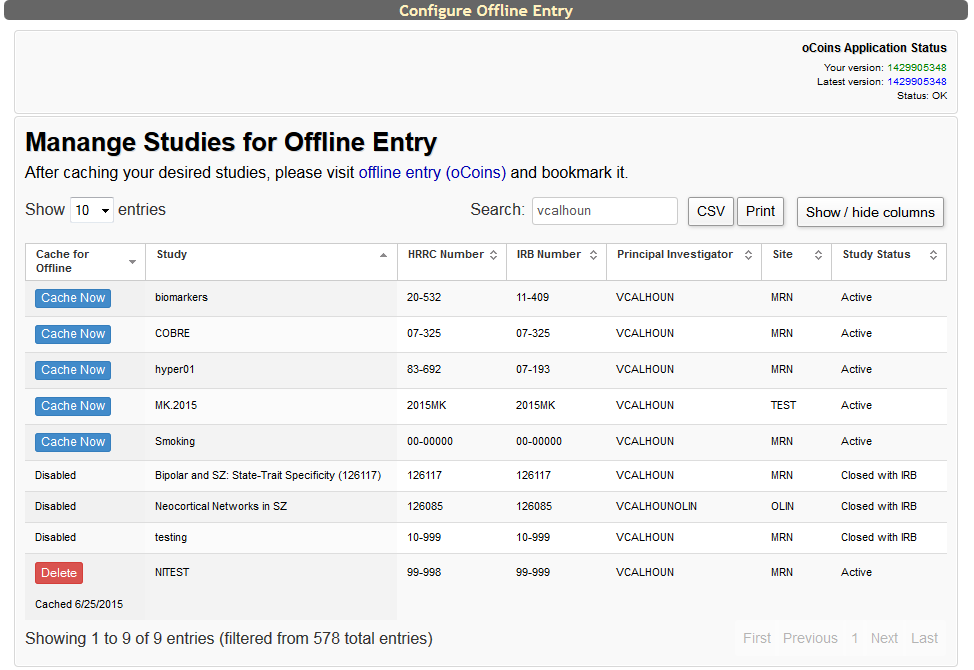
Click Cache Now next to the study you want to cache. If there is a study you already have cached, the cache date will be listed for the study. If you wish to remove or update a cached study, click Delete.
After selecting the study you wish to cache, you will need to cache the study in either data entry mode or self assessment mode. Data entry mode will give you data entry navigation tools and features, like appending MD and DK to all response options. Self assessment mode will give you self assessment navigation tools and features, like flag for staff review. Only one mode per study can be cached at at time.
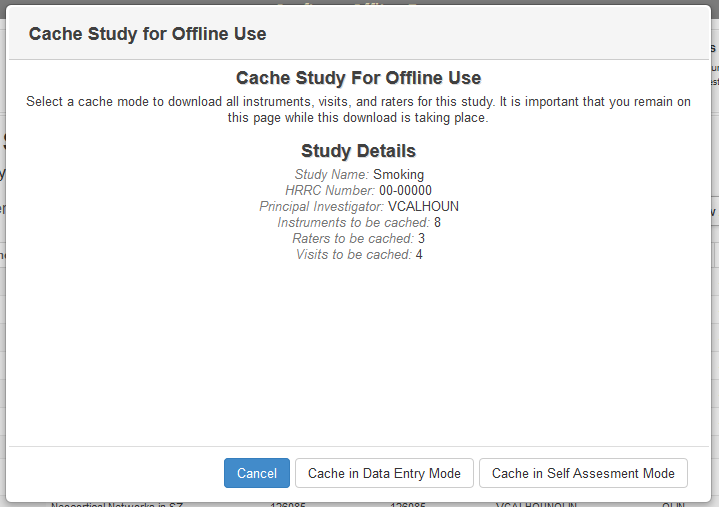
If the study you are caching has conditional jumps that are based on age, gender or subject type, caching in self assessment mode will be disabled and the questions with these types of jumps will be listed.
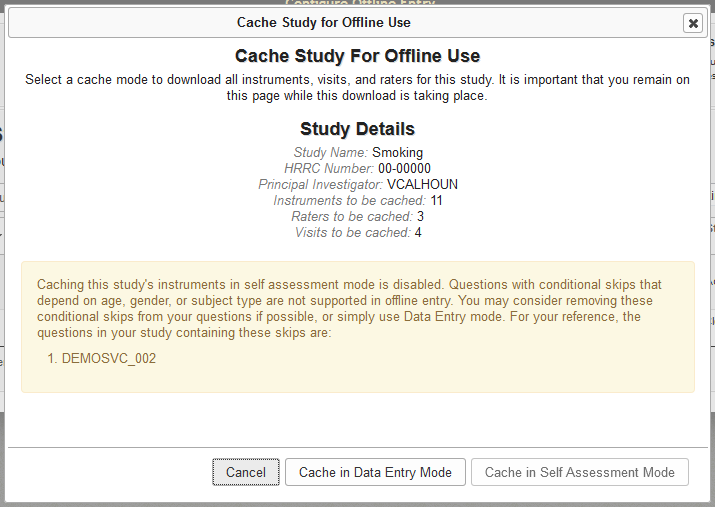
Currently the special jump conditions are not supported in self assessment mode, but they are available in data entry mode.
After selecting the cache mode, you will be presented with information about the study as well as how many instruments, raters and visits are being cached. Select Continue to save the study to your device. At no time does oCOINS cache any PHI or PII. All assessments are stored with URSI coding.
When complete, click the link at the top of page labeled offline entry (oCOINS). Be sure to bookmark the offline entry (oCOINS) page while you have internet access. This will be necessary in order to navigate to this page when offline.
It is important that do you not clear the cache of the browser you used to cache the study data. If you do this, you will lose the ability to enter data offline!
Comments