A Rater is the individual or individuals who collected the data being entered. Raters are not to be confused with Entry User, as Entry User is the individual who is entering the data into Assessment Manager. A Rater must be added to the study before data can be entered under his or her name. Raters are then populated in the Rater1 and Rater2 drop down on the data entry cover sheet.
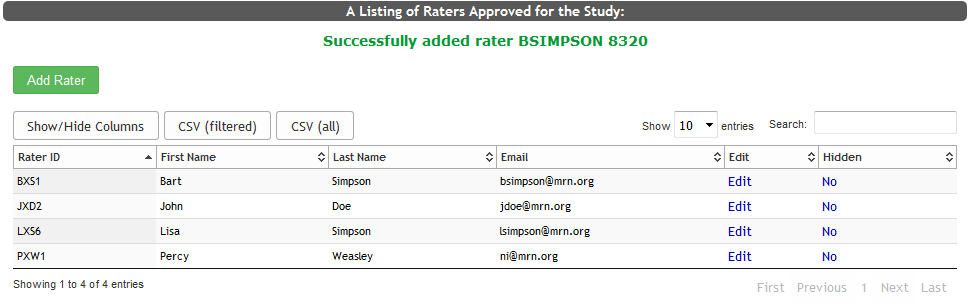
To access a list of raters or to add a rater, click Raters from the Admin menu. This list will display all of the raters that have been added to your study.
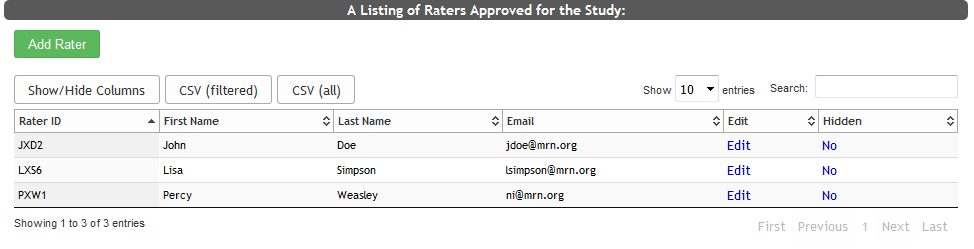
Click Edit next to a rater's name to edit their information. To hide and unhide raters from use in data entry, toggle the Yes/No option under Hidden.
Adding Raters
To add a new rater to the study, click Add Rater.
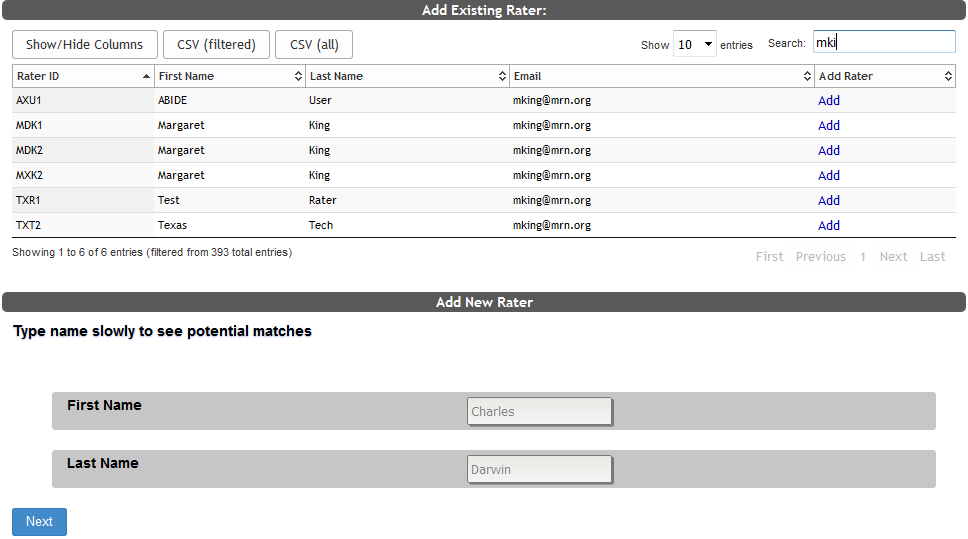
From here a list of all existing raters will be displayed. You can either search for an existing rater and click Add next to the rater you want to add, or if the rater does not exist in COINS, you can add them. It is best to not duplicate an existing rater. Each rater should have one account. When adding a new rater, the system will detect matches as you type. If a match is found, click the match to add them to the study.
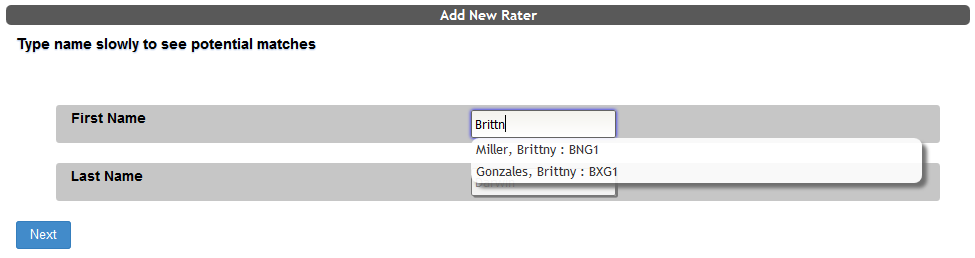
If no matches are detected, continue to add the Rater’s first and last name in the corresponding boxes and click Next. You will be asked for additional information. Only User Name and Contact Email are required. Your correct site will fill in automatically. Click Next to continue.
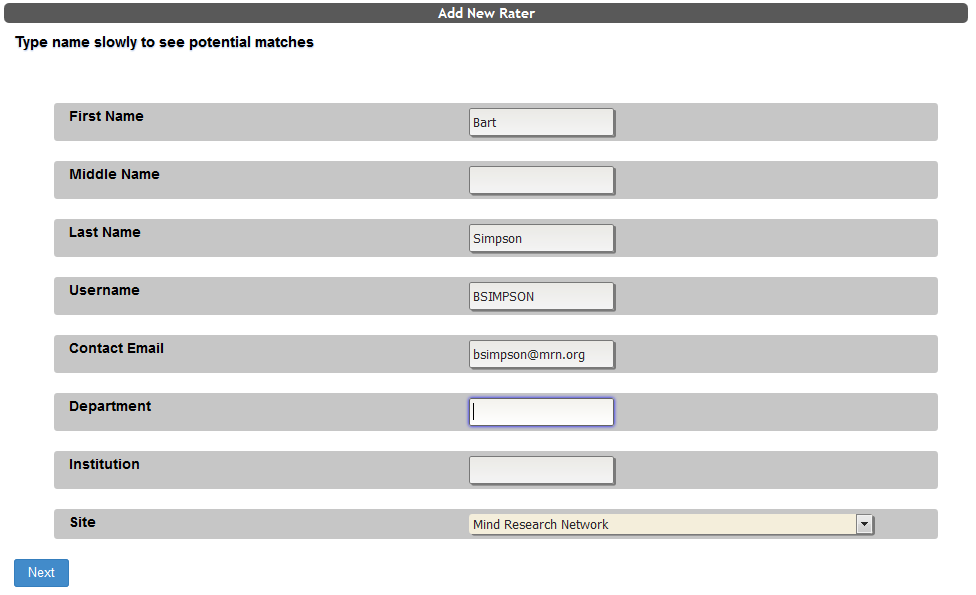
COINS will automatically generate a Rater ID, but this can be altered if desired. The ID must be unique to continue. Click Submit to add the Rater.

The Rater will now be created and added to the study’s rater list.
Comments