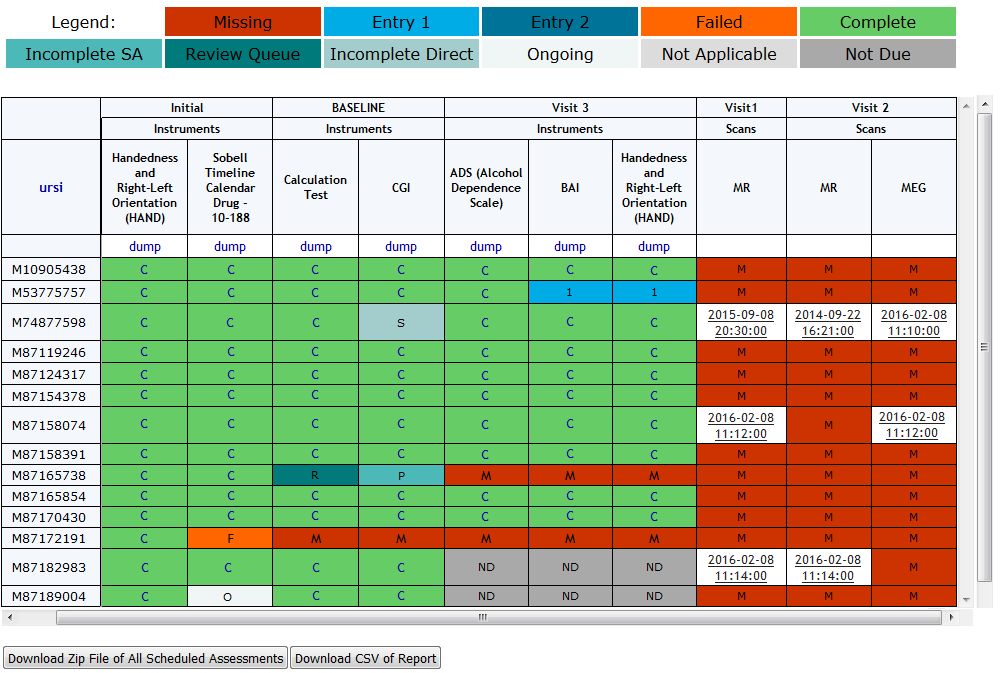
The Progress Report is a management tool designed to help study staff determine assessment entry progress and problems. This report also shows scans performed. To access this report, in your Study Portal click Progress Report through the Reports menu. This is where the data is displayed after creating a Schedule of Events for each of your Subject Types.
Apply Filters to view and download the data that has been entered into Assessment Manager for your subjects.
Report Options
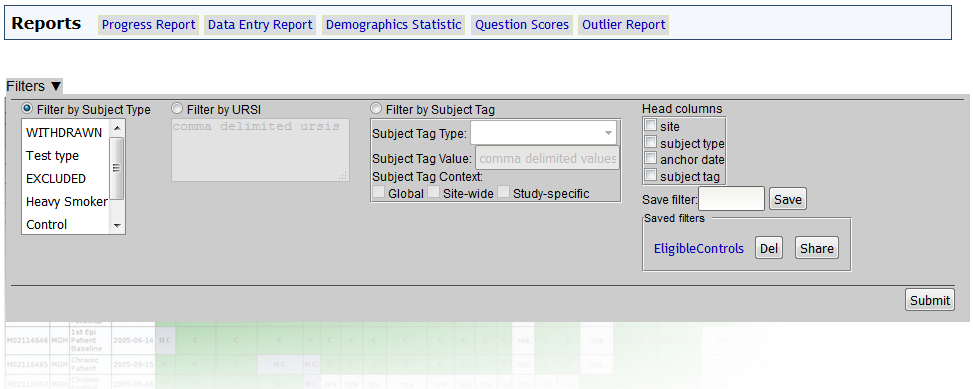
- Select a filter option
- To filter by subject type select the filter and choose which type to view. You can select multiple types by holding shift and select the desired types.
- To filter by URSI select the filter and list URSI(s) you want to view separated by commas.
- To filter by subject tag, choose the tag type or tag value(s) separated by commas and the tag context
- Select which columns to see
- Save the current filter by adding a name and clicking Save or load a previously saved filter by clicking the filter name. You can also choose to remove a saved filter by clicking Del or share a saved filter by clicking Share and submitting the user name to share the filter with.
Click Submit to create the report.
Assessment Progress
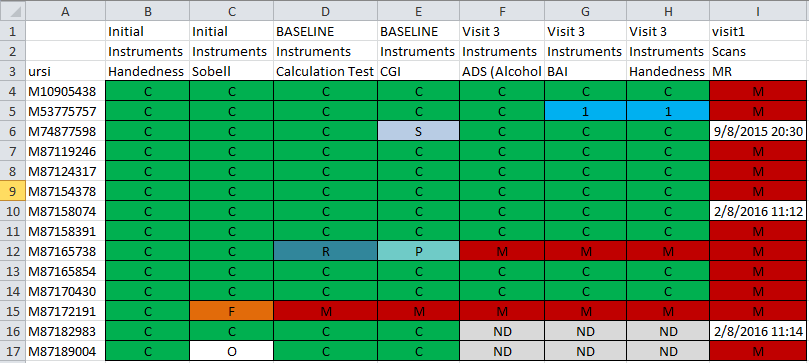
Assessment entry codes reflect the entry type of an assessment and where it is in the entry process.
- M - Missing (no data has been entered)
- 1 - Entry 1 (dual entry)
- 2 - Entry 2 (dual entry)
- F -Failed (dual entry in Conflict Resolution)
- C - Complete (all assessment types)
- P - Pending assessment (Self Assessment entry has not been completed)
- R - Review Queue (in the Self Assessment Review Submissions queue)
- S - Single (a direct entry before it is completed)
- O - Ongoing assessment (data entry only, not Self Assessment)
- N/A - Not applicable (not part of participant's Event Schedule)
- ND - Not Due (not due according to the visit's time from baseline)
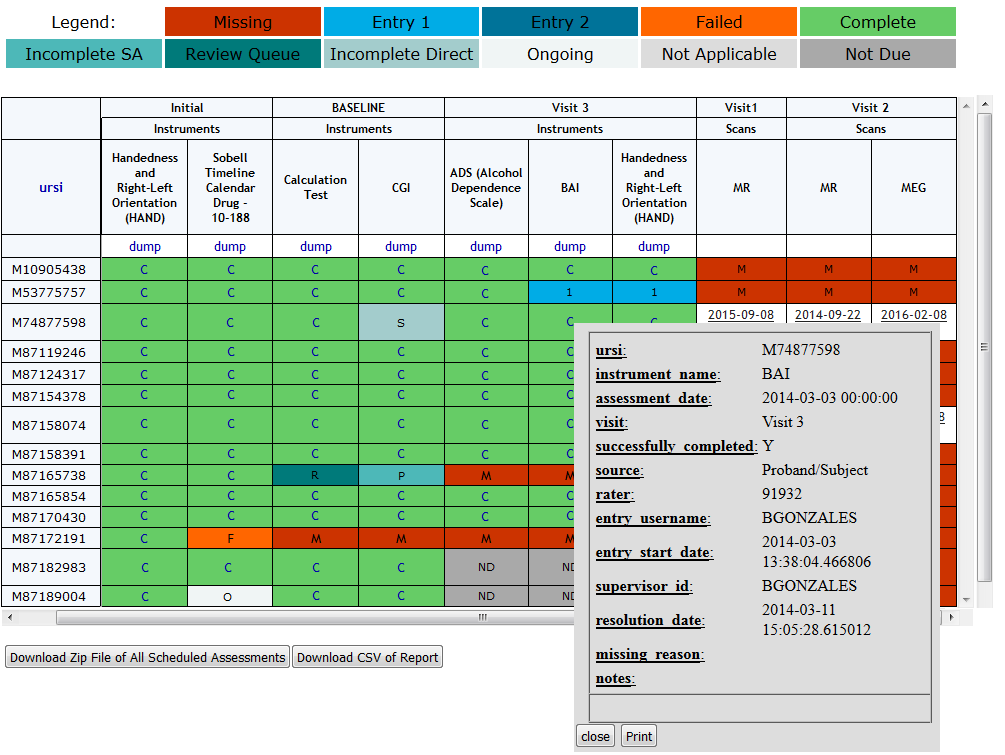
If a record is complete, click the C to see details about the assessment.
If an assessment is marked as missing no data has been entered. Missing assessments can be marked as complete and a note added as to why the assessment was missing by clicking the M and completing the fields in the popup.
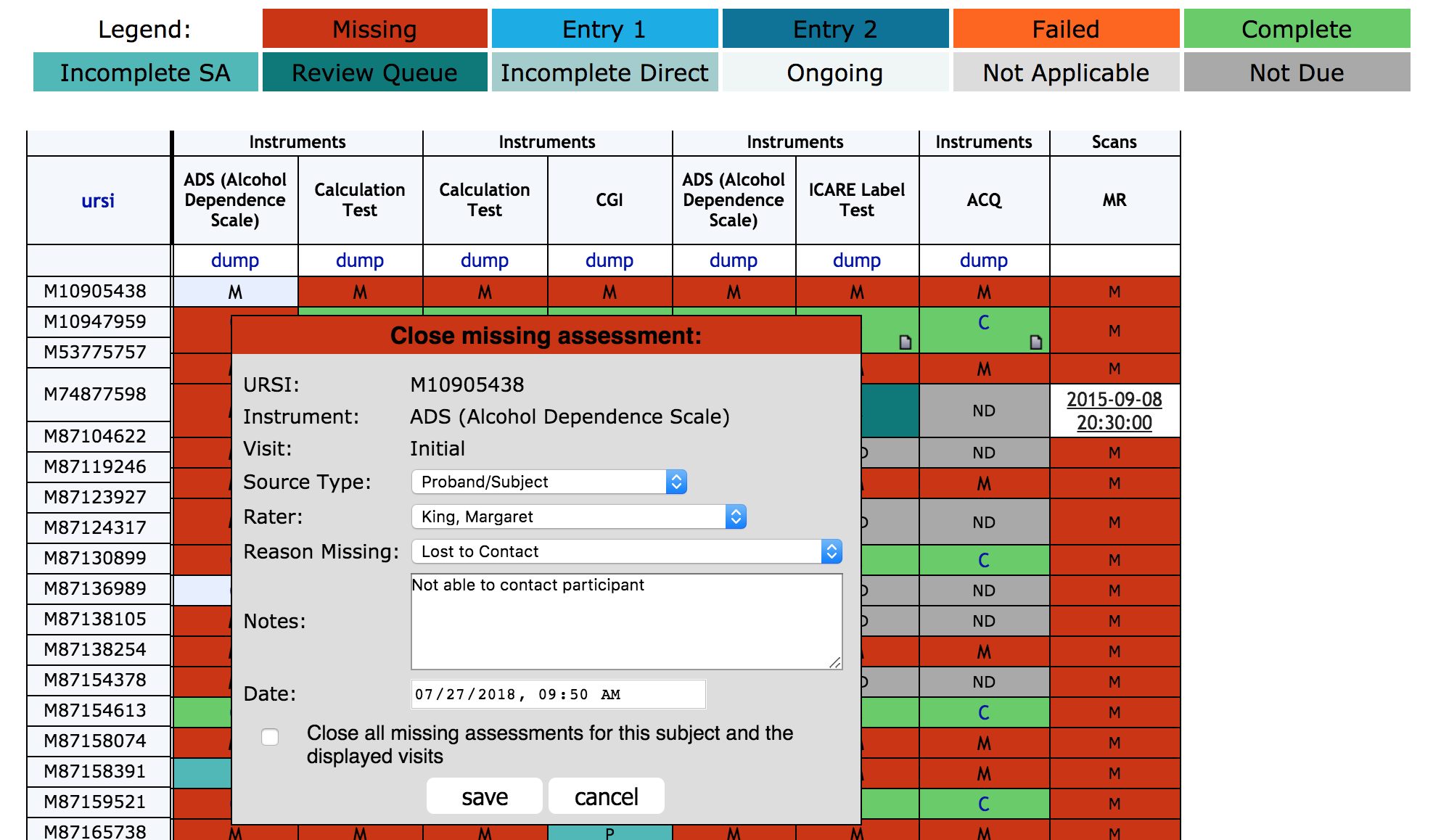
The date and time will be set to the current date and time by default. Click in the date field to update the date and time. If you click the checkbox next to Close all missing assessments for this subject and the displayed visits, you will receive a warning that all the assessments will be closed with the selected date.
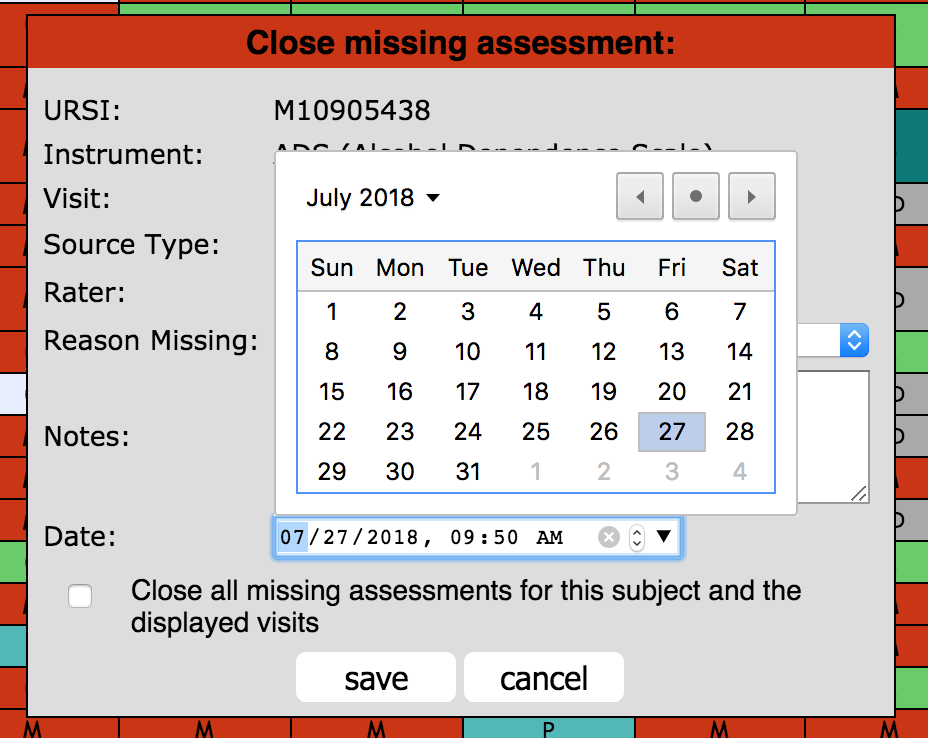
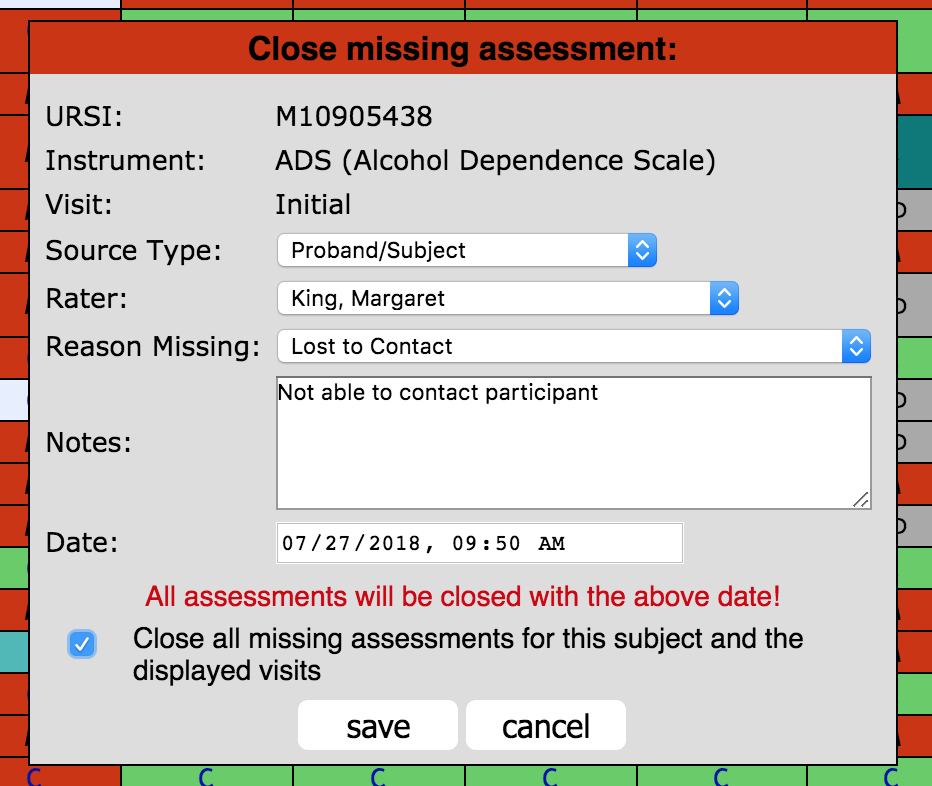
Closed M assessments will appear as a C. Click the note icon to see details for the closed assessment.

To see Site, Subject Type, Anchor Date and Subject Tags, select them as header option from the filter menu. PHI Subject Tags will not be shown on the report.
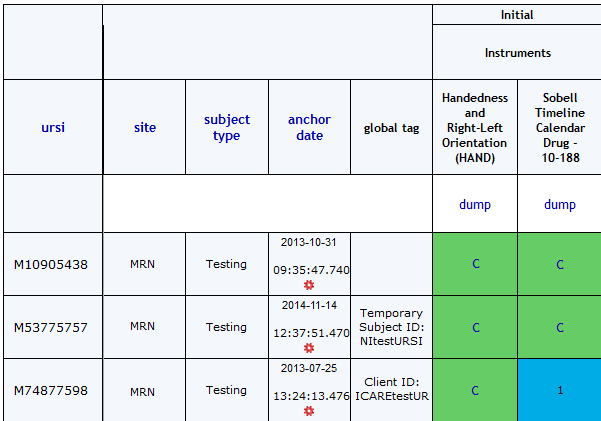
You can sort by URSI, Site, Subject Type, and Anchor Date by simply clicking on the header you wish to sort by. Anchor dates can be edited form this report by clicking the gear icon and selecting a new date from the popup calendar.
Scan Progress
Scans MRI and MEG scans can also be seen on the progress report. For scans to appear, they must have a visit associated with the study. Scans with the default visit1 label will not appear on the progress report. Scan visits can be changed from the Scan Session Details page.
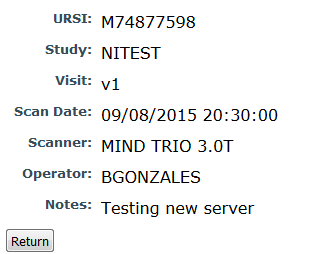
For scans that appear on the report, click the time stamp to see details for the scan. Click Return to go back to the progress report.
Data Retrieval
To download all of the assessments that appear in the progress report click Download Zip File of All Scheduled Assessments. A CSV will be created for download.
If you would only like to download the data associated with one measure click the dump above the desired measure.
Progress Report Export
The Progress Report can be exported as a CSV by clicking Download CSV of Report. The resulting export will appear with the same filters as applied to the report.
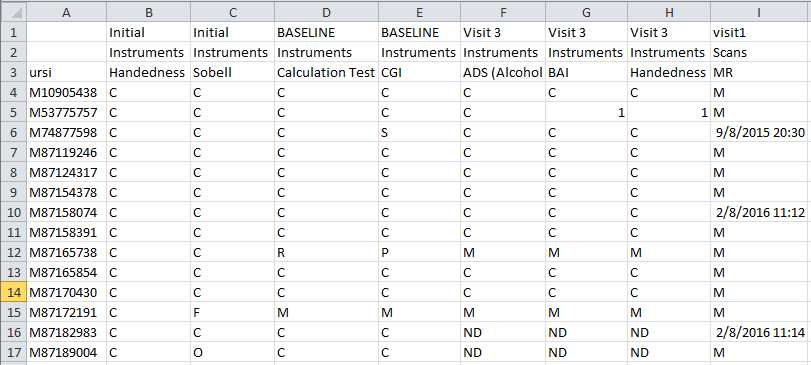
Conditional formatting can then be used to make the export appear similar to the report in the Study Portal. This can then be printed or disseminated for meetings or study progress updates.
Comments