Unlike NDA, FITBIR does not have an API to retrieve data dictionary information. Instead, users will navigate to the FITBIR data dictionary directly and download the form element's CSV.
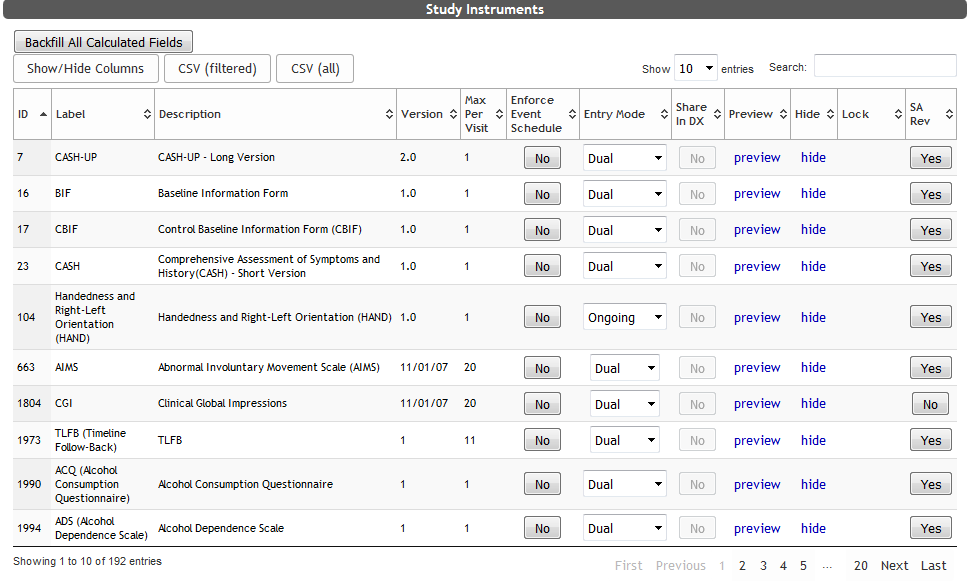
First, you will need to select your instrument from the List Instruments table in ASMT by clicking Edit (or Preview if your study does not own the instrument).
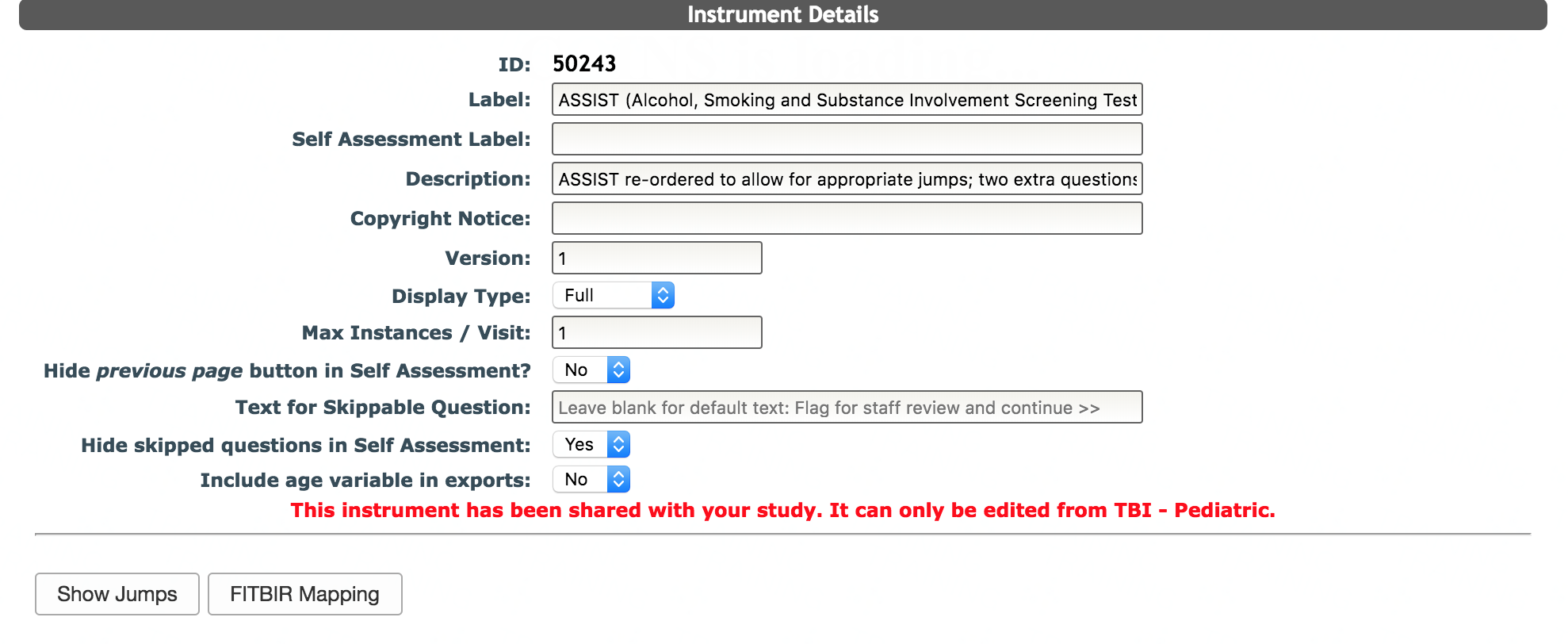
Click FITBIR Mapping from the instrument details options.
Any existing question maps will be displayed here and can be edited or removed, otherwise, no maps will be shown. From the COINS-FITBIR Question Mapping page, you can decide to map instruments on an individual question level or the entire instrument as a batch. Response transformations are only available at the individual question mapping level.
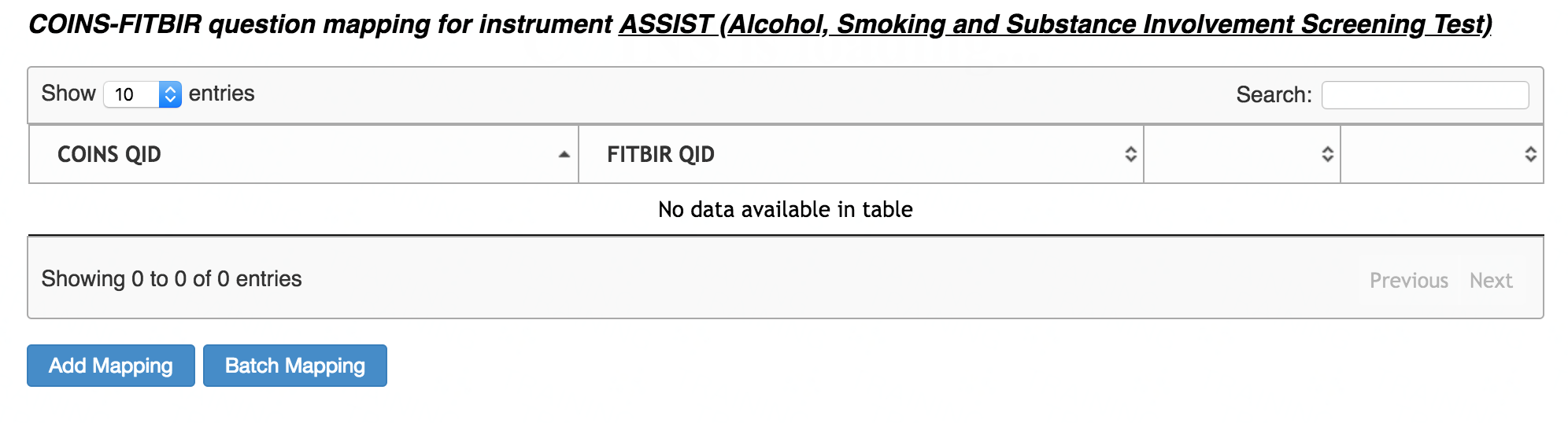
Click Add Mapping.
 Click Add FITBIR Form to add a new form to the list.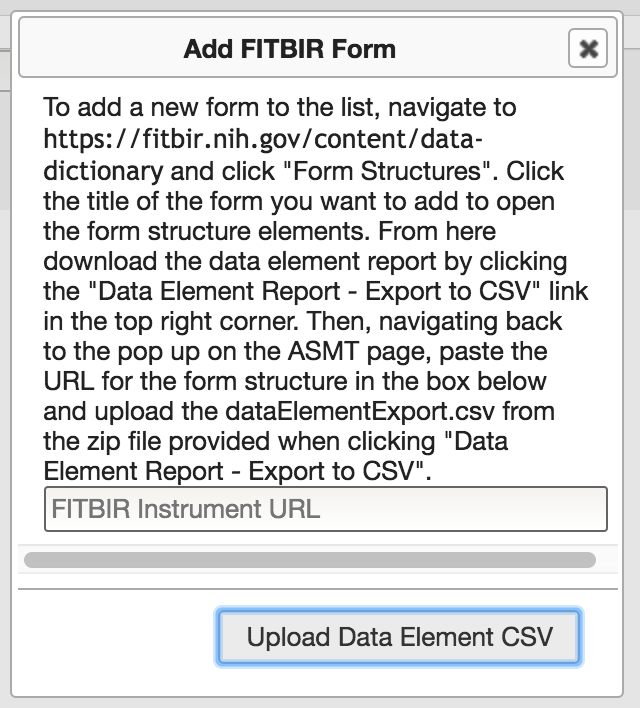
To complete the process, follow the directions listed in the pop up. You will need to navigate to https://fitbir.nih.gov/content/data-dictionary to access the data dictionary. Click on Form Structures at the top of the page.
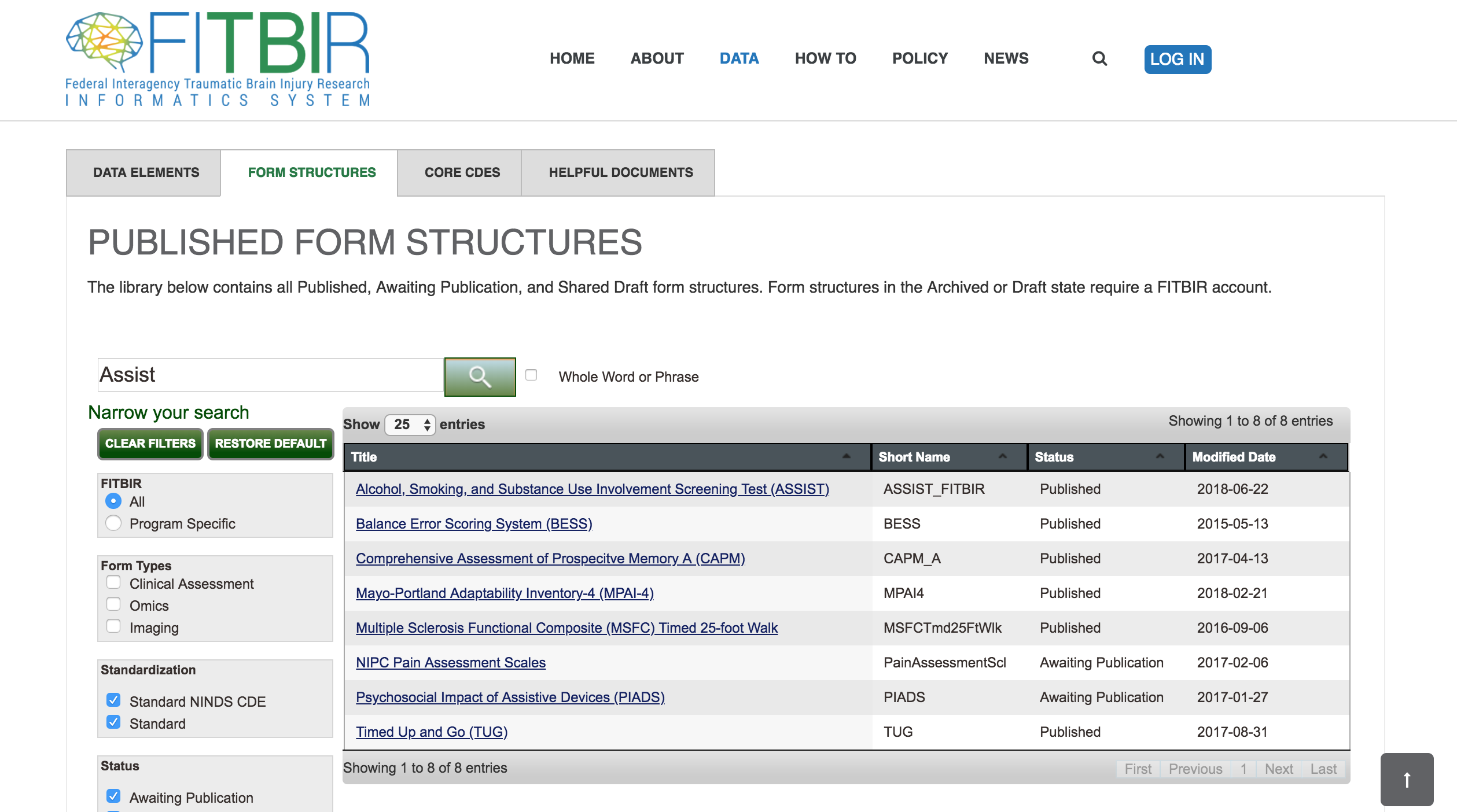
You can then search for the form you would like to add. Click the title of the form you want to add to open the form structure elements.
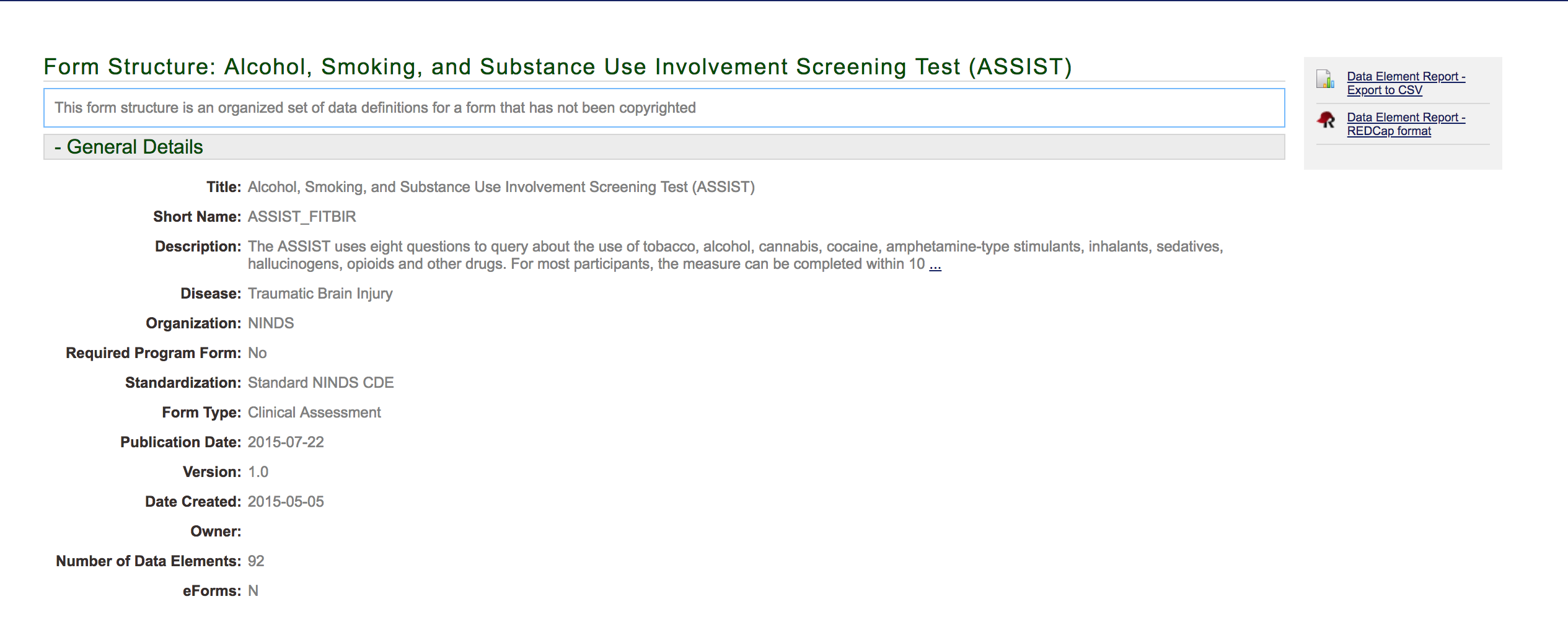 From here, download the data element report by clicking the "Data Element Report - Export to CSV" link in the top right corner. Save the zip file provided, and navigate back to the pop up on the COINS ASMT page.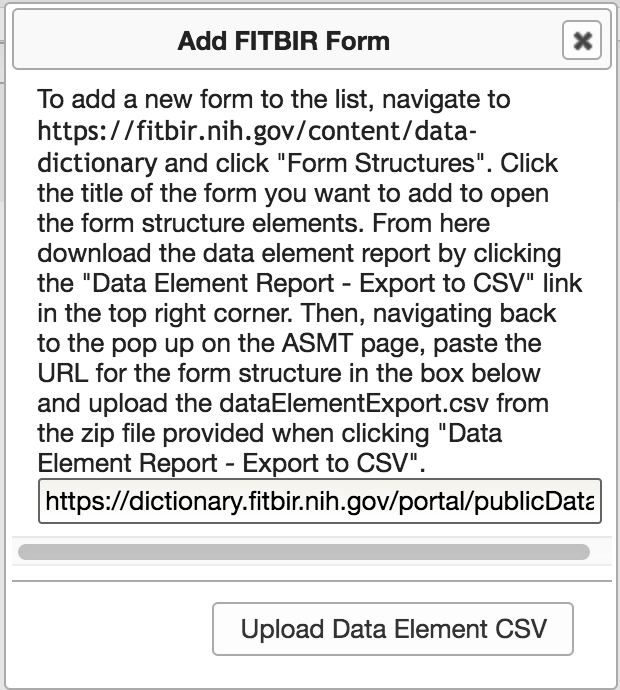
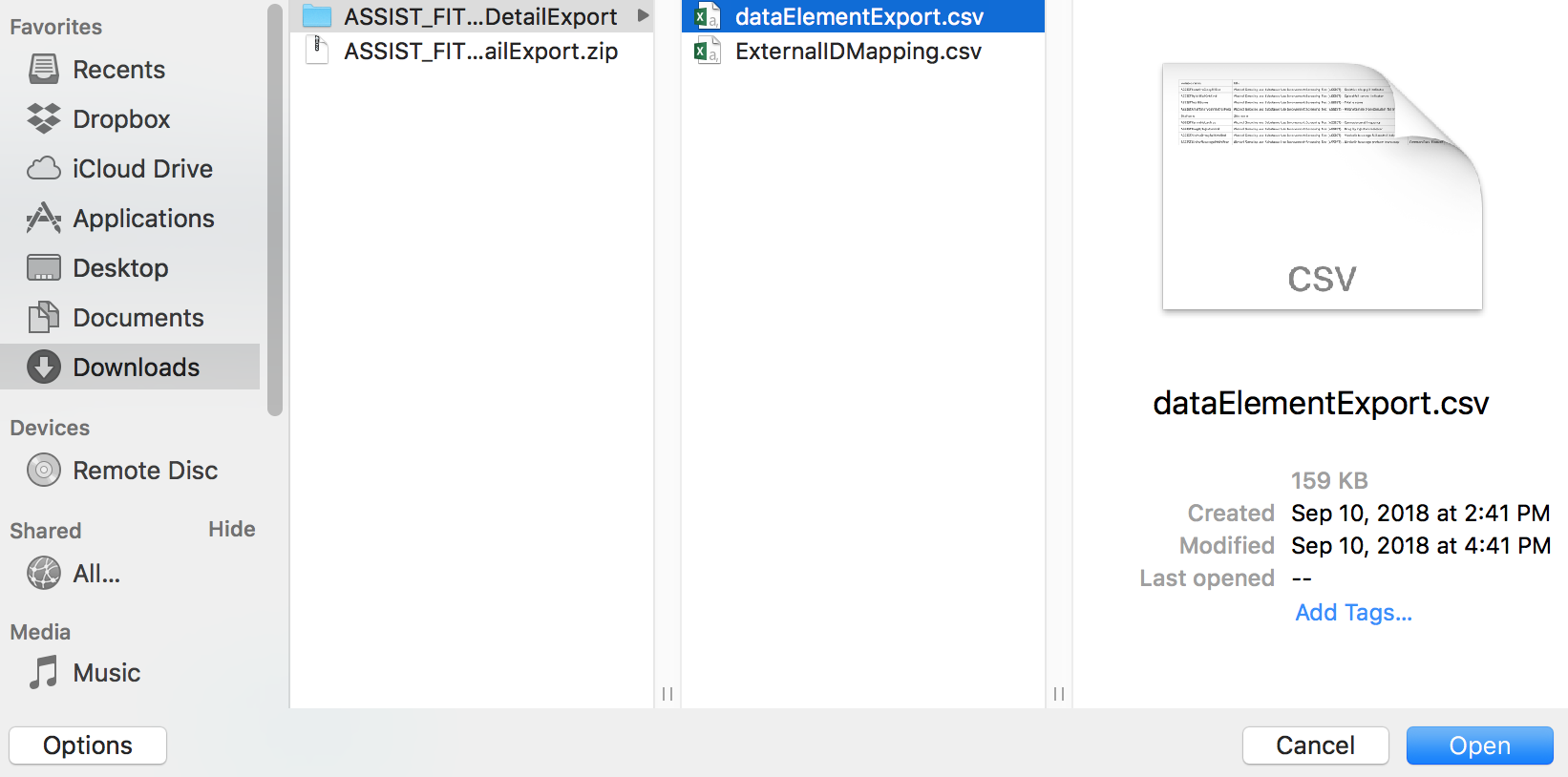
In this pop up, paste the URL for the form structure in the FITBIR Instrument URL box and upload the dataElementExport.csv from the zip file provided when clicking "Data Element Report - Export to CSV". Note: When pasting the URL for the form structure, you must use the unauthenticated URL for the form and not the URL you get when logged in to FITBIR.
You will be notified that the instrument was added successfully and that you should refresh the page. The instrument should now appear in the FITBIR instrument drop down.
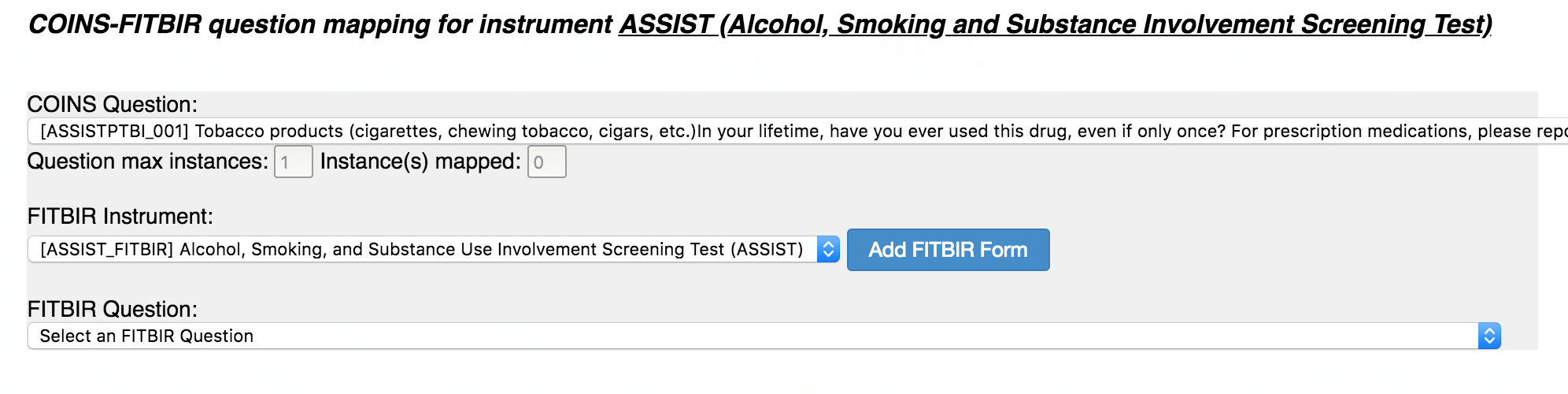
Once you have the FITBIR instrument added to the mapping page, you can start to map your questions and transform your responses. For more on mapping and response transformations, click here.
Comments