To access the radiology worklist, click Worklist from the Radiology menu. Here a list can be seen of the current scans that need to be reviewed.
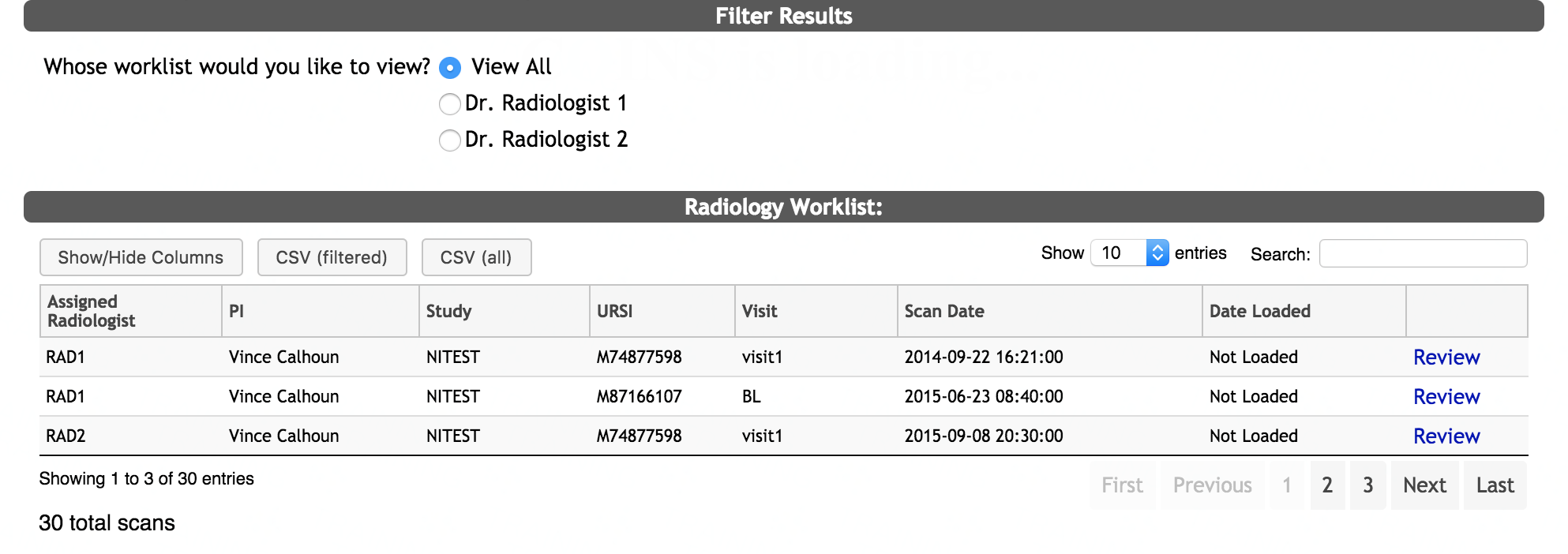
The list can be filtered by selecting the radio button for the radiologist you want to see or by selecting View All. The list will filter upon the click of the radio button.
A list will generate showing the following items:
- Assigned Radiologist - radiologist who has been assigned the scan
- PI - the PI for the study the scan was done under
- Study - the study the scan was done under
- URSI - URSI for the subject scanned
- Visit - the visit the scan was done at
- Scan Date - the date of the scan
- Date Loaded - the date the scan was loaded to ownCloud storage
From here, users who are on the radiologist list can click Review to review the scan. Users who are not on the list will see ‘Review Blocked’.
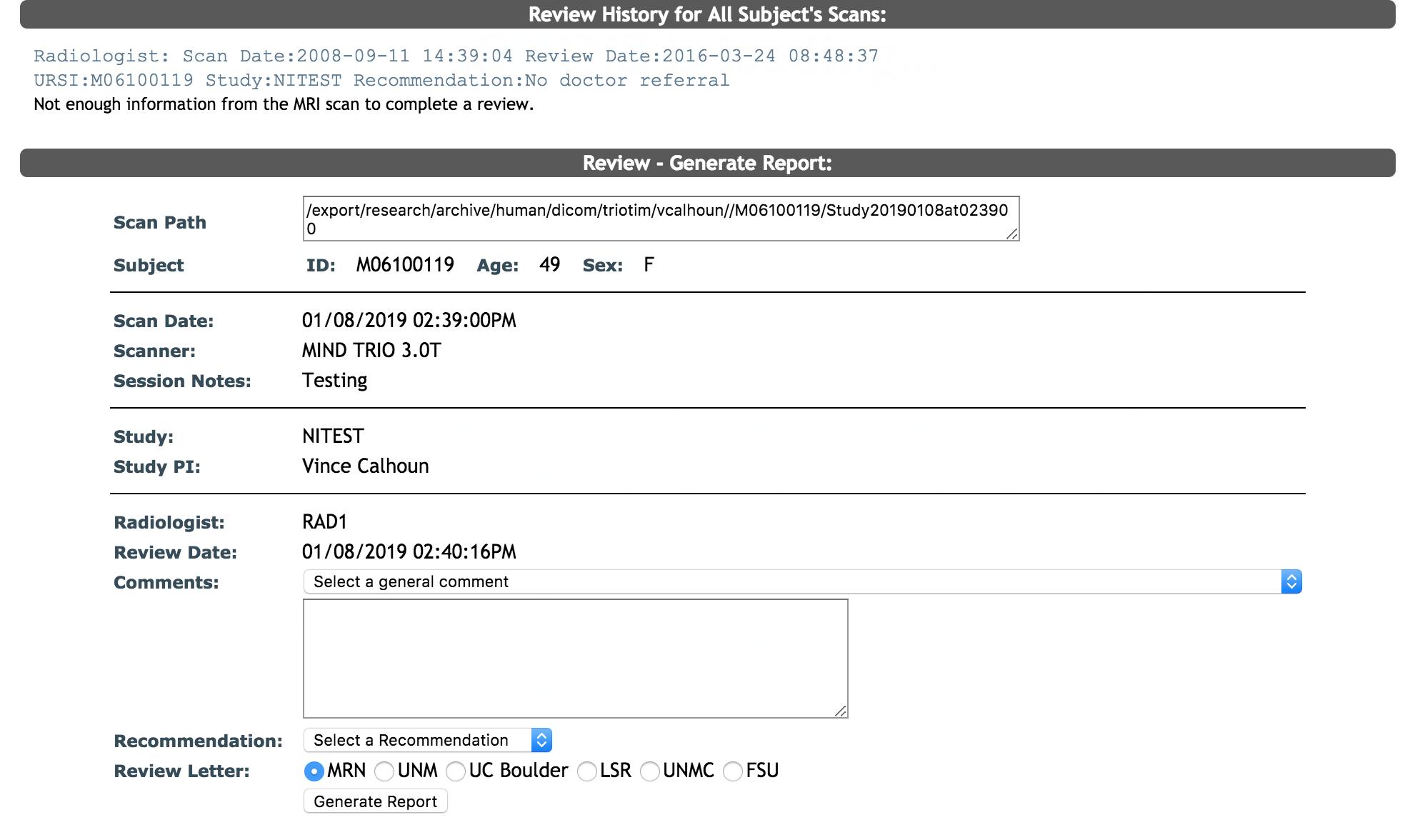
After clicking Review, the radiologist can see past radiology review history for this subject if they have been scanned before as well as the subject's details and study information.
The following items will be listed for the radiologist to complete:
- Comments - select from a drop down list of general comments then enter any specific comments in the free text field below the drop down list
- Recommendation - select a recommendation from the drop down list of No doctor referral or Doctor referral
- Review Letter - select the correct site radio button for the review letter from the list of sites
After these items have been completed, the radiologist can click Generate Report.
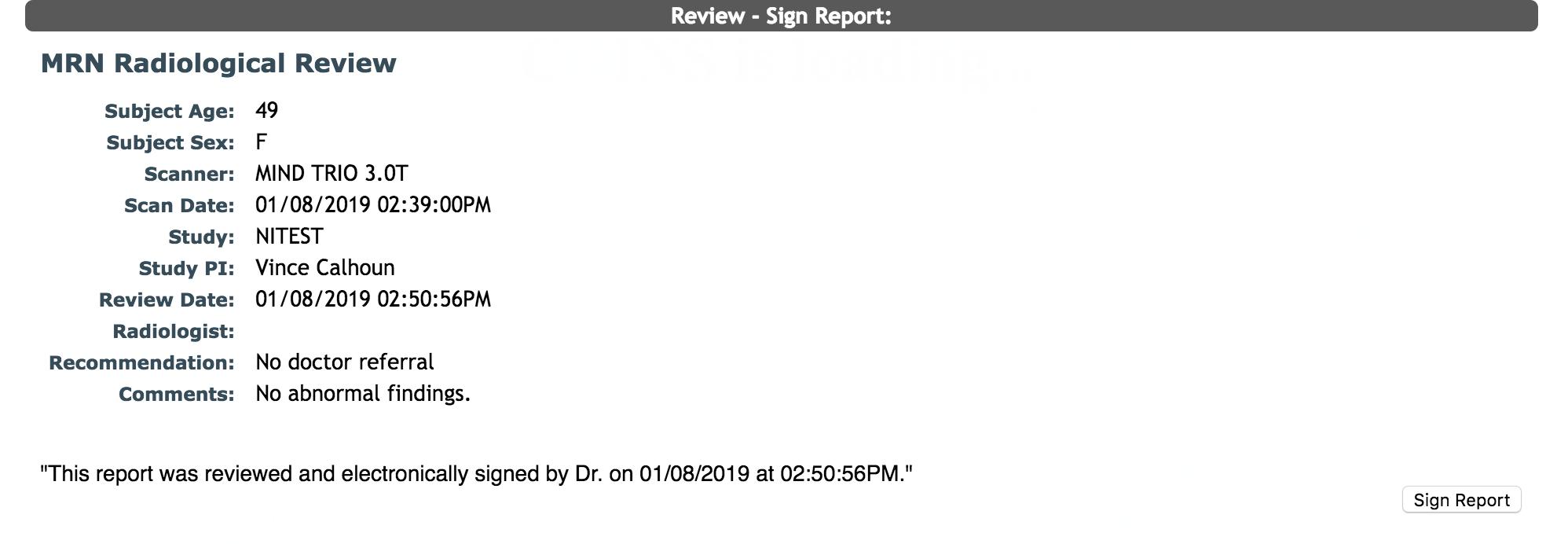
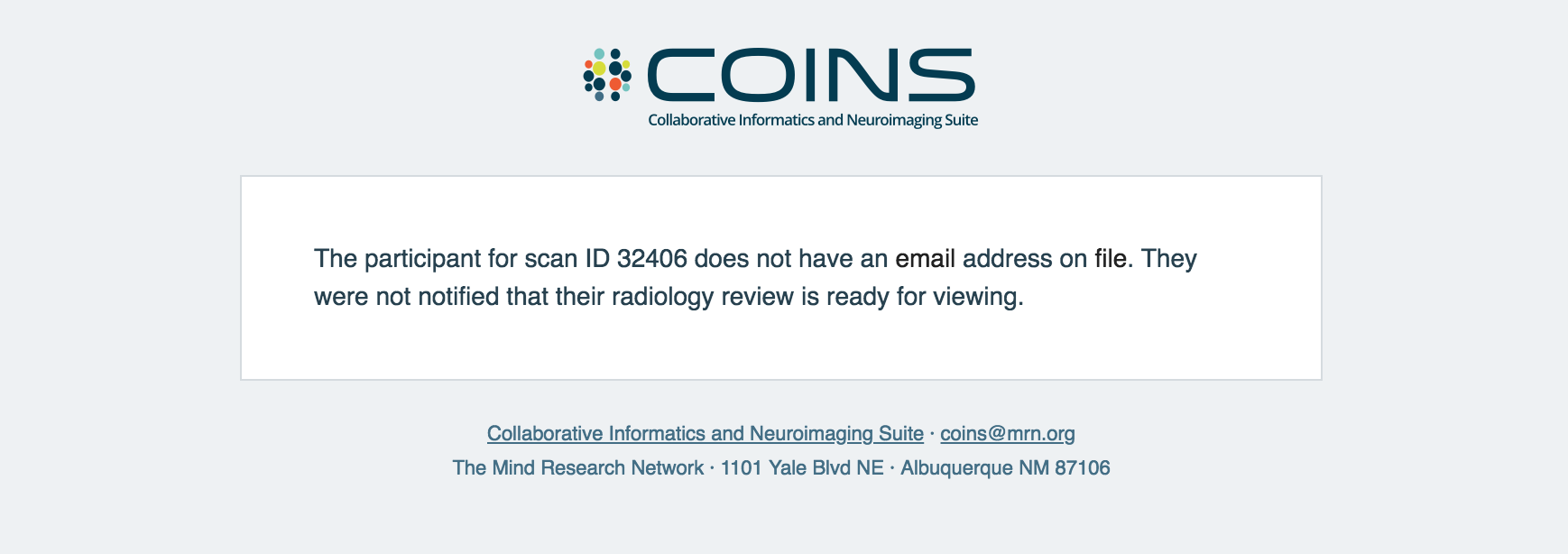
On this page, the report can be electronically signed and a PDF of the review can be generated from subject Scans or List Scans for individual subjects. Alternatively, a batch of indicated reports can be created in Radiology Review Letters. If email notifications about radiology review completions are enabled, the participant will be sent an email to the address on file with the text indicated in feature's options. If there is no email address on file, an email will be sent to the site admin address listed notifying them of the delivery failure.
Comments