There are times when assessments that have been entered are either no longer needed or have faulty data and you would like to remove them. COINS currently allows users to hide and, in some cases, delete assessments. This article will outline the options that are available to remove assessments and the differences between these options. It will also give you a step-by-step guide on how to complete the option that is best for you.
Deleting Assessments Vs Changing to Faulty: What is Best?
Deleting assessments from the assessment search table will remove the assessment completely. You will not be able to access the assessment again. There is another option that removes assessments from the main study data, while allowing them to be accessible in the future. One of our Data Entry Types is labeled Faulty Entry. This is useful if you might want to recover the data in the future. Changing an assessment's Data Entry Type can be done by editing the assessment properties (see Updating Assessment Properties below). This is useful because if you decide that you do want the data after all, you can simply change the Data Entry Type back to Clinical Study.
There may be instances in which it is better to delete the assessment completely (see Deleting Assessments from Search Table below). For example, if you have a participant who is re-completing an assessment (i.e. you are re-screening them for a study), you can change their existing data to Faulty Entry so that they can re-complete the assessment. However, if they are re-screened again, you would not be able to change the second set of data to Faulty Entry because they already have faulty data for that assessment and it would exceed the max instances. If you want them to re-complete again, you would want to completely remove the previous set of data.
Below, you will find instructions on how to search for assessments and the different methods for removing assessments are discussed in detail.
Search for Assessments
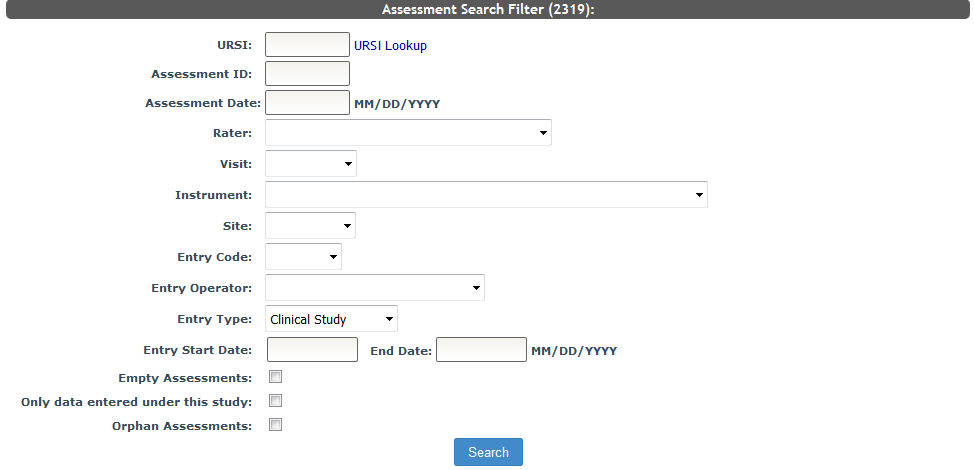
To search for your assessments, go to Search Assessments through the Manage menu. You can use this tool to view all assessments records in your study. Use the filter criteria to find the assessment of interest.
Deleting Assessments from Search Table
Once you have searched for your assessments, a search table will be presented with all of the assessments that meet your search criteria. You will also see a section above the table labeled Assessment Options.
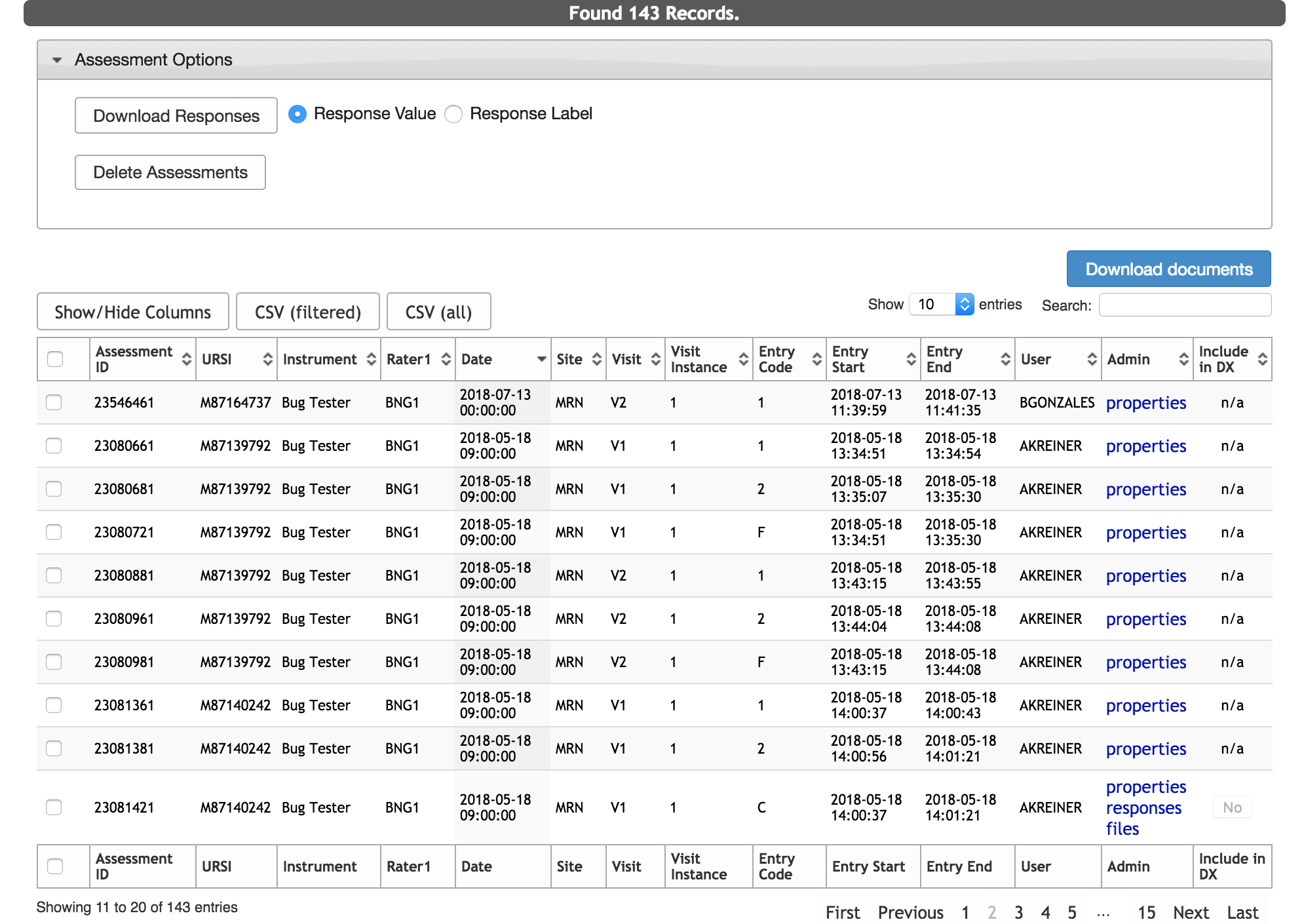
To delete assessments from the search table, click the checkbox next to the assessments that you would like to delete. Then click Delete Assessments under Assessment Options. You will be shown a preview of the assessments to be deleted. Click Continue to delete the assessments. Any assessments that you delete from the search table will be removed completely.

Only assessments with the following Entry Codes can be deleted from the search table:
- R - Review Queue assessments
- P - Pending assessments
- C records that aren't dual entry
Any assessments that are part of a record set (1, 2, and C or 1, 2, and F) cannot be deleted from the search table. For more information on how to delete assessments associated with record sets, see the Deleting C (Complete) and F (Failed Dual Entry) Records in Assessment Properties section below.
Updating Assessment Properties
Once you have looked up an assessment, you can click Properties from the search table to view or edit the assessment's cover sheet properties.
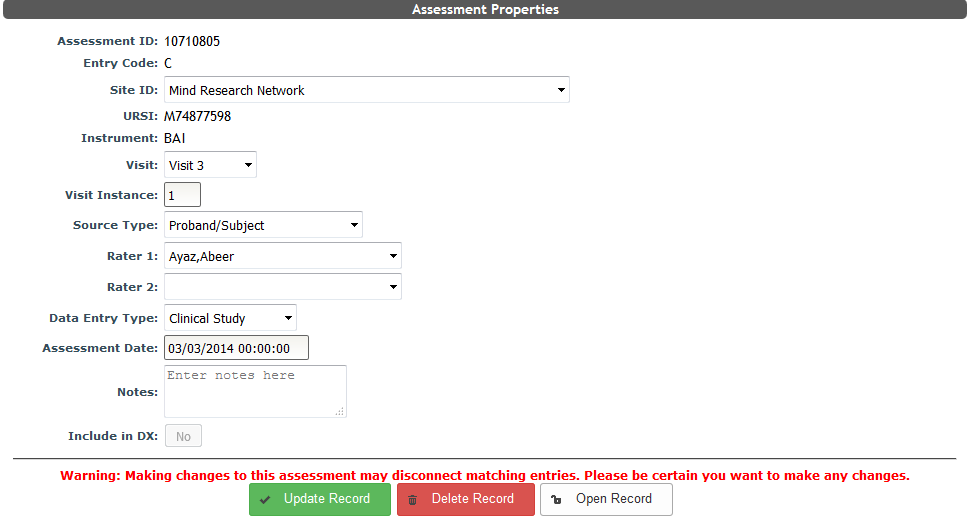
Click Update Record to change any of these properties. If you need to change the assessment to faulty, select Faulty Entry from the Data Entry Type drop-down.
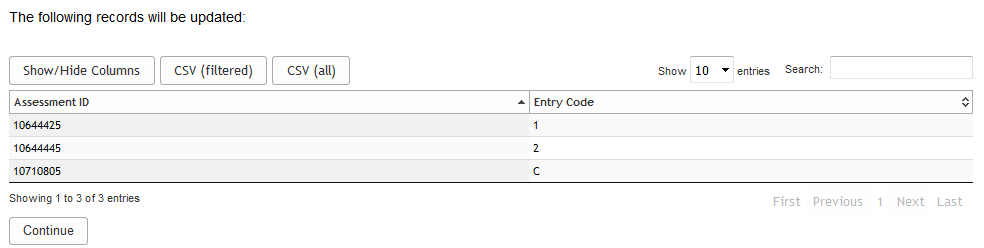
If the record being updated is part of a record set, 1, 2, and C/F, the whole set will be updated with the change being made. This is to protect the record set from being disconnected. Records that are staged for updating will appear in the update list.
Deleting C (Complete) and F (Failed Dual Entry) Records in Assessment Properties
If the assessment is a Dual Entry C record, it can be deleted. Once deleted the C will be removed and the 1 and 2 records will be repopulated with the C’s responses. The one and two record will be in the resume entry queue of the user who deleted the C record. F records can also be deleted. Upon deletion, the F will be removed and the conflicting one and two records will be in the resume entry queue of the user who deleted the F record. Click Delete Record in Assessment Properties to perform these actions.
Comments