Data Criteria
Prior to starting this step in Query Builder, please select your subjects.
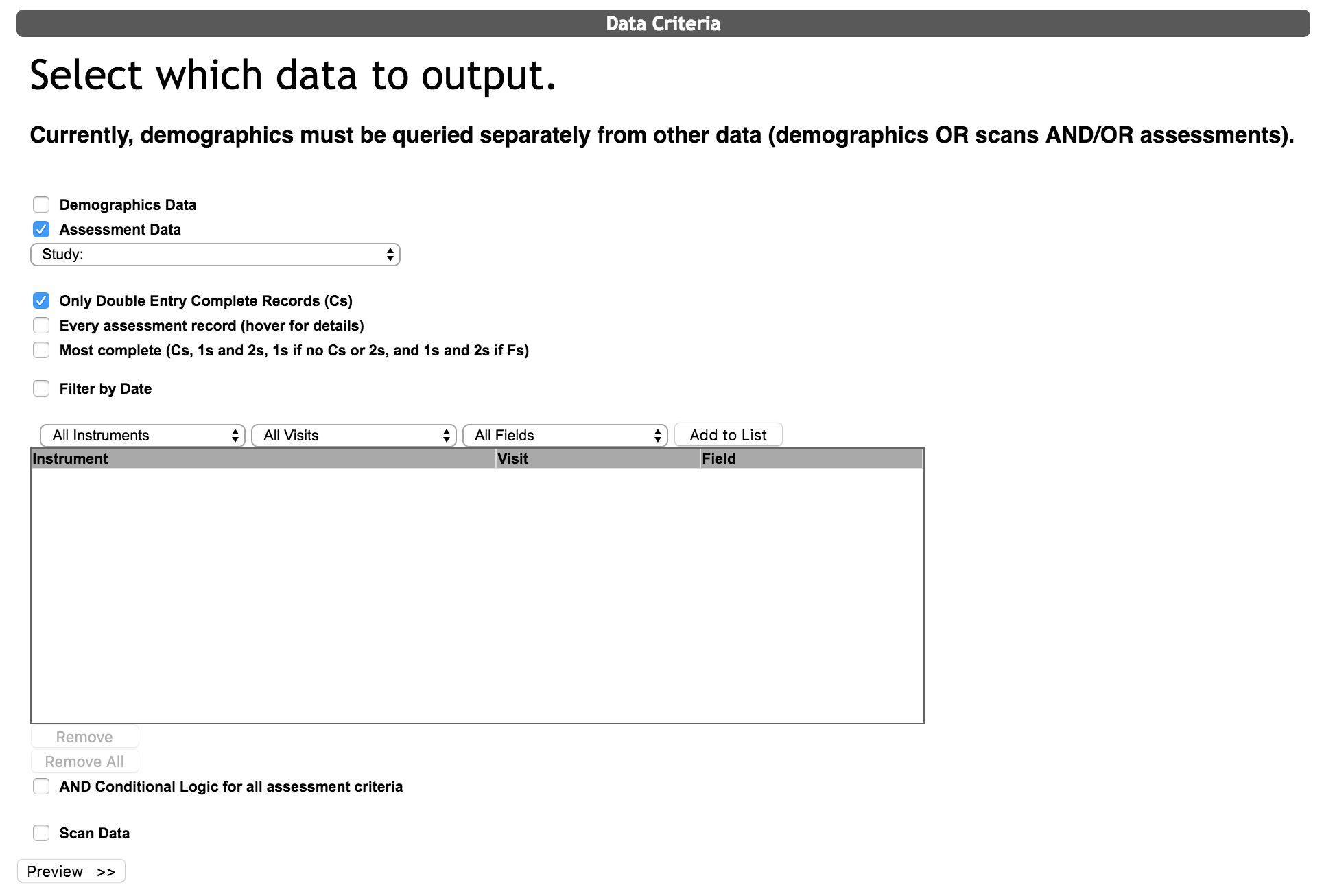
Select the Study from the drop down list for which you would like to querying assessment data. Select the type of records that you would like to export.
- Only Double Entry Complete Records (Cs): this will only pull Complete records, including double entered paper assessments, complete direct/ongoing entry records, complete self assessment records.
- Every assessment record: this will pull - Complete Entry (C), 1 records if no Complete or 2 records are available, and 1 and 2 records if they are associated with Failed (F) records, Self Entry Pending (P), Self Entry Review (R), Direct Entry (S), Ongoing Direct Entry (O).
- Most Complete: this will pull – Complete records, 1 and 2 records , 1 records if no Complete or 2 records are available, and 1 and 2 records if they are associated with Failed records.
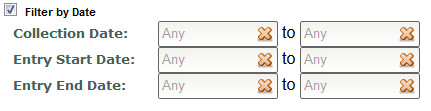
You can also query by date by checking the Filter by Date box. From here you can filter the assessments by Collection Date, Entry Start Date and Entry End Date.
All Instruments created, copied or shared with the study appear in the All Instruments drop down list. Once you select an instrument the Field drop down will be populated with the questions that are associated with that instrument. The visit drop down is populated with the Study Visits that have been created for the study on the Study Details page.

Select the instrument of interest, the specific visit for which you would like to export data (or else select All Visits), select the question of interest (or All Questions to pull all of the questions from that instrument) and click Add to List. You have the ability to add questions from different instruments to the list with the same process. Questions that are populated in the list can be removed by select the question and clicking Remove. All questions listed in the list can be quickly removed by clicking Remove All. Questions can also be sorted by dragging and dropping. Note: Data is exported in the order it is listed in the export list.
Selecting AND Conditional Logic for all assessment criteria will retrieve subjects who have all specified criteria (i.e., all questions that have been added to the list) and exclude any subjects that do not have data for the selected questions.
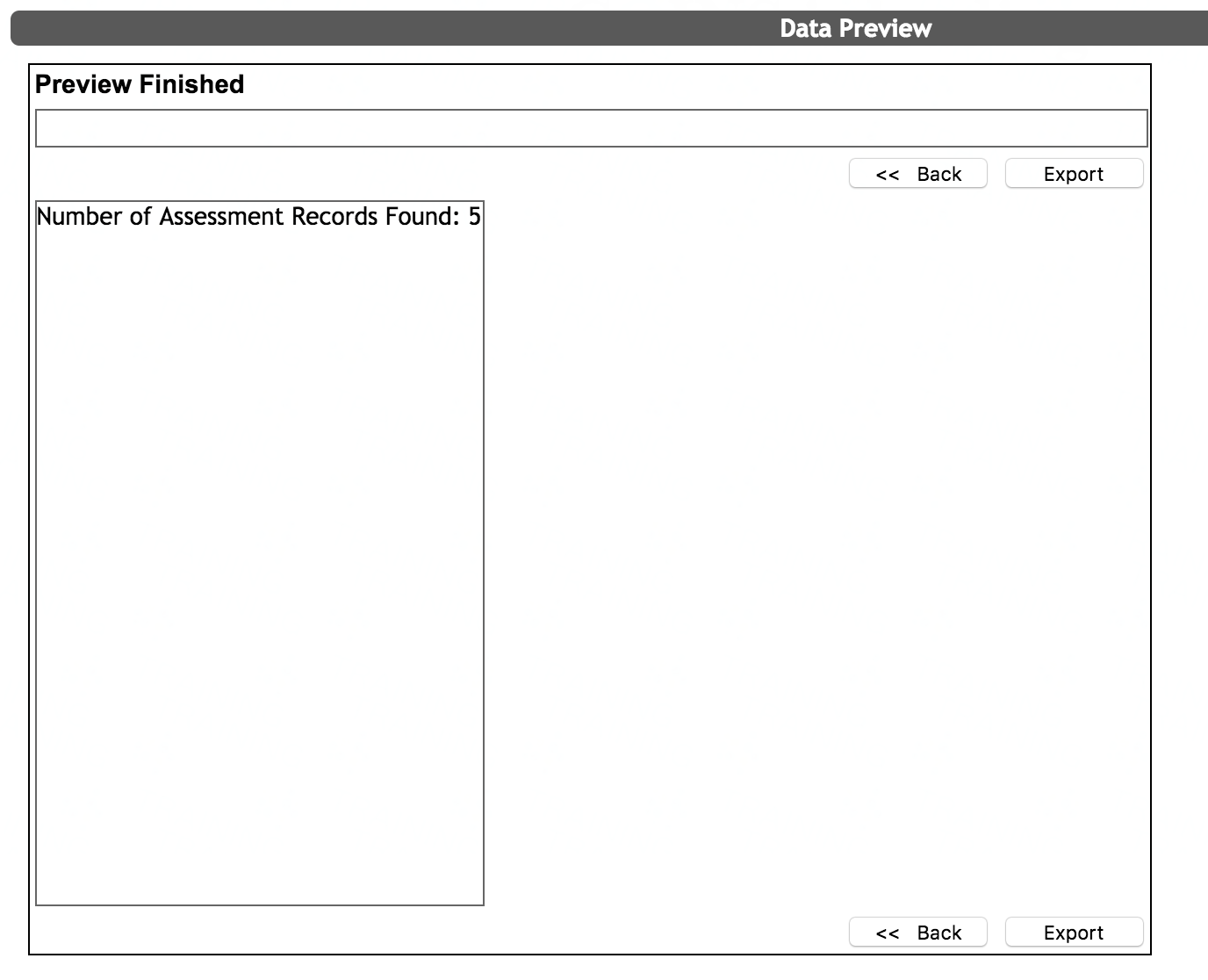
Click Preview>> to continue to the export page. After clicking Preview, you will be shown a Data Preview. Click Export to continue or <<Back to return to the Select Subjects and Data Criteria page.
Export Options
The Legacy Export has a lot of options of help optimize the customization of your downloadable data file. However, as queries get large, we recommend using the default High Volume export to retrieve data. The High Volume export has streamlined export options to make large data queries possible. Visit each export page for more information.
Comments