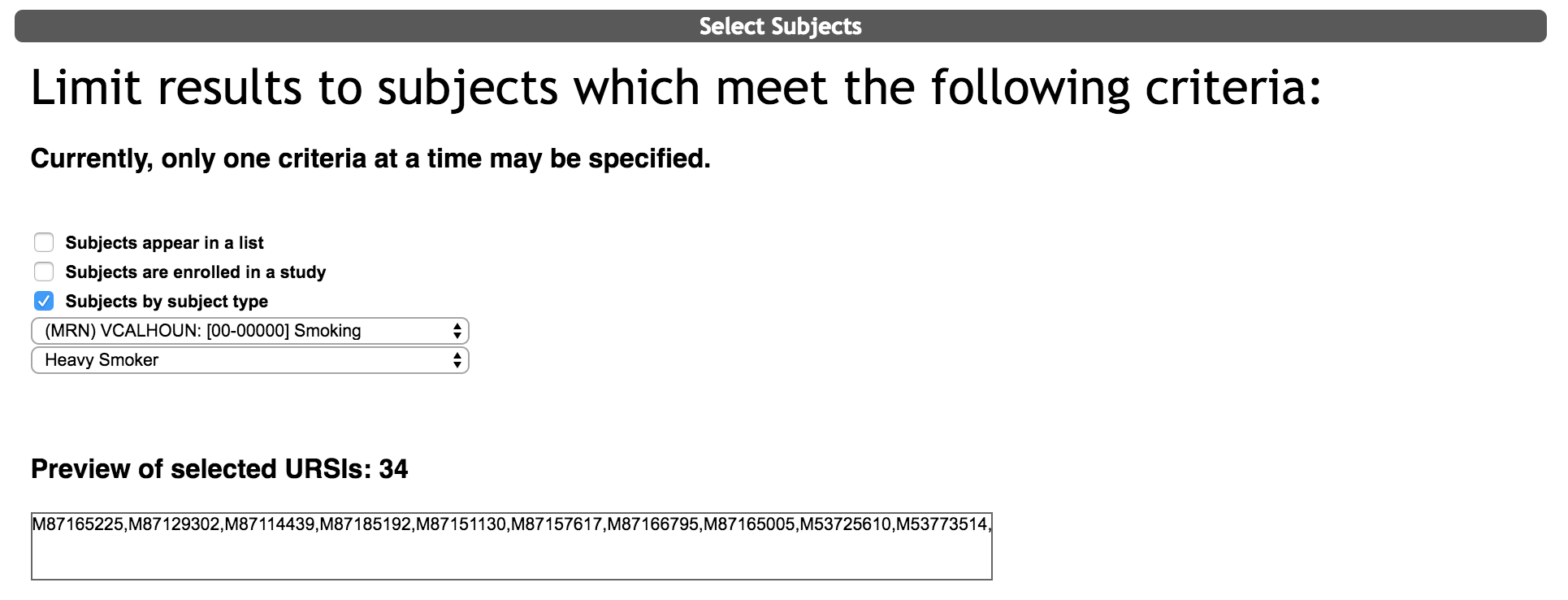
To build a query, the first step is to choose the subjects for which you would like to export data. You can select the subjects to query three different ways.
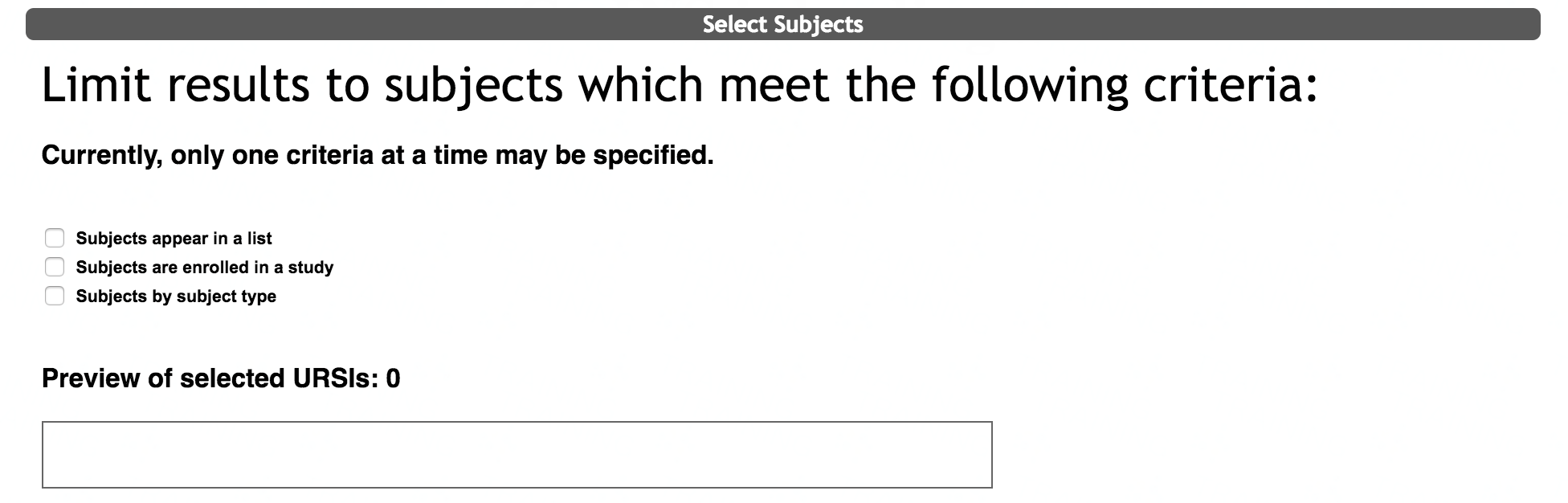
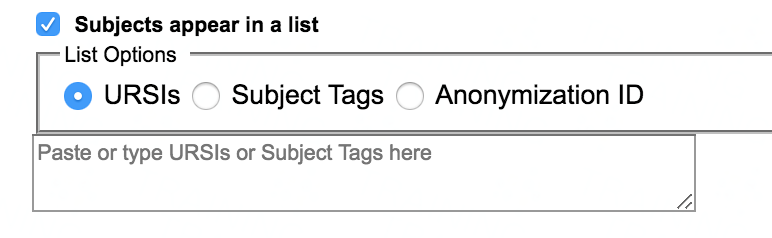
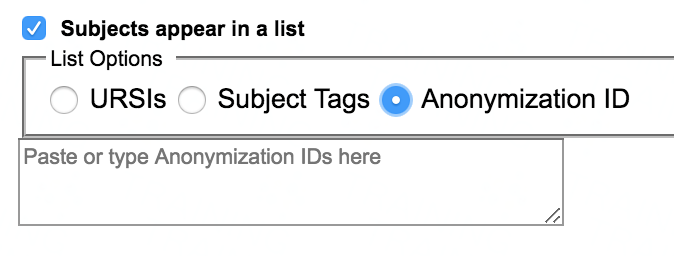
- Subjects that appear in a list: type or paste a list of URSIs, Subject Tags, or Anonymization IDs into the text field that appears. For more on Subject Tags, click here.
- Subjects are enrolled in a study: select a study in the drop down menu. This will populate all of the URSIs enrolled in the chosen study. Note: Only studies that you have access to will appear in this drop down list. You will also have the option to select Subjects across all studies that you have access to.

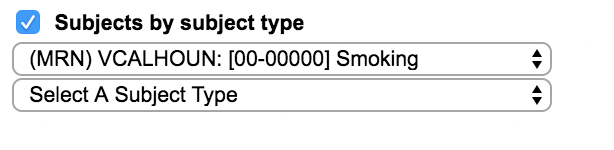
- Subjects by subject type: select the study you wish to look up subject types for from the drop down list, then choose the subject type. Note: only types for studies that you have access to will appear in this drop down list. For more on Subject Types, click here.
The subjects that meet the selection requirements will have their URSIs generated into the Preview of selected URSI box with the amount listed. Note: There will be no URSI preview for queries using anonymization IDs.
Now that you have selected which subjects to query, you can start choosing your Data Criteria. For more on Data Criteria, click here.
Each export will show the queried URSI and the oldest URSI. Sometimes the oldest URSI will have tildes (~) around it. Click here for more information on this.
Comments