This tool is used to update assessment responses for existing completed assessments in batch form through a CSV file, rather than editing assessment responses individually. Users with coordinator permissions and above will have access to this tool. First, select your study and then select Update Assessment Responses from the Admin menu. Click Generate Template to download the import template.
Note: At this time, only data for text and canned response questions can be updated using this tool.

Import Template
The key to successfully updating responses is correctly filling out the import template. The exported template from COINS will give you examples as a guide. Carefully complete the template and when done, save the template as a CSV, as this is the only format that is accepted upon upload.

Complete the CSV with information about the assessment(s) you would like to edit. If you are updating responses for multiple assessments, each assessment should be on its own row and all information for the assessment should be on the same row. Each question response you are updating should be labeled according to the template example, with the updated responses below it.

Once you have filled out the template, save it as a CSV and then click Select file to import. You will be notified that your import was successful. If there are errors in your file, you will be notified which questions are invalid and why. You can search for your assessments and see that the changes were made.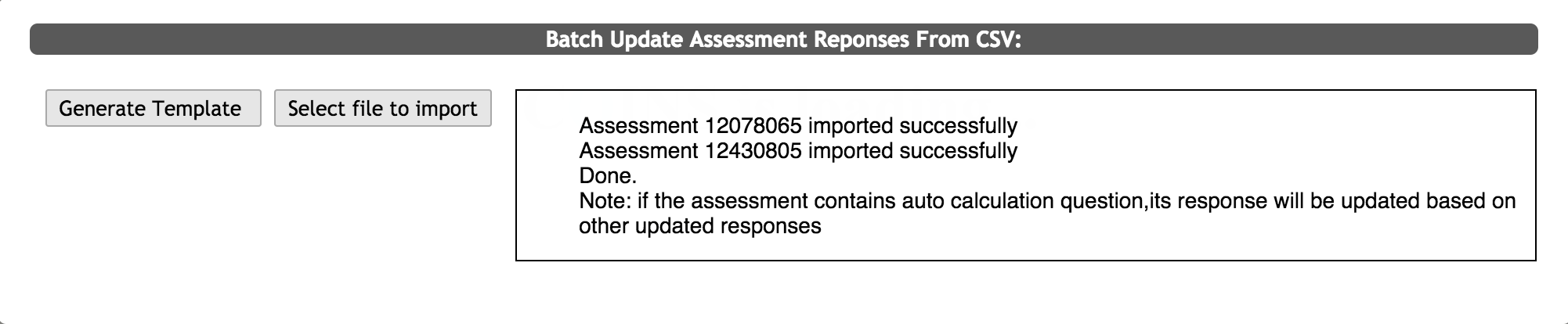
Adding Brand New Responses and Removing Data
If you add a question to an instrument after an assessment has been completed, you can use this tool to add a response to that completed assessment for the new question. Simply fill out the template as you normally would with the new question and response.
Alternatively, you can also completely remove responses using this tool. If you would like to delete the response for an assessment instead of change it, enter ::blank into the cell of the template. This will remove the response.
Comments